Overview
LoyalVoice allows your existing 2-way SMS number to receive incoming phone calls or make outbound phone calls from your business portal. You can choose how those calls are handled. You can forwarded to one or more phone numbers, routed based on business hours, or sent directly to voicemail. All voicemails are available in the Message Hub for easy access and tracking.
For more information on setting up LoyalVoice, check out this article: Setting Up LoyalVoice.
Please note: this is an add-on feature. Contact puppylove@runloyal.com to get this enabled.
Loyal Voice can be viewed in the following areas:
- Settings > Business Setup > LoyalVoice
- Pet Owner Profile > LoyalVoice Icon
- Bottom-right corner > Loyal Voice Dialer
TABLE OF CONTENTS
- Overview
- Listen To LoyalVoice Voicemails from Pet Owners
- Place Outbound Call to Existing Pet Owners from Profile
- Place Outbound Call to Pet Owner Using Dialer
- More Information
Listen To LoyalVoice Voicemails from Pet Owners
LoyalVoice is an add-on feature. Please contact puppylove@runloyal.com to enable this add-on. Once LoyalVoice is enabled and set up following the steps in this article: Setting Up LoyalVoice, pet owners are able to call the phone number associated with your SMS. Based on your settings, the calls from pet owners can be forwarded to outside numbers or to LoyalVoice voicemail.
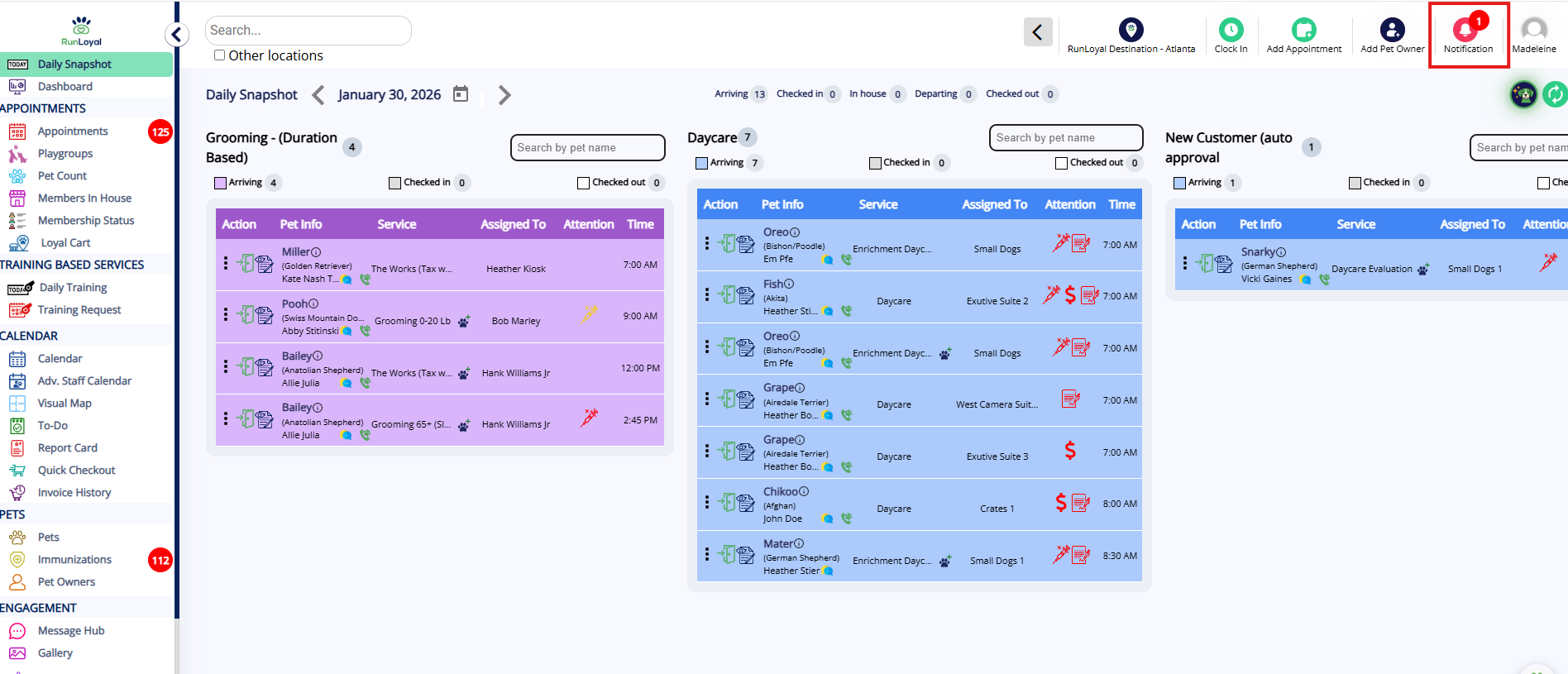
1. To view missed calls where the pet owner has left a voicemail, click on Notifications in the top-right corner.
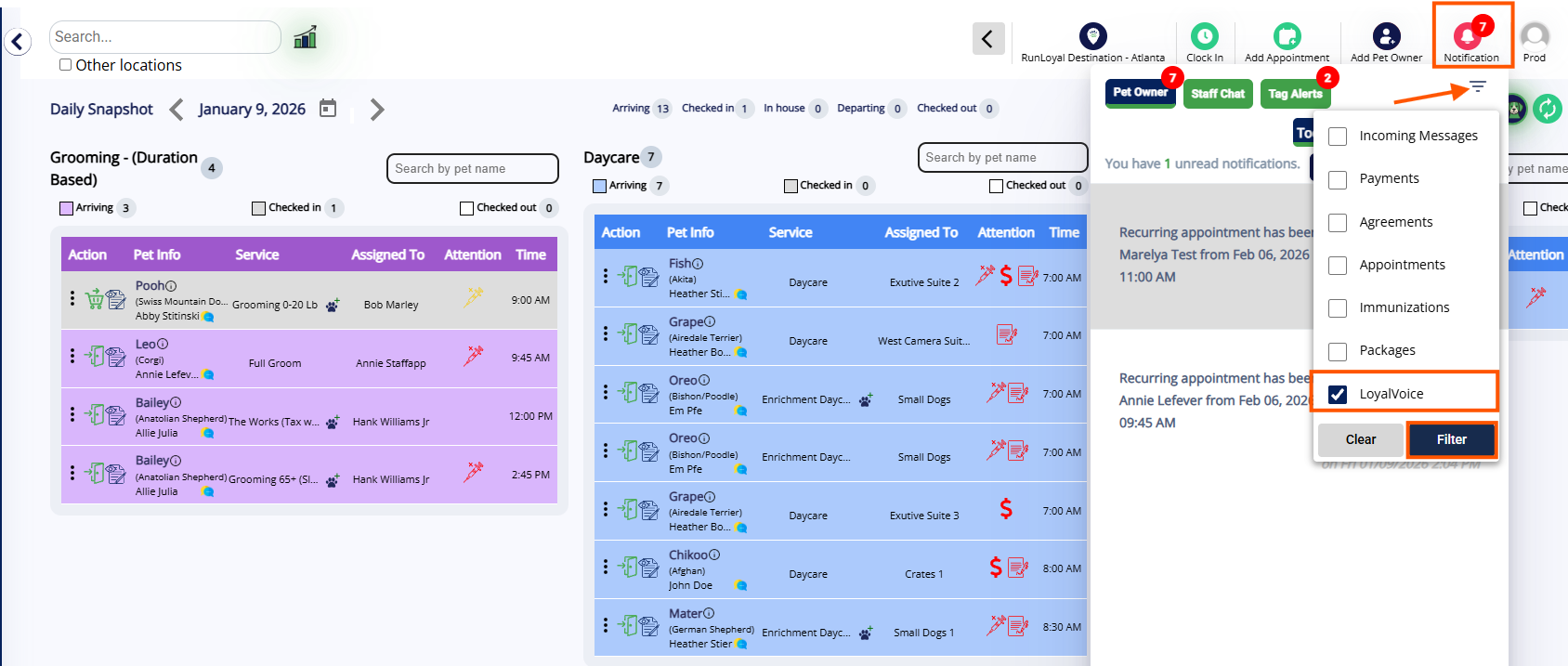
2. Select the filter icon, and check the LoyalVoice option.
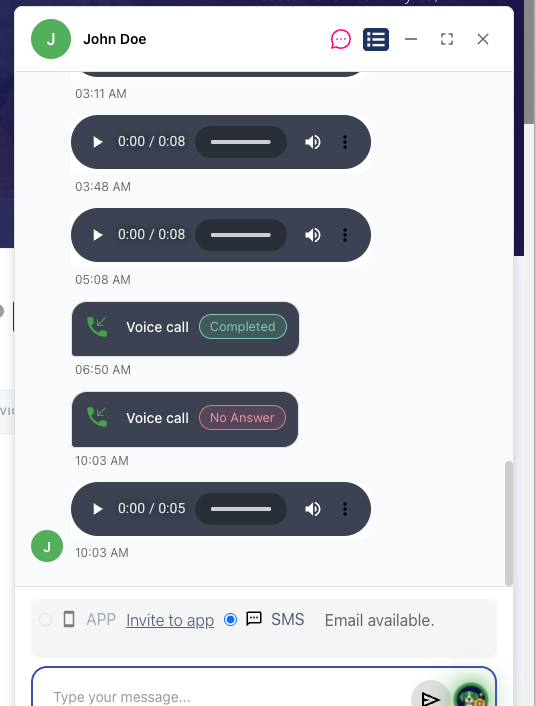
3. Select the notification in question. The Message Hub will open and display the associated voicemail as shown below. The voicemail can also be viewed directly from the Message Hub or the pet owner's profile.
Place Outbound Call to Existing Pet Owners from Profile
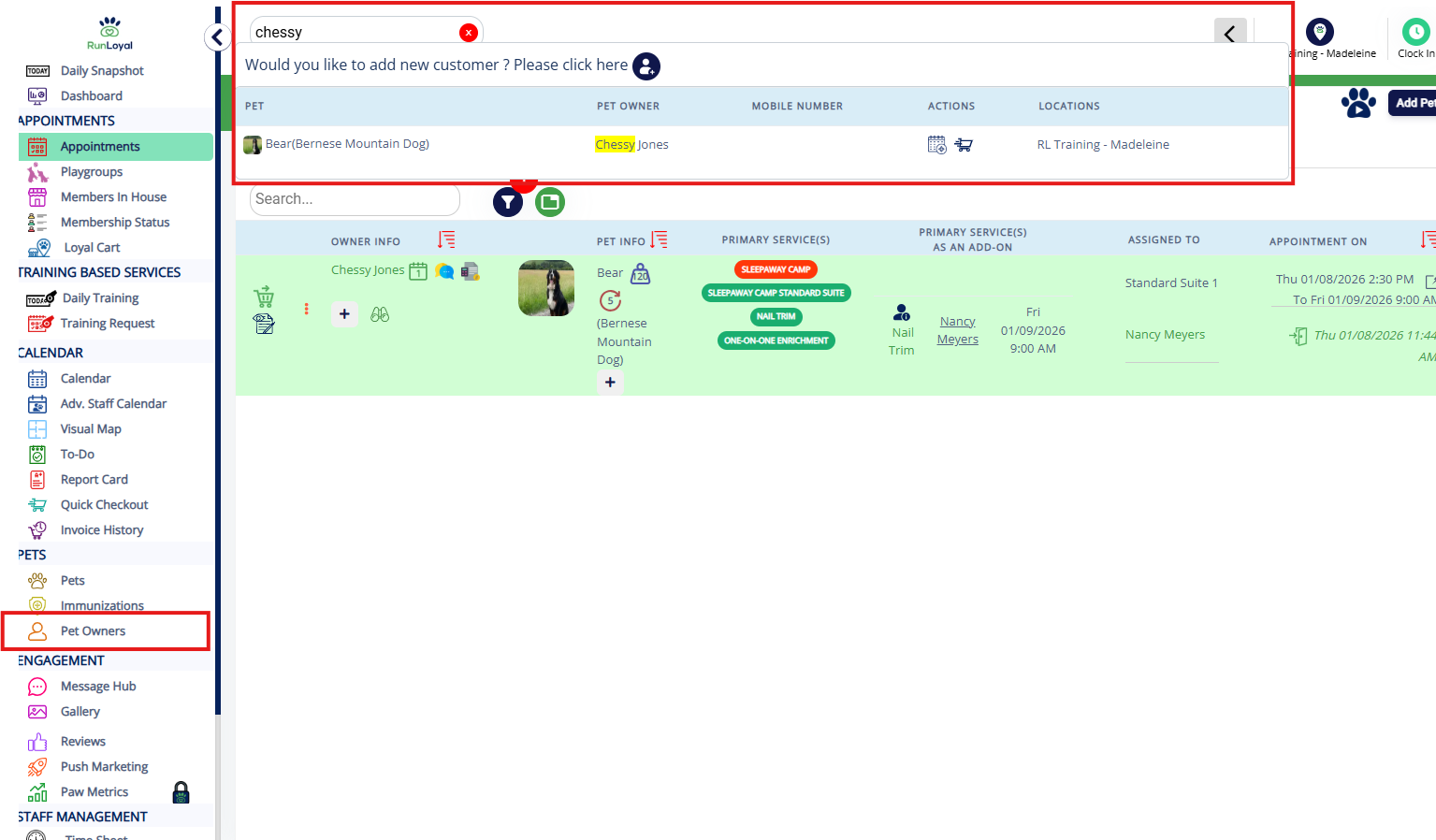
1. Navigate to any pet owner's profile by searching the pet or owner name in the search bar, or using the navigation bar to open the Pet Owners page.
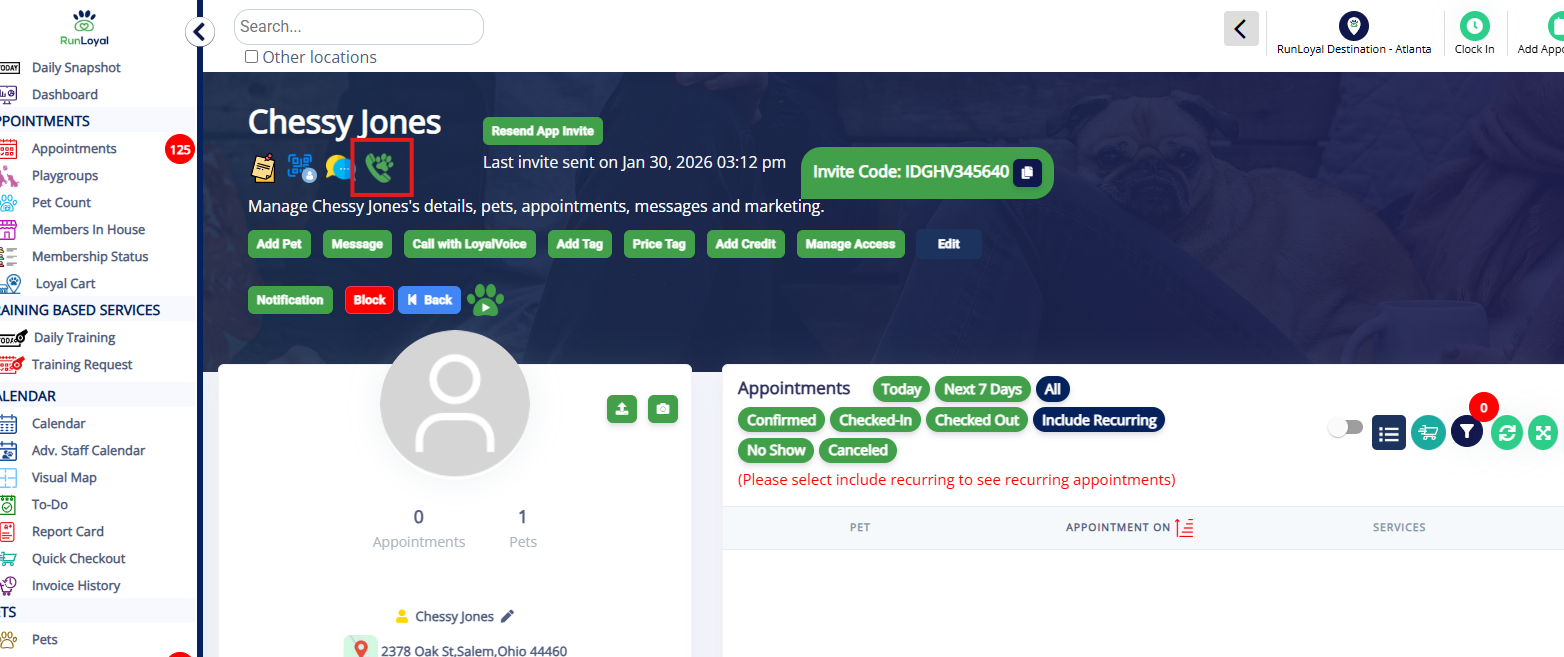
2. On the pet owner profile, click the LoyalVoice phone pawprint icon in the top left of the page, just under the client's name.
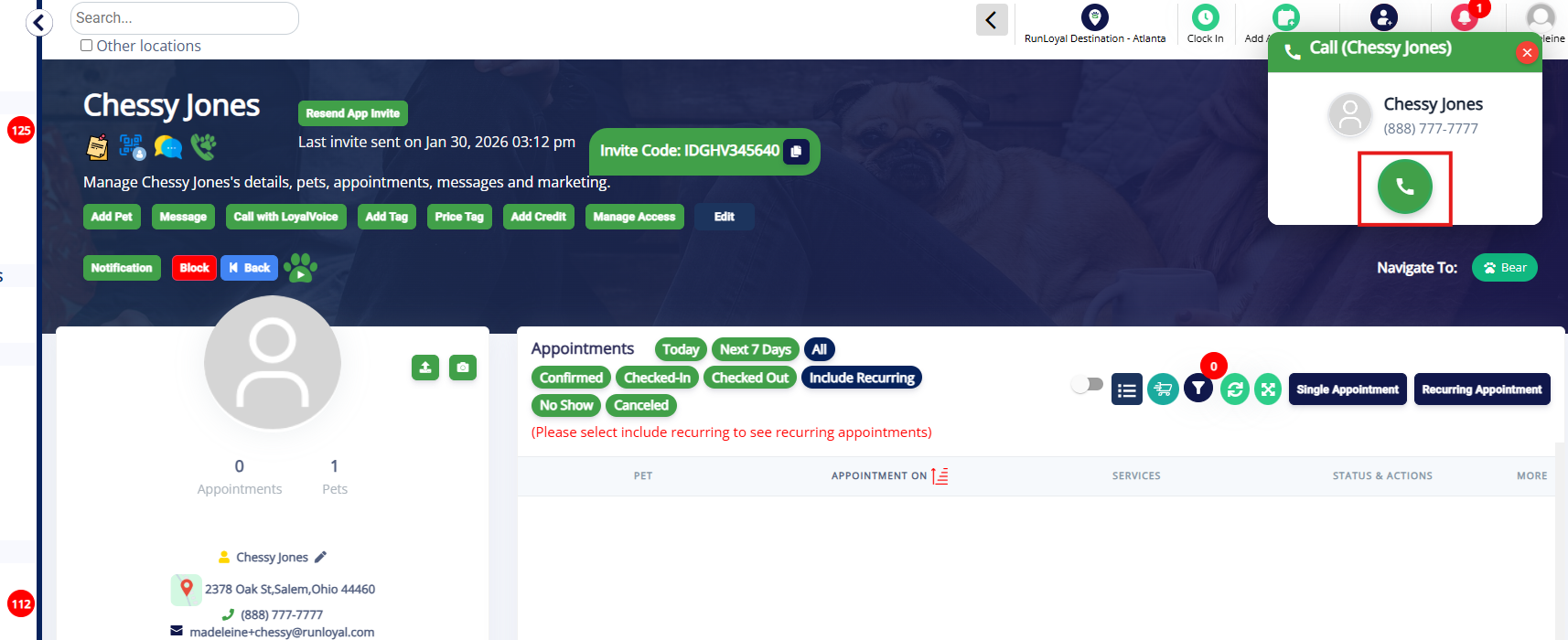
3. From the dialer popup, click Call (green phone icon) in the top right corner to place the outbound call. This will immediately call that number from your device.
⚠️ Important: Make sure your device microphone is enabled!
Place Outbound Call to Pet Owner from Dialer
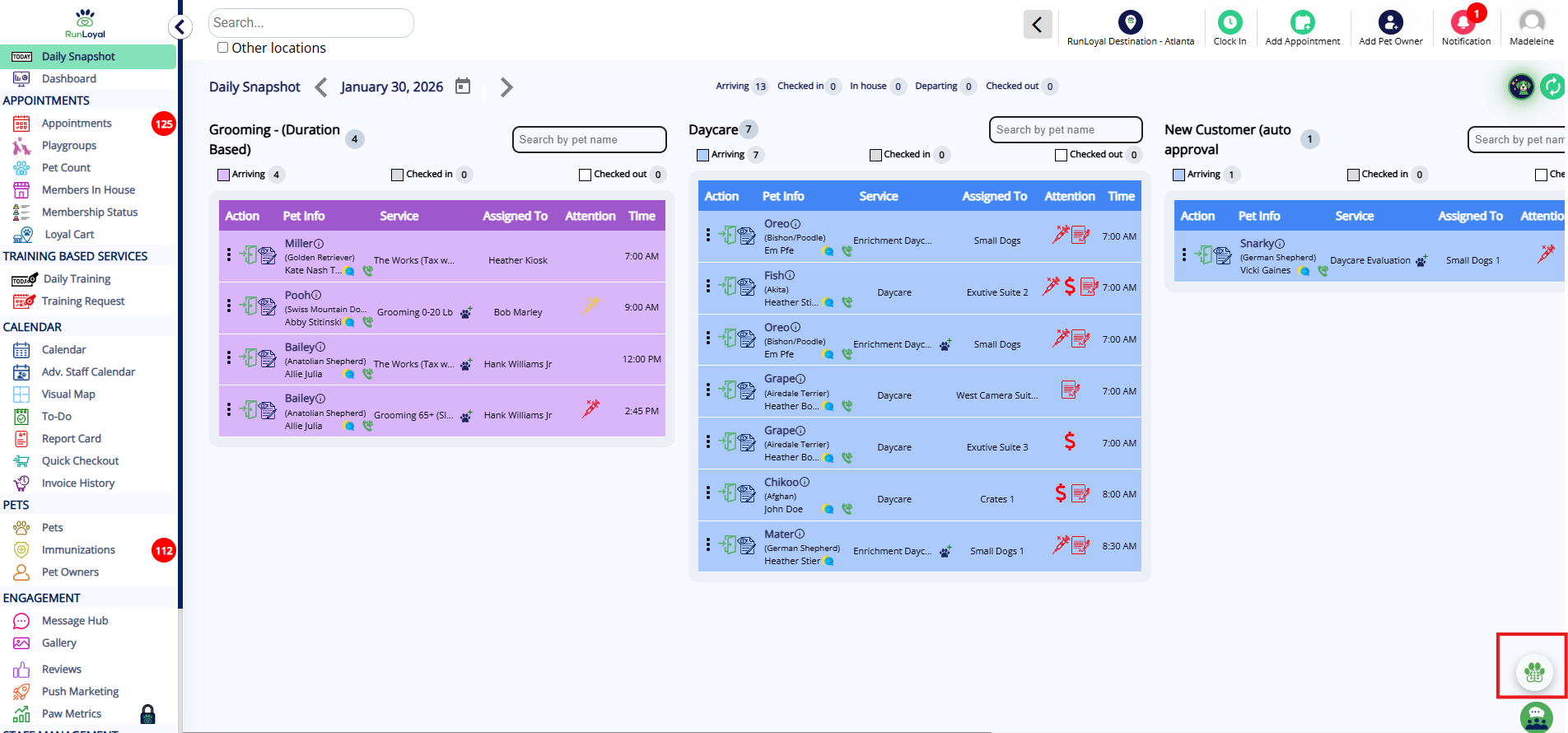
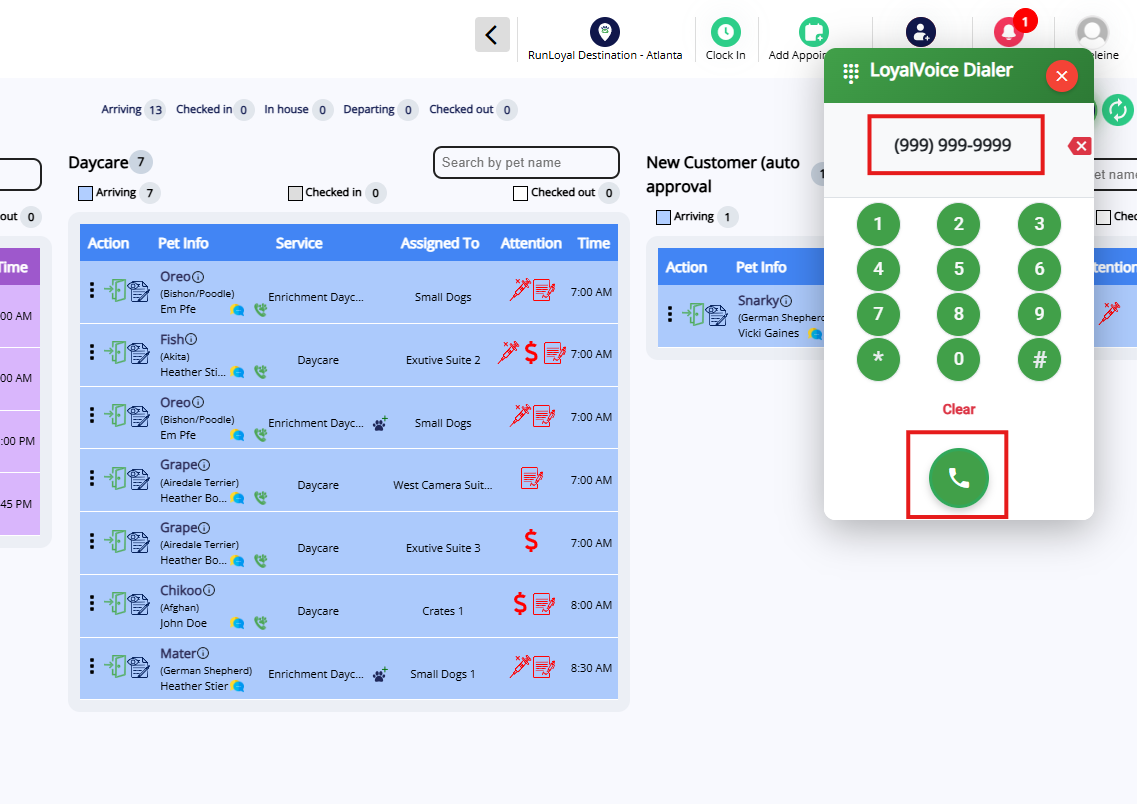
1. From any page in the app, click the LoyalVoice Dialer in the bottom right of the page.
2. Manually search for an existing account or enter the phone number if they do not have an existing account.
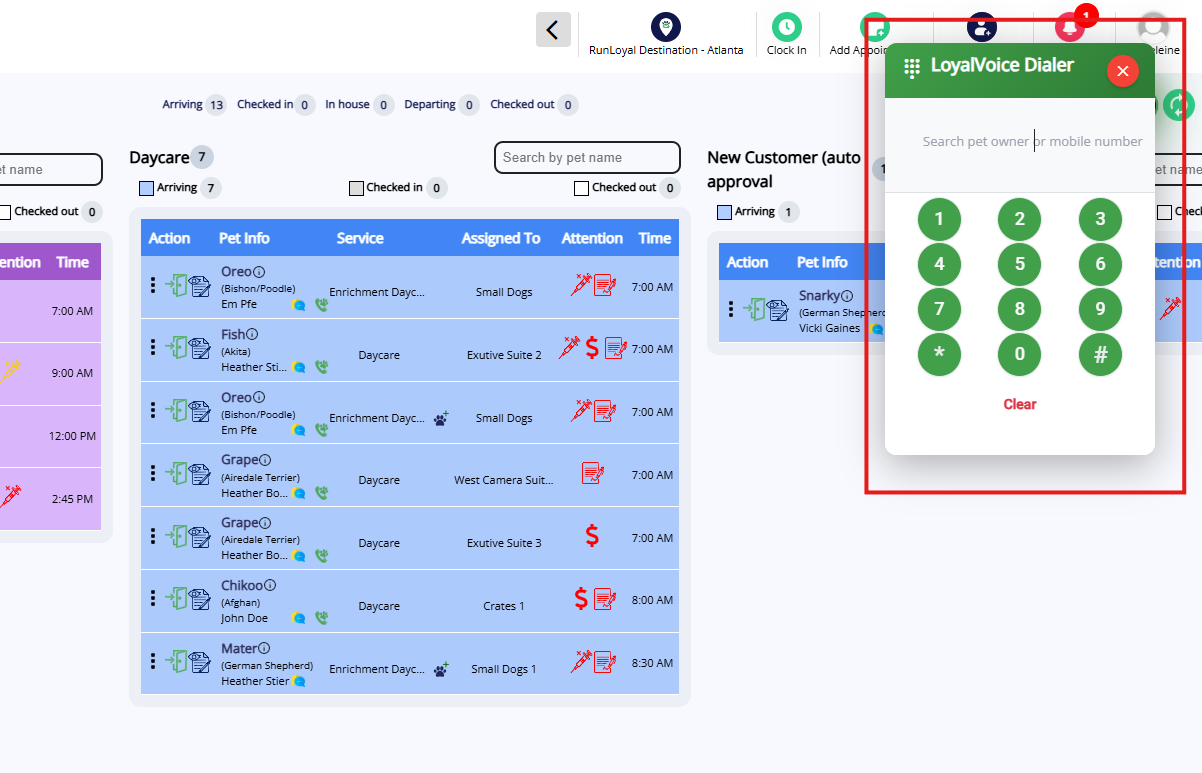
3. Once the number is entered correctly, click the Call green phone icon. This will immediately call that number from your device.
⚠️ Important: Make sure your device microphone is enabled!
More Information
For more information on setting up LoyalVoice, please refer to this article: Setting Up LoyalVoice.
Was this article helpful?
That’s Great!
Thank you for your feedback
Sorry! We couldn't be helpful
Thank you for your feedback
Feedback sent
We appreciate your effort and will try to fix the article