Overview
The Client Portal is a non-mobile, web-based customer interface designed to deliver a seamless booking and account management experience without requiring users to download an app. It combines the functionality of the Pet Owner App and the traditional Weblink, offering an enhanced user interface and improved overall experience. The portal mirrors the clean, intuitive layout of the RunLoyal mobile app while being fully optimised for web access.
Through the Client Portal, customers can:
- Make bookings
- Edit personal and pet information
- Purchase packages, memberships, and training services
- View past and upcoming appointments
The Client Portal can be accessed and configured from:
- Business Portal:
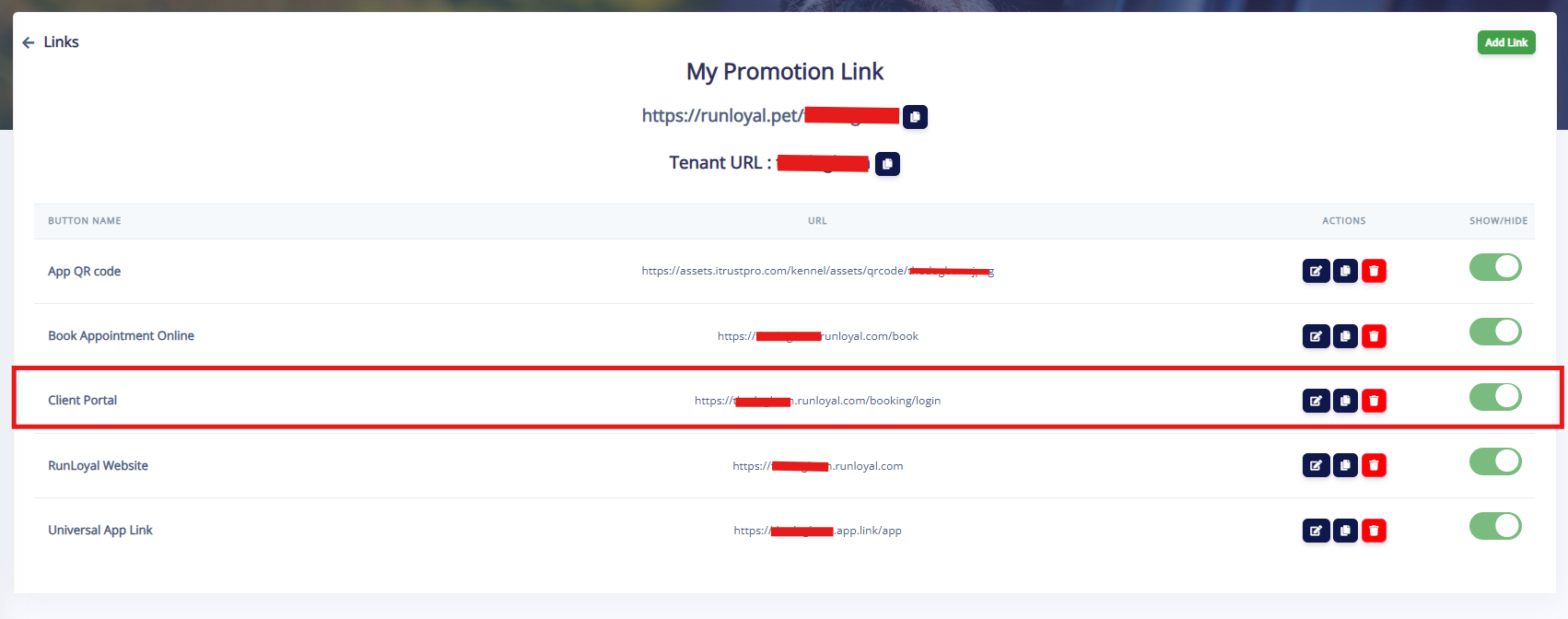
- Login Link(existing users):https://tenantName.runloyal.com/booking/#/login
- Booking Link(new or guest users):https://tenantName.runloyal.com/booking/
These links can be embedded in your website, sent via email or SMS, turned into QR codes, or shared on social media.
tenantName as a placeholder. Always replace tenantName with your actual subdomain as it appears in your RunLoyal portal URL. For example, if your portal is happypaws.runloyal.com, your tenant name is happypaws.TABLE OF CONTENTS
- Overview
- 1. Accessing the Client Portal
- 2. Key Functional Capabilities
- 3. Guest to User Conversion Flow
- 4. Direct URL Configurations
- Quick Reference Table
- More Information
1. Accessing the Client Portal
Website Booking Link
The website booking link enables customers to access the Client Portal via any browser. It is designed for web-based bookings across both desktop and mobile browsers.
- Copy your business booking link and replace
tenantNamewith your actual RunLoyal subdomain:https://tenantName.runloyal.com/booking/ - Customers landing on this link can:
- Browse available services
- Select dates and staff
- Proceed through a guided booking workflow
- After selecting services, customers are prompted to sign in (existing users) or sign up (new users) before completing their booking.
Universal App Link
The universal app link automatically adapts based on the customer's device, ensuring the best possible experience regardless of how they access it.
- On Desktop / Laptop: The link redirects to the Client Portal for a full web-based booking experience.
- On Mobile Devices:The link redirects to the Apple App Store or Google Play Store, prompting the customer to download the RunLoyal pet owner app.
2. Key Functional Capabilities
Within the Client Portal, customers can perform all of the following actions independently, without staff assistance:
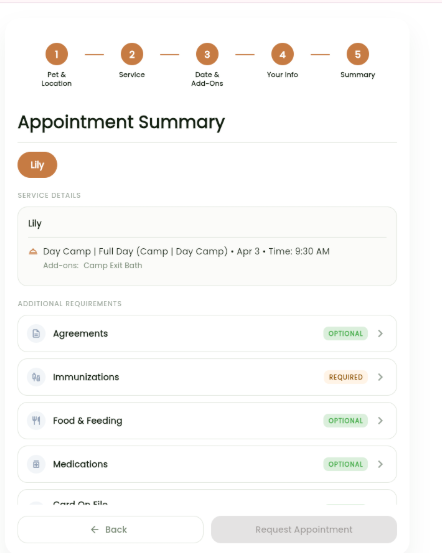
- Book Services — Select services, dates, and staff, and complete bookings through a step-by-step guided workflow.
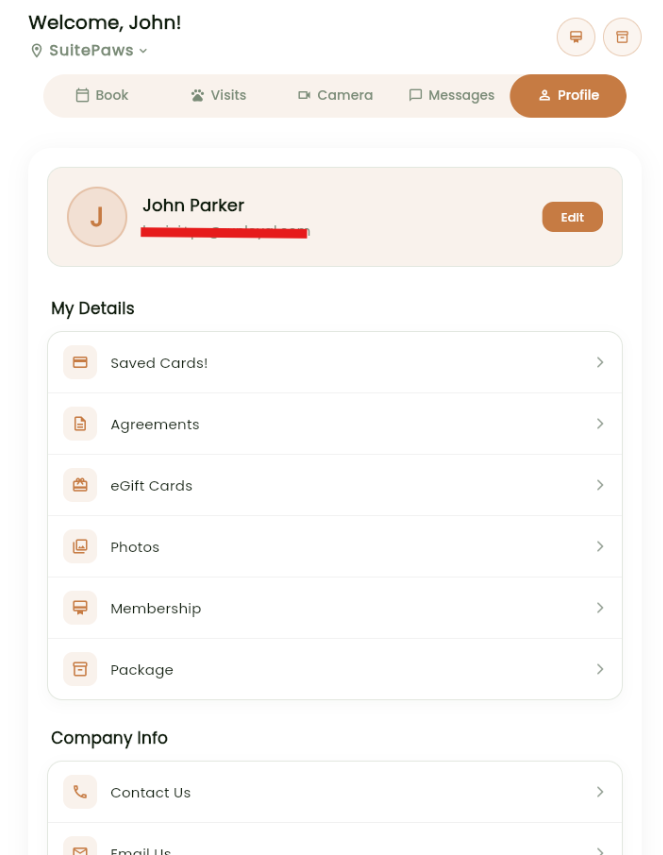
- Manage Profile Information — Update personal details, pet information, and preferences at any time.
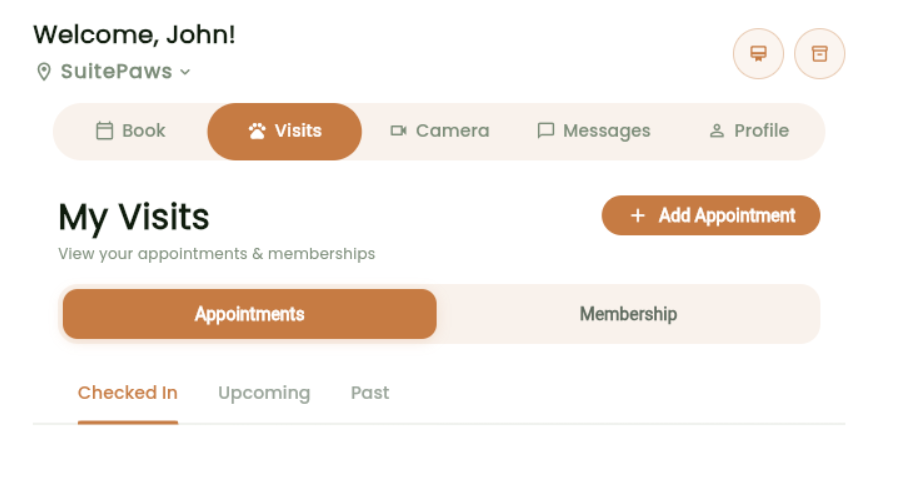
- View Appointments — Access a full history of past bookings and a list of upcoming appointments.
- Purchase Packages & Memberships — Browse and buy available plans directly through the portal.
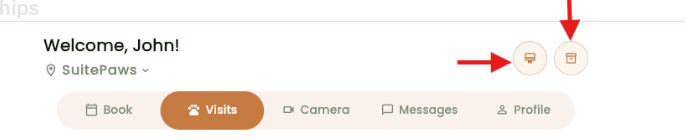
3. Guest to User Conversion Flow
The Client Portal supports a flexible guest-to-user flow so that no customer is ever blocked from booking.
- Customers can begin browsing and selecting services as a guest — no account required to start.
- Before completing the booking, the system prompts the customer to either:
- Log in — for customers with an existing RunLoyal account
- Register — for new customers creating an account for the first time
- This ensures all bookings are properly linked to a customer account, keeping records organised for both the business and the pet owner.
4. Direct URL Configurations
The Client Portal supports direct URL customisation for specific use cases, allowing you to send customers straight to a particular service, package, membership, or location.
A Guest Flow
The default booking entry point for pet owners who do not have or do not wish to use an account. Presents the full booking experience without requiring a login.
- Copy the URL above.
- Replace
tenantNamewith your actual RunLoyal subdomain. - Share the updated link via your website, email, SMS, or social media.
B Login Flow
Directs pet owners to the sign-in screen where they can log into an existing account, sign up for a new one, or continue as a guest. Logged-in users can view and manage their bookings and profile without installing the app.
- Copy the URL above.
- Replace
tenantNamewith your actual RunLoyal subdomain. - Share with returning customers, or include in post-booking emails to encourage account creation.
C Reservation / Service ID Link
Takes a pet owner directly to a specific service on the booking page, bypassing the full service list. Replace reservationId with the unique ID of the service you want to promote.
- In your RunLoyal Business Portal, navigate to:
- Find the service you want to link to and click the link icon(?) next to it.
- Copy the Service ID from the generated URL and paste it in place of
reservationId.
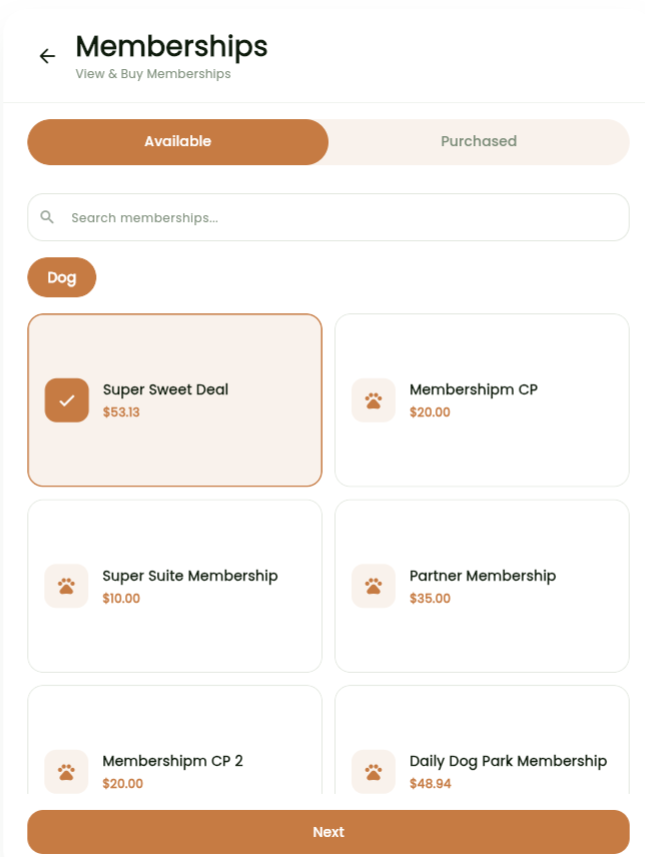
D Membership Purchase
Browse all memberships (default):
Link to a specific membership:
- To find a Membership ID, navigate to:
- Click the link icon(?) next to the preferred membership to copy its ID.
- Replace
tenantNameandmembershipIdin the URL with your actual values.
E Package Purchase
Browse all packages (default):
Link to a specific package:
- To find a Package ID, navigate to:
- Click the link icon(?) next to the preferred package to copy its ID.
- Replace
tenantNameandpackageIdin the URL with your actual values.
F Multi-Location Access
For businesses with more than one location, this link routes pet owners directly to the booking flow for a specific branch. Replace locationId with the exact name of the location as configured in your RunLoyal admin panel.
- Copy the URL above.
- Replace
tenantNamewith your actual RunLoyal subdomain. - Replace
locationIdwith your actual location name. - If the location name contains spaces, replace each space with
%20.
Example: "Downtown Branch" becomesDowntown%20Branch, giving:https://tenantName.runloyal.com/booking/location/Downtown%20Branch
Quick Reference Table
All links follow the base pattern https://tenantName.runloyal.com/booking/. Replace tenantName with your actual subdomain in every URL.
| # | Link Type | URL Pattern | Replace With |
|---|---|---|---|
| A | Guest Flow | /booking/ | No substitution needed |
| B | Login Flow | /booking/login | No substitution needed |
| C | Specific Service | /booking/reservation/[reservationId] | Service ID from Service Configuration |
| D | All Memberships | /booking/membership | No substitution needed |
| D | Specific Membership | /booking/membership/[membershipId] | Membership ID from Membership Configuration |
| E | All Packages | /booking/package | No substitution needed |
| E | Specific Package | /booking/package/[packageId] | Package ID from Retail → Packages |
| F | Specific Location | /booking/location/[locationId] | Location name (spaces → %20) |
More Information
- For more information on accessing your QR code and online booking link, please refer to this article: How To Access Web Links (QR Code and Online Booking Link)
- For more information on embedding your booking link in your website, please refer to this article: Embed Book Now in Your Website
Was this article helpful?
That’s Great!
Thank you for your feedback
Sorry! We couldn't be helpful
Thank you for your feedback
Feedback sent
We appreciate your effort and will try to fix the article