Overview
Recurring appointments are a set cadence of single-day bookings that should occur on the same day(s) of the week every set number of weeks. You can select services such as daycare, grooming, dog walking, or any other single-day service set up under Settings > Business Setup > Service Configuration. You can optionally include add-on services to the appointment, such as exit bath, pup cups, and more. If the appointments for a certain pet generally are on the same day and time of the week, then recurring appointments are a great way to create and edit multiple appointments in one easy place. For example, if a pet comes for daycare every week on Monday and Wednesday, or a pet comes for grooming every six weeks on Fridays at 11am, then you can set up this cadence as a recurring appointment.
Recurring appointments can be viewed in the following areas:
- Top right-hand navigation > Add Appointment > Recurring
- Left-hand navigation > Appointments tab > Recurring
- Pet owner or pet profile > Appointments section
TABLE OF CONTENTS
- Overview
- How to Create Recurring Appointments
- How to Edit a Recurring Appointment
- How to Cancel or Delete a Recurring Appointment
- More Information
How to Create Recurring Appointments
1. From any page in the app, click Top right-hand navigation > Add Appointment to create a new appointment for any pet.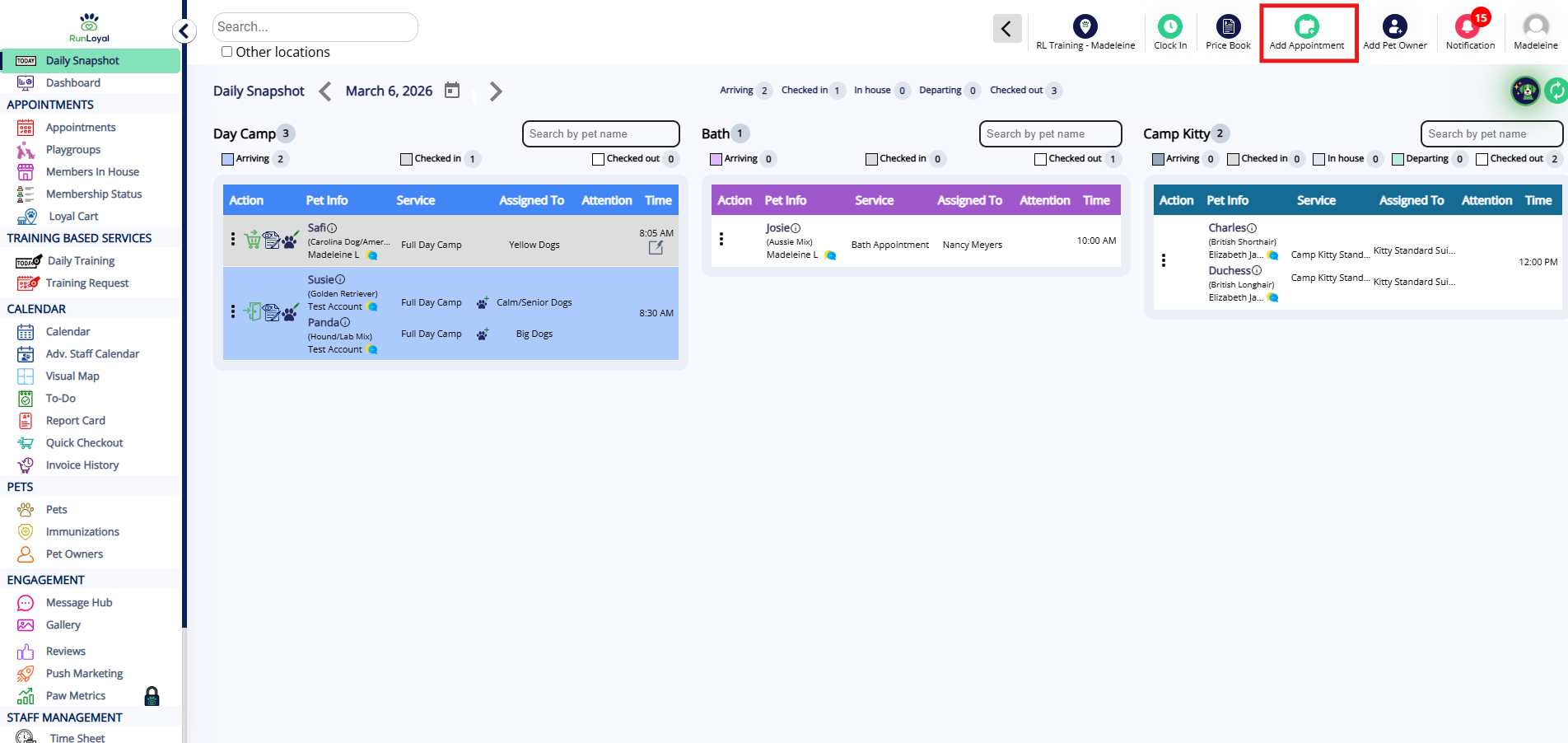
2. You can also navigate to the pet owner or pet's profile and click to add a Recurring Appointment.
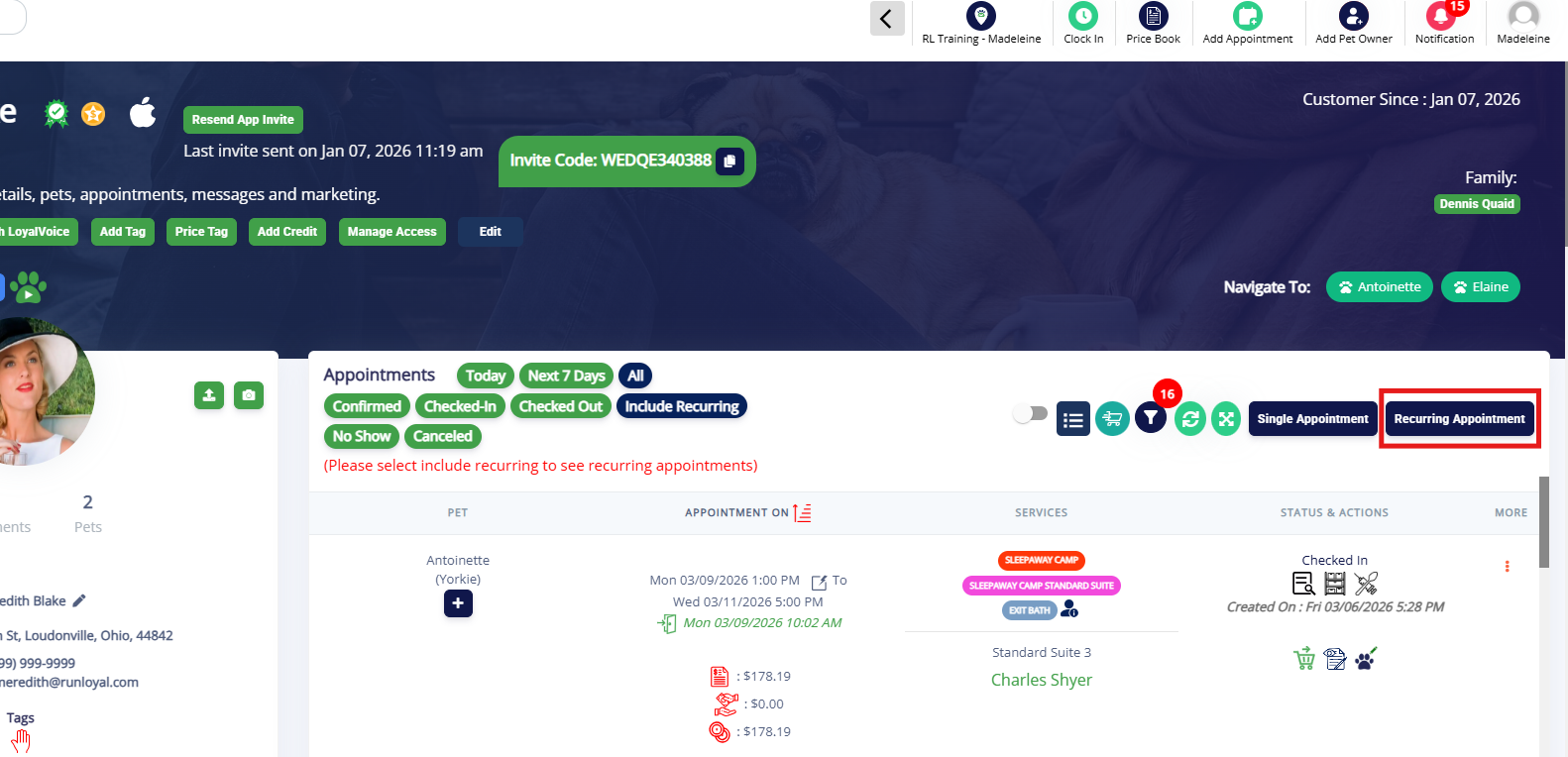
3. If adding from the Top right-hand navigation > Add Appointment icon, when prompted, select Recurring Appointment to make an appointment for multiple recurring days.
If you wish to make multiple a single appointment, click Single Appointment. You can learn more about regular appointments in this article: Creating & Managing Appointments.

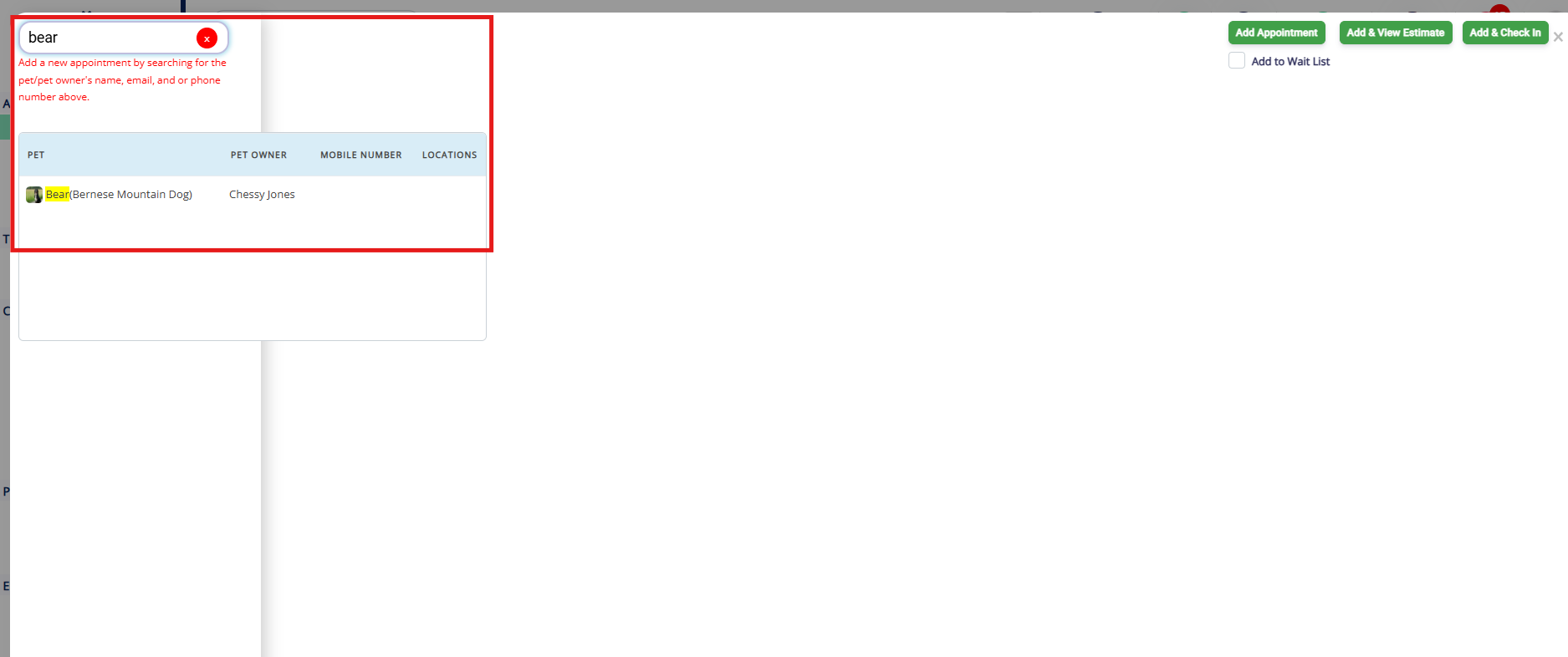
4. Search the pet owner or pet's name in the search bar. Then select the pet in question.
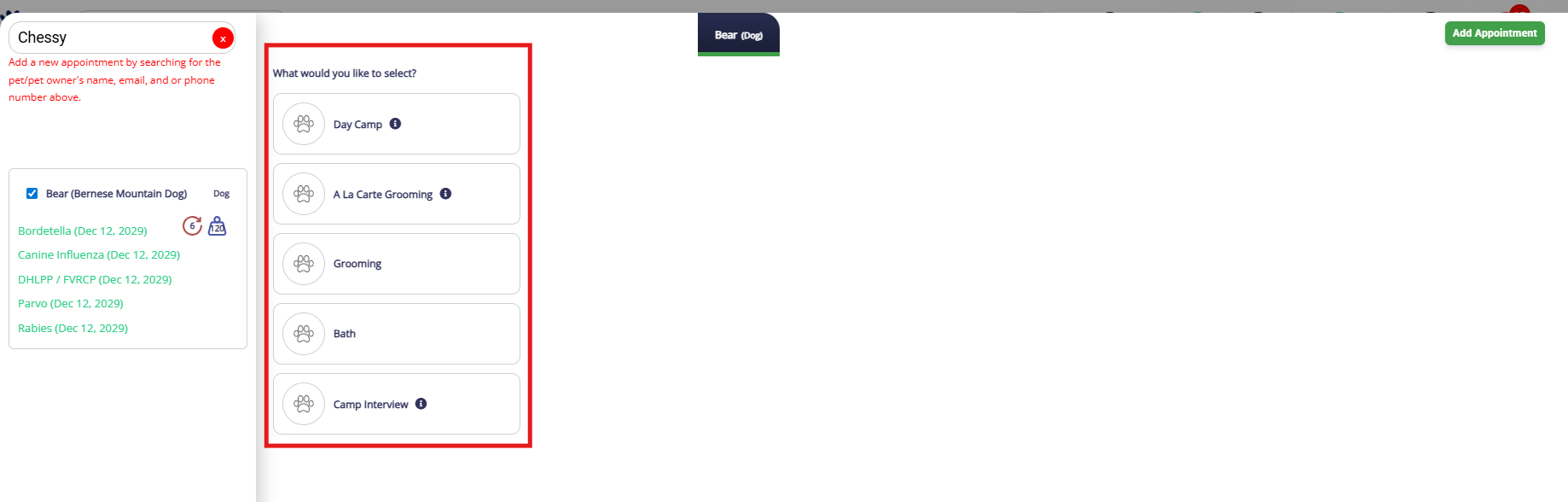
5. Select the Service Category.
⚠️Important: Recurring appointments can only be made for single day appointments (daycare, grooming, training, walking, etc).
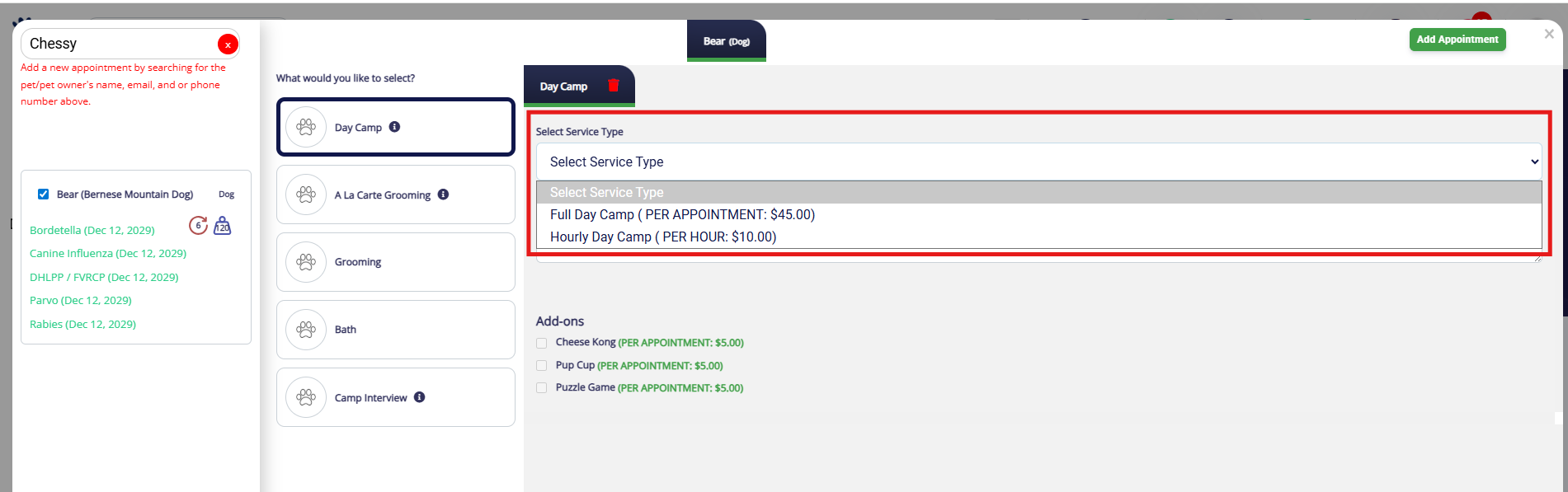
6. Choose the correct service from the service type dropdown.
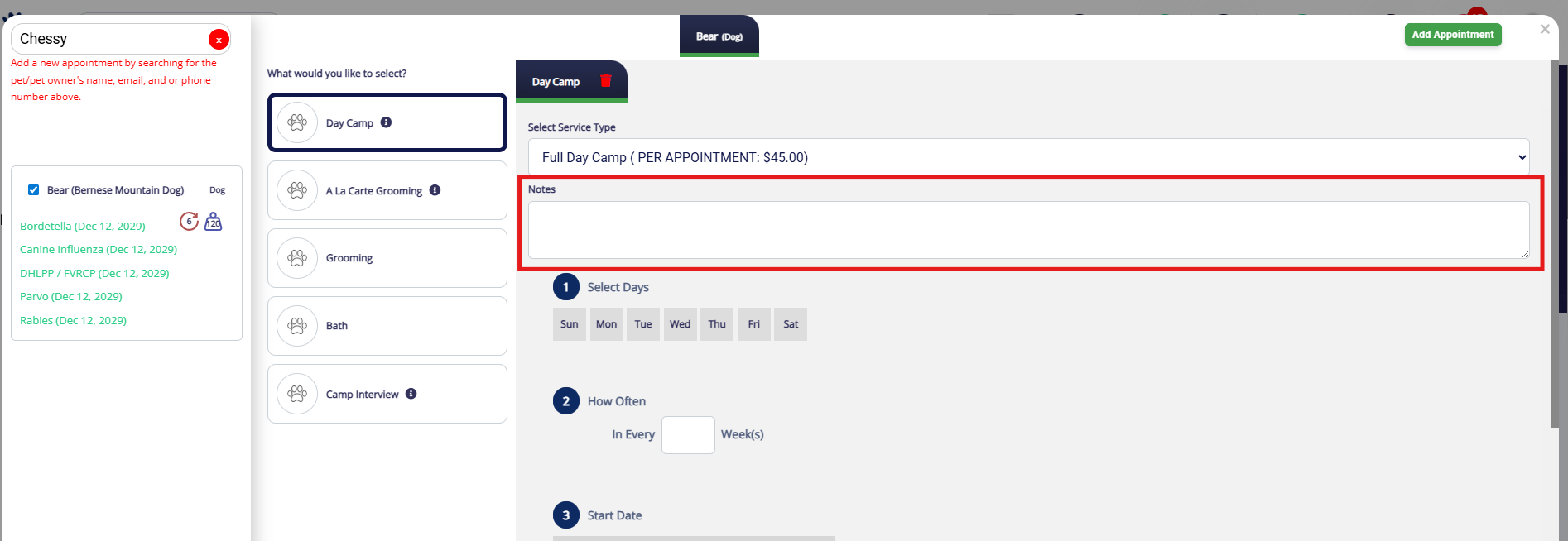
7. If you would like to add any notes about the appointment, enter them in the Notes field. You can learn more about Appointment Notes in this article: Adding an Appointment Note (Public).
⚠️ Important: Notes entered here are visible to the business and pet owner!
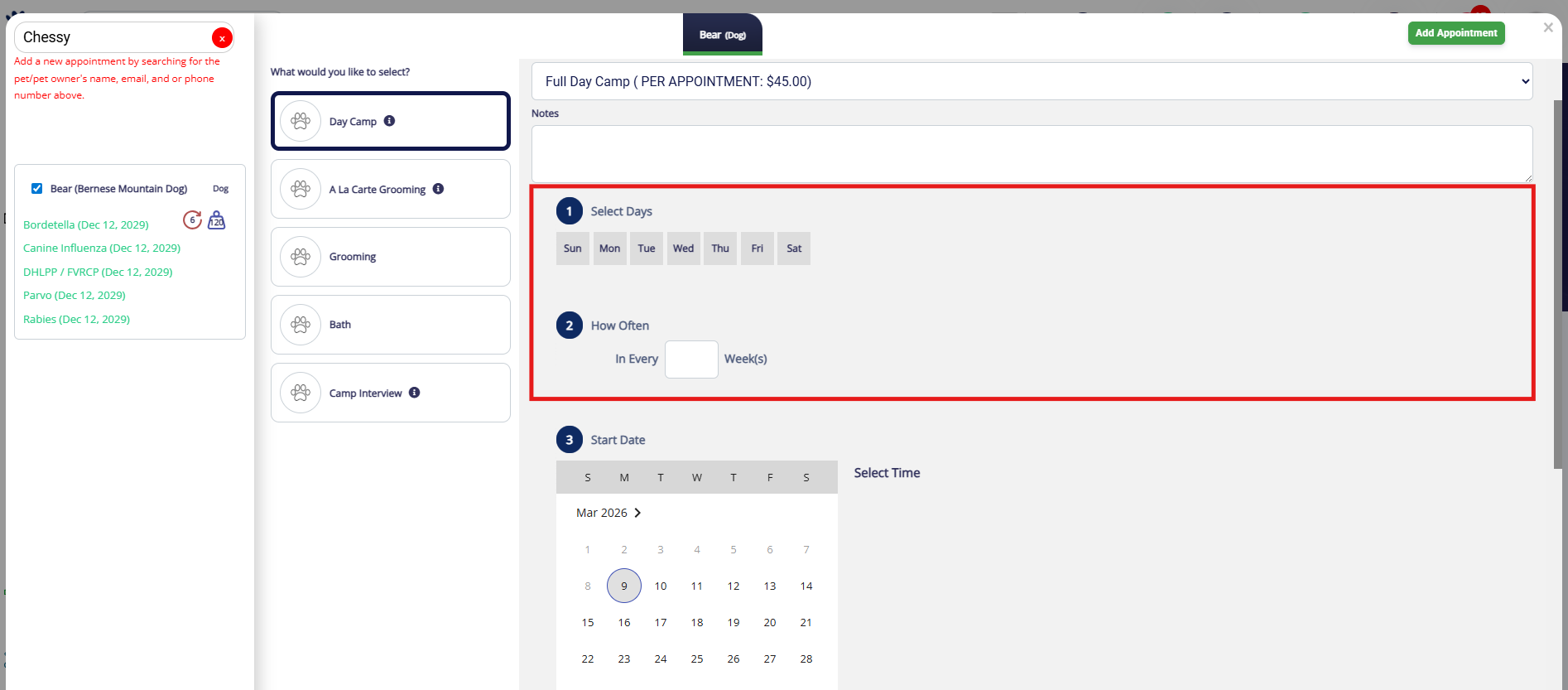
8. Choose the day(s) of the week and how often this service should occur for the pet. For example, if a pet comes for daycare every Monday and Wednesday, you would select Monday and Wednesday in Select Days and enter 1 (for every week) in How Often. If a pet comes for grooming every six weeks on Fridays, you would select Friday in Select Days and enter 6 in How Often.
9. Select the start date and start time that the recurring appointments should begin.
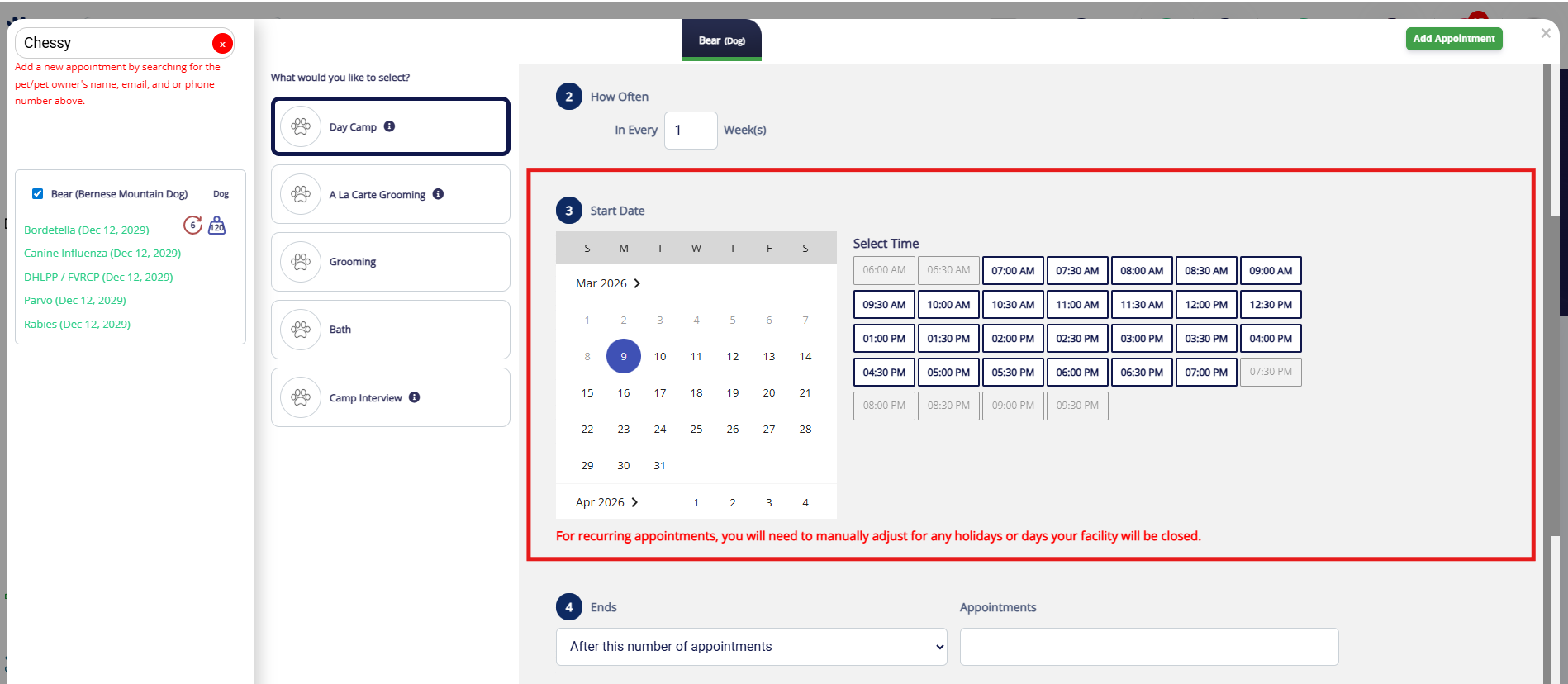
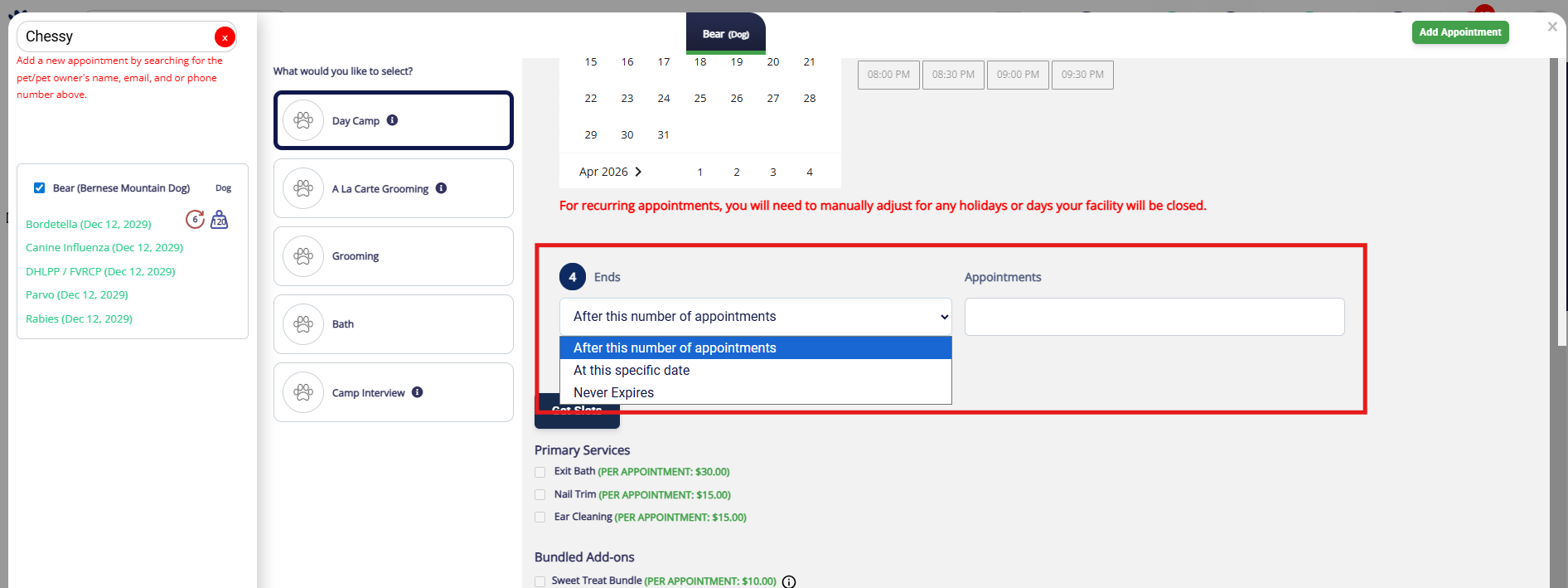
10. Select if the recurring appointments should end after a certain number of appointments (i.e. 25) or at a specific date (i.e. Dec 31st).
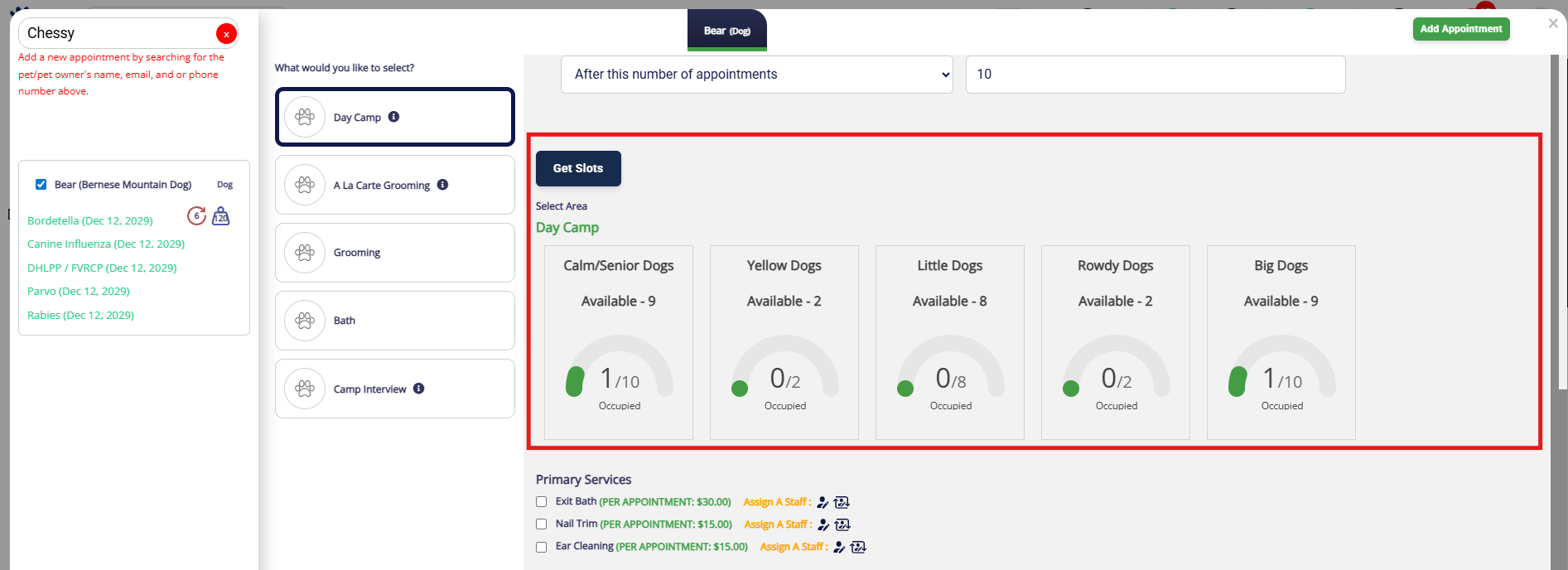
11. If the booking is capacity-based, click Get Slots and assign the Slot (run or area).
12. If the booking is staff-based, click Assign.
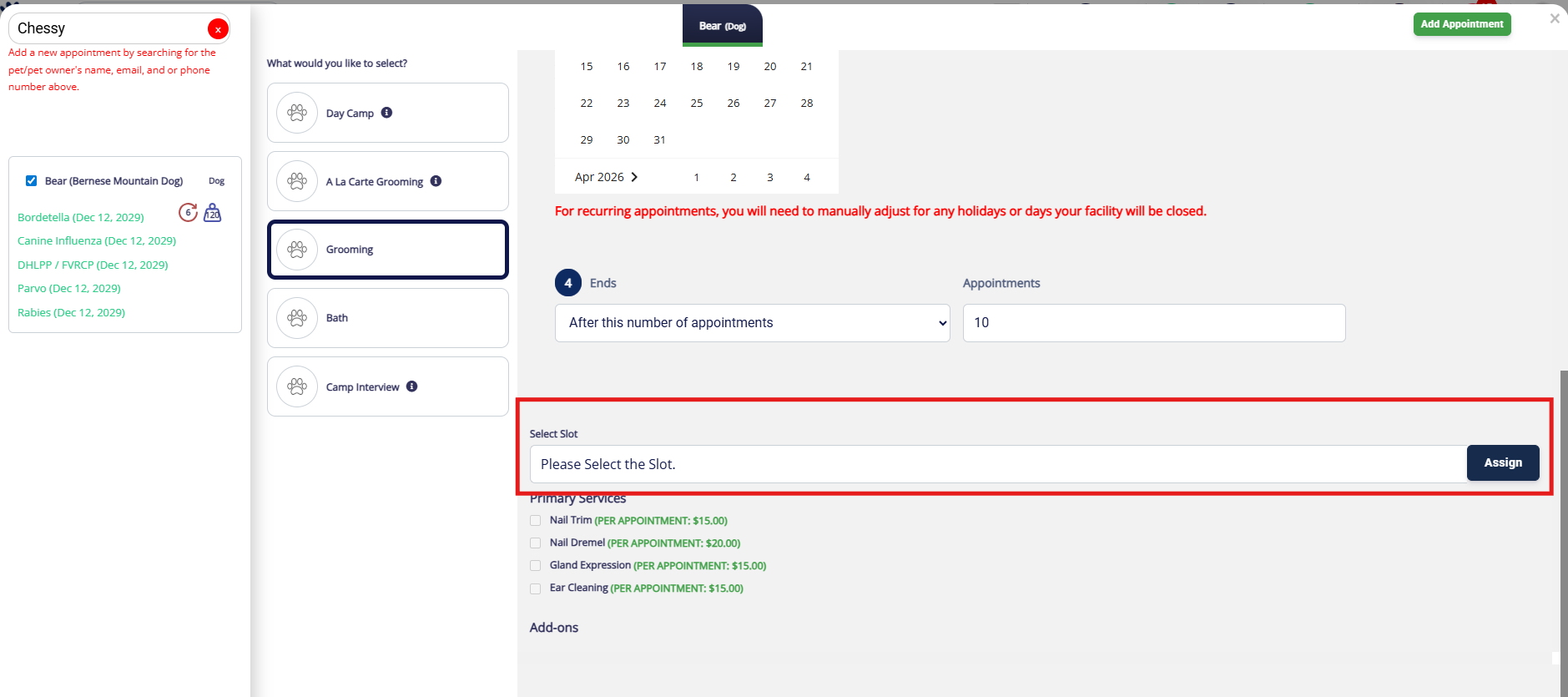
13. If the booking is staff-based, click on the calendar under the correct staff user to add the service to their schedule. Then click Assign.
⚠️ Important: The schedule displayed is for the start date only. If other bookings are added on future dates, or if there are business holidays, please double check the additional future dates to avoid double bookings or closures.

14. Add Primary Services or Add-On Services as desired for the appointment.

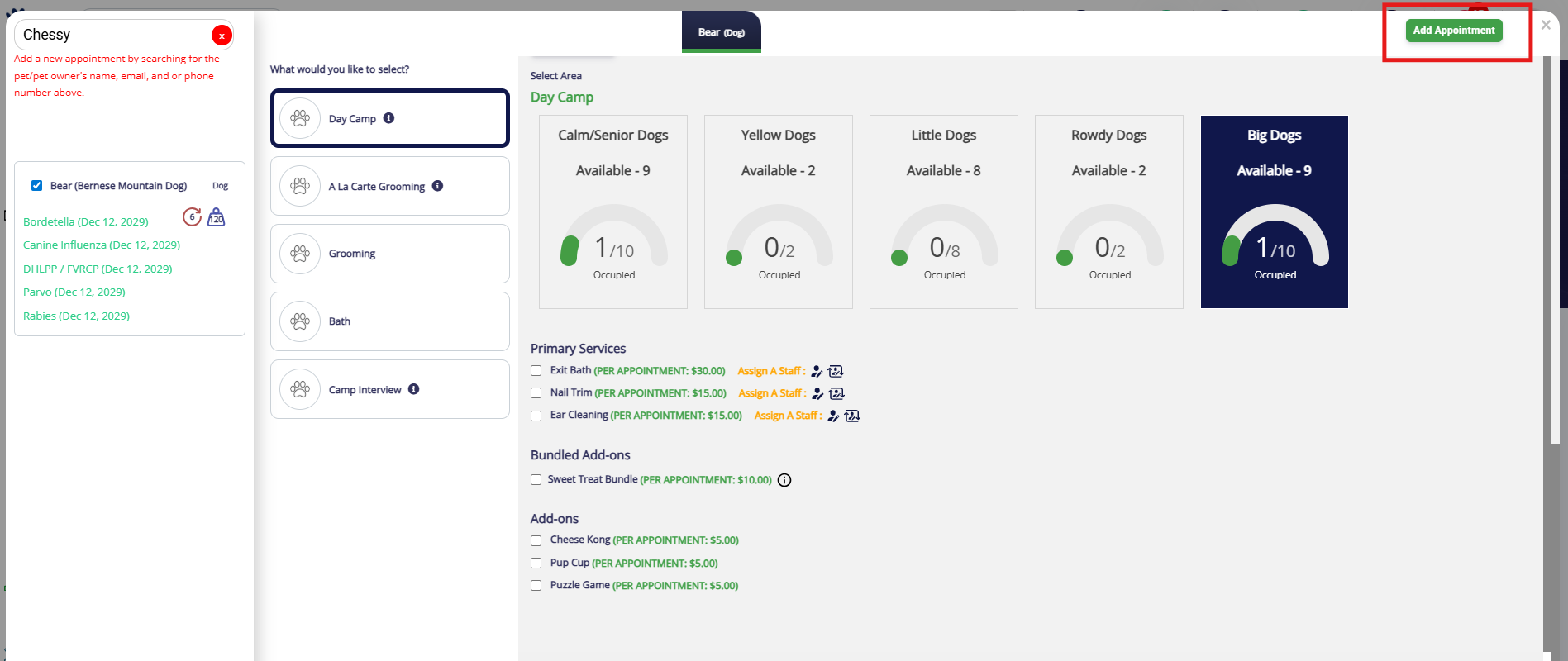
15. Once you have confirmed the dates, times, cadence, slot, and add-ons, click Add Appointment. Depending on how many recurring appointments exist, it may take some time for all of the individual appointments to display on the pet's profile! Check back after 5-10 minutes to verify the appointments were created as expected.
How to Edit a Recurring Appointment
1. To edit a recurring appointment for a future or current date, navigate to the pet owner or pet's profile.
2. All recurring appointment series will show a refresh circle icon next to the associated appointment. To edit all recurring appointments in a series, click the refresh circle icon.
To edit a singular appointment (for example, to add a specific add-on only to that one date), click the edit icon (paper with eye and pencil).

3. Adjust the appointments as needed by editing days of week, recurring schedule, notes, run, or services.

4. Once you have completed the changes, click Update Appointment. You can also optionally check the box to Notify The Pet Owner if you would like for them to receive an email about the edit.
Depending on how many recurring appointments exist, it may take some time for all of the individual appointments to display on the pet's profile! Check back after 5-10 minutes to verify the appointments were updated as expected.

How to Cancel or Delete a Recurring Appointment
1. To cancel or delete a recurring appointment for a future or current date, navigate to the pet owner or pet's profile.
2. All recurring appointment series will show a refresh circle icon next to the associated appointment. To cancel a single recurring appointment in a series, click the appointment menu (three dots next to the appointment in question). 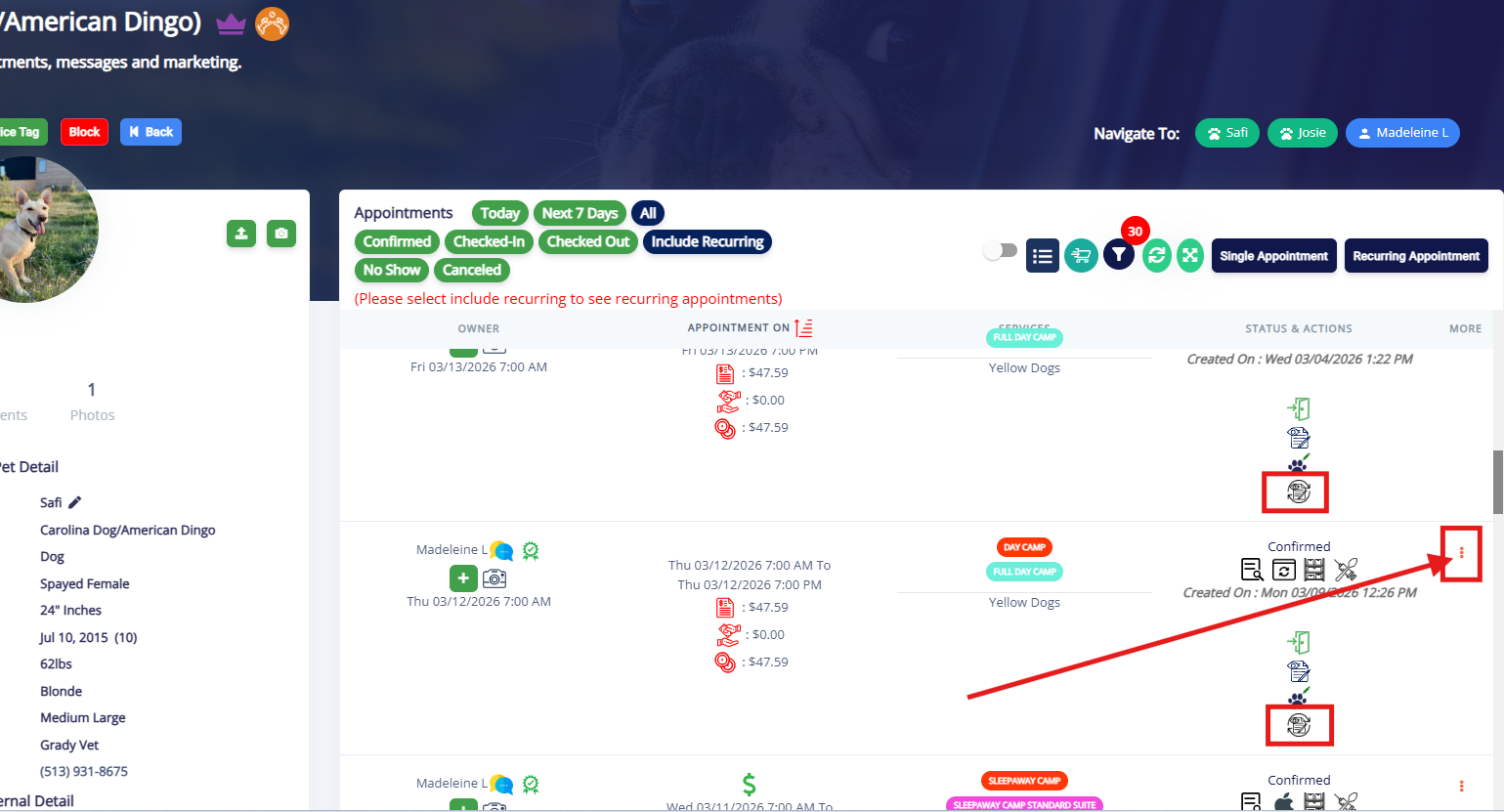
3. Select Cancel Appointment.

4. Optionally select an existing cancellation reason, or type the cancellation reason into the manual field.
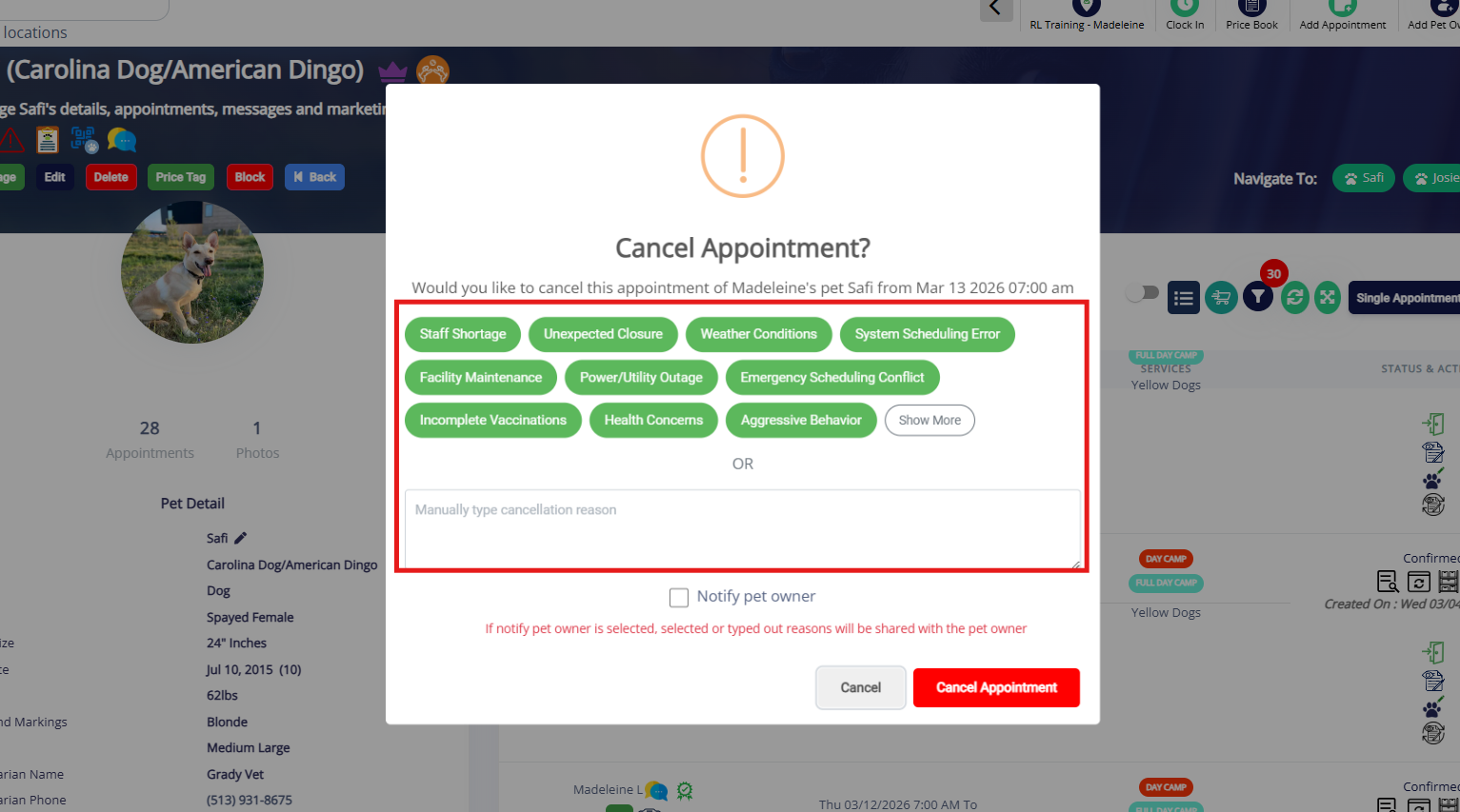
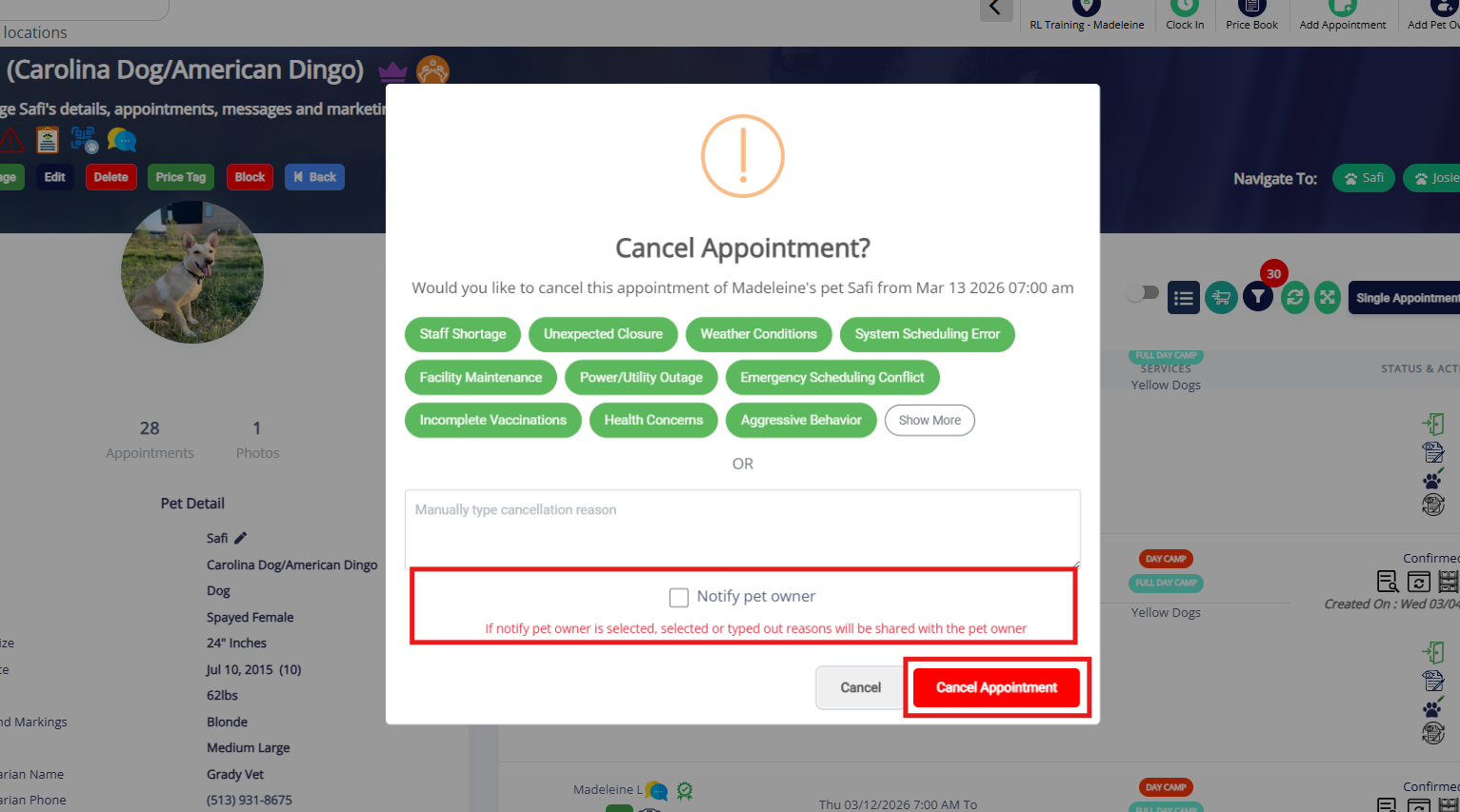
5. Once you have selected the reason, click Cancel Appointment. You can also optionally check the box to Notify The Pet Owner if you would like for them to receive an email about the cancellation.
⚠️Important: The pet owner will see the cancellation reason entered or manually typed.
6. If you wish to remove all future dates in a recurring series, you can delete the appointments. First find the next confirmed appointment. For example, if the dog has appointments booked from today through the end of the year, and you wish to cancel all, locate today's appointment. Then click the appointment menu (three dots next to the appointment in question).

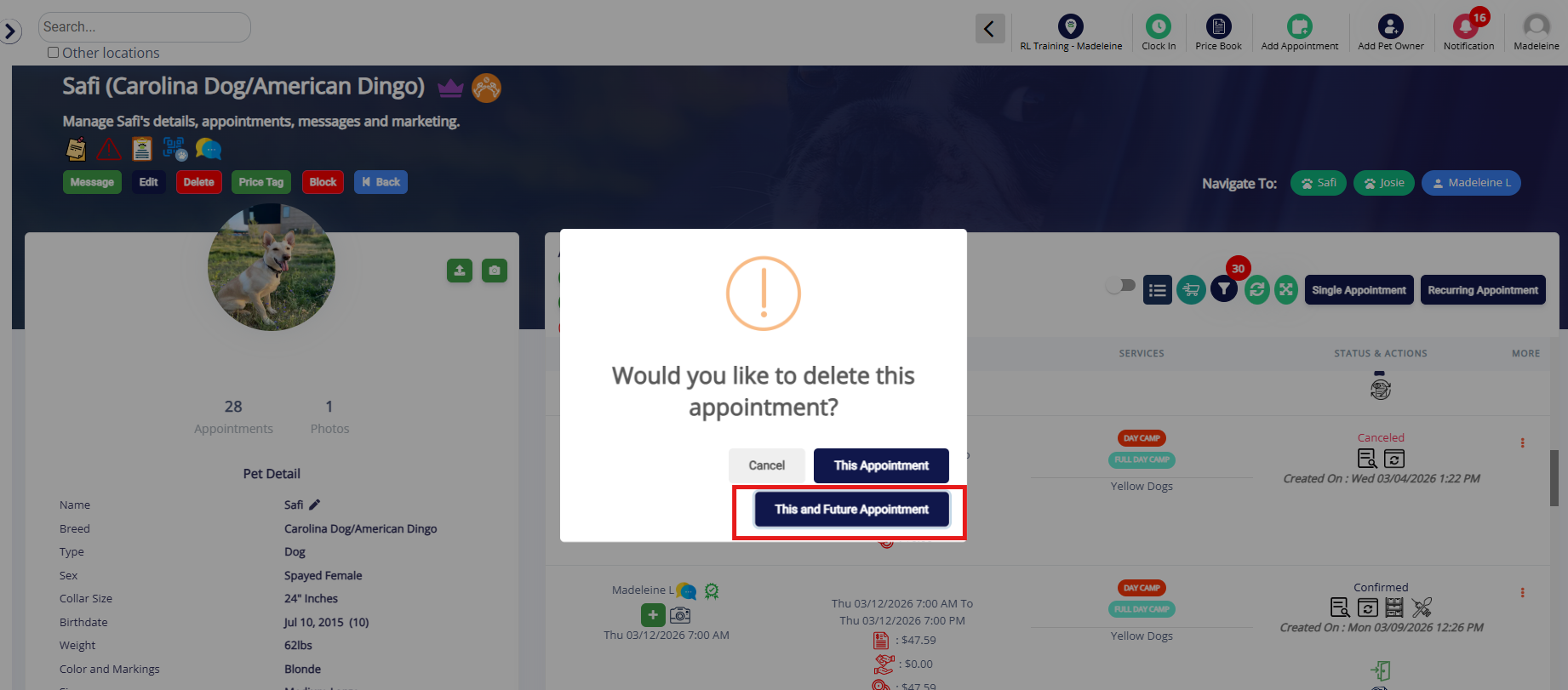
7. Select Delete Appointment.
7. Select This and Future Appointments. Depending on how many recurring appointments exist, it may take some time for all of the individual appointments to be deleted! Check back after 5-10 minutes to verify the appointments were deleted as expected.
More Information
For more information on creating and managing appointments, please refer to this article: Creating & Managing Appointments
For more information on checking in an appointment, please refer to this article: Checking In an Appointment
For more information on checking out an appointment, please refer to this article: Checking Out an Appointment
Was this article helpful?
That’s Great!
Thank you for your feedback
Sorry! We couldn't be helpful
Thank you for your feedback
Feedback sent
We appreciate your effort and will try to fix the article