Overview
Updating tax rates across your services and add-ons doesn’t have to take a lot of time. This article shows you how to use a bulk update to quickly apply changes to everything at once. With just a few steps, you can keep your taxes accurate without updating each item individually.
Tax Rates can be viewed in the following areas:
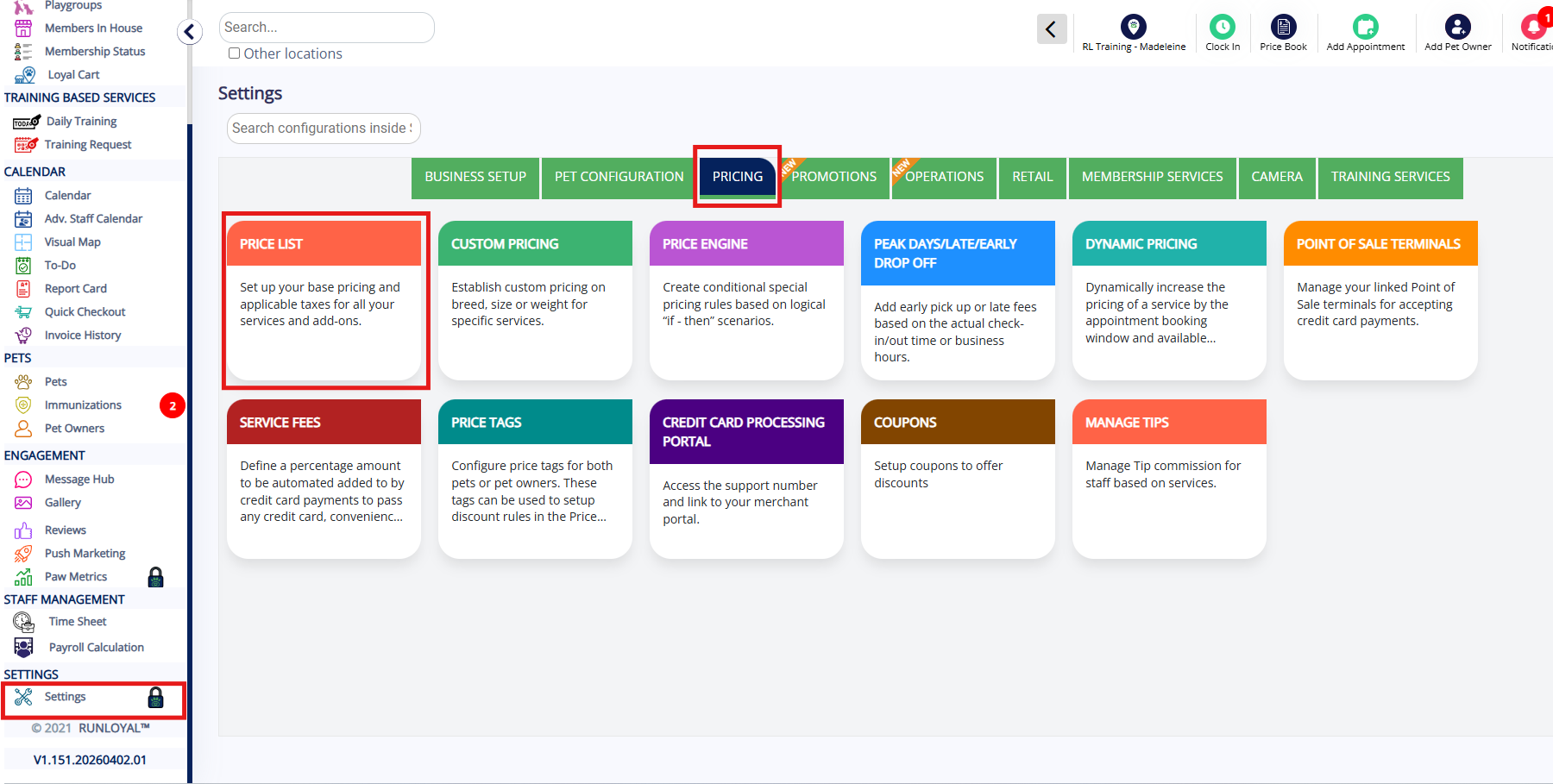
- Settings > Pricing > Price List
- Invoices
TABLE OF CONTENTS
How to Bulk Update Tax Rates
1. Navigate to Settings > Pricing > Price List.
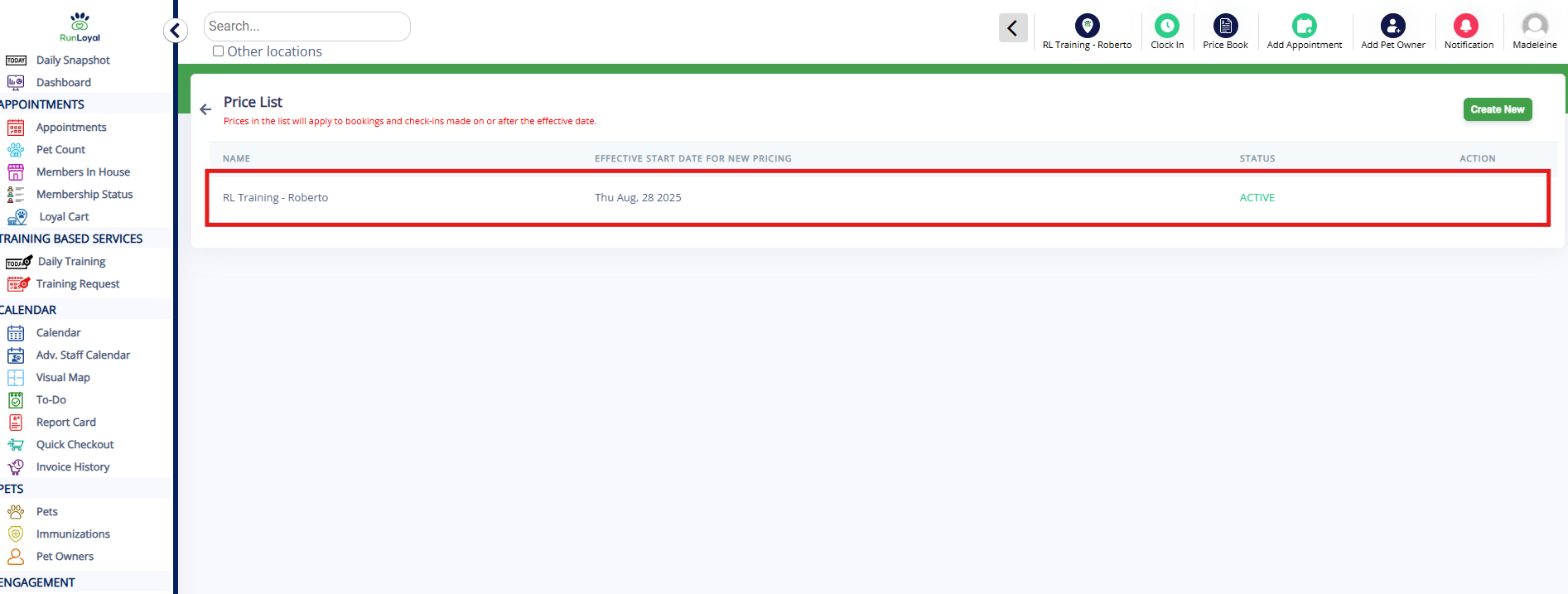
2. Click the existing create price list to edit the rates.
3. Click the service categories to expand and view services. 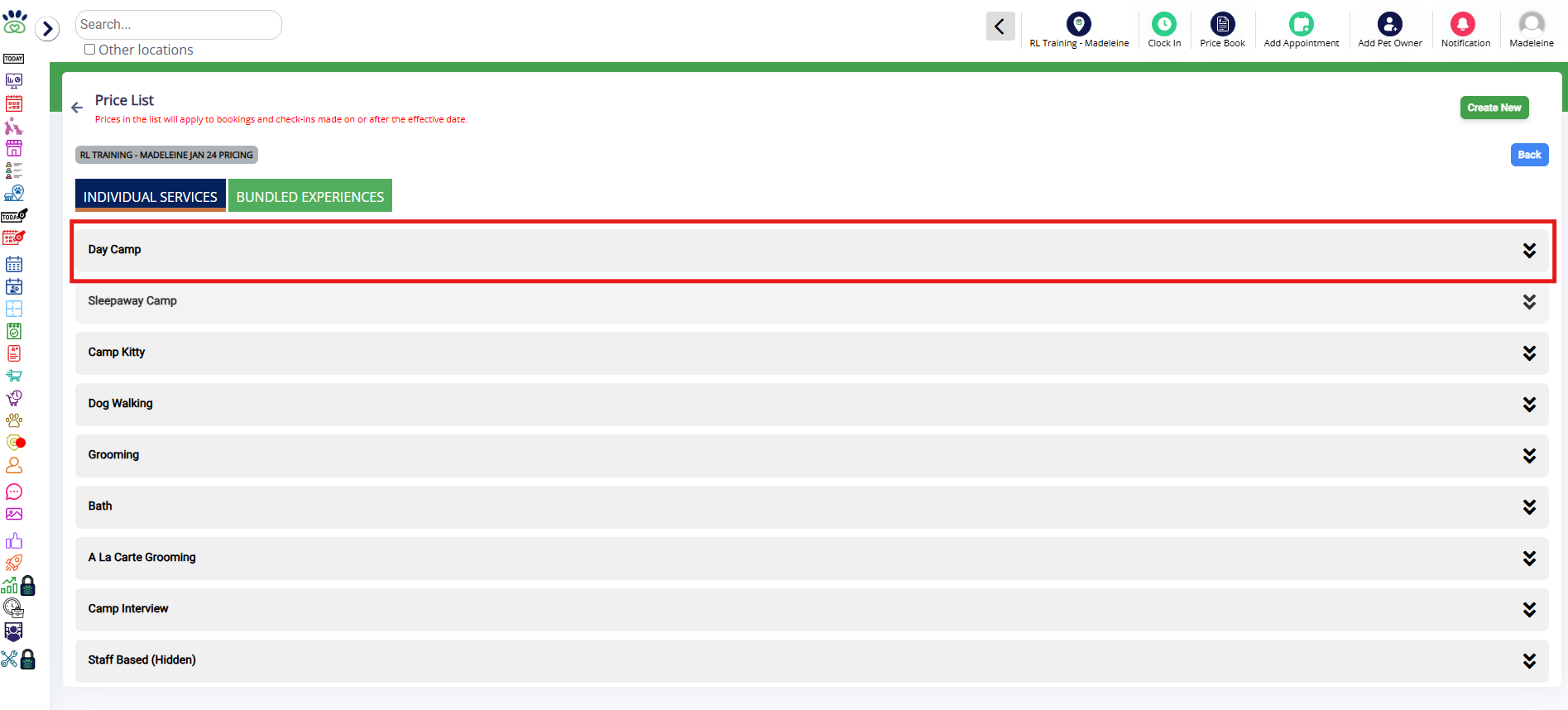
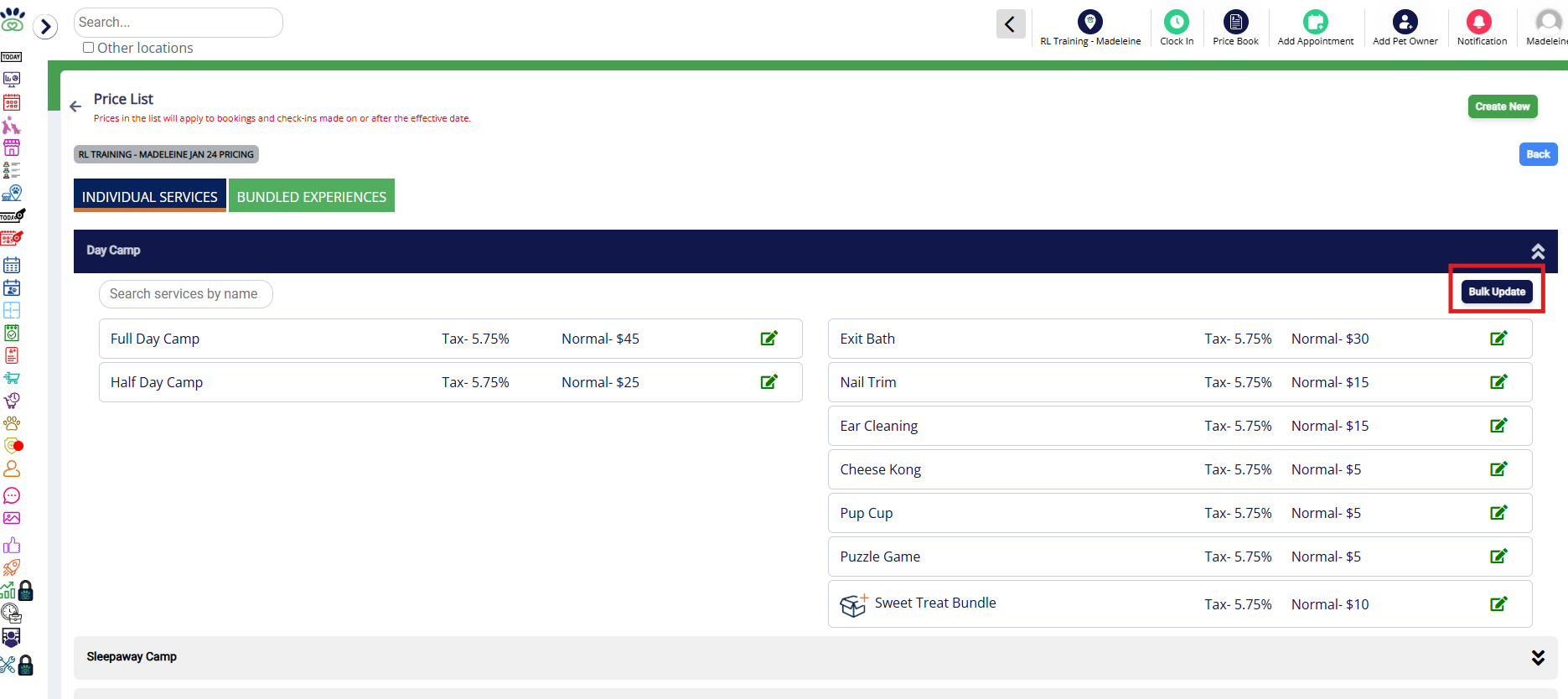
4. Select Bulk Update.
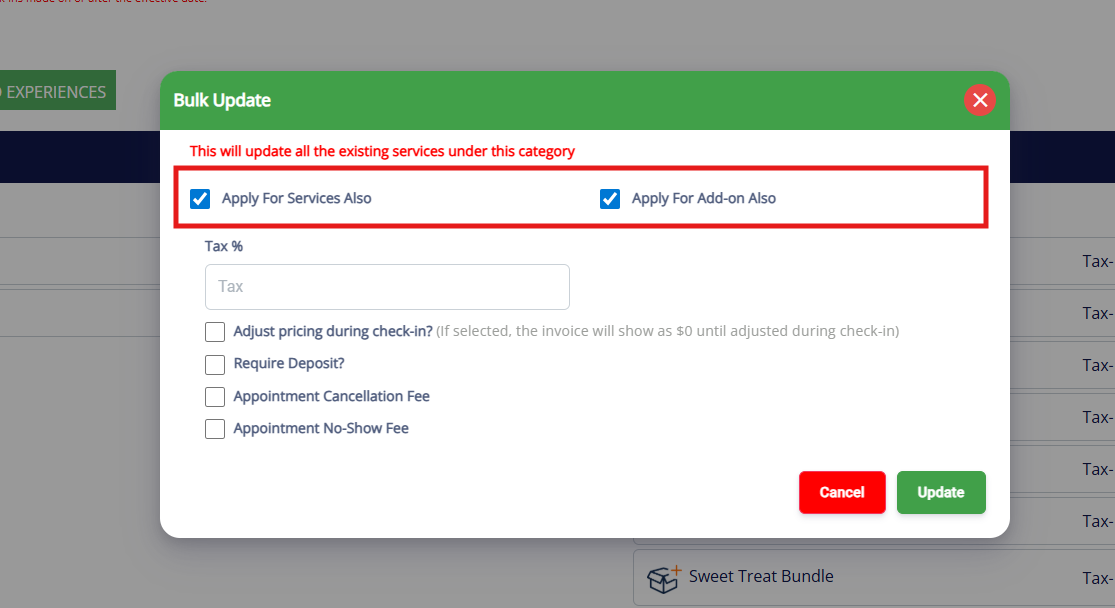
5. Select if this tax update should Apply for Services and/or Apple for Add-on in the service category selected. Both should be checked by default.
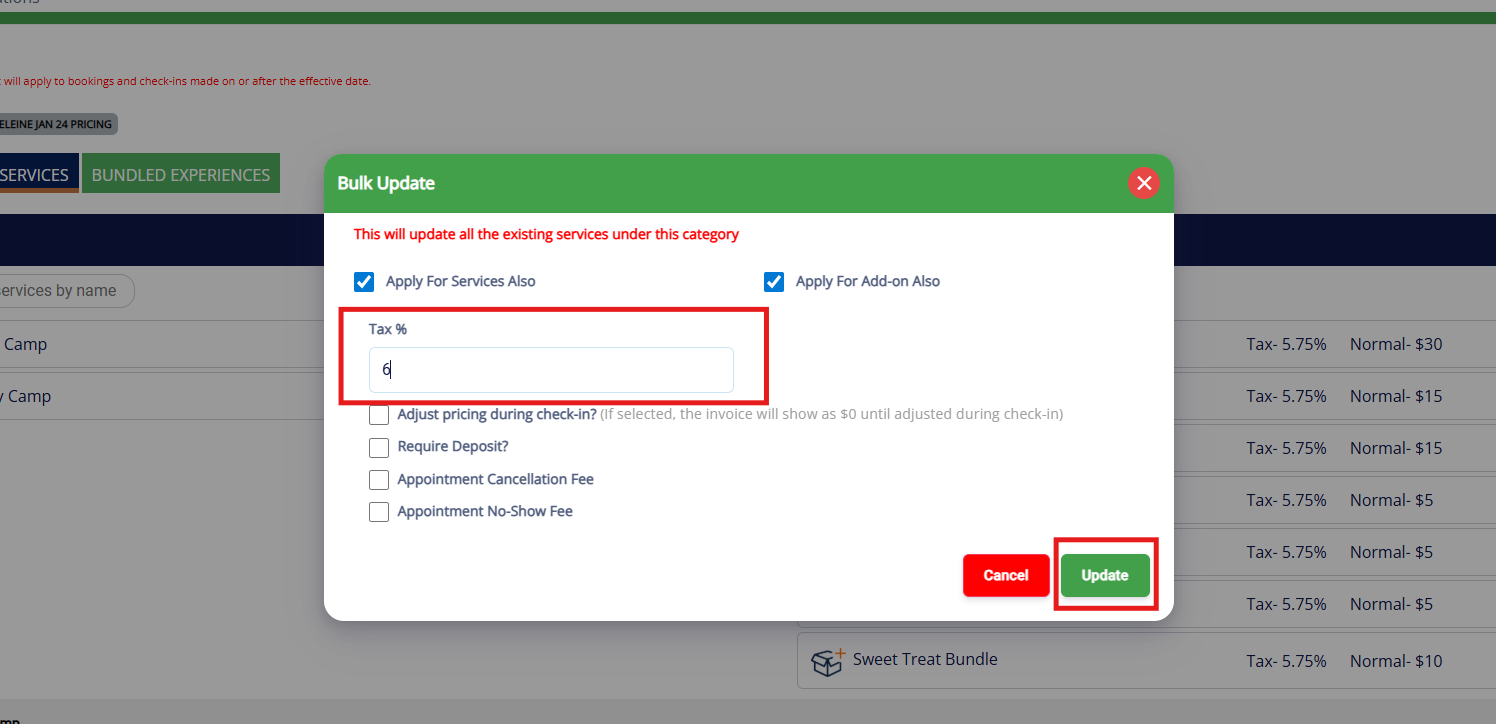
6. Enter the correct tax rate. This will apply to all items in the category and overwrite any existing tax amounts. Click update.
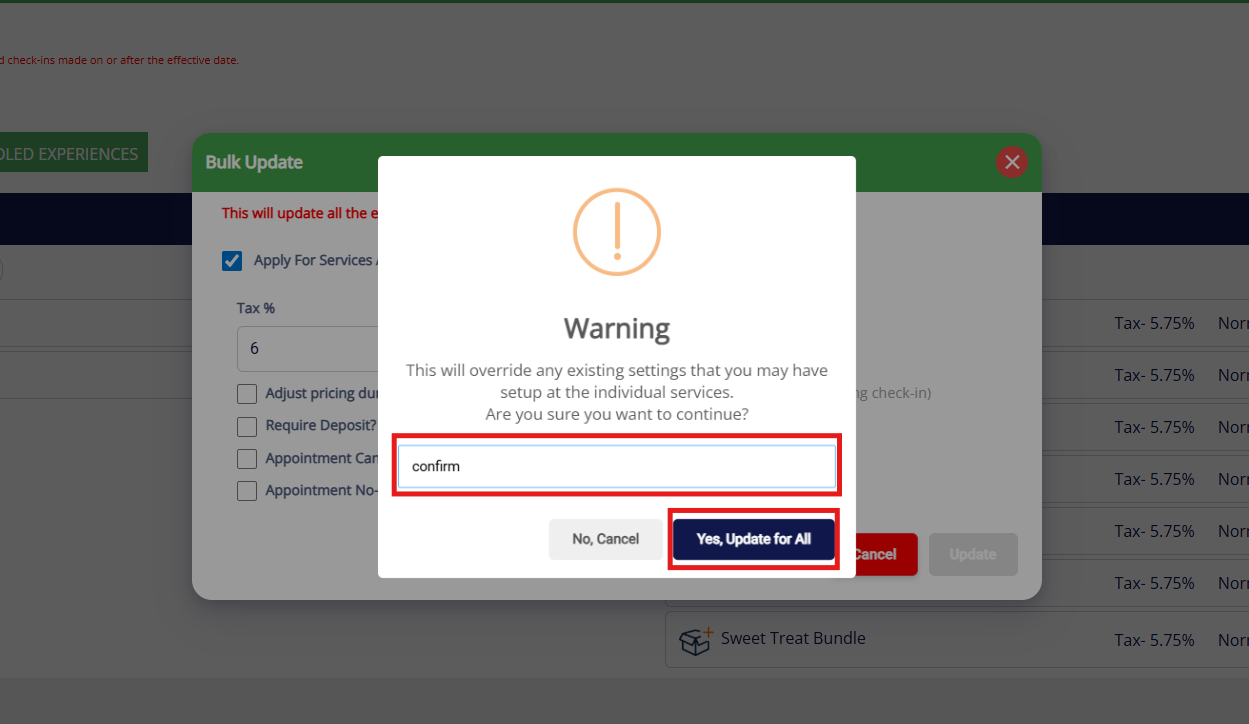
7. Enter Confirm and click Yes, Update for All.
8. Confirm the tax rates show as expected.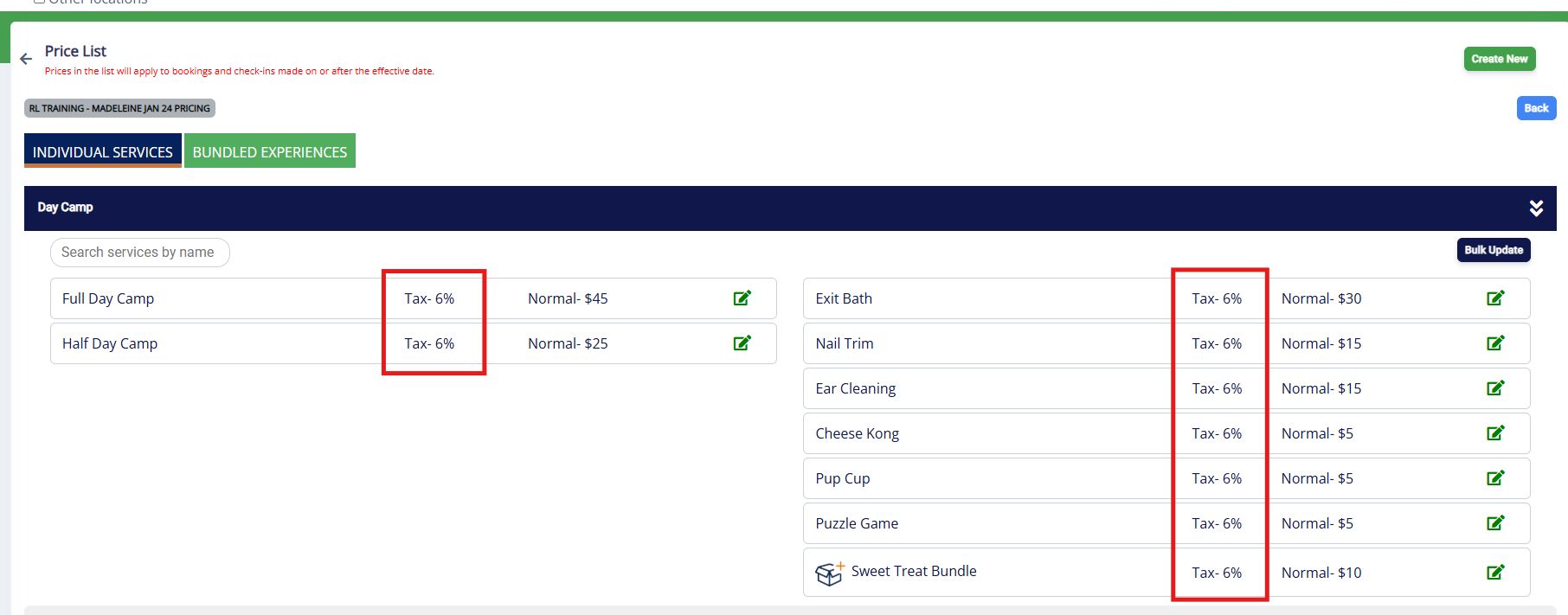
More Information
For more information on Price Lists, please refer to this article: Set Up Pricing, Deposits, & Cancellation/No-Show Fees
For more information on updating your prices for future dates, please refer to this article: Updating Your Prices (Future Rates)
Was this article helpful?
That’s Great!
Thank you for your feedback
Sorry! We couldn't be helpful
Thank you for your feedback
Feedback sent
We appreciate your effort and will try to fix the article