Overview
If a pet owner should receive a fee for cancelling or no-showing an appointment, you can set these fees to be automated so they will automatically populate on the invoice. Cancellation and no-show fees can be set up by individual service type or bulk applied to all service types in a category. You can also add cancellation and no-show fees to service add-ons.
A Cancellation Fee will add an automated fee to any invoice where the appointment is marked as cancelled, no matter how many days in advance it is cancelled. A No-Show Fee will add an automated fee to any invoice where the appointment is marked as a no-show (normally same day).
Cancellation and No-Show Fees can be viewed in the following areas:
- Appointment Invoice
- Settings > Pricing > Price List
TABLE OF CONTENTS
- Overview
- How to Set Up Cancellation and No-Show Fees
- How to Apply Cancellation Fees
- How to Apply No-Show Fees
- How to Remove a Cancellation or No-Show Fee from an Invoice
- More Information
How to Set Up Cancellation and No-Show Fees
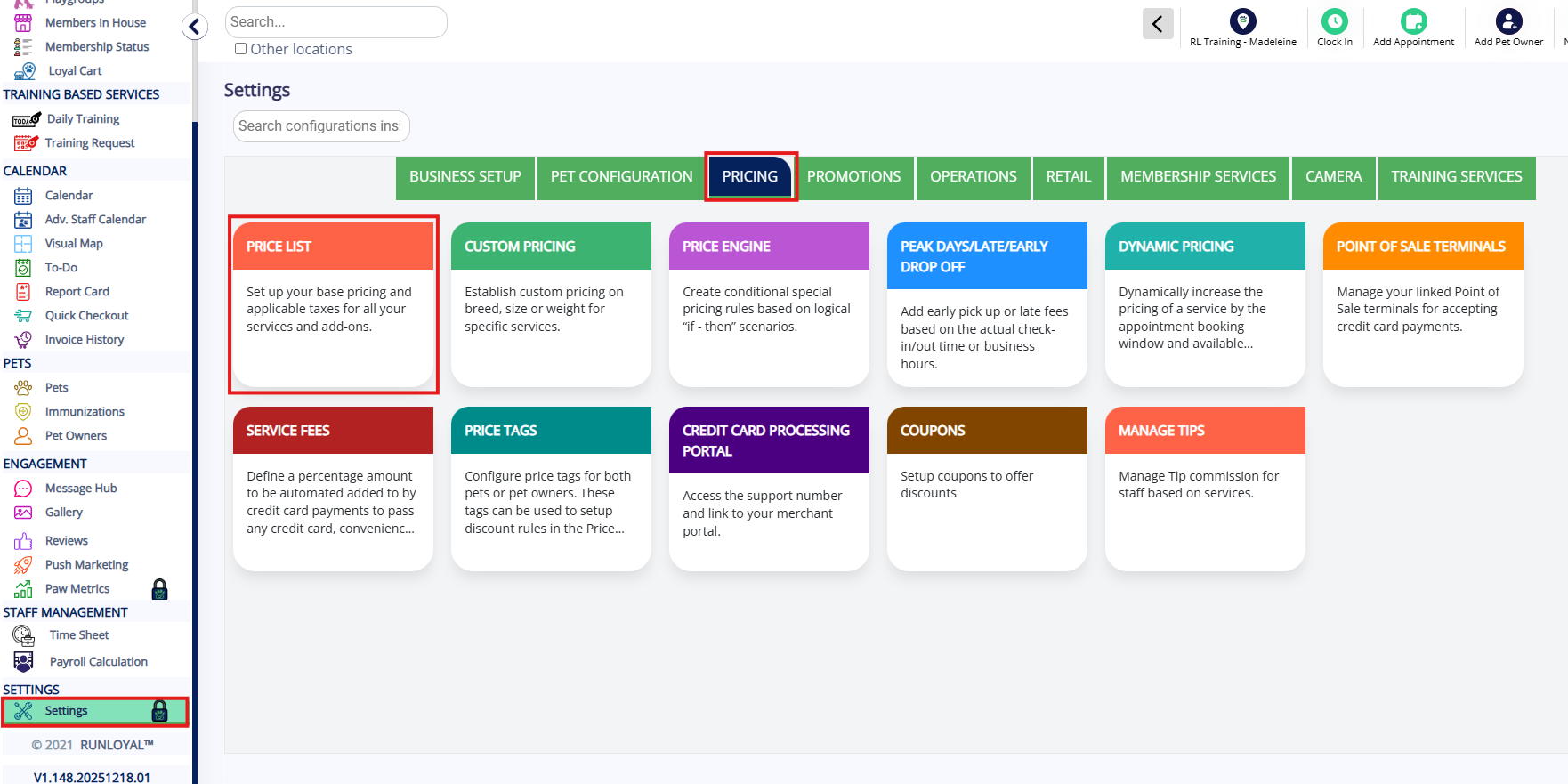
1. Navigate to Settings > Pricing > Price List.
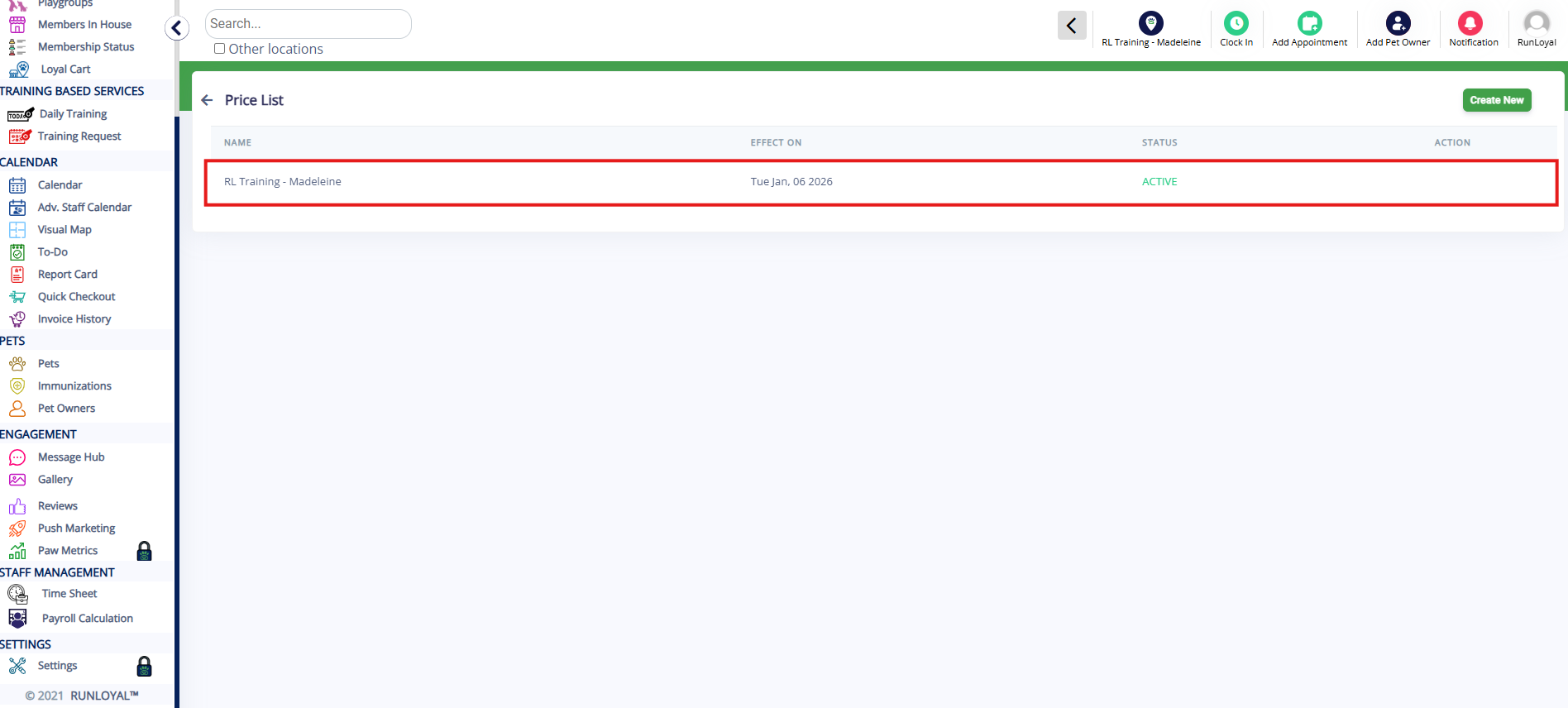
2. Click on the Active price list to edit it.
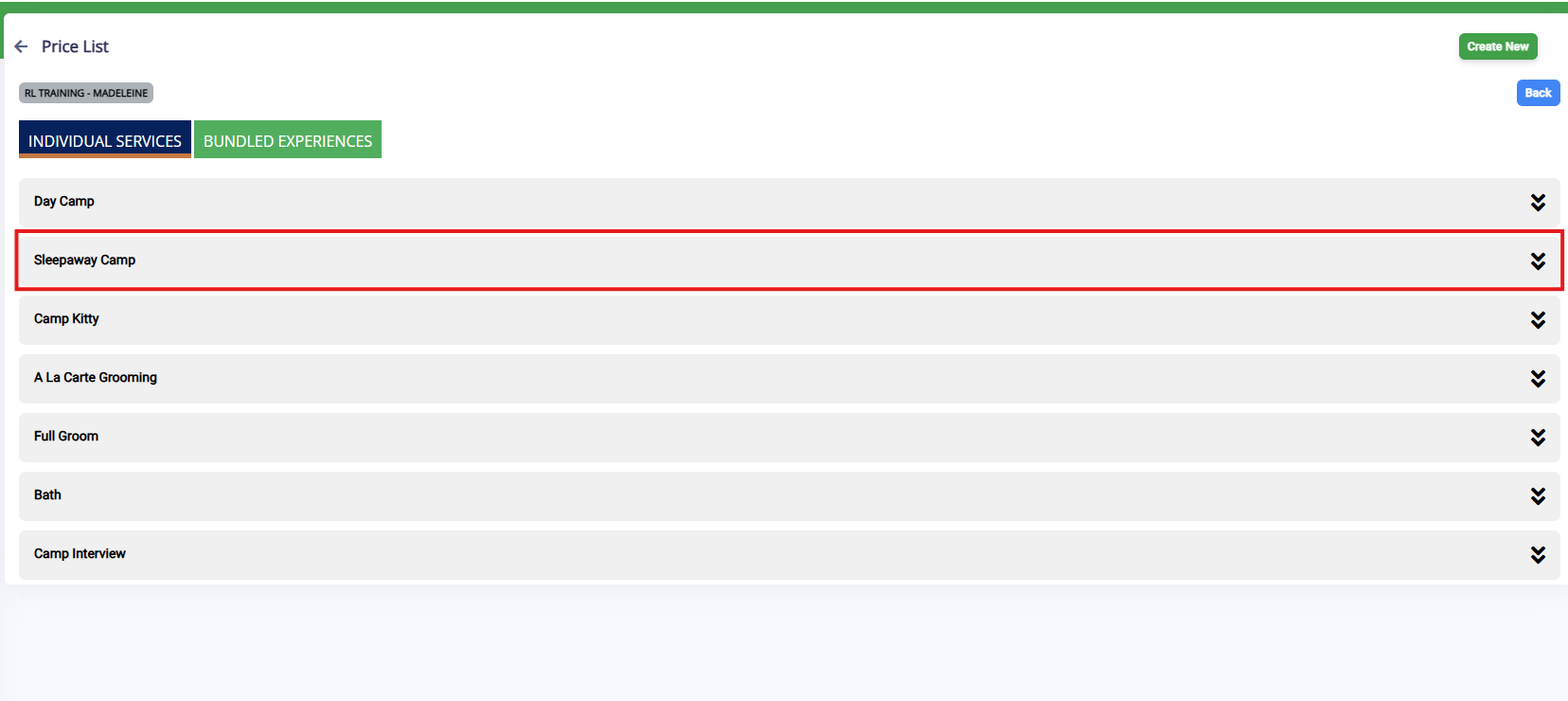
3. Select the service category you want to set up Cancellation and No-Show fees for.
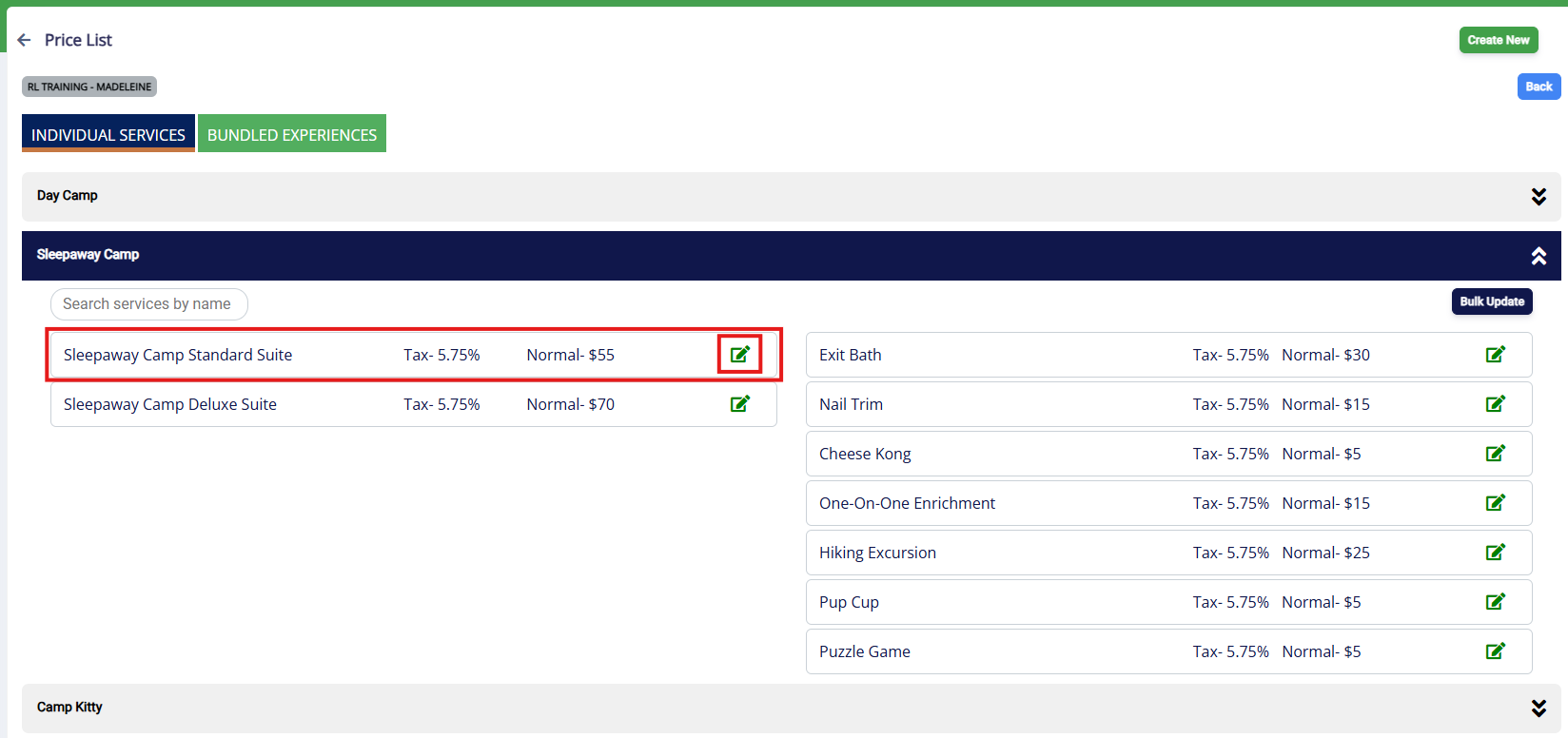
4. If you wish to add cancellation or no show fees for only one service in the category, click the edit icon for the specific service. You can also click Bulk Update if you wish to add the same cancellation or no show fee to multiple services in the category.
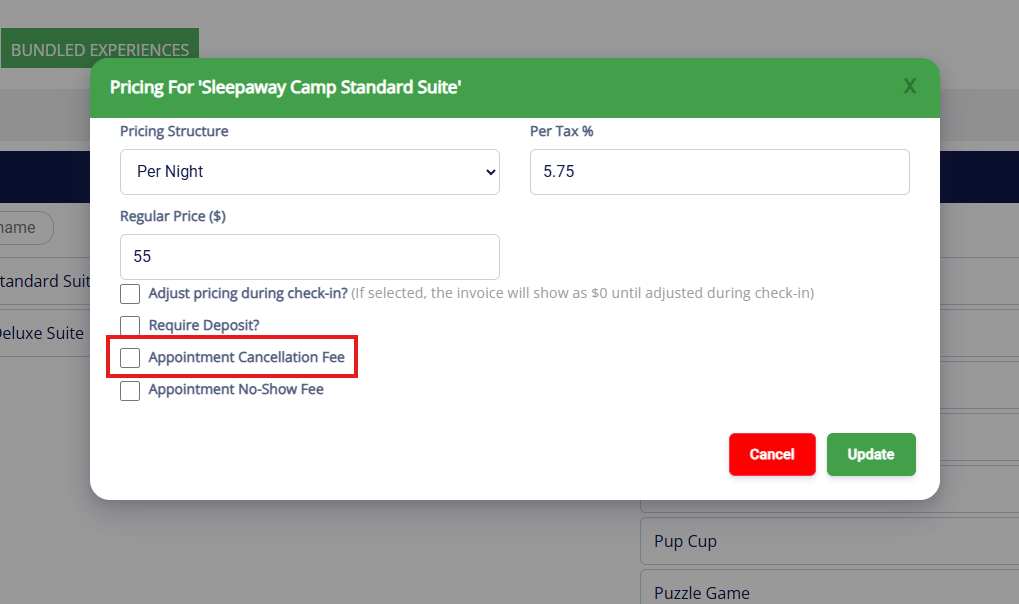
5. To add a cancellation fee, check the Appointment Cancellation Fee checkbox.
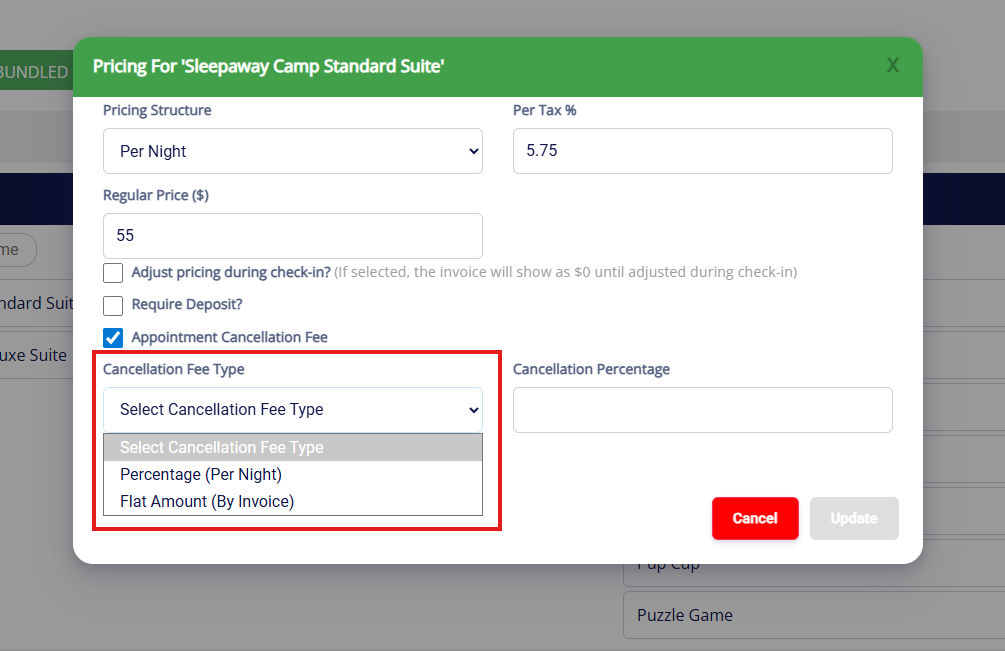
6. Choose the fee type: Percentage or Amount. If this is a lodging service category, the options will be for the percent or flat amount of the entire appointment. If this is a capacity or appointment service category, the options will be percentage of the nightly fee for all nights or a flat amount of the invoice.
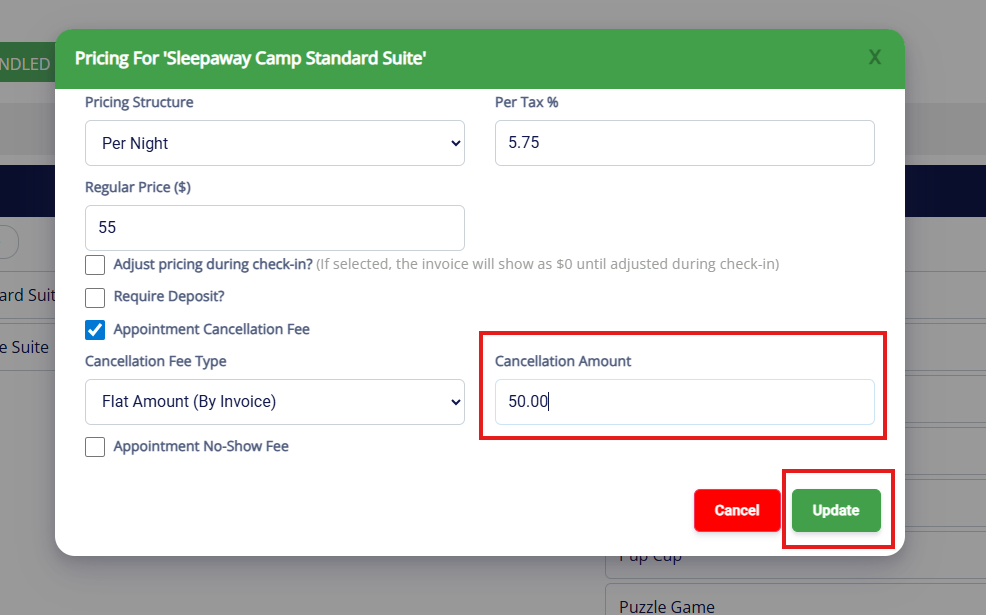
7. Enter the value of the cancellation fee (percentage or flat amount), then click Update.
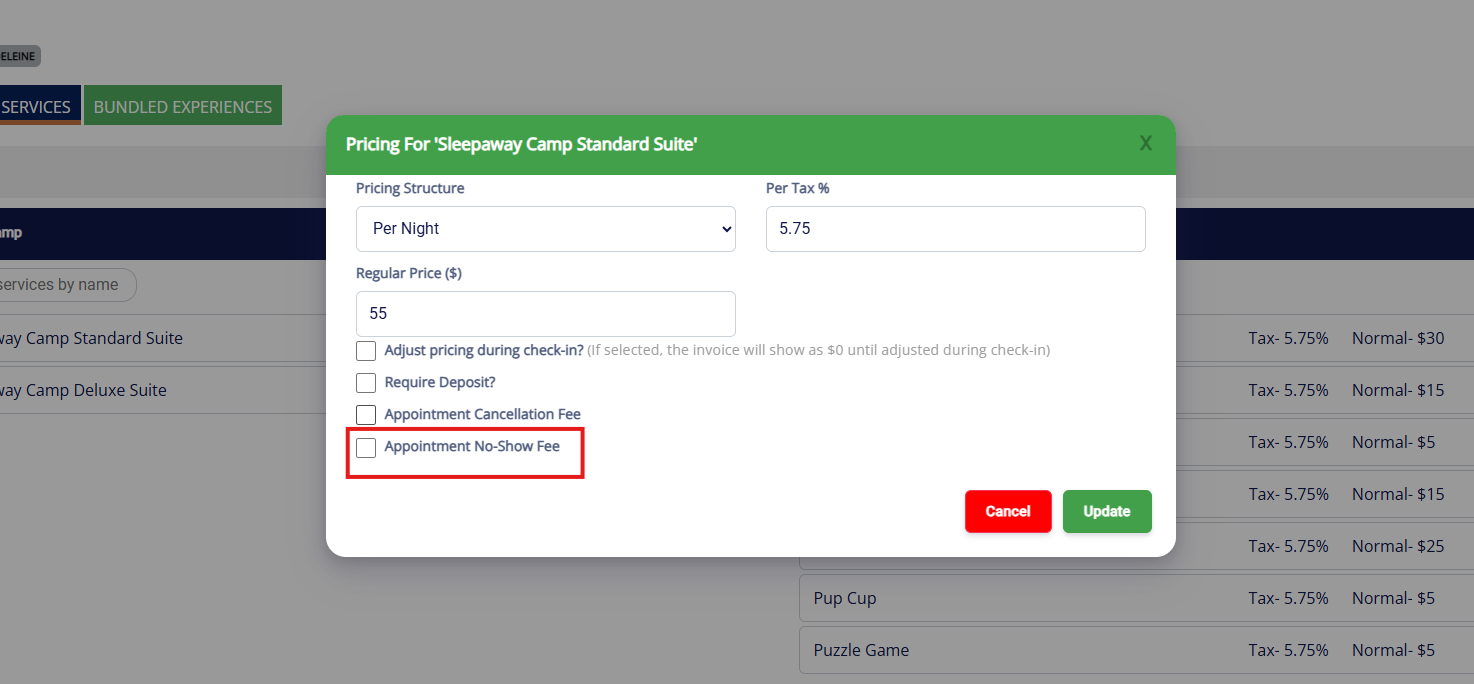
7. To add a no-show fee, check the Appointment No-Show Fee checkbox.
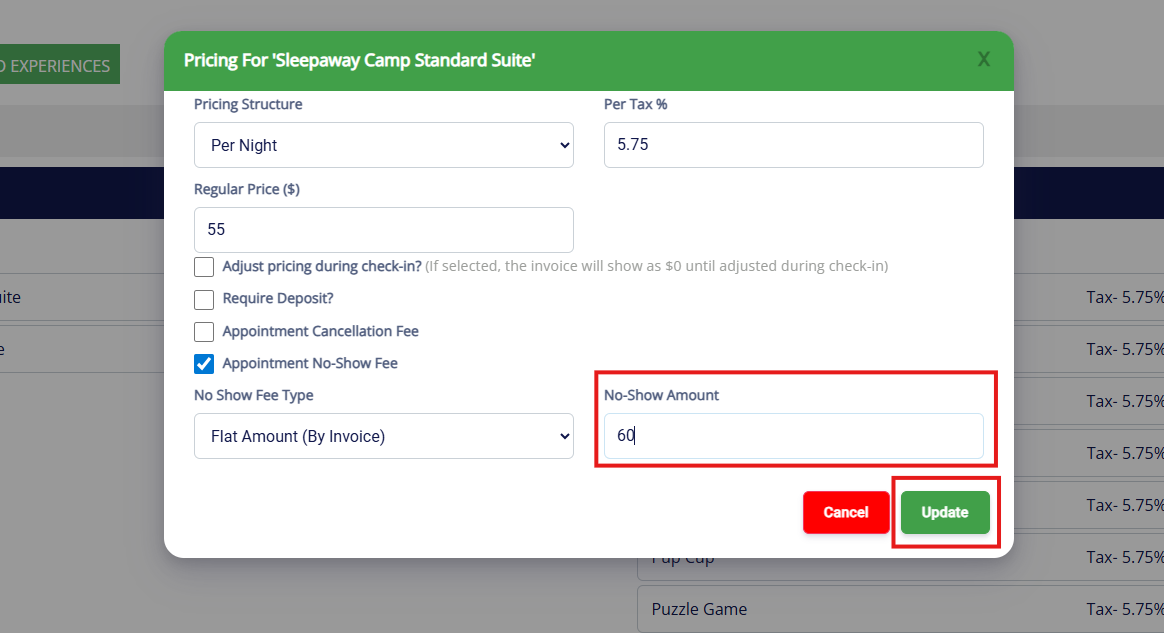
8. Choose the fee type: Percentage or Amount. If this is a lodging service category, the options will be for the percent or flat amount of the entire appointment. If this is a capacity or appointment service category, the options will be percentage of the nightly fee for all nights or a flat amount of the invoice.
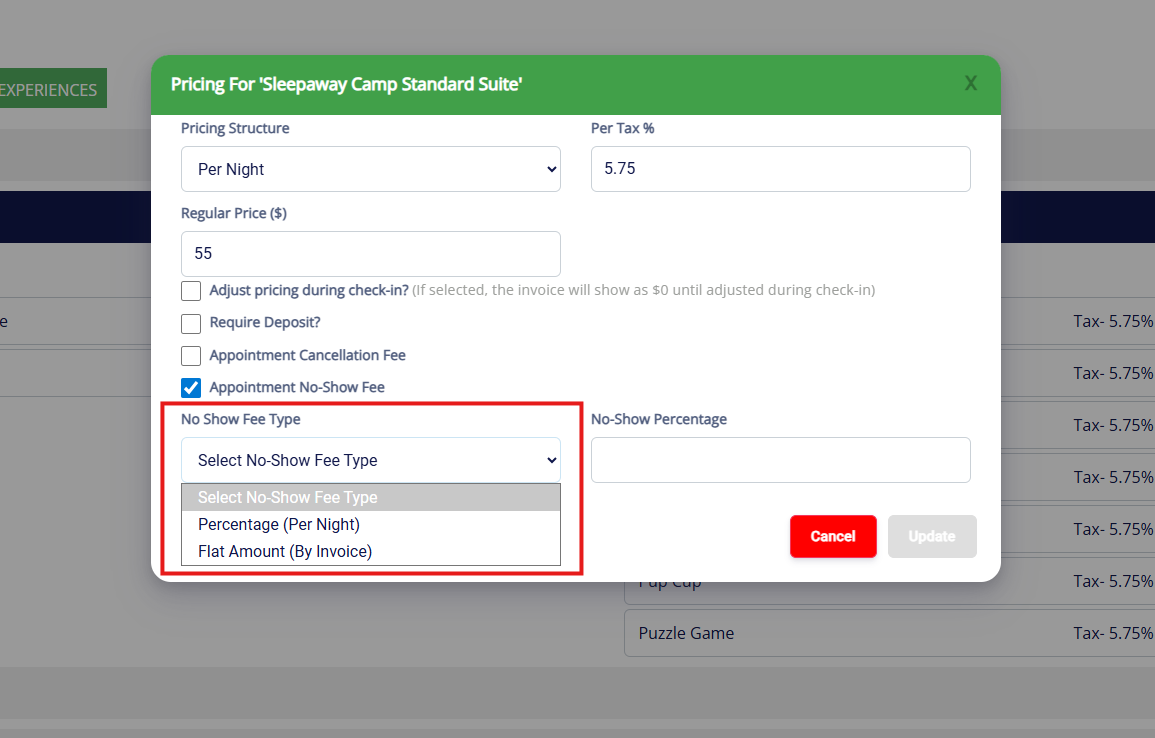
9. Enter the value of the n-show fee (percentage or flat amount), then click Update.
How to Apply Cancellation Fees
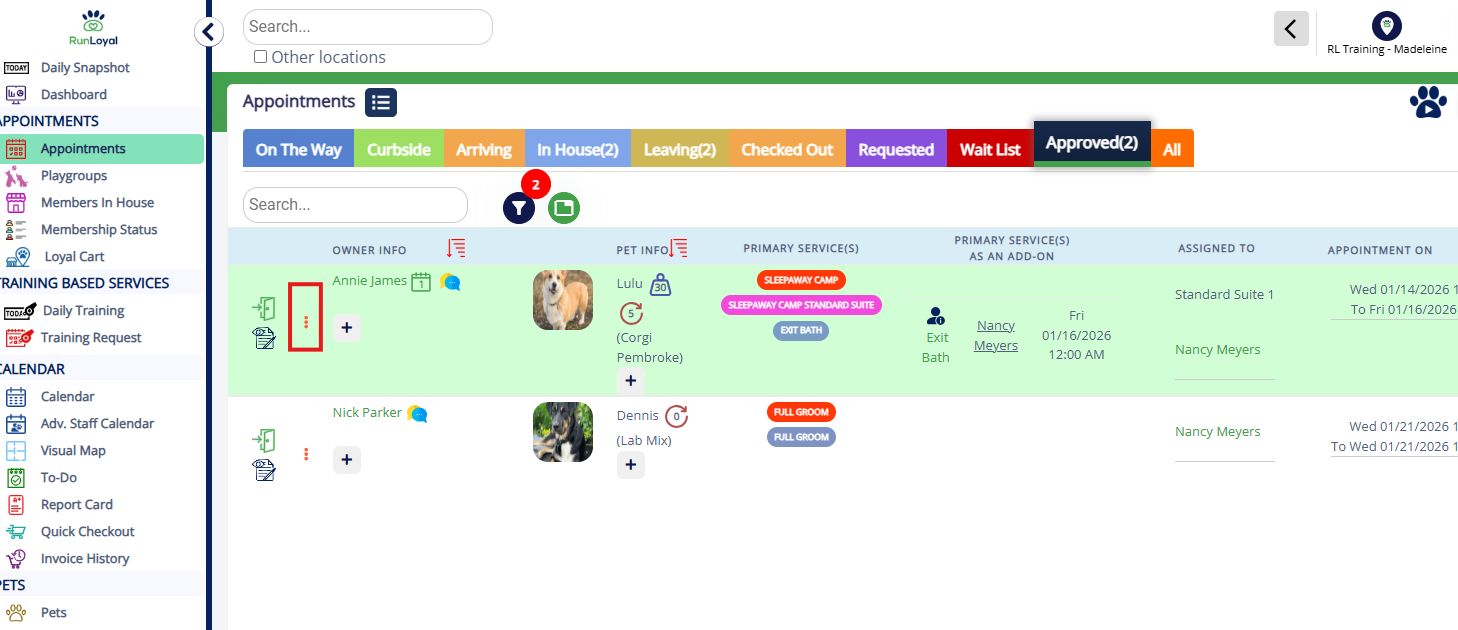
1. Navigate to the appointment you wish to cancel and click the three dots to view additional menu options.
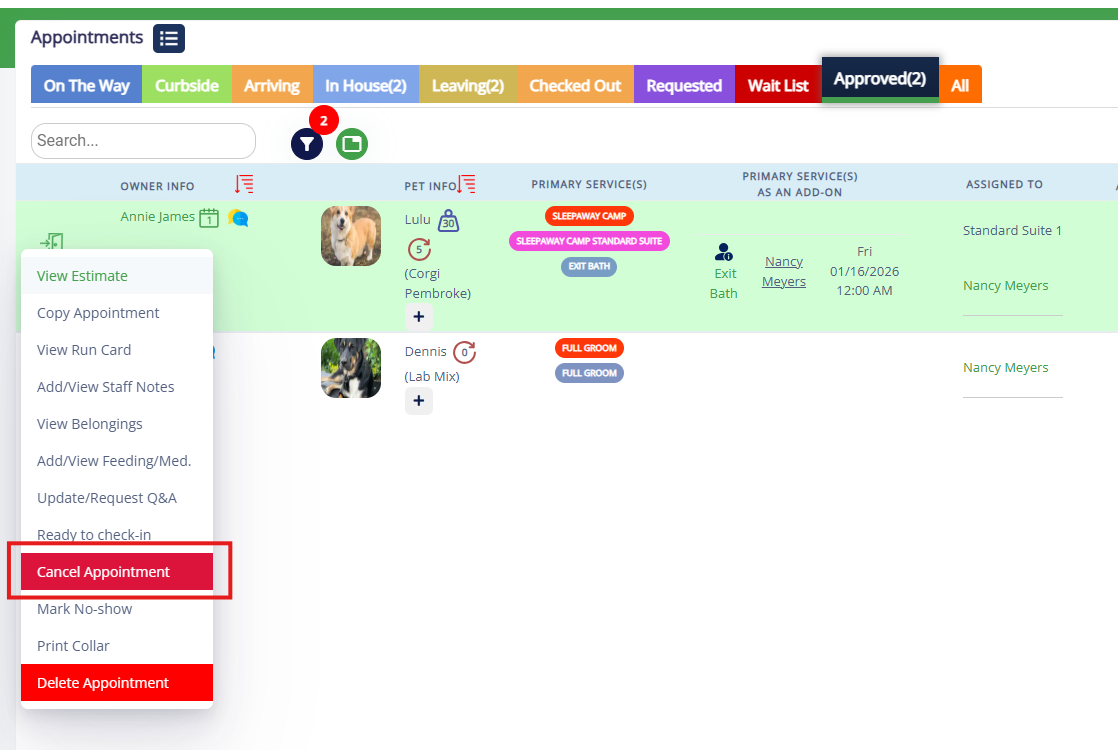
2. Select Cancel Appointment from the list.
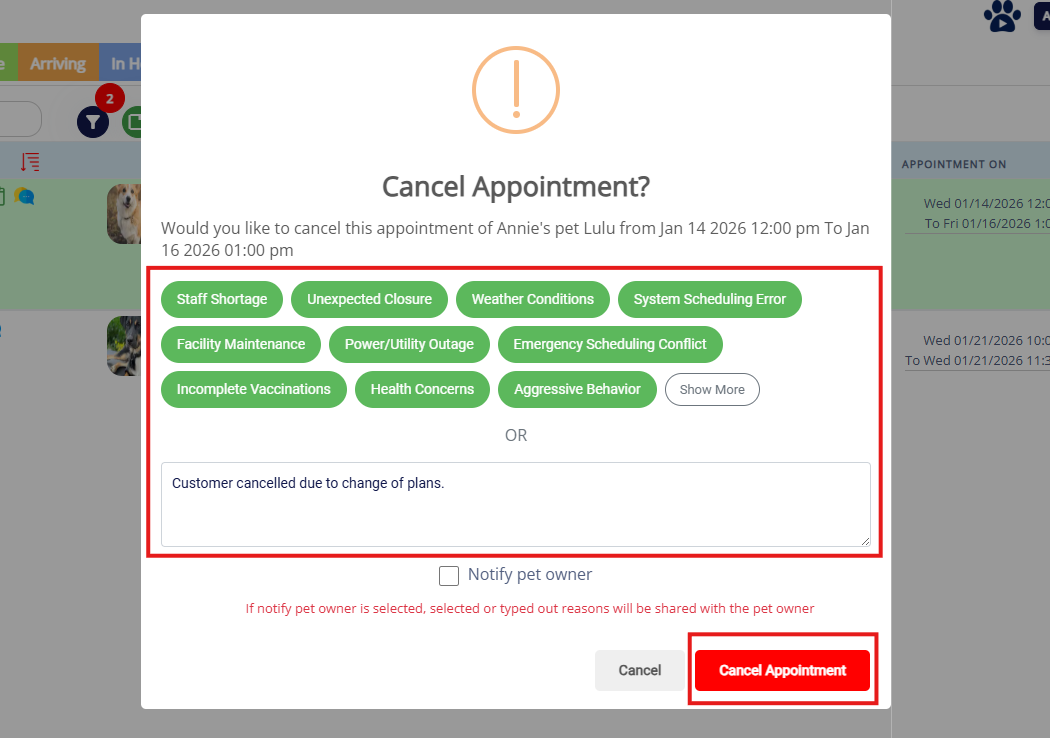
3. Select or manually enter the reason for cancellation. You may wish to enter reason for the cancellation explaining that there will be a fee, and check the box to notify the customer so they are aware a fee will be charged. Click the Cancel Appointment button.
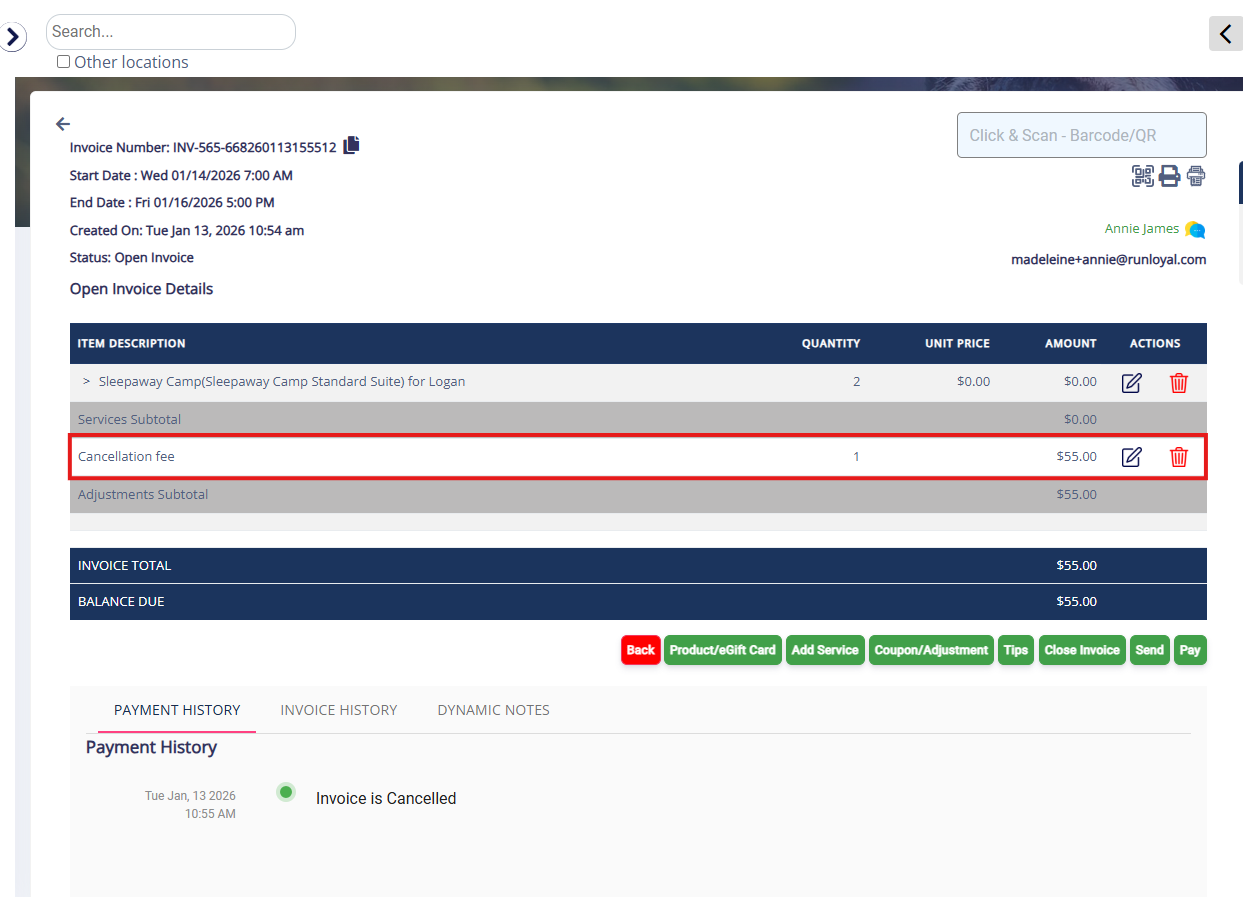
4. Click View Invoice and verify that the Cancellation Fee has been added to the invoice.
How to Apply No-Show Fees
1. Navigate to the appointment you wish to cancel and click the three dots to view additional menu options.
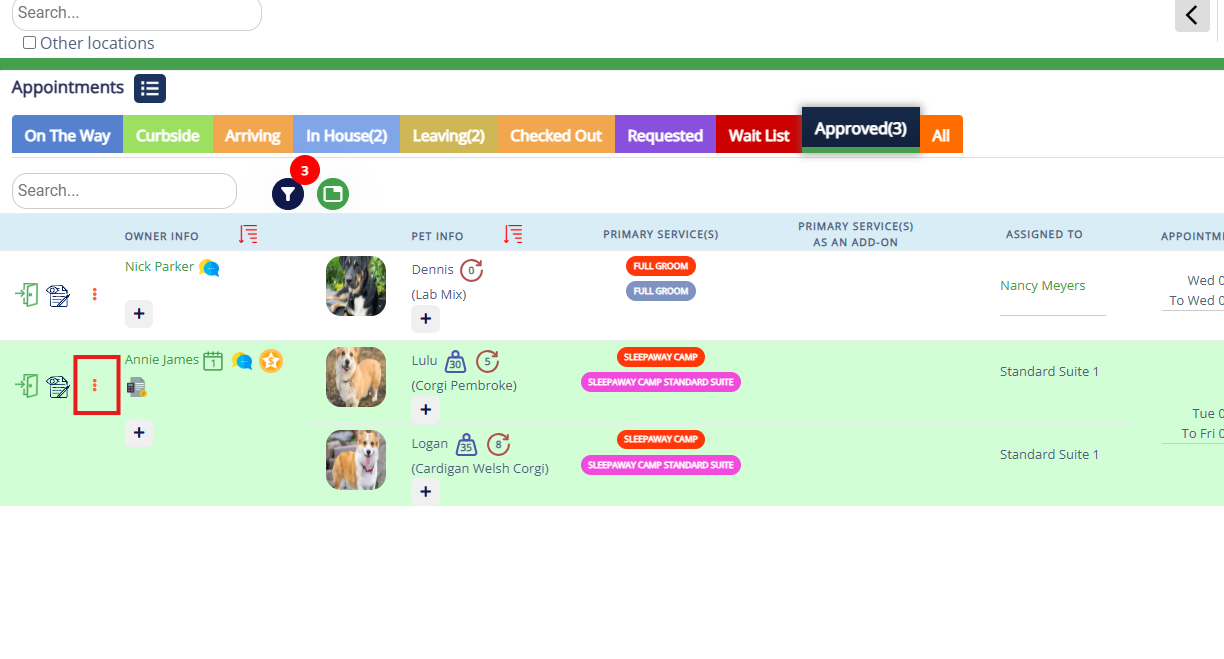
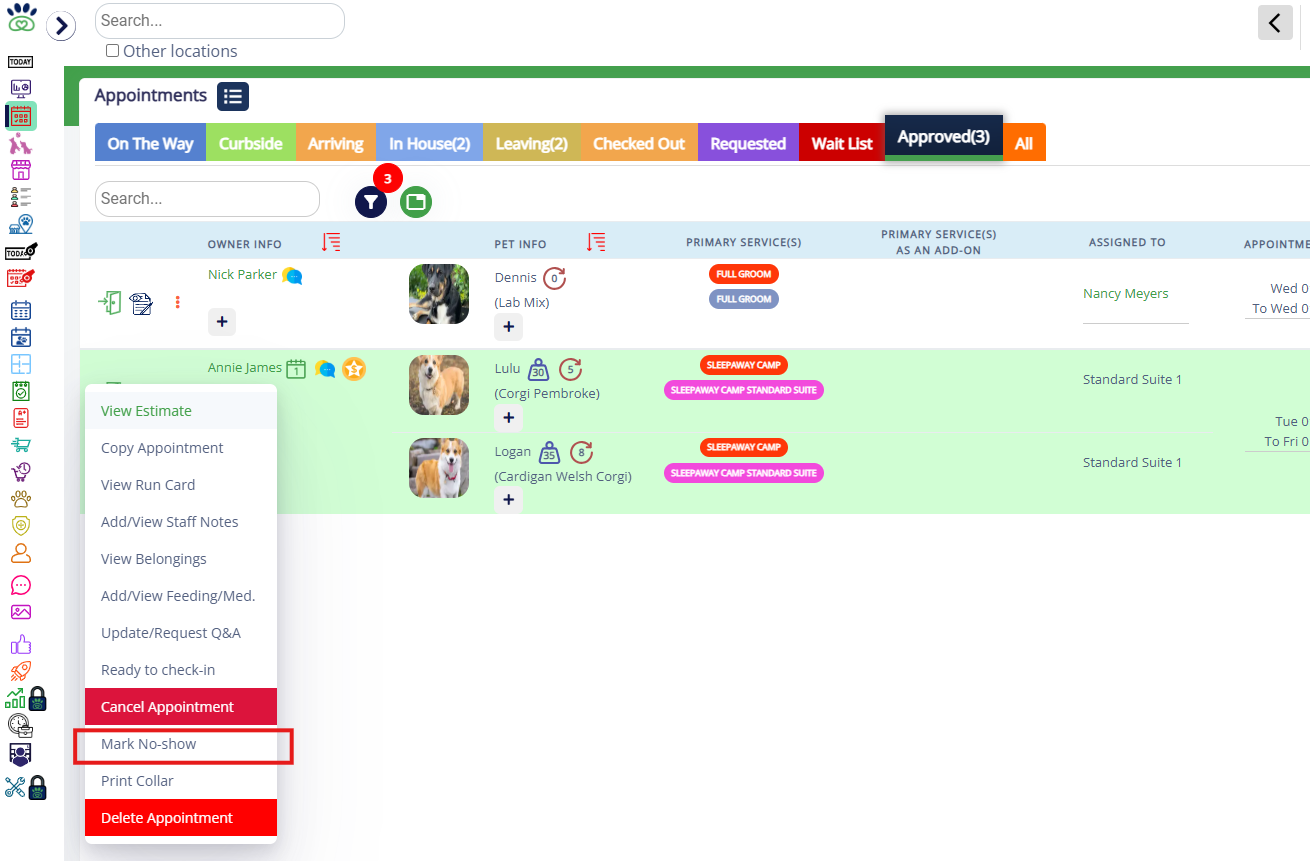
2. Select Mark No-Show from the list.
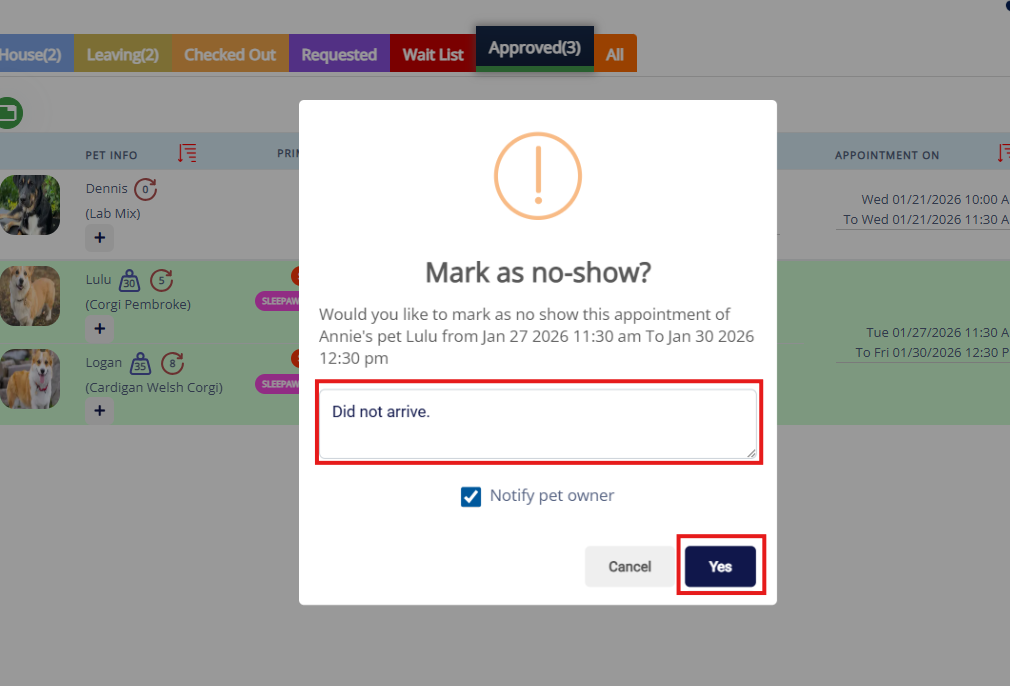
3. Manually enter the reason for cancellation. You may wish to check the box to notify the customer so they are aware a fee will be charged. Click the Yes button to proceed with marking as a no show.
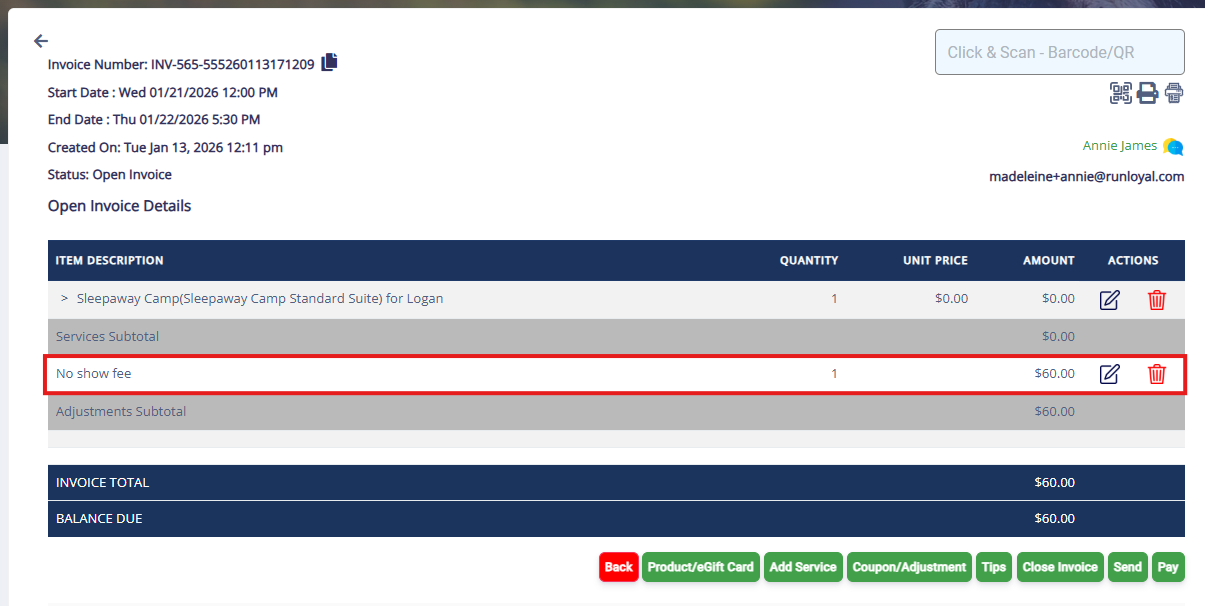
4. Click View Invoice and verify that the No-Show Fee has been added to the invoice.
How to Remove a Cancellation or No-Show Fee from an Invoice
1. Navigate to the invoice where you wish to remove the cancellation or no-show fee.
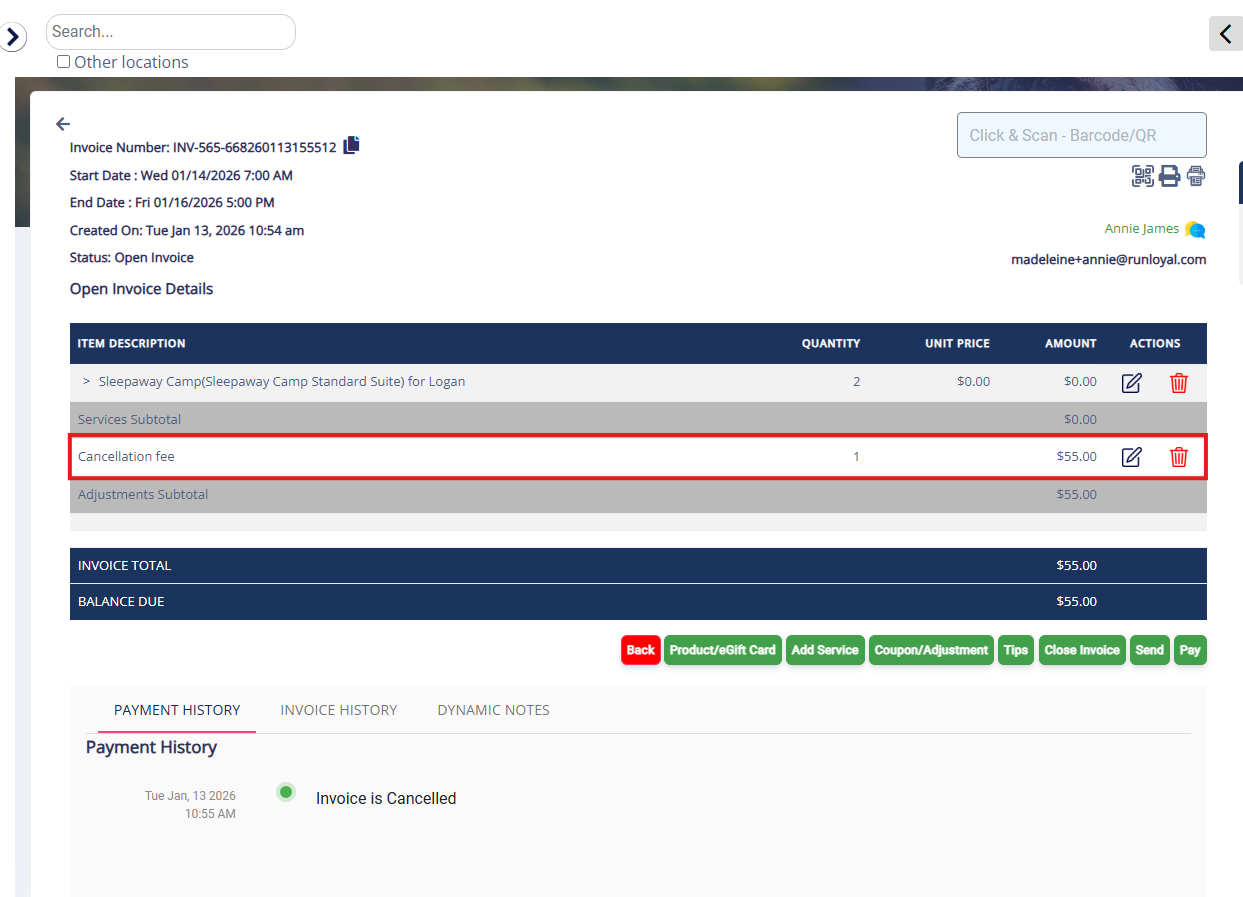
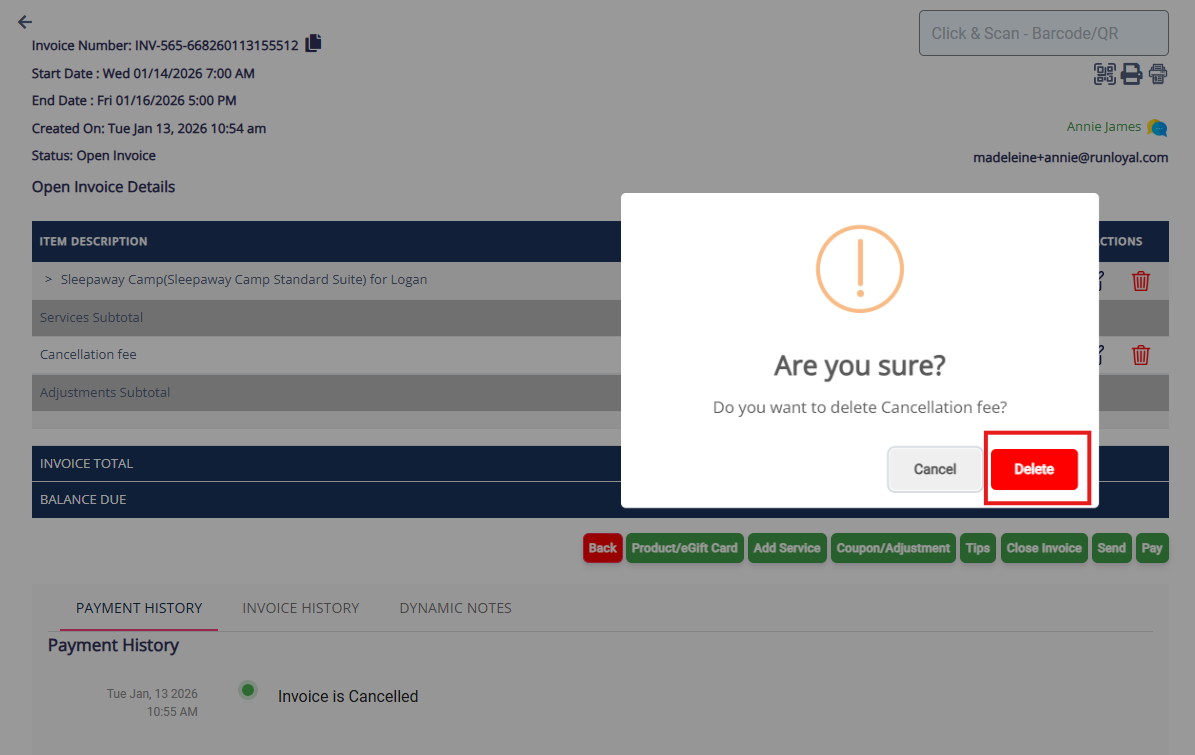
2. Click the Trash icon next to the cancellation or no-show fee you wish to remove.
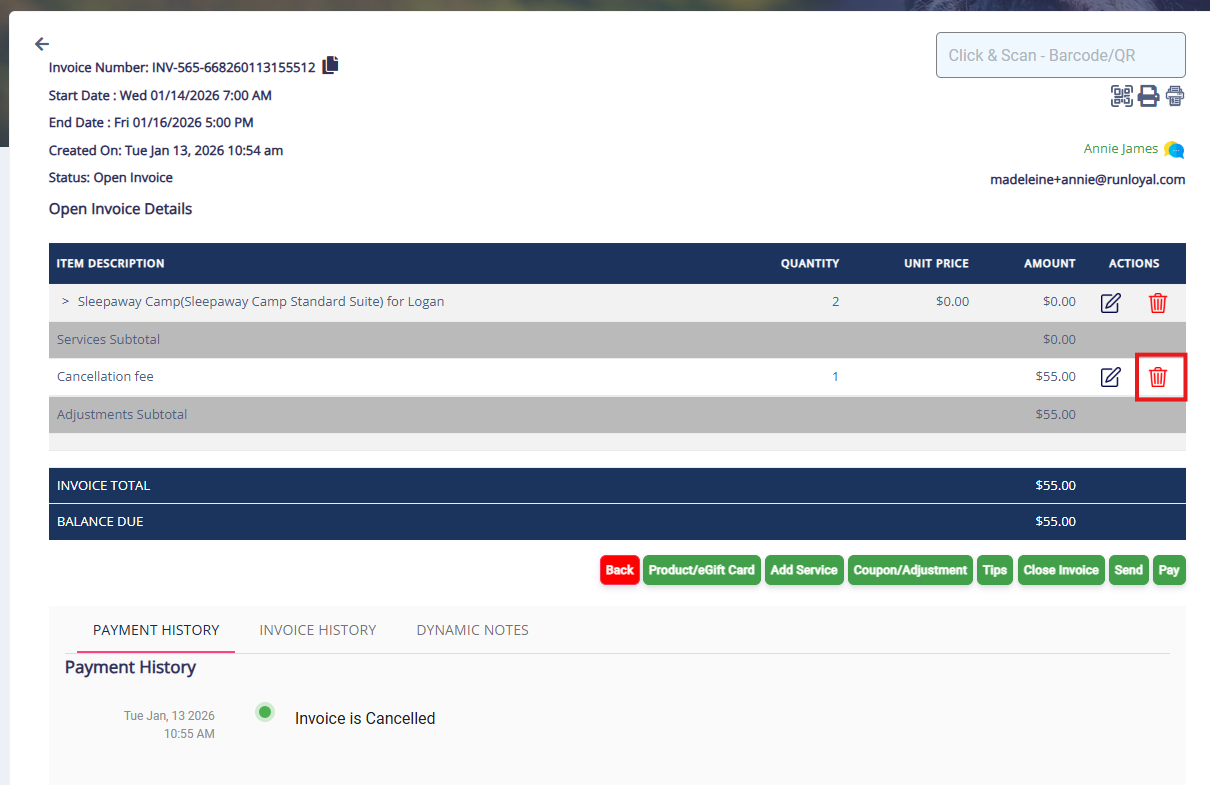
3. Confirm the action by clicking Delete.
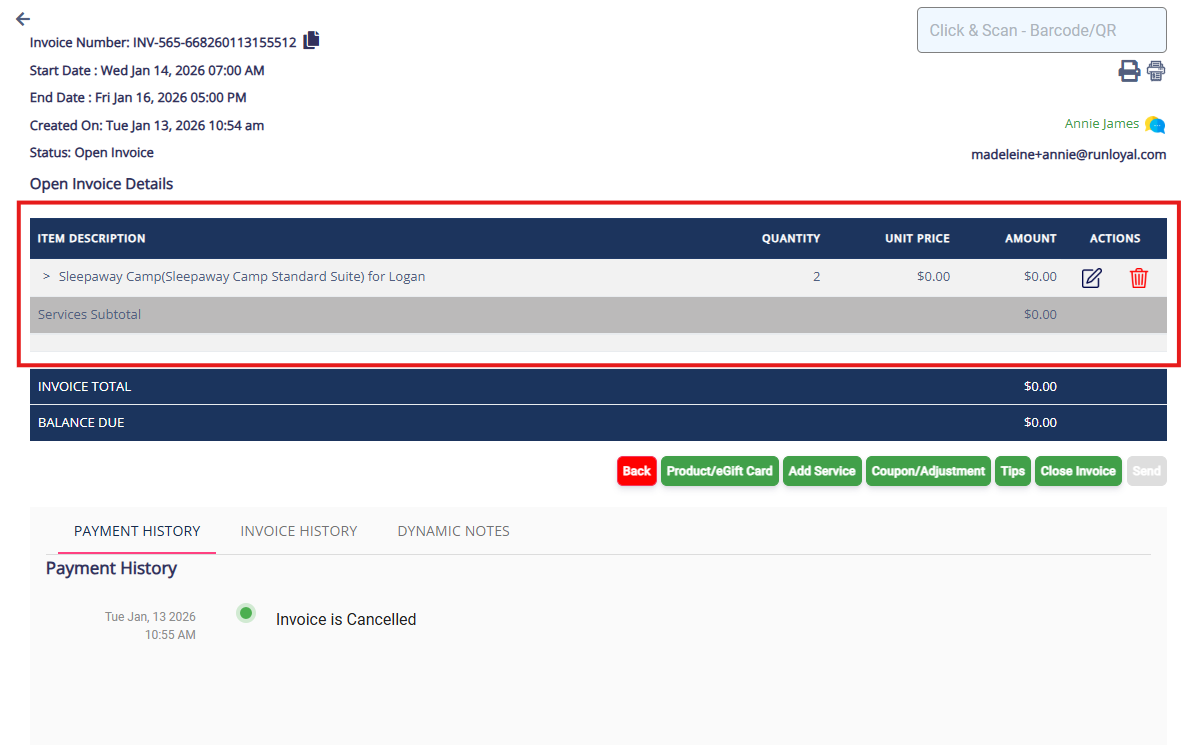
4. Verify the cancellation or no-show fee was removed from the invoice.
More Information
For more information on Price Lists, please refer to this article: Managing Price Lists with Future Effective Dates in RunLoyal
Was this article helpful?
That’s Great!
Thank you for your feedback
Sorry! We couldn't be helpful
Thank you for your feedback
Feedback sent
We appreciate your effort and will try to fix the article