Overview
Staff user accounts can be created for all employees of a business. A staff account allows employees to clock in and out, make changes throughout the app with full accountability, and limit access to certain areas of the app such as admin settings or reporting (if needed). You can also assign certain services (such as grooming or training) to a user so the service can be booked with that employee on the Calendar.
Employees can be viewed in the following areas:
- Settings > Business Setup > Staff Management
- Calendar or Advanced Staff Calendar
- Staff Profile in top left > your name > "My Profile"
TABLE OF CONTENTS
- Overview
- How to Add a New User
- How to Edit an Existing User
- Automated Staff User Logout (After Set Number of Minutes)
- More Information
How to Add a New User
Basic Information
1. To add a new staff user, navigate to Settings > Business Setup > Staff Management.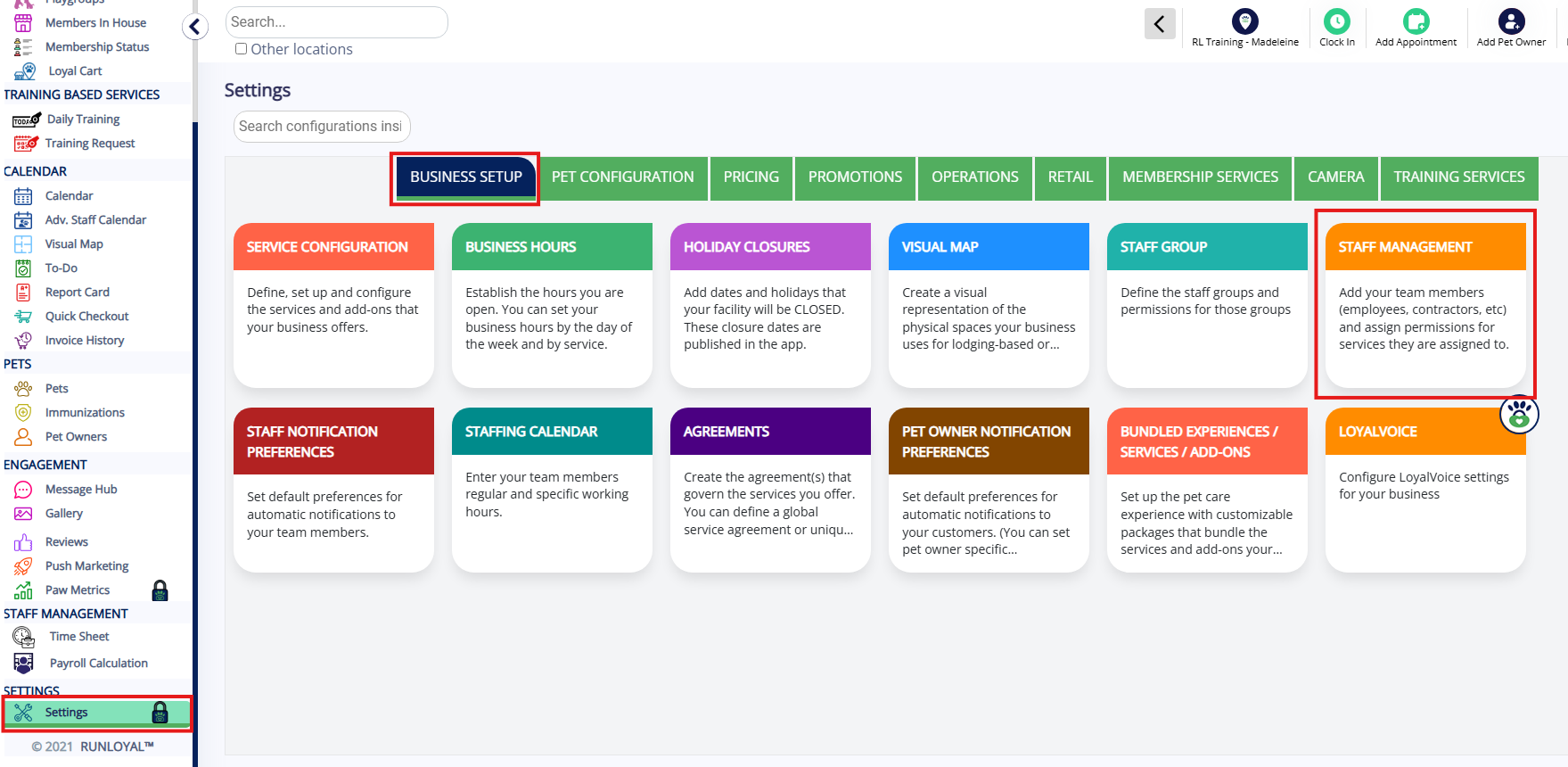
2. Click Add Staff.
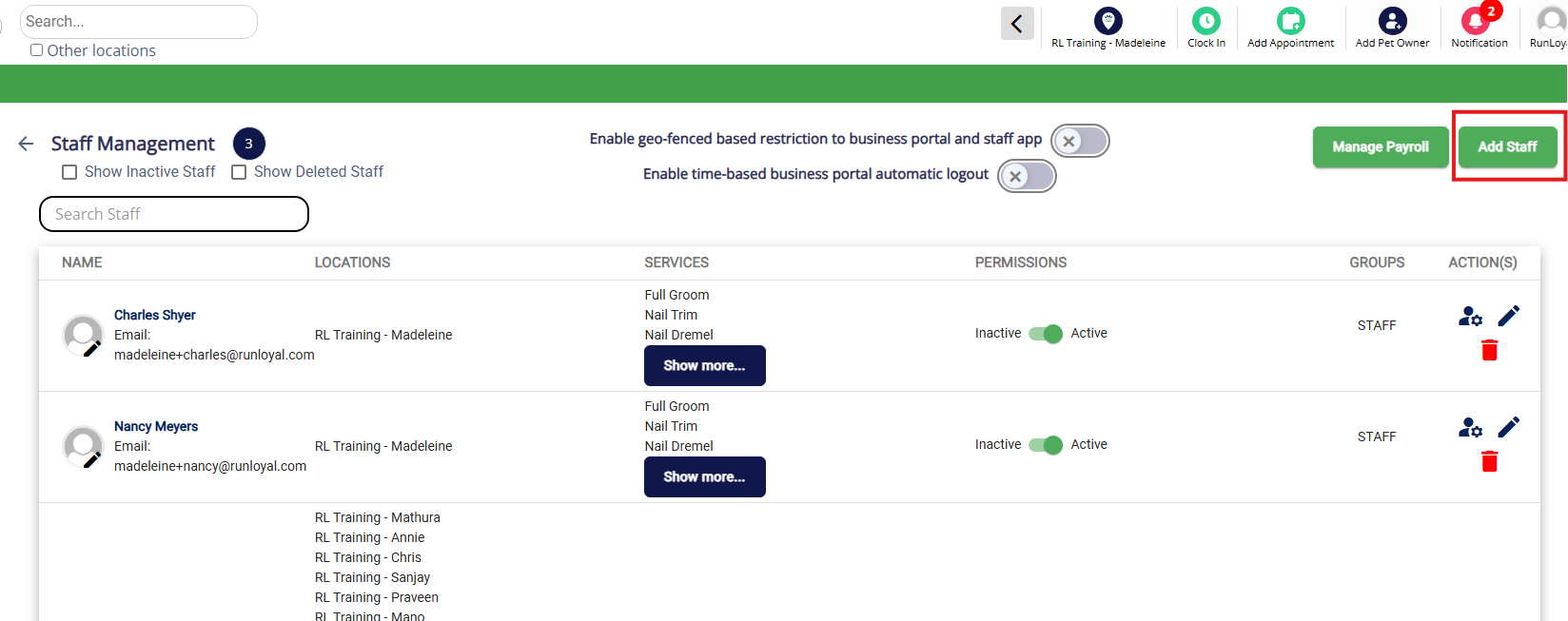
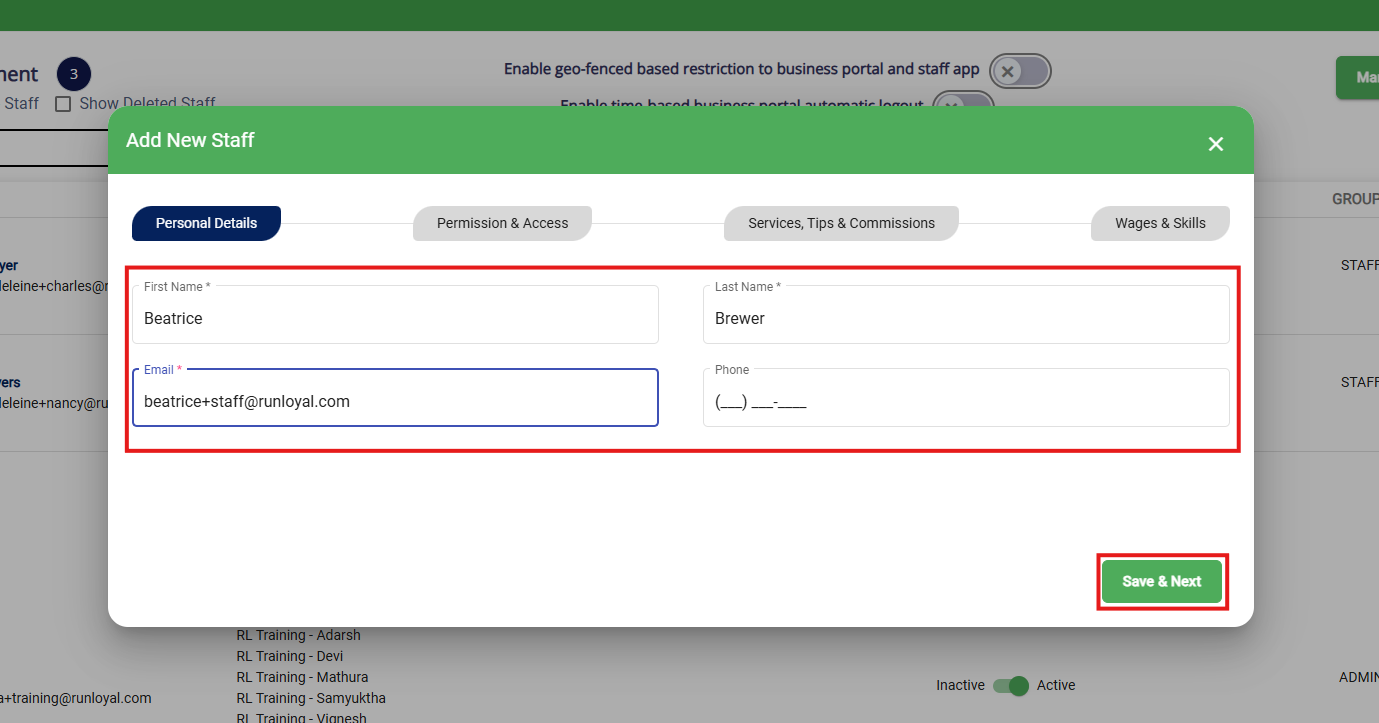
3. Enter the user's First Name, Last Name, Email, and (optional) Phone Number for the new staff member. Then click Save & Next to proceed.
⚠️ Important: The email address must be unique and CANNOT match the email address of any pet parent in the app. It does need to be an accurate email as it is used for logging in, clocking in, and password resets. If the staff member is both an employee and pet parent, you can assign a business email for their staff account OR use their Gmail account with a +staff modifier (such as name+staff@gmail.com). The + sign for Gmail email addresses will still route to their normal email (such as name@gmail.com) but suffices as a unique email for this purpose.
Permission & Access
4. Under Permission & Access, select the user's correct user group: Organization Admin, Location Admin, or Staff (can select from multiple staff groups, if applicable).
- Organization Admins (OA) can create/manage Service and Pet Configurations for all locations, edit settings under different locations, and create Location Admin users and assign to multiple locations.
- Location Admins can see all settings but cannot make changes, outside of select options defined by OAs for their location(s) only.
- Staff can access to operation actions but cannot access Settings and Paw Metrics. You can also set up additional Staff Groups (such as manager) with varied permissions using this article: Create Staff Groups (Permissions).
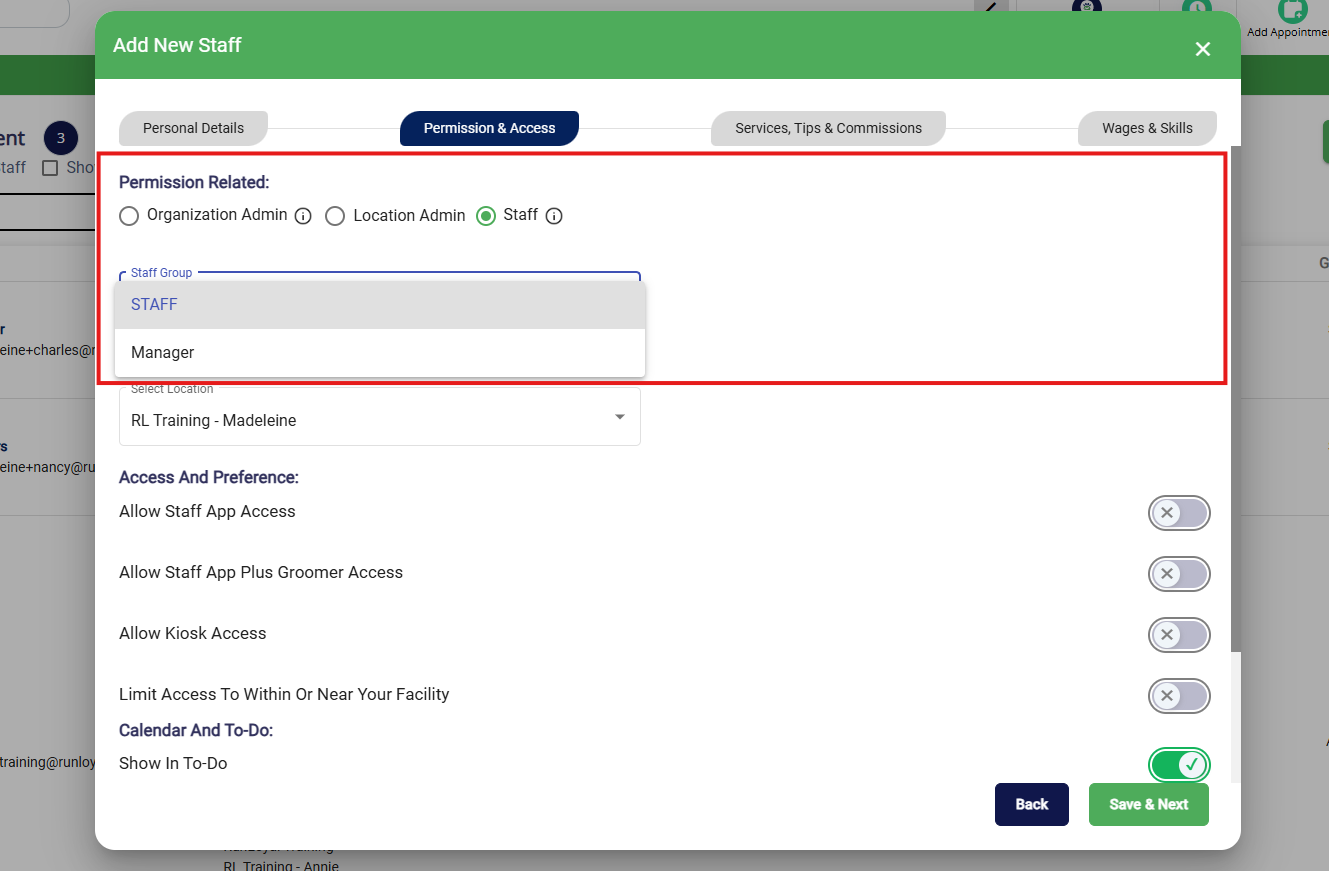
5. If the business portal has multiple locations, select the location(s) this user should be able to access. Otherwise, disregard.
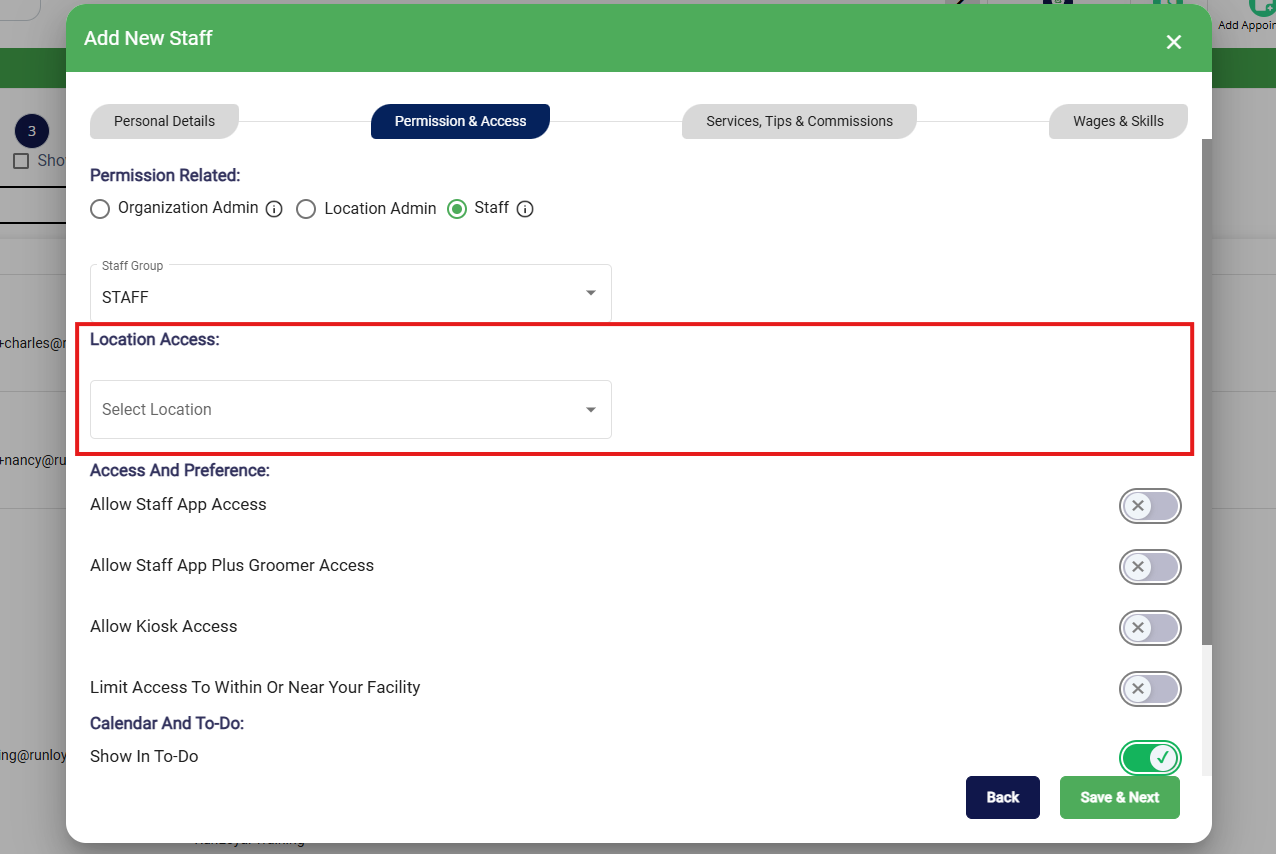
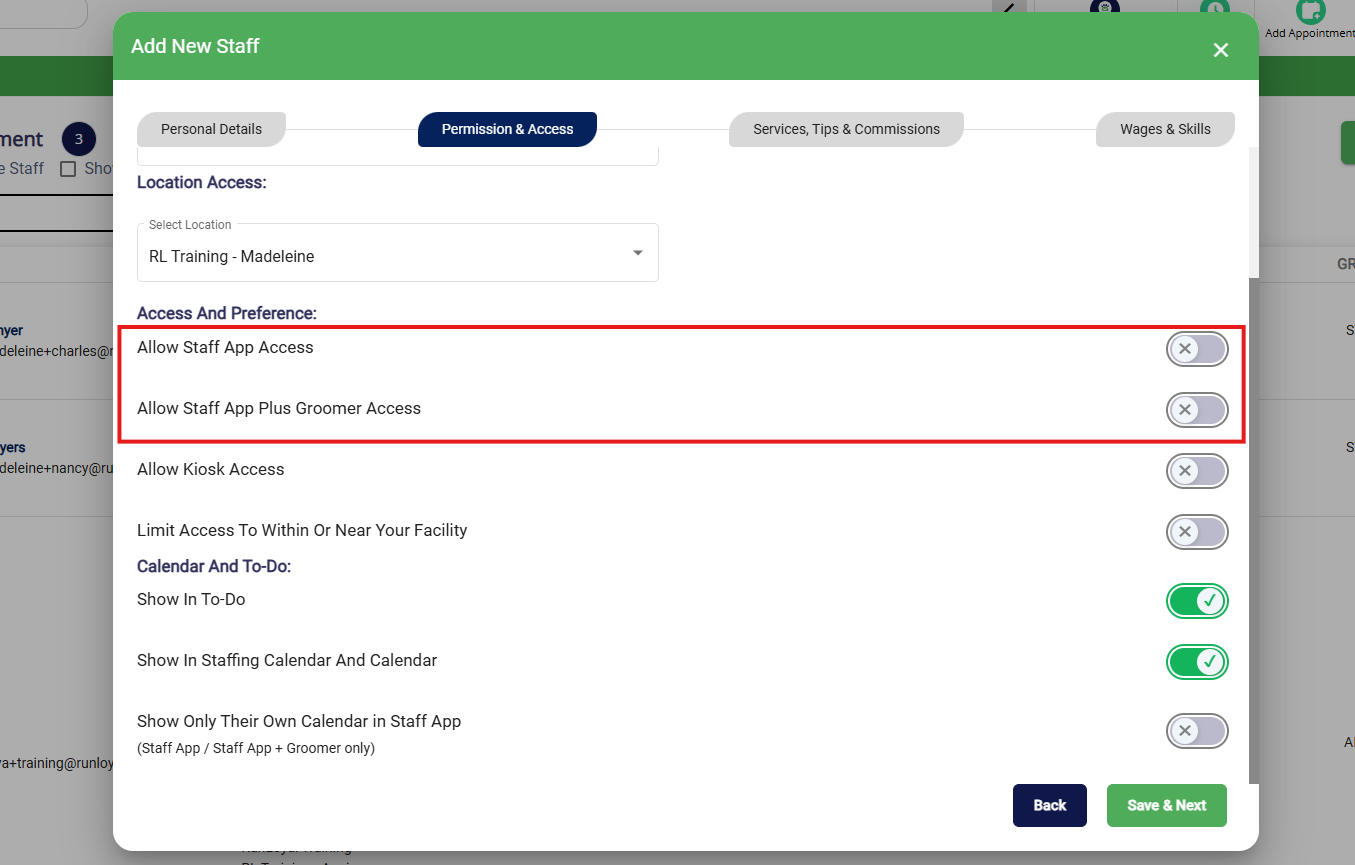
6. If the user should be able to download and login via the mobile Staff App as a regular staff member or groomer, then enable Allow Staff App Access and/or Allow Staff App Plus Groomer Access. These are optional add-ons and each app user requires a paid "seat". If you do not use the Staff App, then disregard.
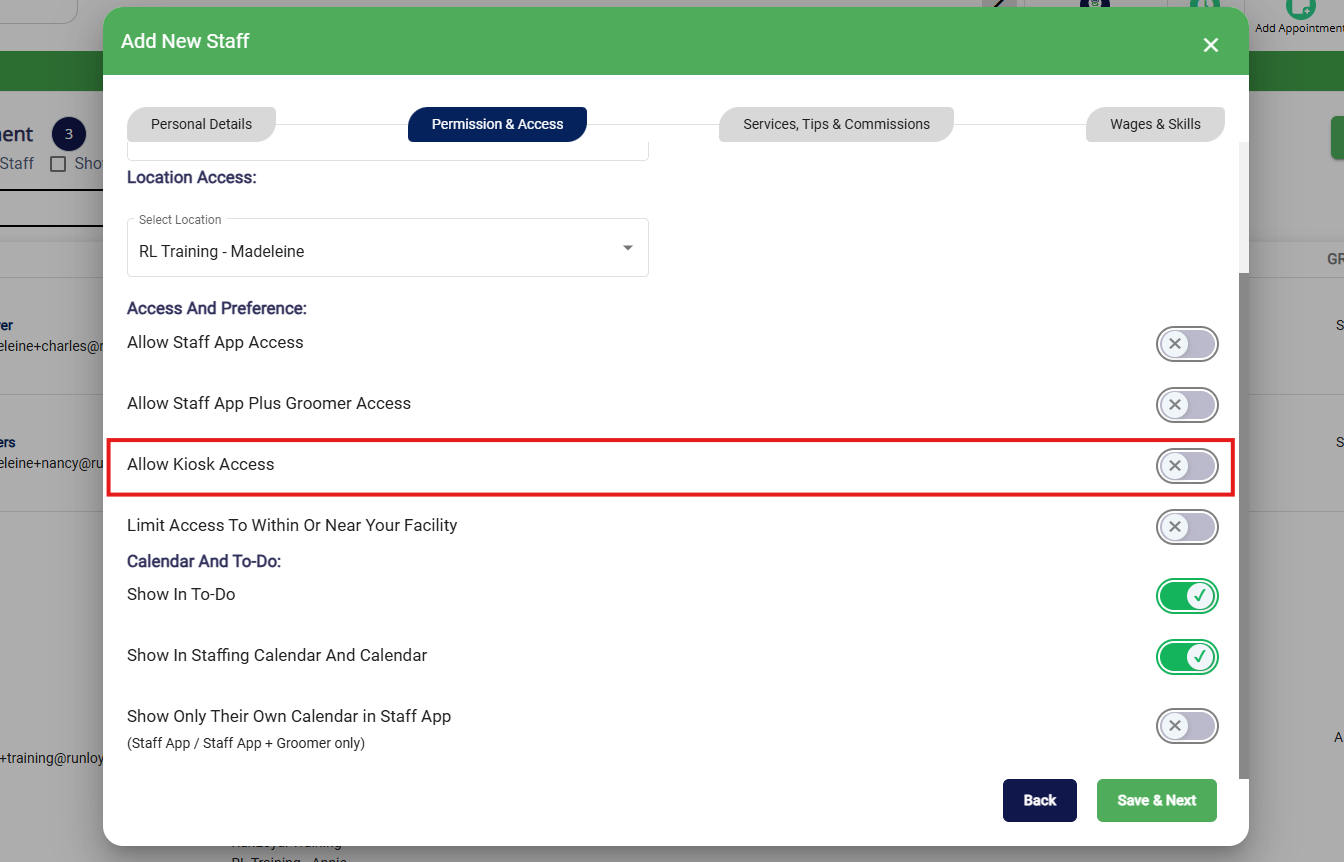
7. If the user should be able to access the Kiosk, enable Allow Kiosk Access. This is an optional add-on. If you do not use the Kiosk, then disregard.
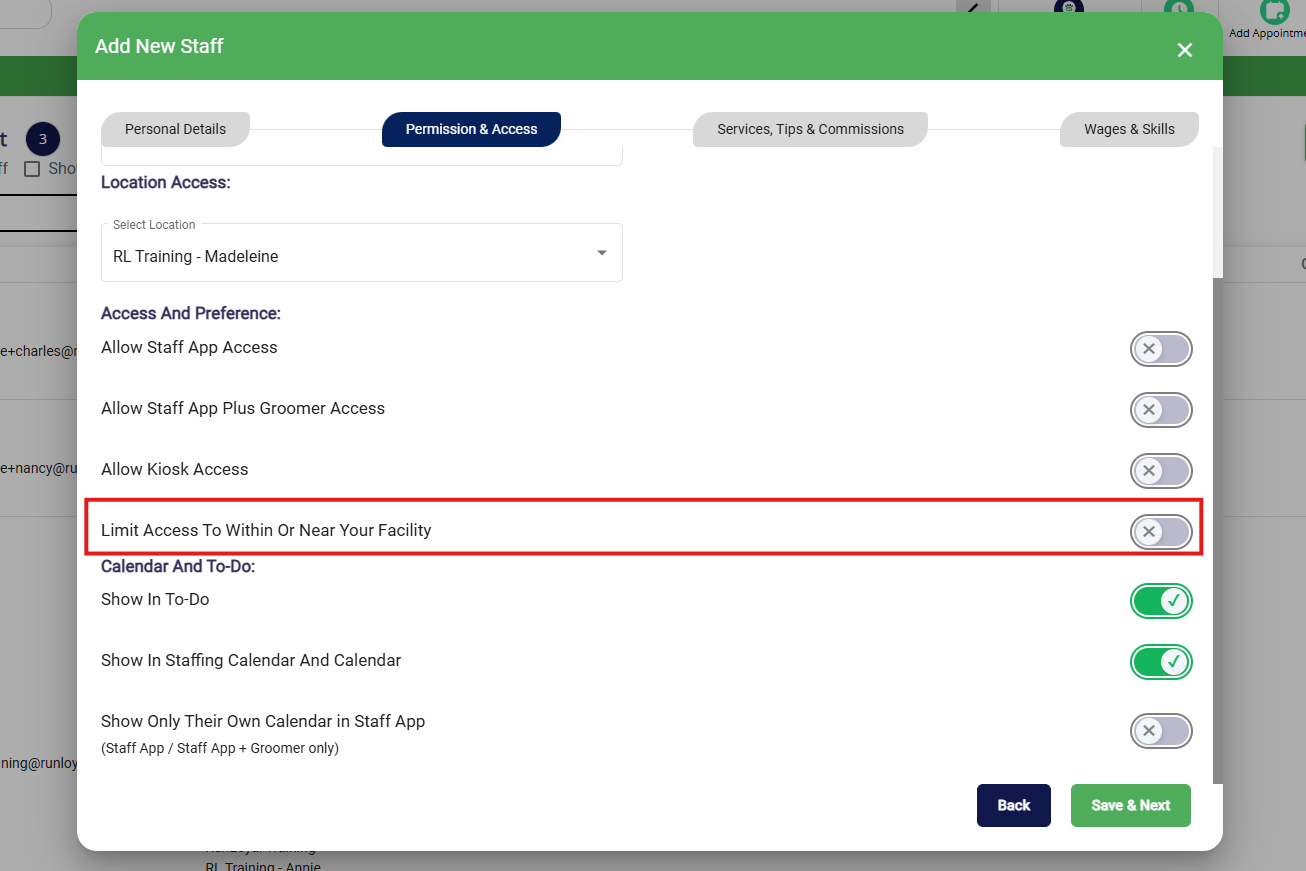
8. If the user should be geographically restricted from accessing your app unless they are in a certain radius in or around your facility, toggle on Limit Access To, Within, or Near Your Facility. You can learn more about geo-fencing in this article: Staff Geo-Fencing (Physical Access Restriction)
9. If this user will perform assigned services such as training or grooming, enable Show In To-Do and/or Show In Staffing Calendar And Calendar. If the user should not show up in the calendar because they do not perform assigned services, disable these settings.
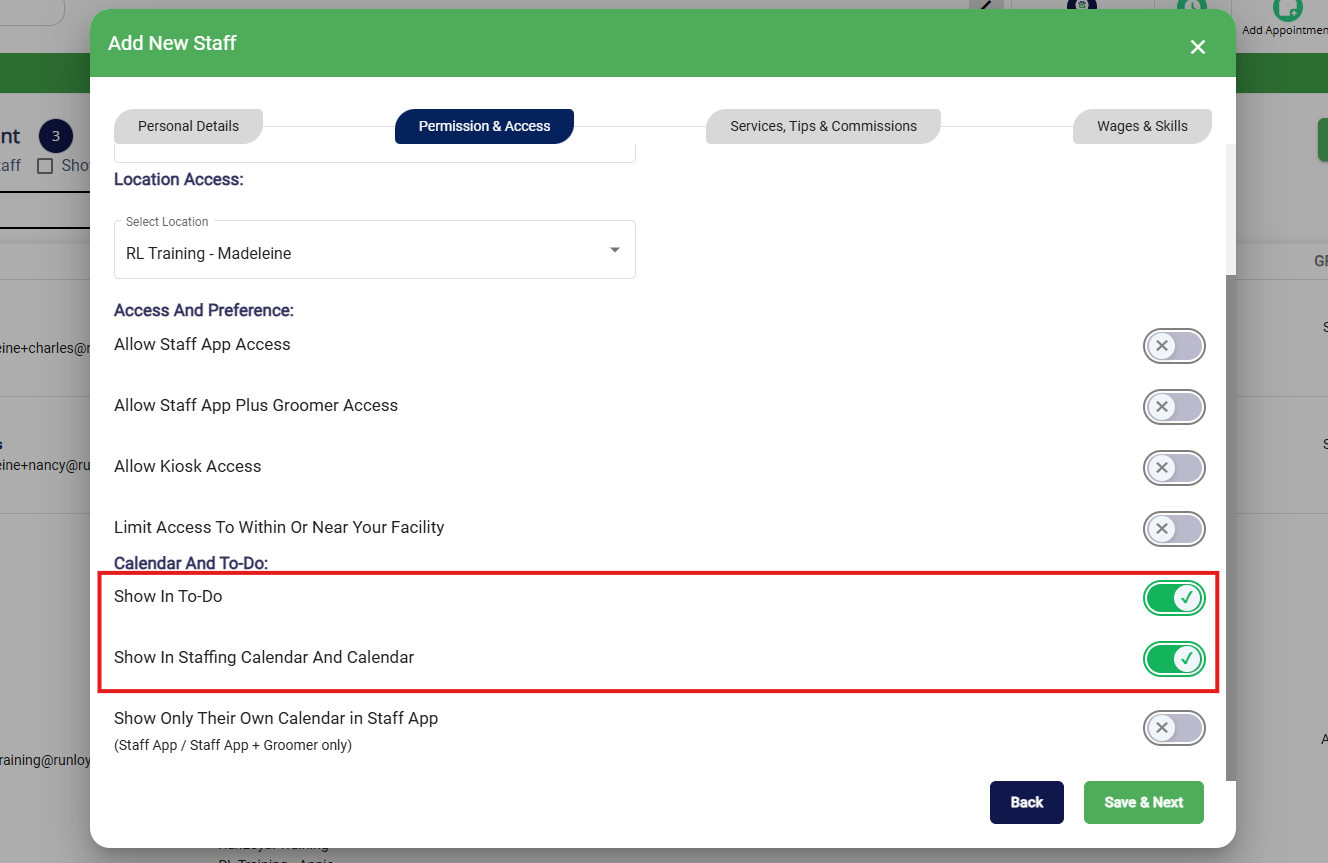
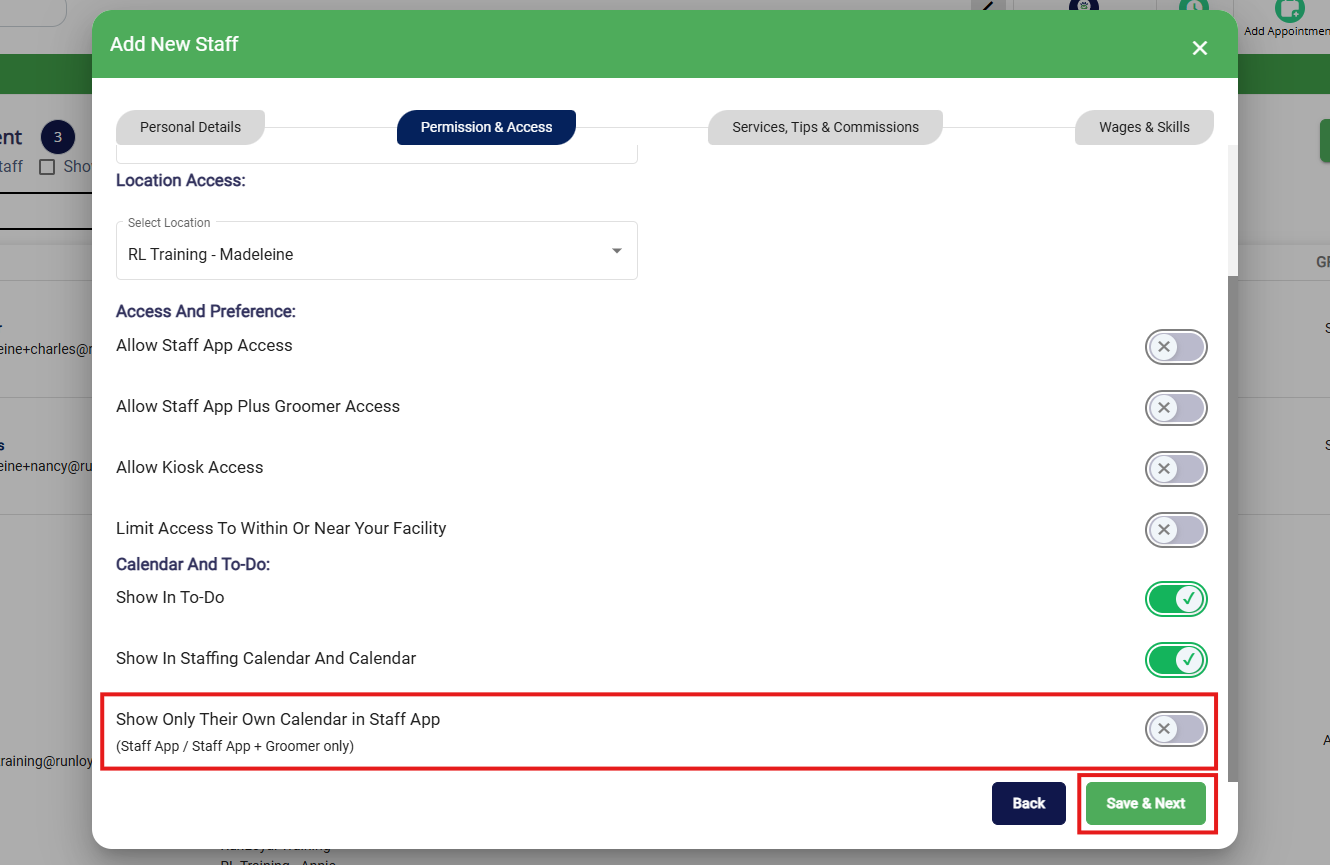
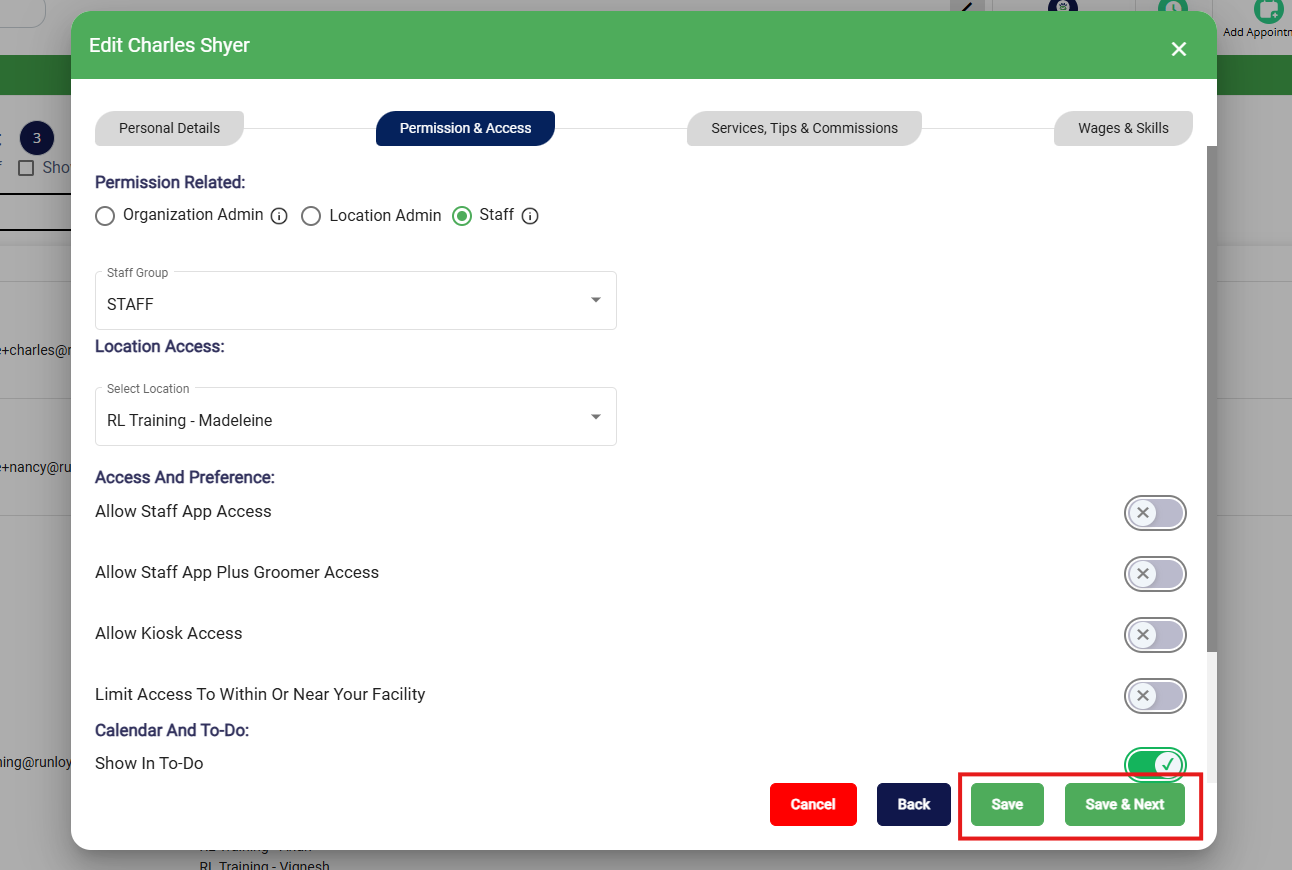
10. If this user will perform assigned services such as training or grooming and they should only be allowed to see their own calendar in the mobile Staff App, enable Show Only Their Own Calendar in Staff App. If you do not use the Staff App, then disregard. Click Save & Next to proceed.
Services, Tips, & Commissions
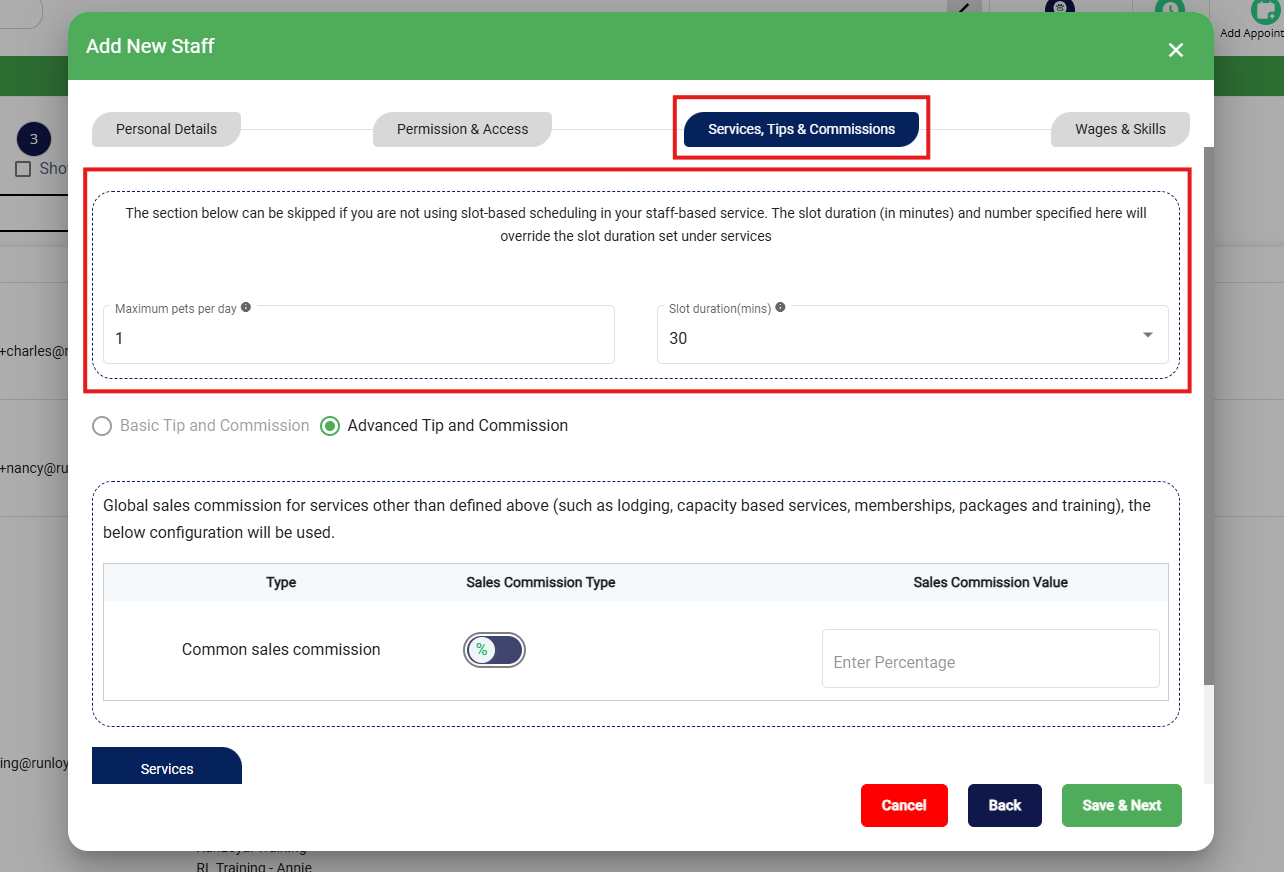
11. Under Services, Tips, & Commissions, the first section is if you have any service categories set up for Slot-Based Scheduling. It will default to 1 and 30. If you do not use Slot-Based Scheduling, you can leave these defaults as-is and skip this section.
Slot-Based Scheduling means staff are available during a given time period and multiple animals can be booked in a single time slot with a set daily maximum. For example, if grooms take 60 minutes and your groomer works from 9am - 5pm with a maximum of 10 animals per day, then time slots for this service would show as 9am, 10am, 11am, etc. Once an animal is placed in the 9am slot, customers would still be able to book in the 9am, or any other, slot (up to 10 animals for the entire day). You can learn more about Staff-Based Service Categories in this article: Set Up Staff-Based Service Category (Grooming, Training).
If you do use Slot-Based Scheduling, then enter the maximum total of animals that this user can have scheduled services for in Maximum pets per day. You can also enter a custom duration for appointment intervals in Slot duration (mins), such as 60 minutes. Please note this will override the slot duration set under services.
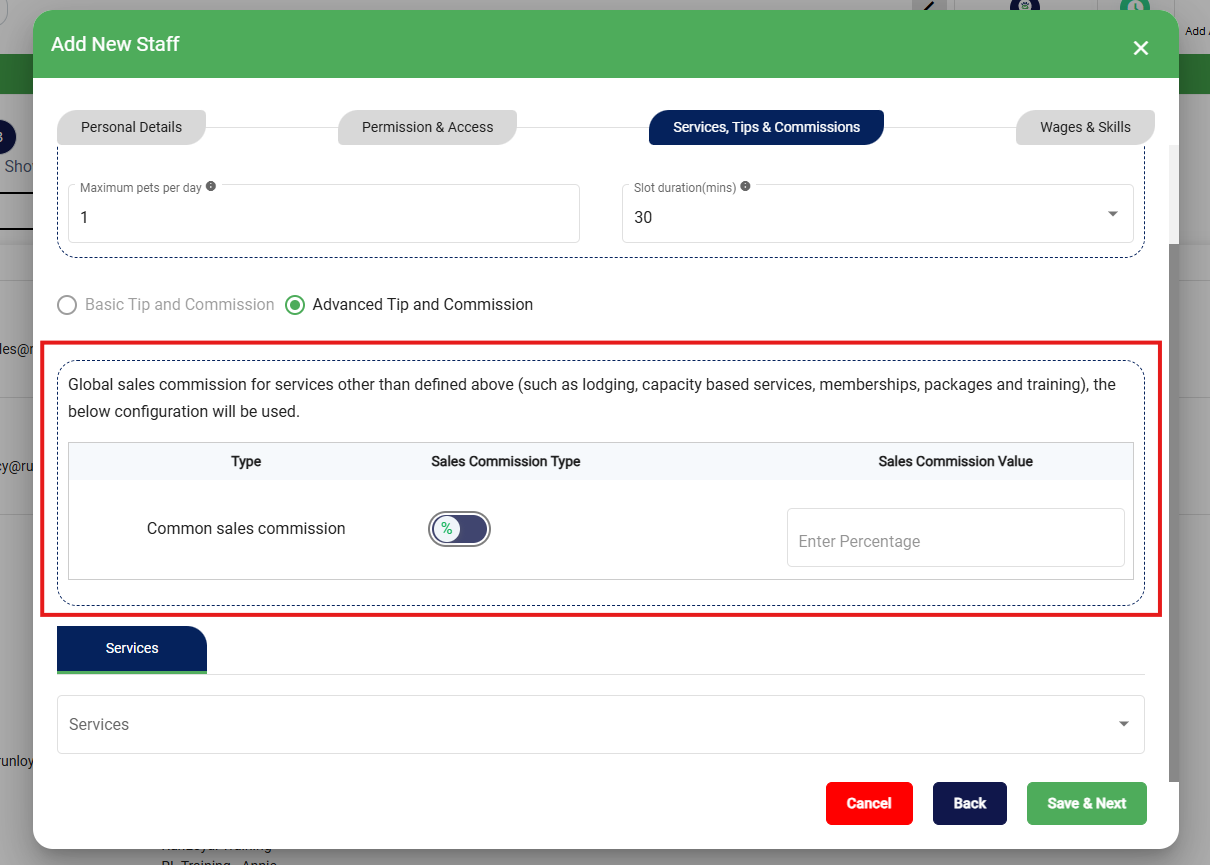
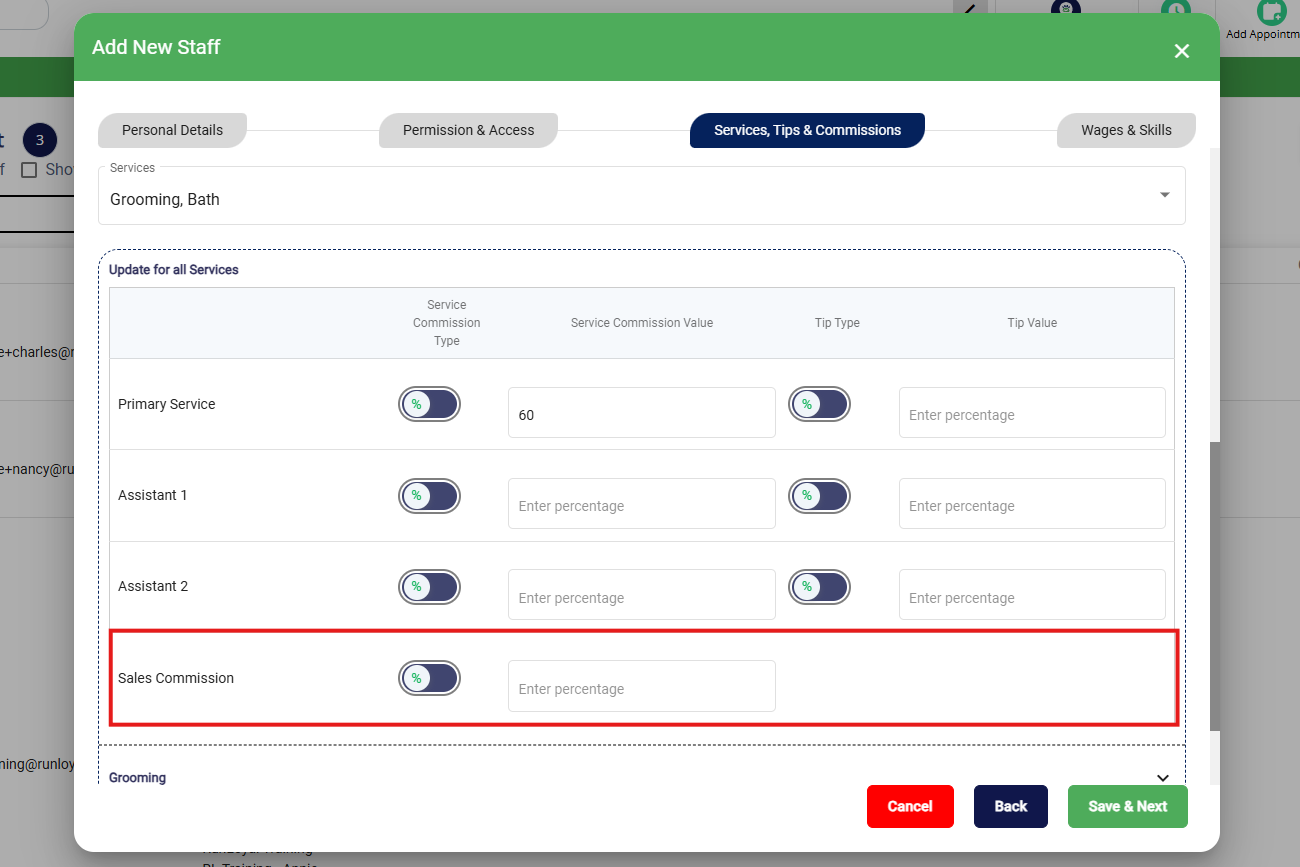
12. If you wish to give this user sales commission on non-scheduled services (such as for creating a boarding or daycare appointment, adding services to an existing appointment, selling a package, etc.), you can set a Global Sales Commission. Select if this should be a percentage or dollar amount under Sales Commission Type, and enter the amount in Sales Commission Value.
13. If this user performs scheduled services, click into the Services dropdown to select the service categories.
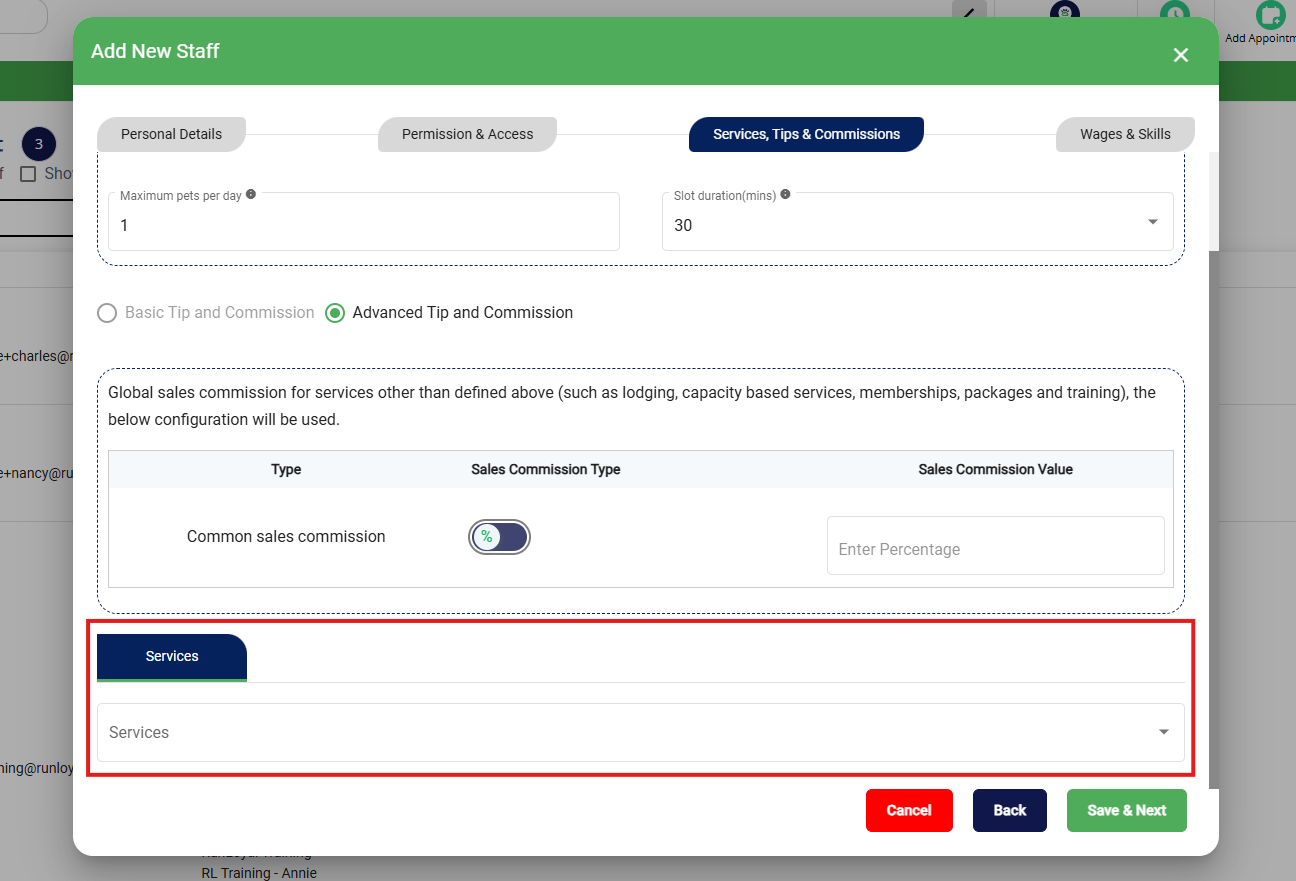
14. The dropdown will display all service categories at this location set to Staff-Based Scheduling. You can select specific categories or simply check the box Select All.
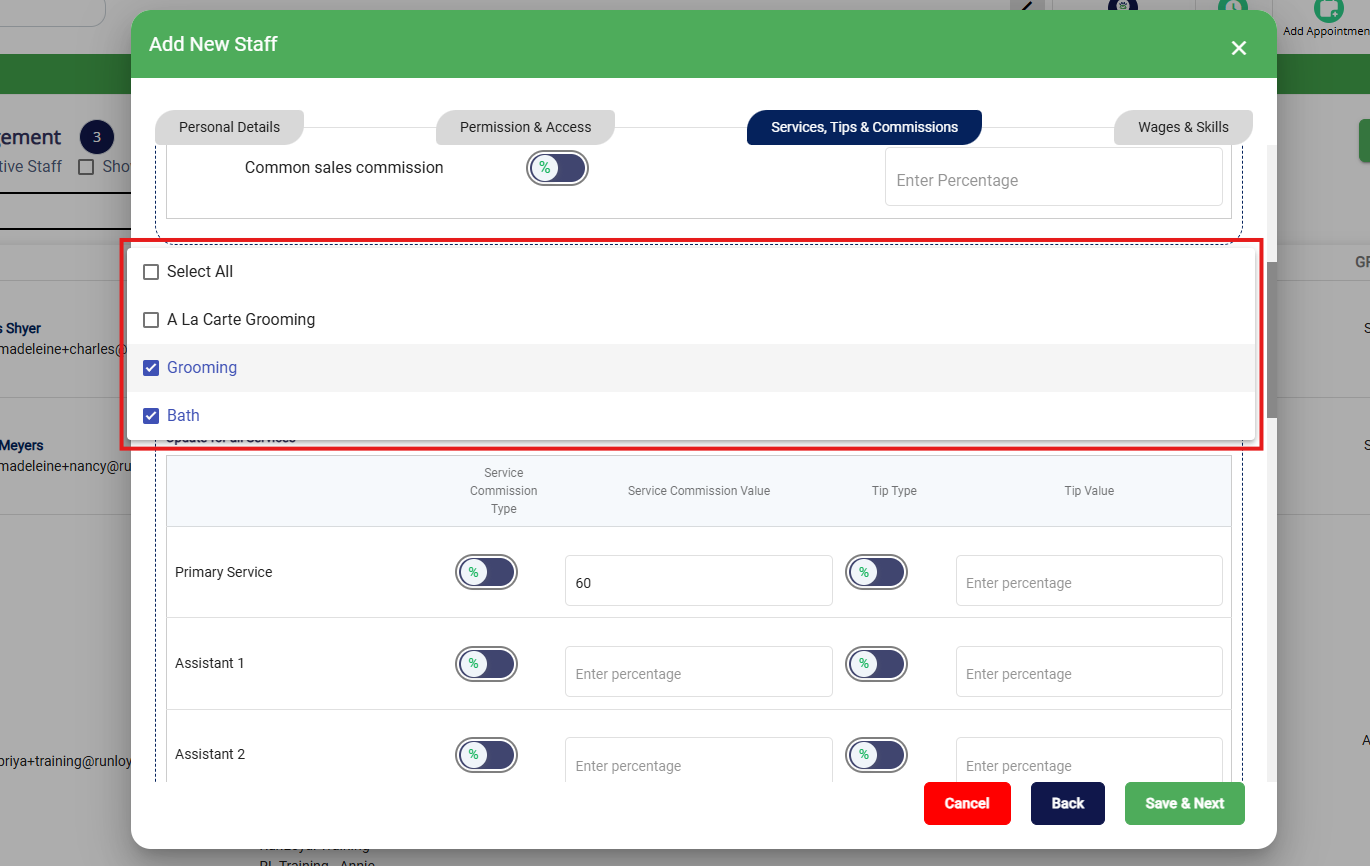
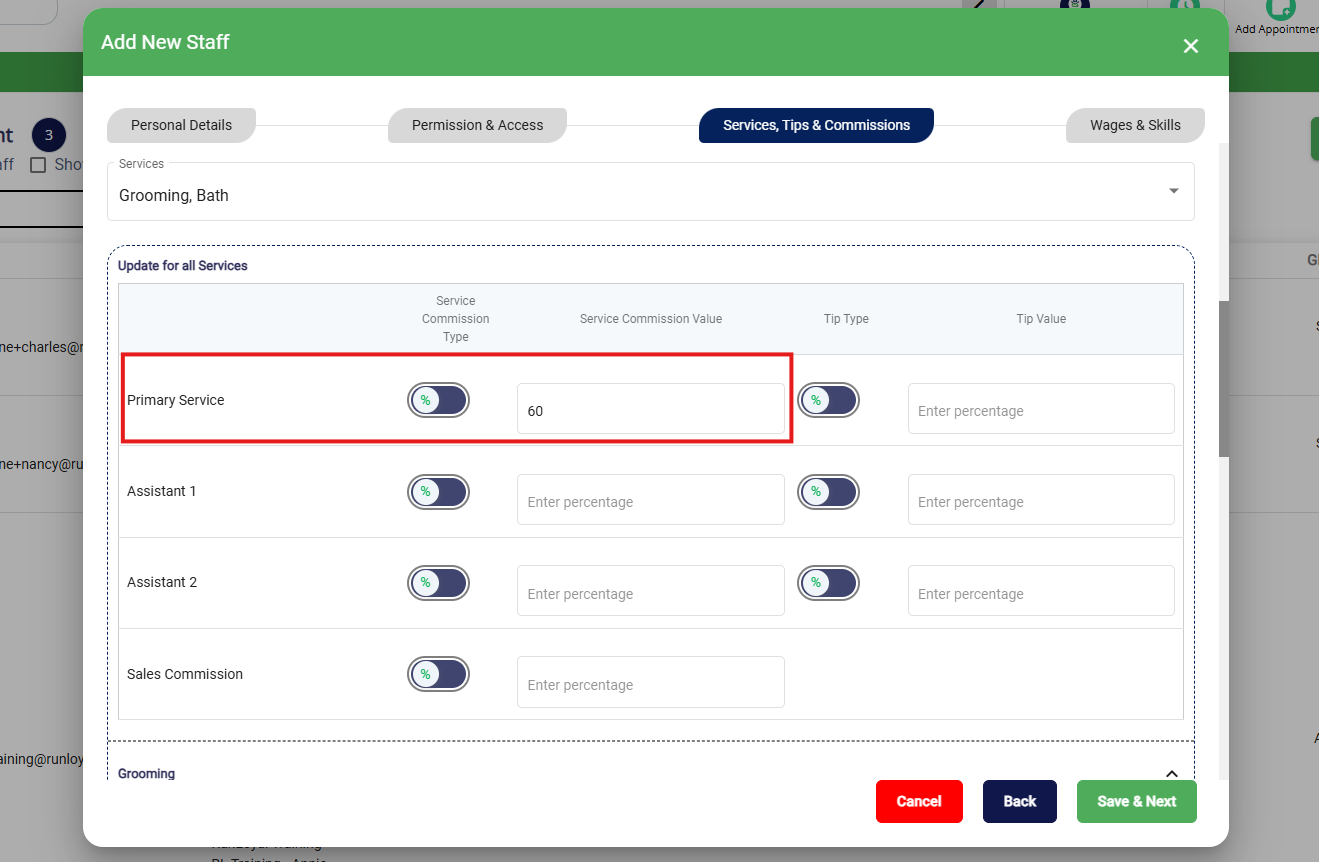
15. A box will populate below called Update for all Services. You can use this to auto-fill the commission amount if this user receives the same commission amount for most or all services. Toggle if this should be a percentage or dollar amount under Service Commission Type, and enter the amount in Service Commission Value.
16. You can also set the amount or percentage of tips this user should receive. This global section will allow you to auto-fill the tip amount if this user receives the same tip amount for most or all services. Toggle if this should be a percentage or dollar amount under Tip Type, and enter the amount in Tip Value.
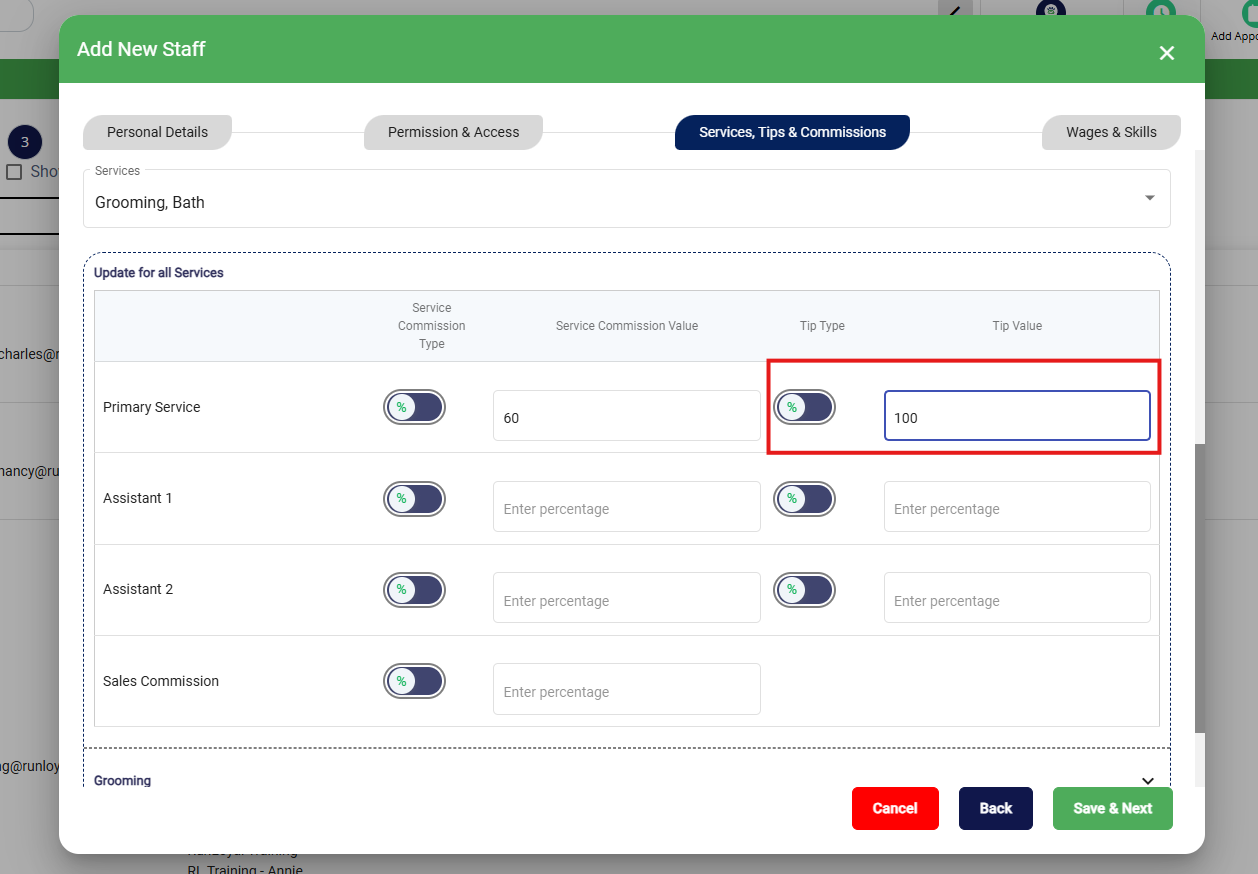
17. If this user will serve as an assistant, optionally enter their commission and tip amounts for Assistant 1 and/or Assistant 2.
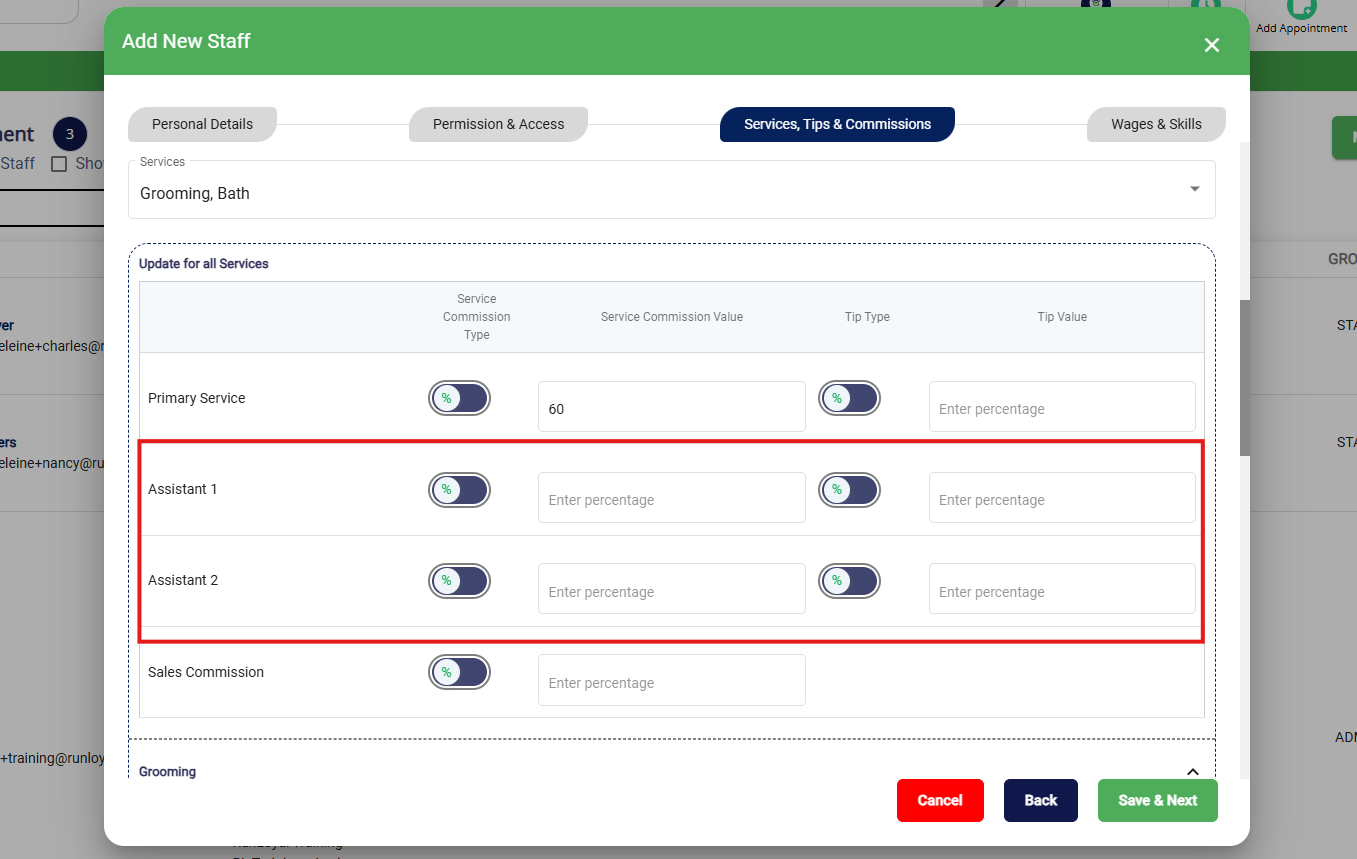
18. If this user should receive sales commission for booking or adding a scheduled service for an appointment, toggle if this should be a percentage or dollar amount under Service Commission Type, and enter the amount in Service Commission Value.
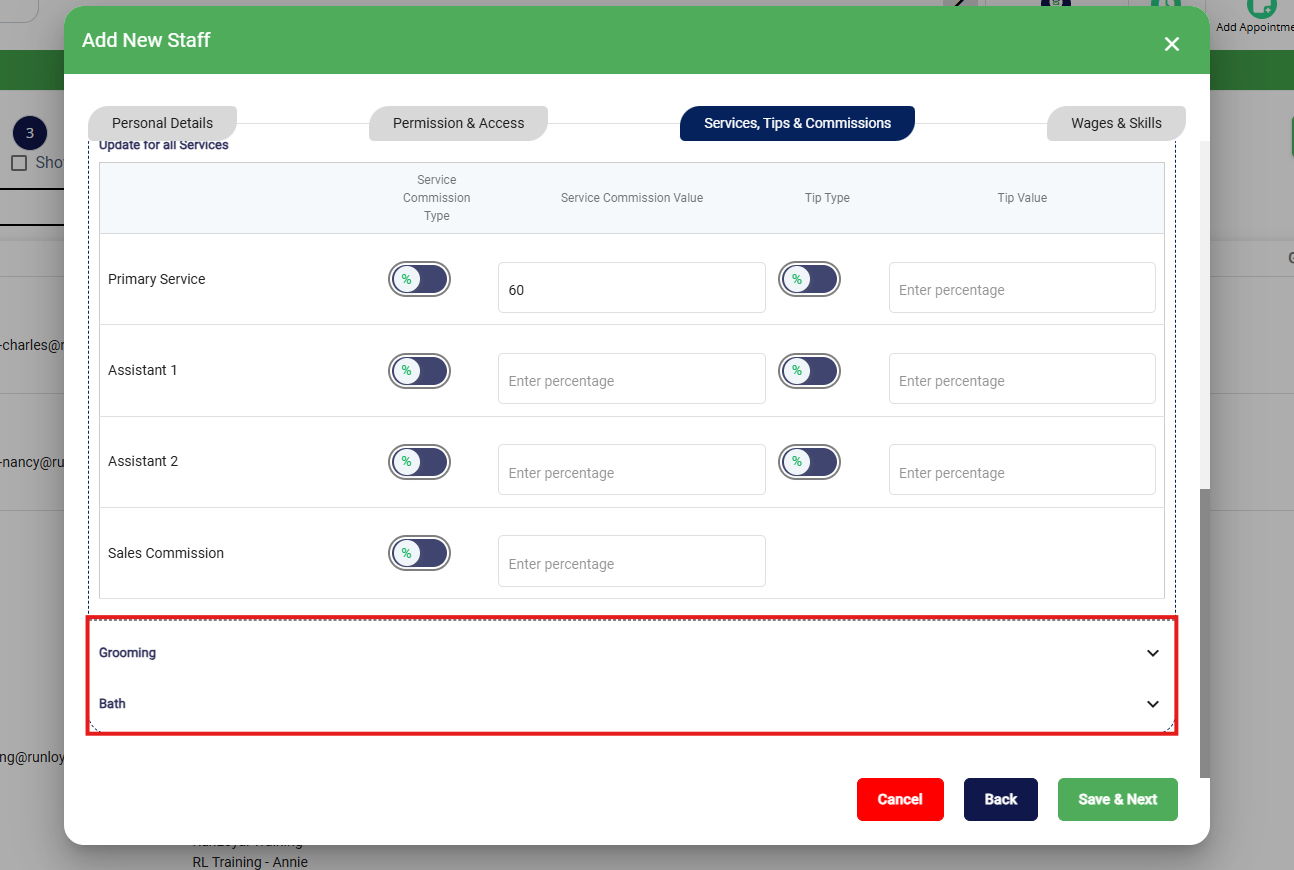
19. Once the Global Values are entered, click each Service Category to expand it.
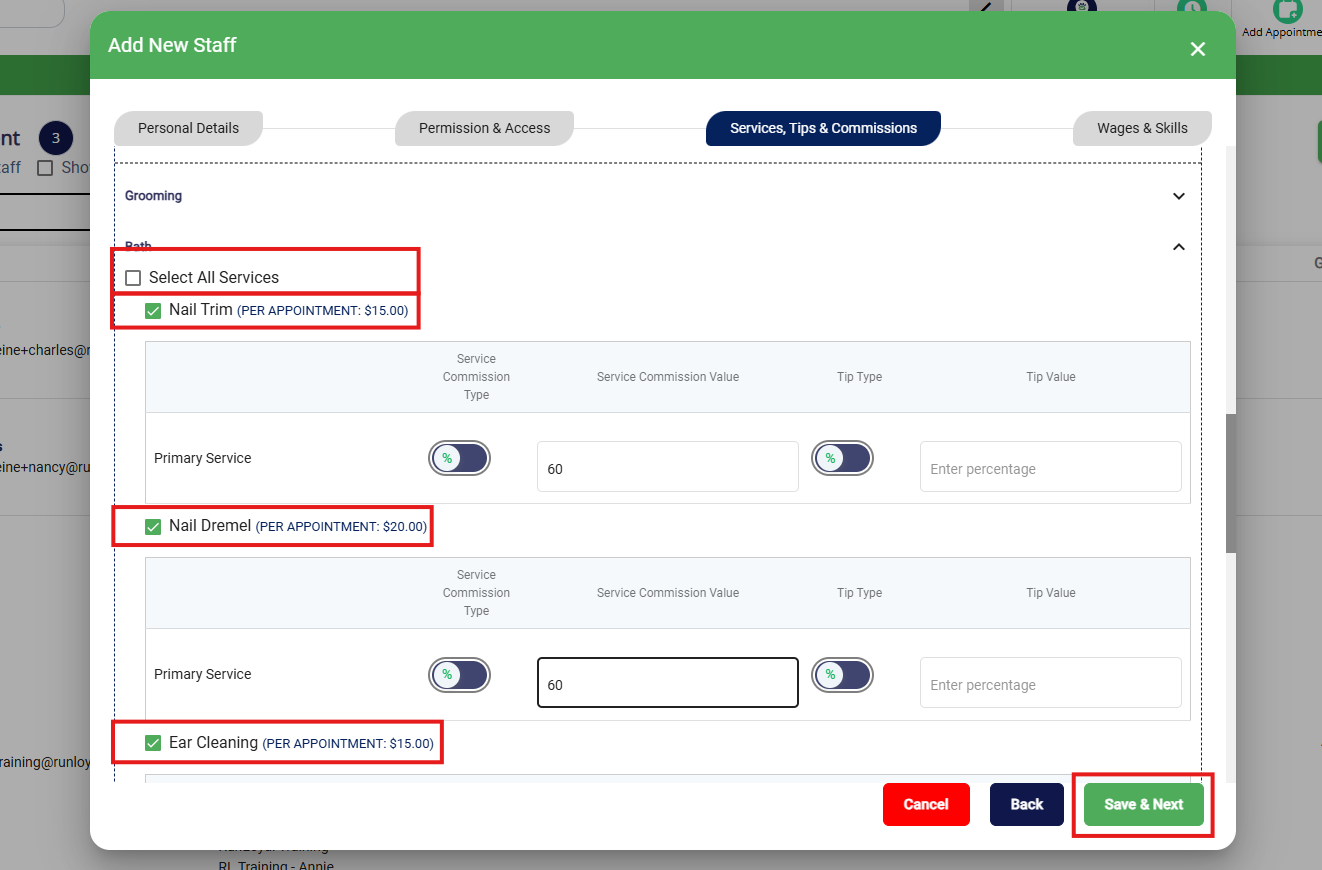
20. Either check to Select All Services or select individual services that this user performs. If you entered a commission rate above, you should see this commission rate auto-fill. You can optionally adjust the amounts if the user should receive a specific commission or tip for a certain service. Once all commission amounts are entered properly, click Save & Next.
Wages & Skills
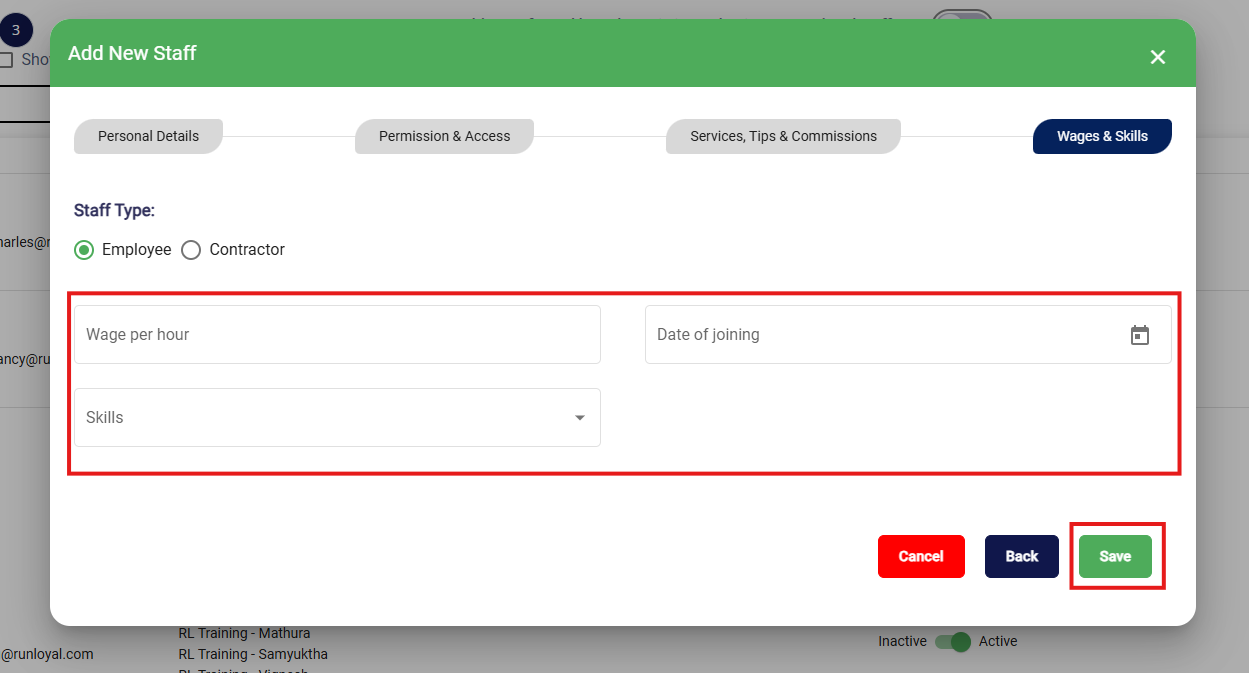
21. Optionally mark the user as an Employee or Contractor, enter their Wage per hour, set their Date of joining, and enter any Skills. These fields can be skipped if needed. Then click Save.
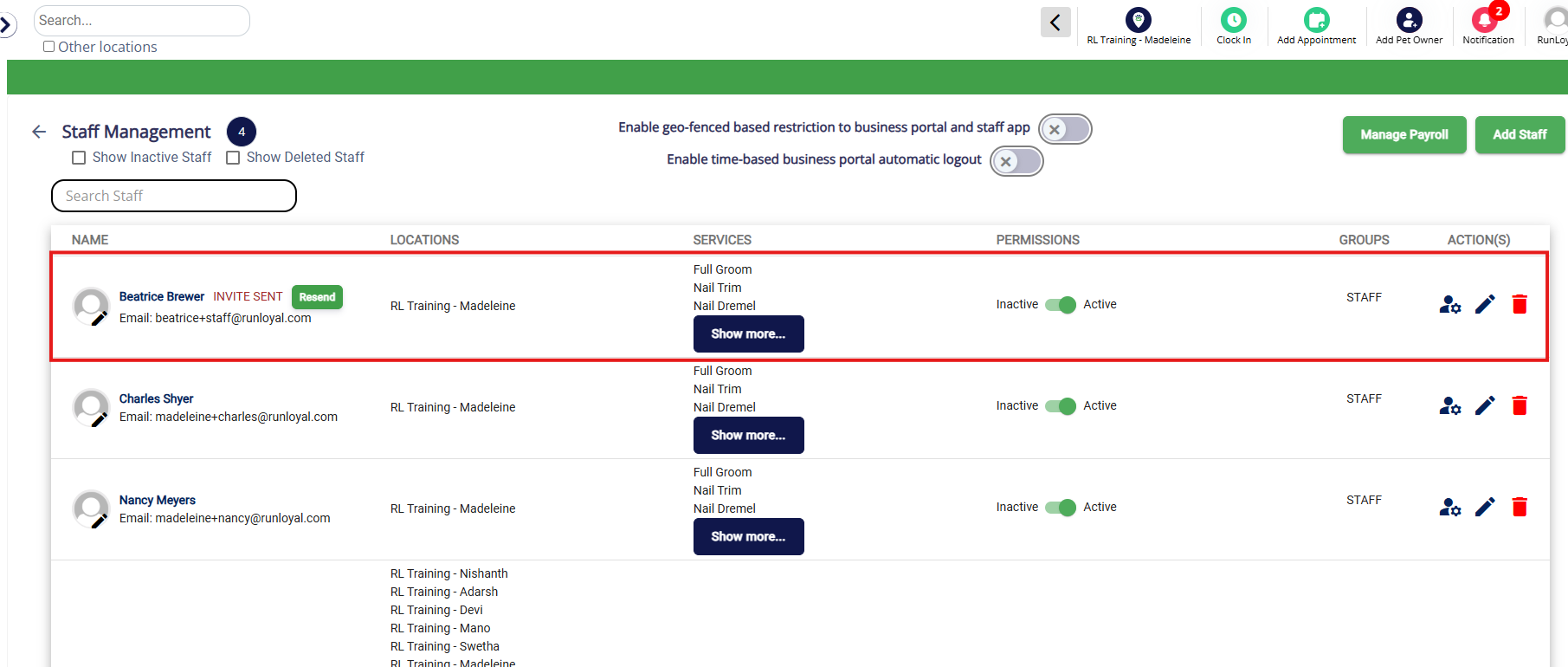
21. Verify your new user displays in the list.
How to Edit an Existing User
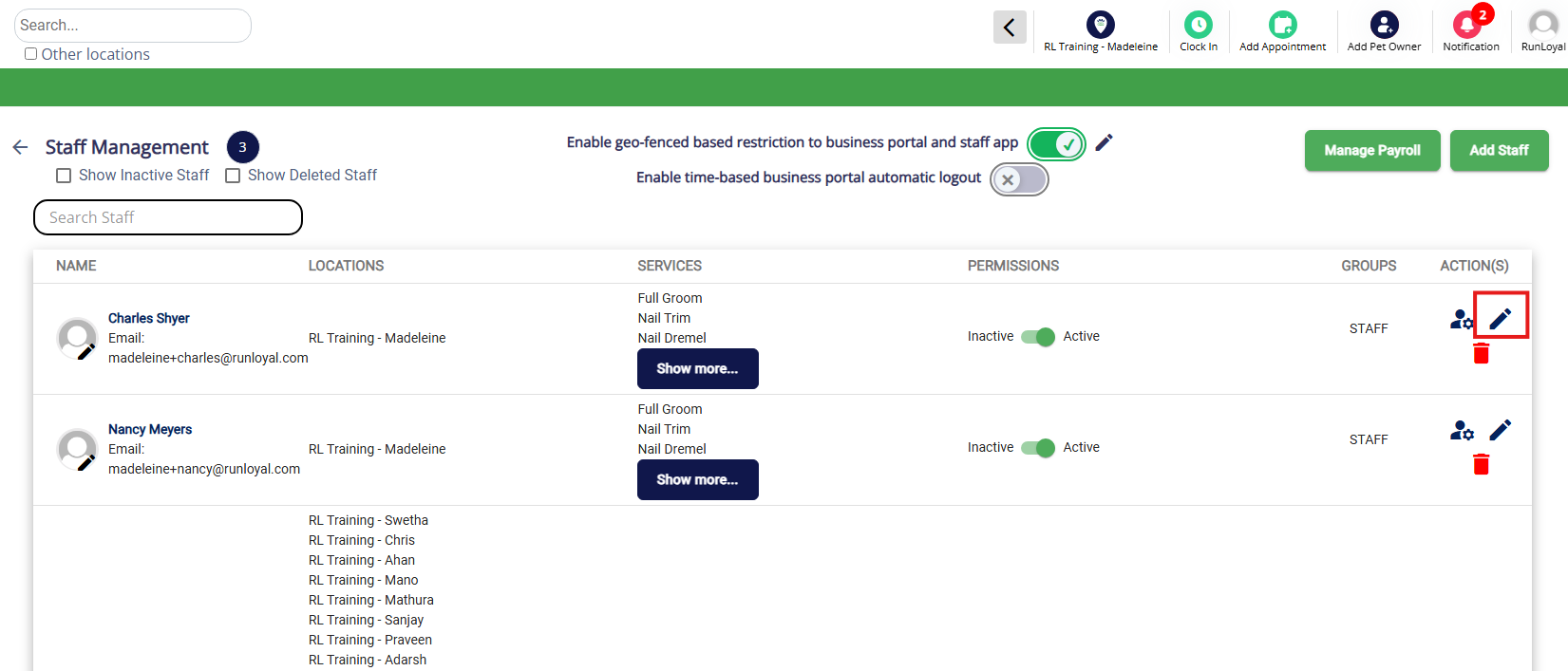
1. To edit an existing staff user, navigate to Settings > Business Setup > Staff Management.
2. Click the Edit pencil icon next to the user in question.
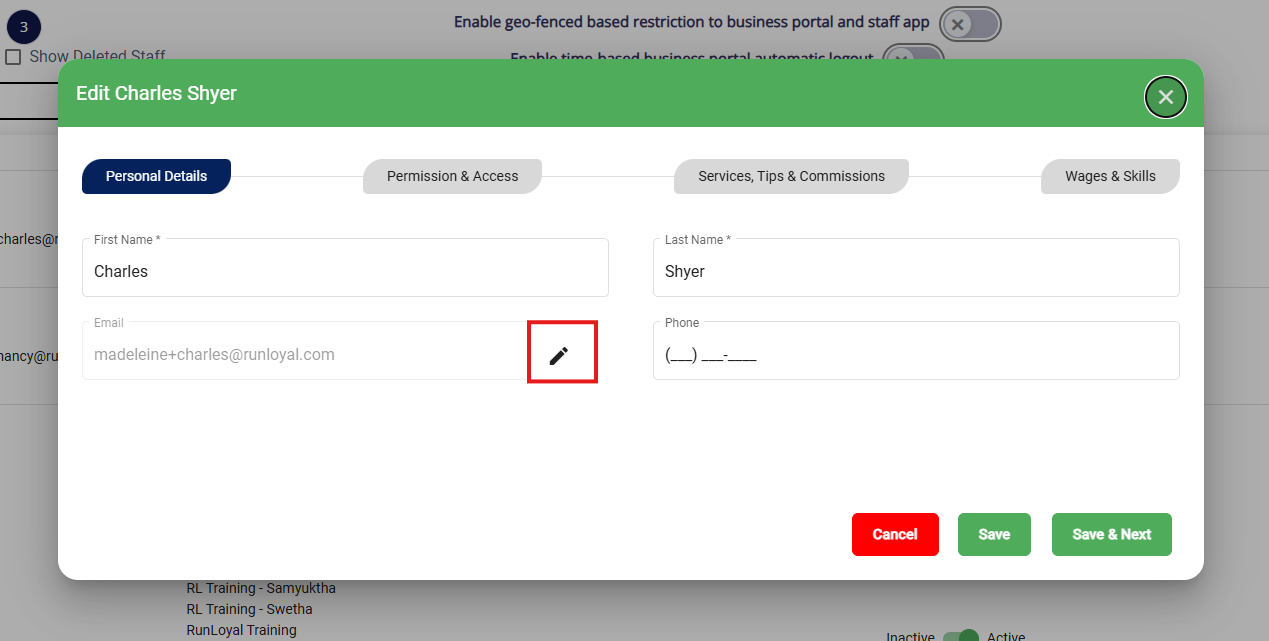
3. To edit an email, click the Edit pencil icon next to the email, then make adjustments as needed.
4. For any other edits, type directly into the box or select the settings as needed. Once you have made all your desired edits, click Save to save your changes or Save & Next to save your changes and go to the next section to make additional user edits.
Automated Staff User Logout (After Set Number of Minutes)
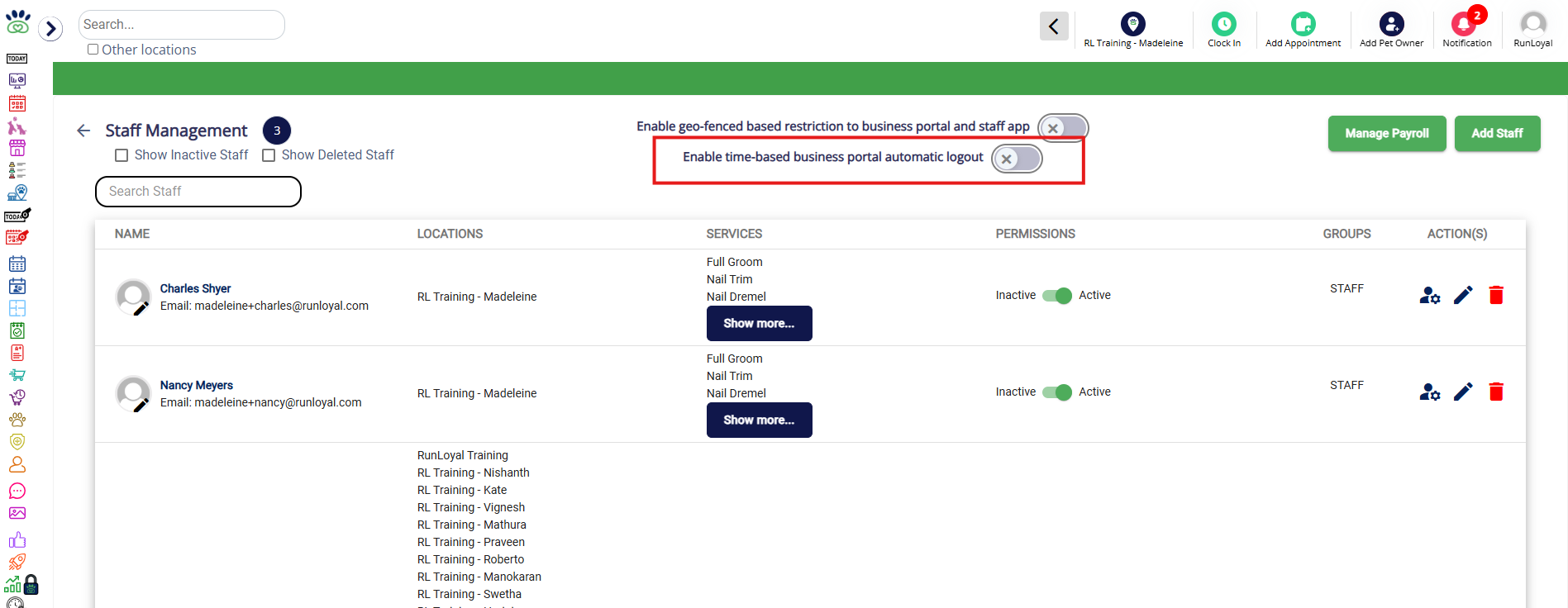
1. To edit an existing staff user, navigate to Settings > Business Setup > Staff Management.
2. To enable automated logout, toggle on the Enable time0based business portal automatic logout setting in the top center of the page.
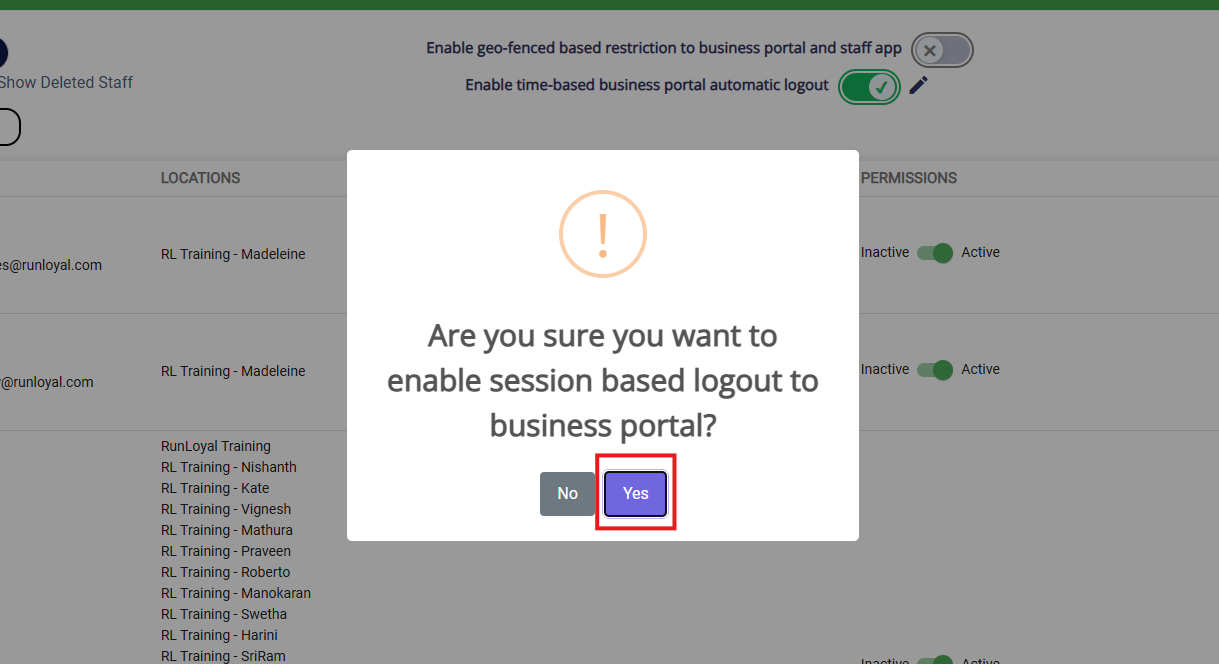
3. In the popup, click Yes to confirm.
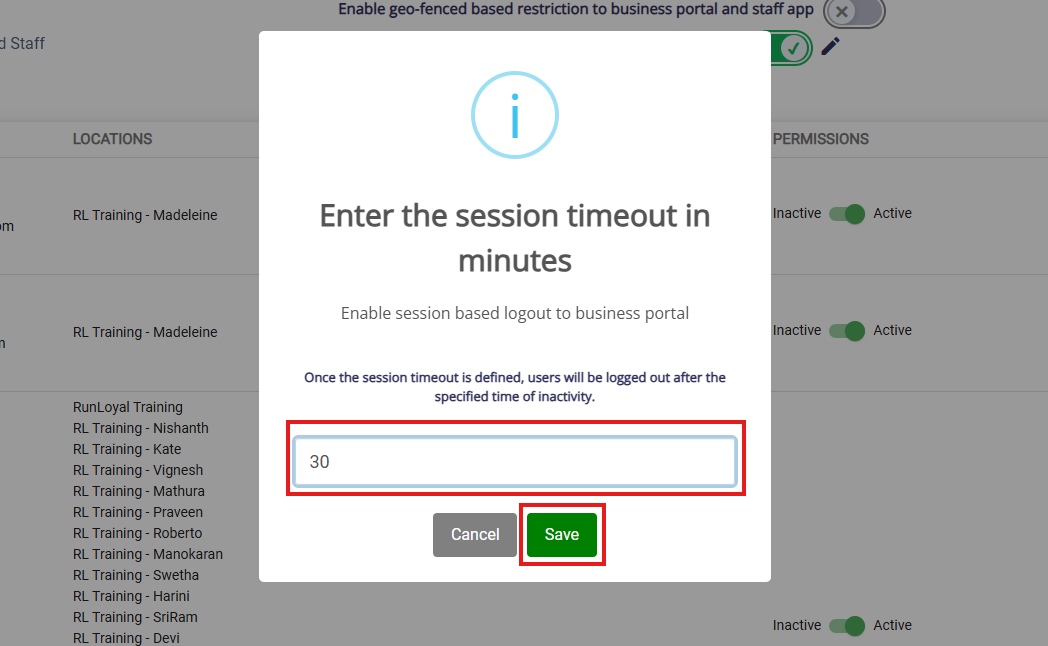
4. Enter the number of minutes after which a user should be logged out due to inactivity.
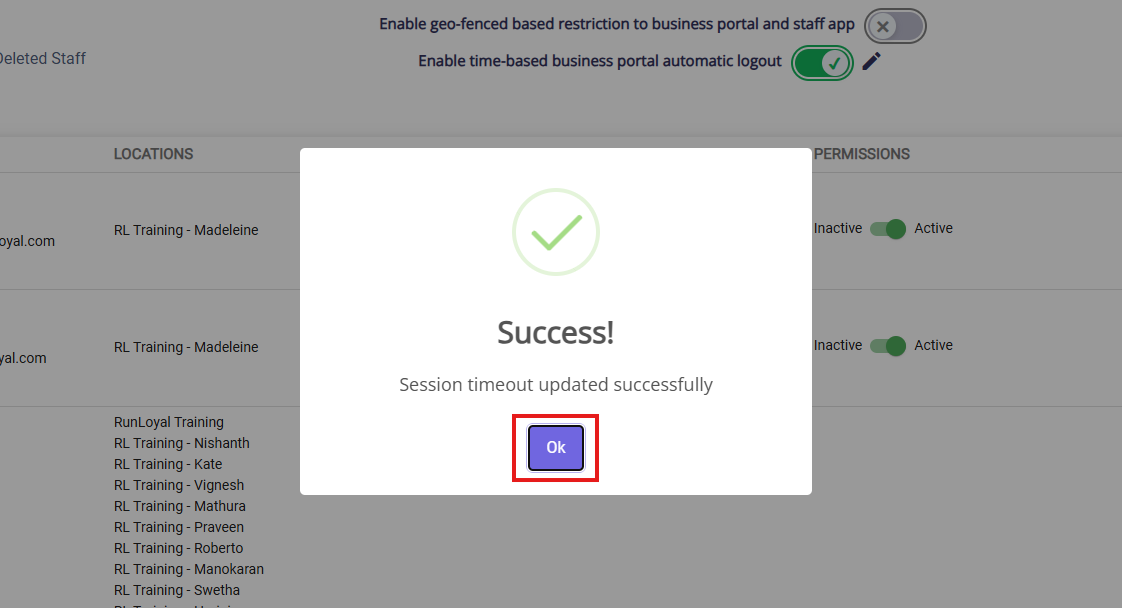
5. On the confirmation popup, click Ok.
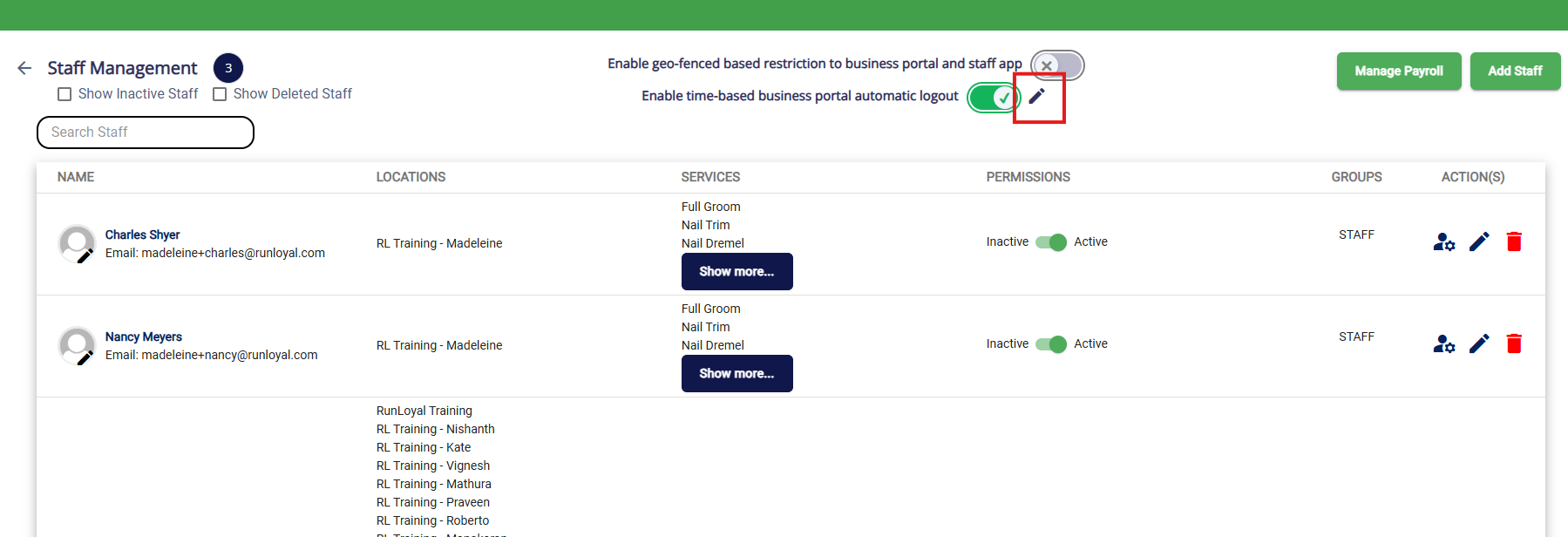
6. To edit the number of minutes for autoed logout, click the edit pencil icon next to the setting.
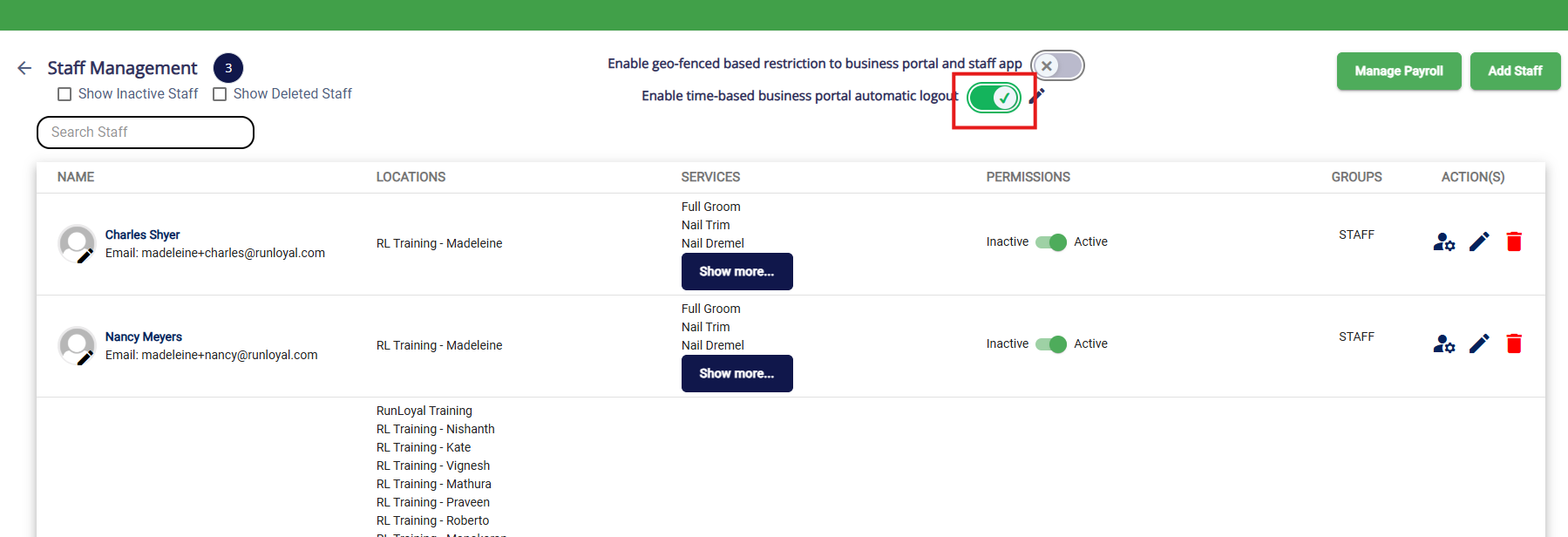
7. To disable automated logout, toggle off the setting.
More Information
For more information on deactivating or deleting staff users, please refer to this article: Deactivate, Reactivate, & Delete Staff Users
For more information on creating a Staff Group (User Permissions), please refer to this article: Create Staff Groups (Permissions)
For more information on Geo-Fencing (Location-Based Restriction), please refer to this article: Staff Geo-Fencing (Physical Access Restriction)
Link to Loom: https://www.loom.com/share/2e2a536b3cf241d196dbb667df6e61fb
Was this article helpful?
That’s Great!
Thank you for your feedback
Sorry! We couldn't be helpful
Thank you for your feedback
Feedback sent
We appreciate your effort and will try to fix the article