Overview
Scout AI Vax Verify is a new feature that uses AI to scan your clients' pet vaccination documents and extract key information and dates for each vaccine. This allows staff users to quickly view vaccination details without manually reviewing each document, saving staff time and helping pet owners book appointments more easily. If any details are not captured as expected due to vaccine names that don’t fully match, staff users will be prompted to review and update the information manually. This article provides an overview of how Vax Verify works and how staff can use it to efficiently manage pet vaccination records.
This feature is a feature add-on. Please contact puppylove@runloyal.com to enable Vax Verify.
Vax Verify can be viewed in the following areas:
- Left-hand navigation > Immunizations > Scout AI Vax Verify
- Pet Profile > Immunization Records section
- Pet Owner Mobile App > Animal Profile > Immunizations
TABLE OF CONTENTS
- Overview
- How Pet Parents can Upload Documents with Vax Verify
- Reviewing Vax Verify Documents in Business Portal
- More Information
How Pet Parents can Upload Documents with Vax Verify
1. Once Vax Verify is enabled as part of your RunLoyal subscription, there are no additional setup tasks on your end! The only thing that the pet owner needs to do is update the mobile app when prompted. When logged in, they can click the pet profile.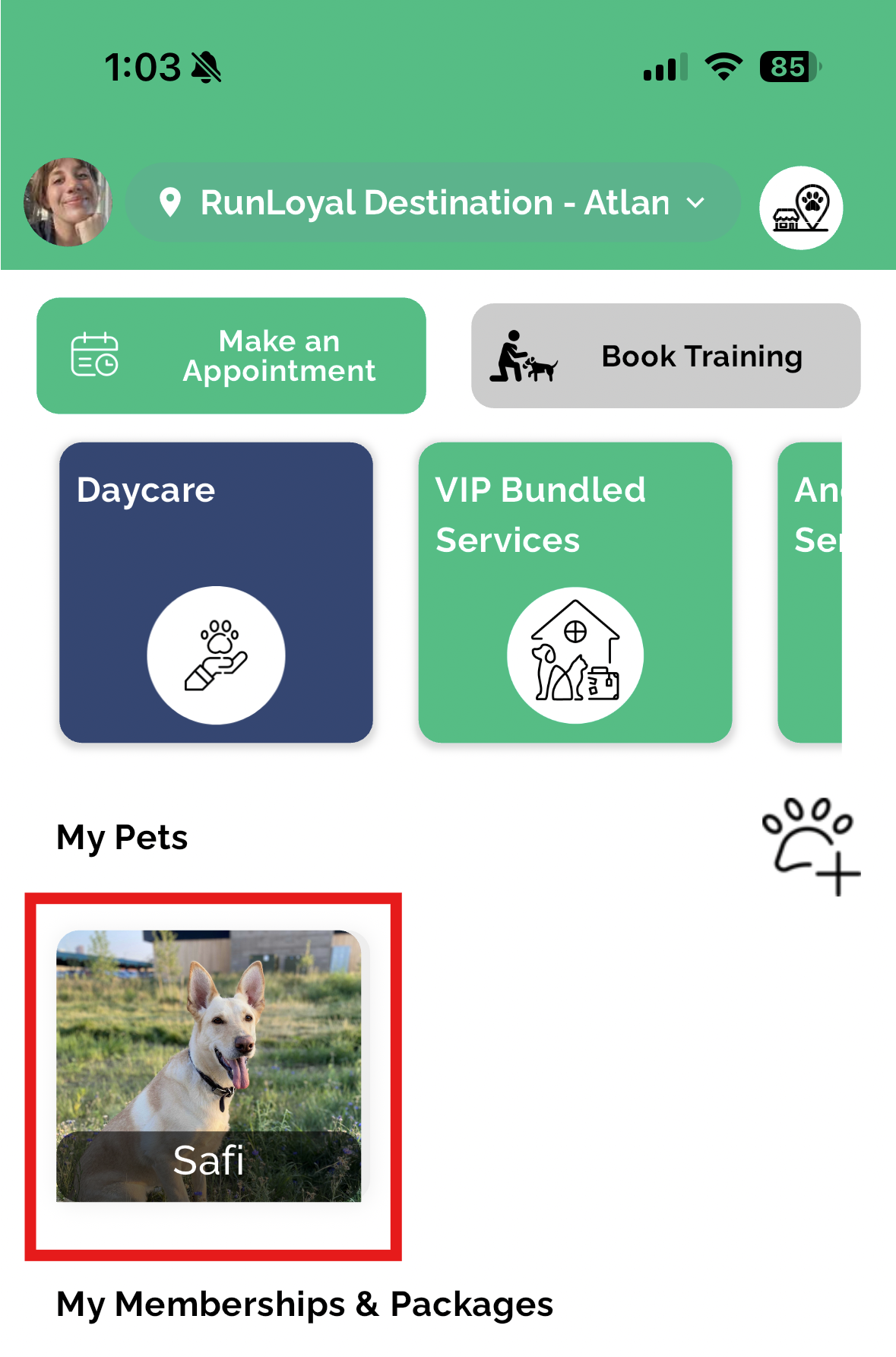
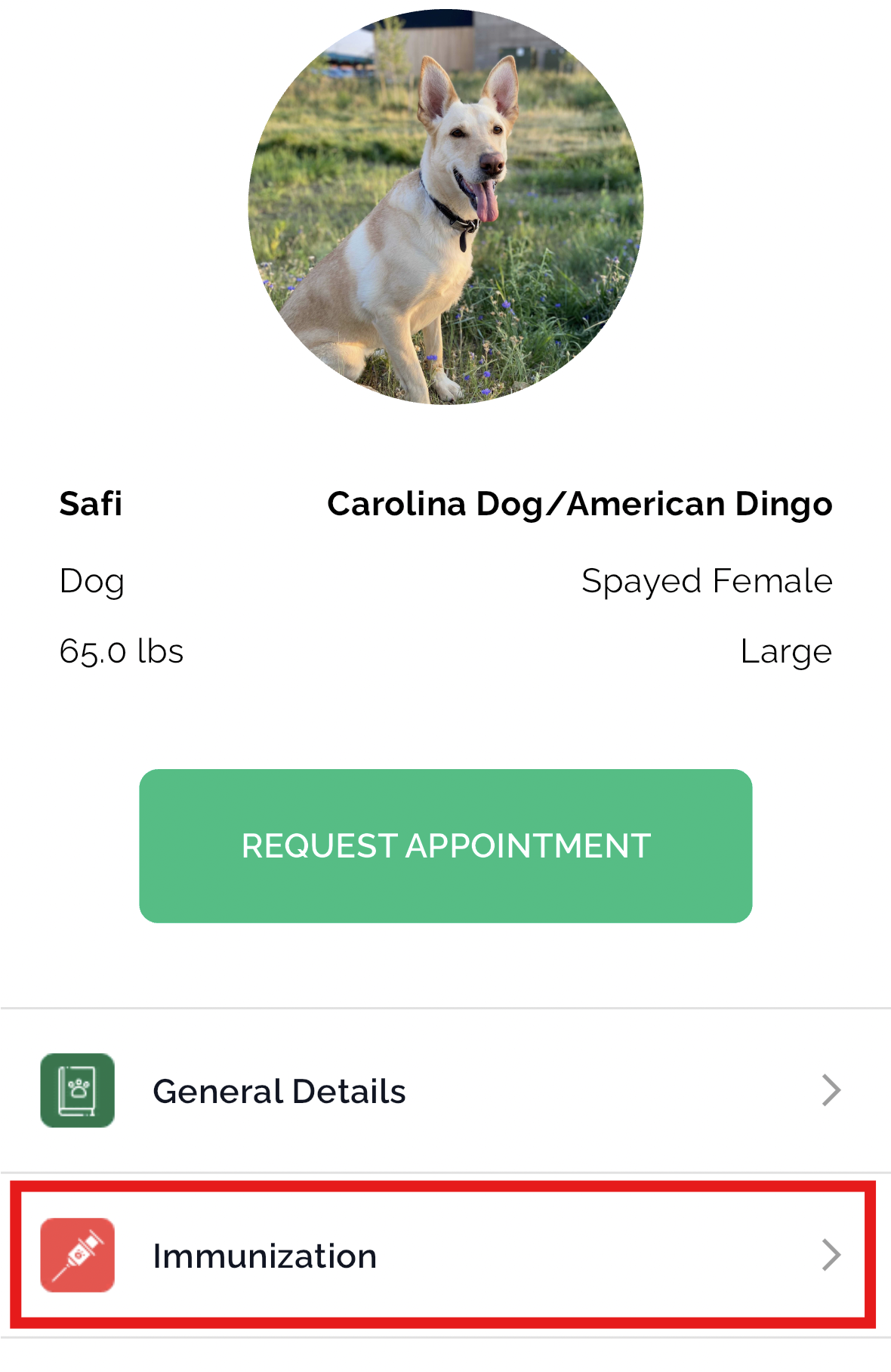
2. Select Immunization.
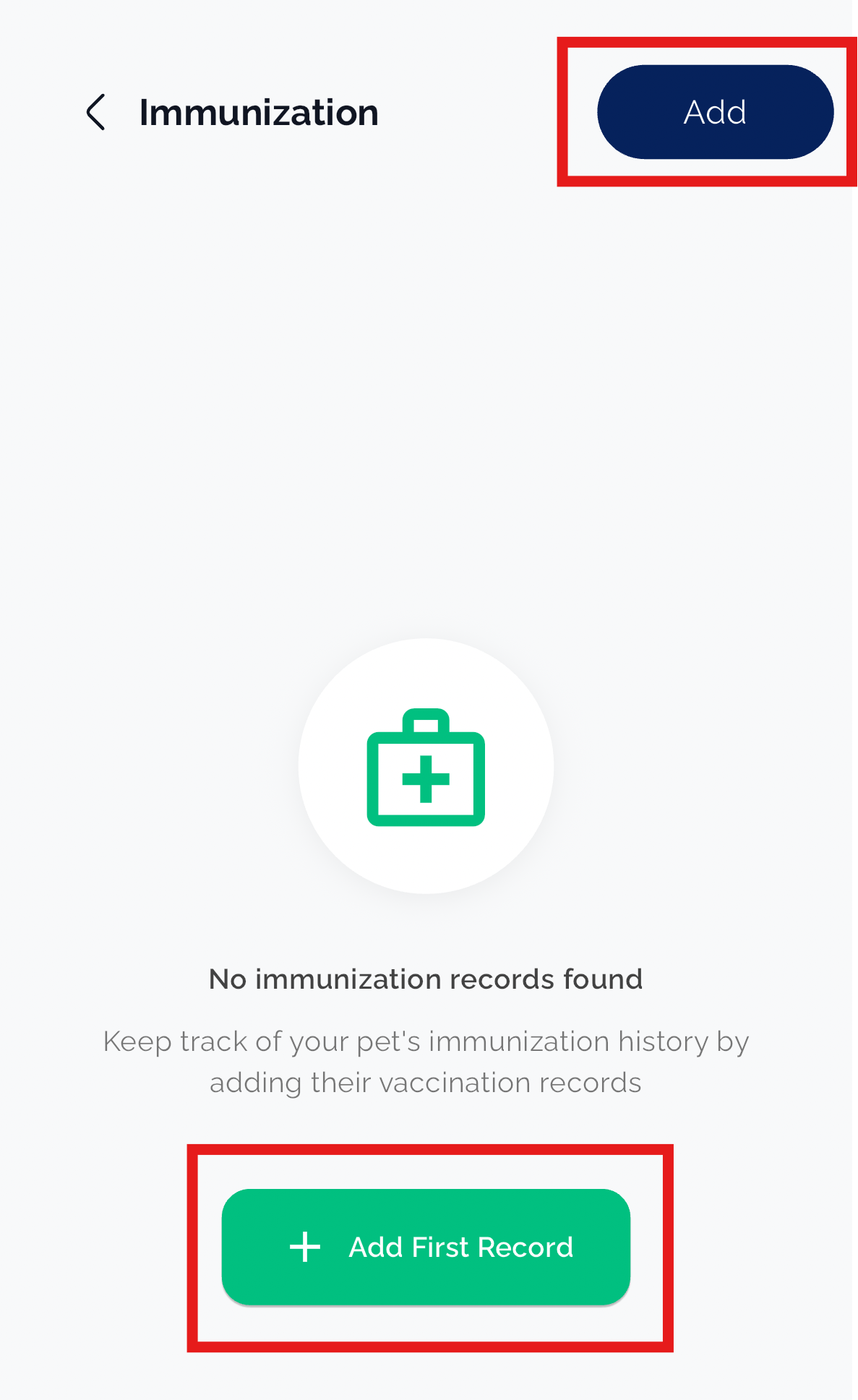
3. Click Add or +Add First Record (if they have no existing vaccines on file).
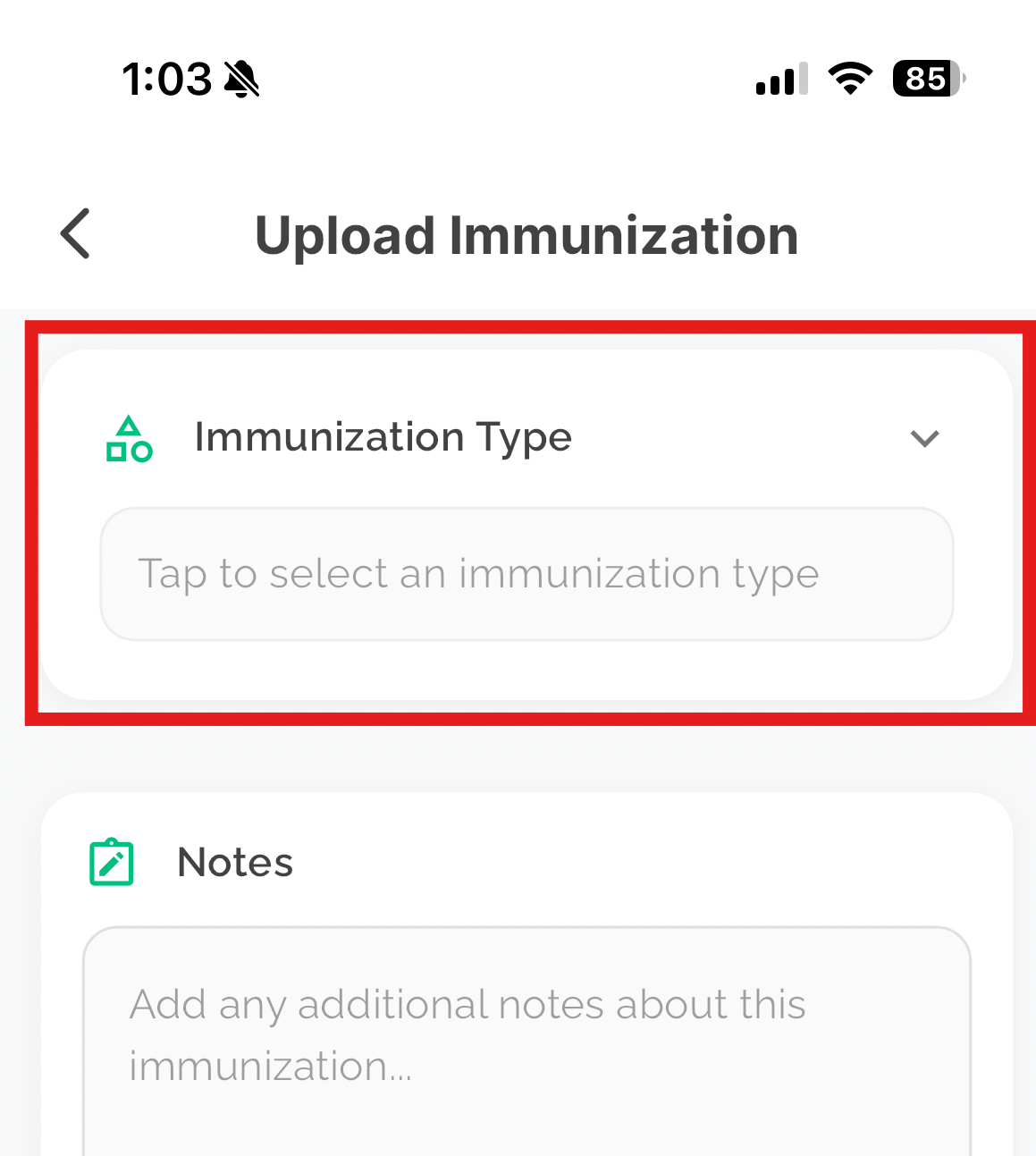
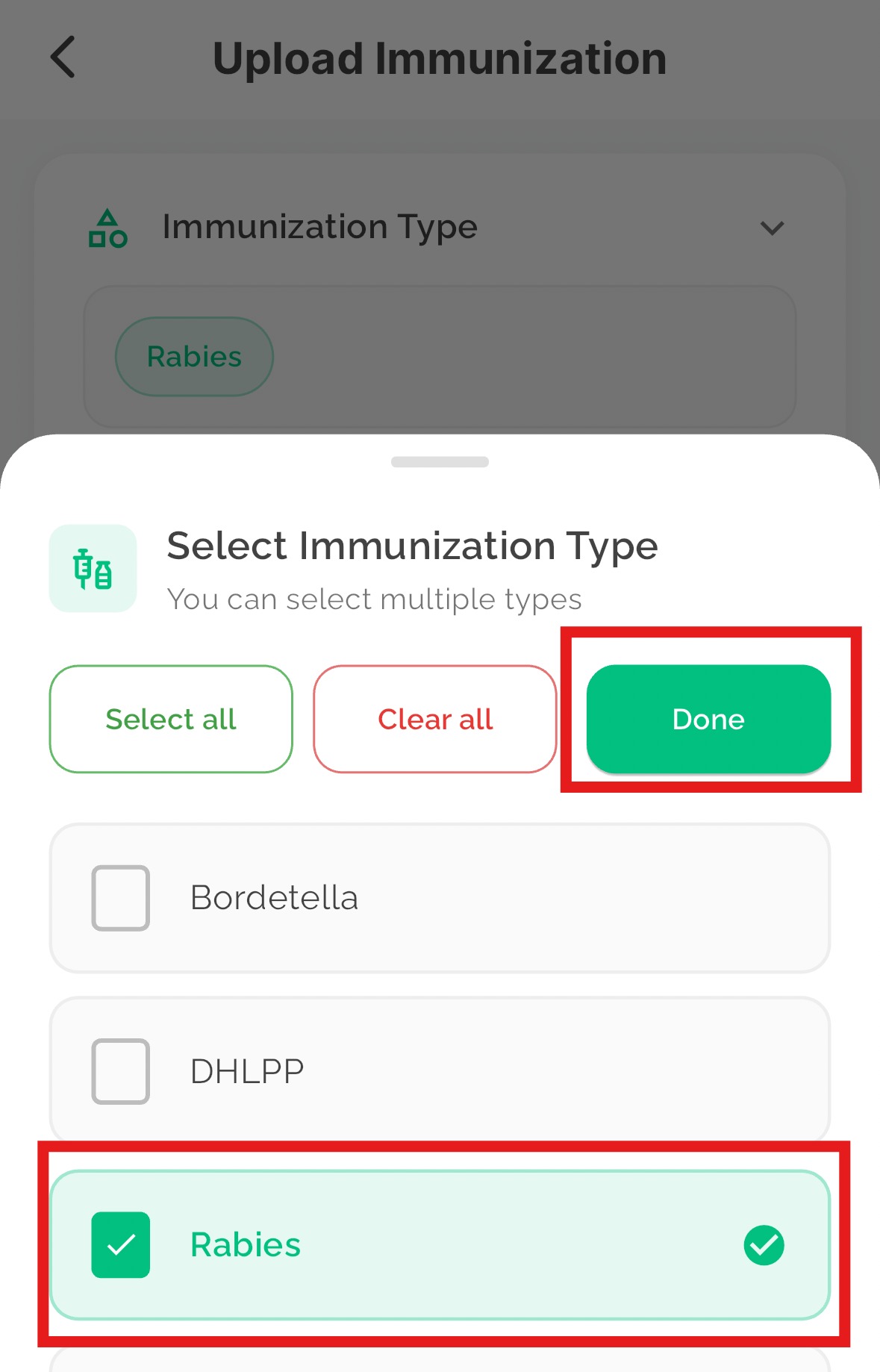
4. Click into Immunization Type to select which vaccines for which they would like to upload documents.
5. Select vaccines for which you have documentation, and then click done.
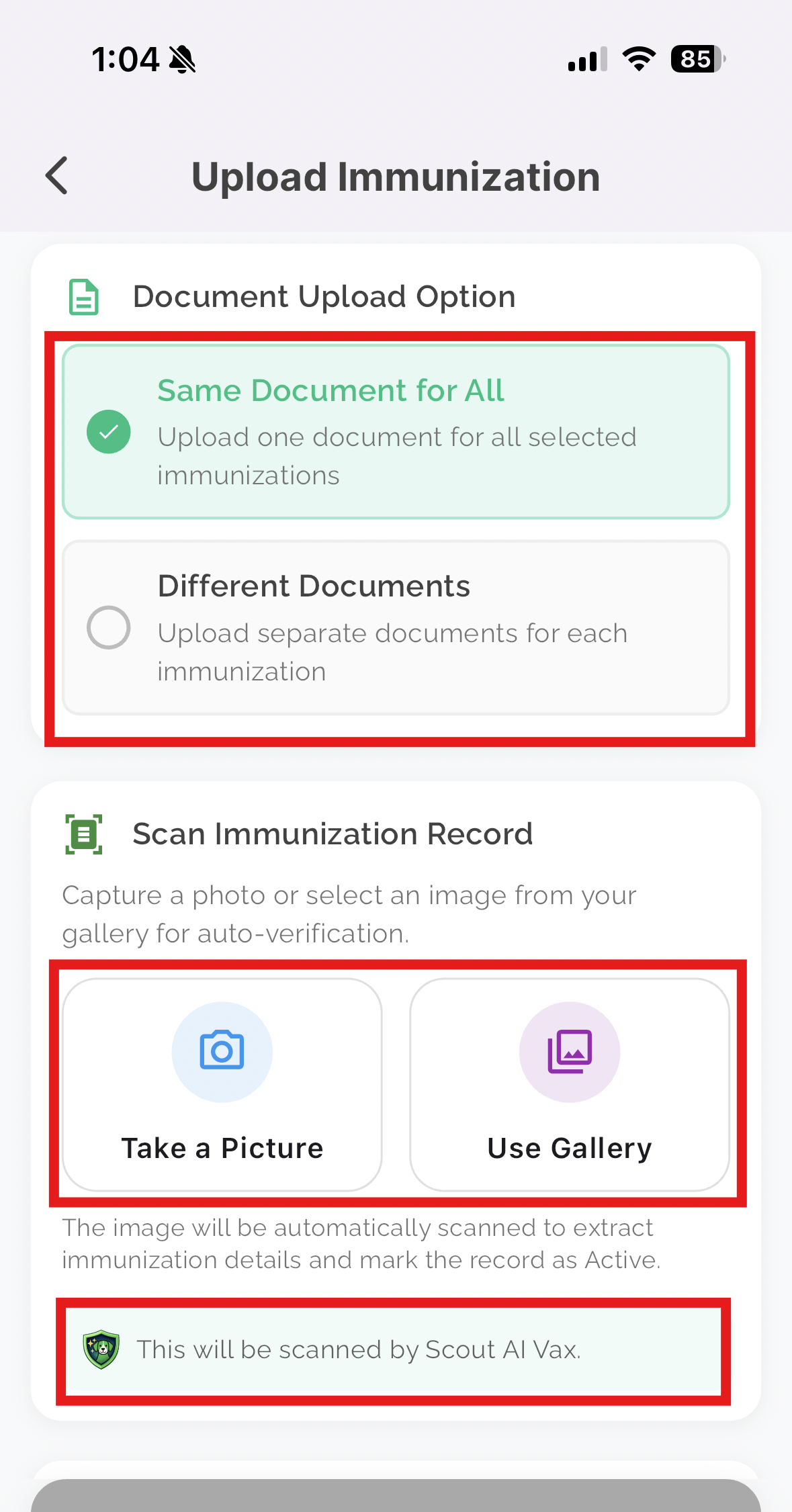
6. Indicate if the document is the Same document for all vaccines, or different documents for each vaccine. Choose to take a photo of the document or Upload from Photo Gallery.
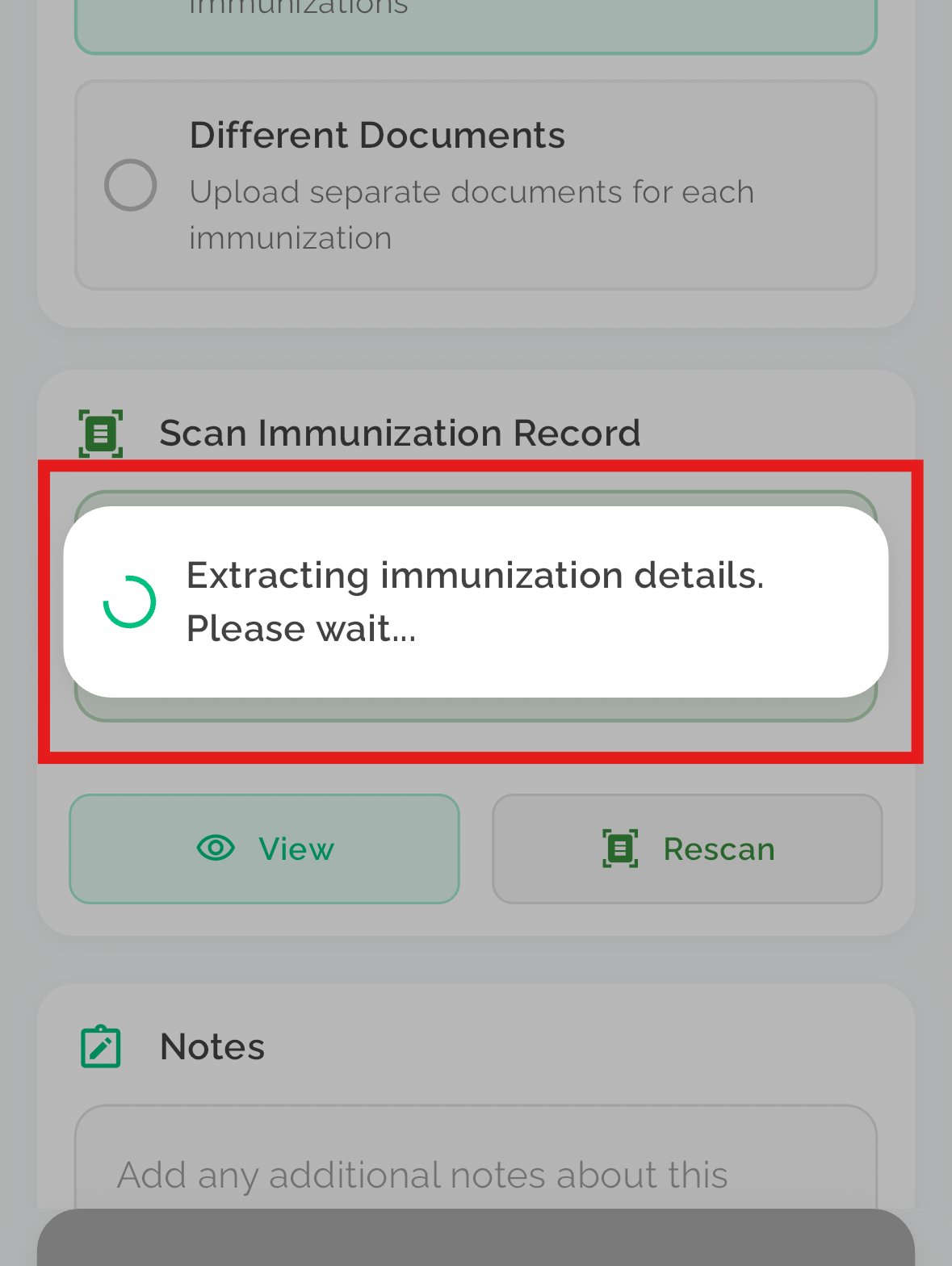
7. Wait as Scout AI extracts the dates from the documents.
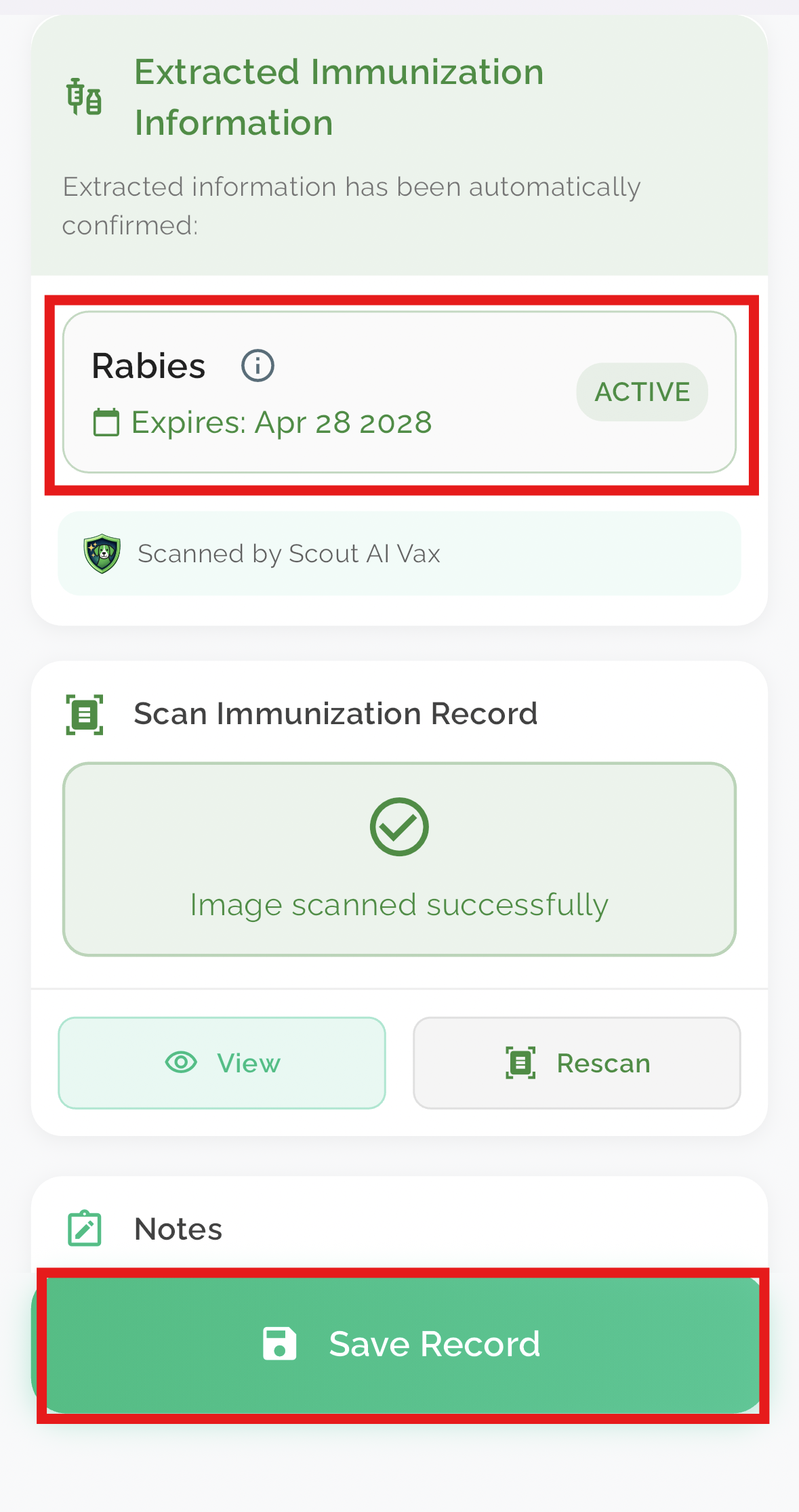
12. A success message will display to the customer, and they can view the dates added and then click Save.
Reviewing Vax Verify Documents in Business Portal
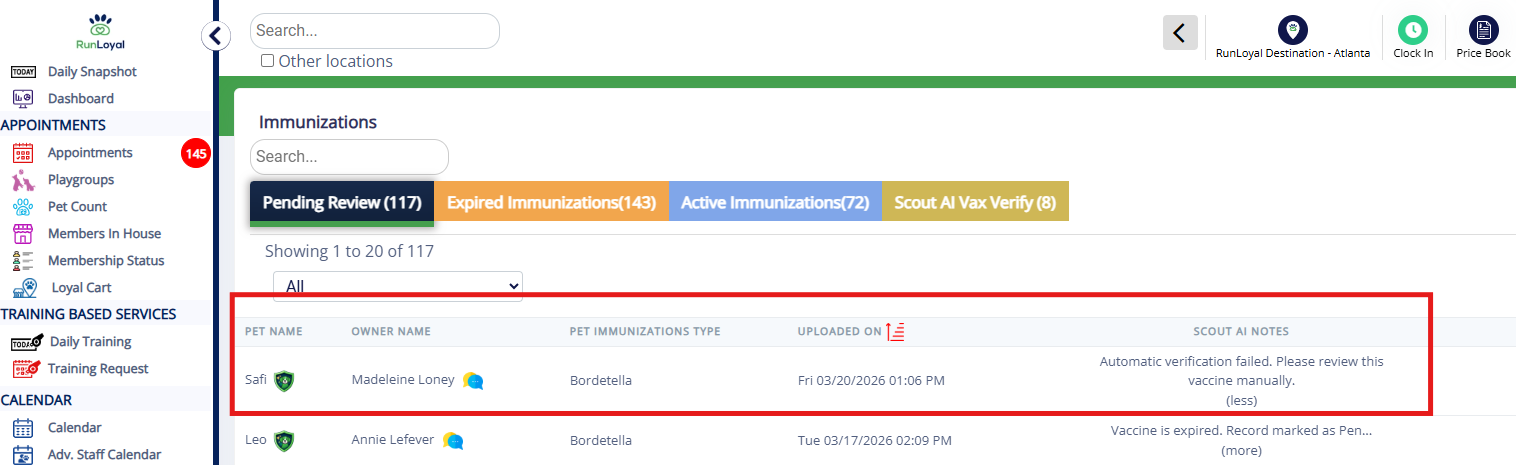
1. In the business portal, staff users will be notified for any vaccine document upload, including ones verified with Scout AI Vax Verify.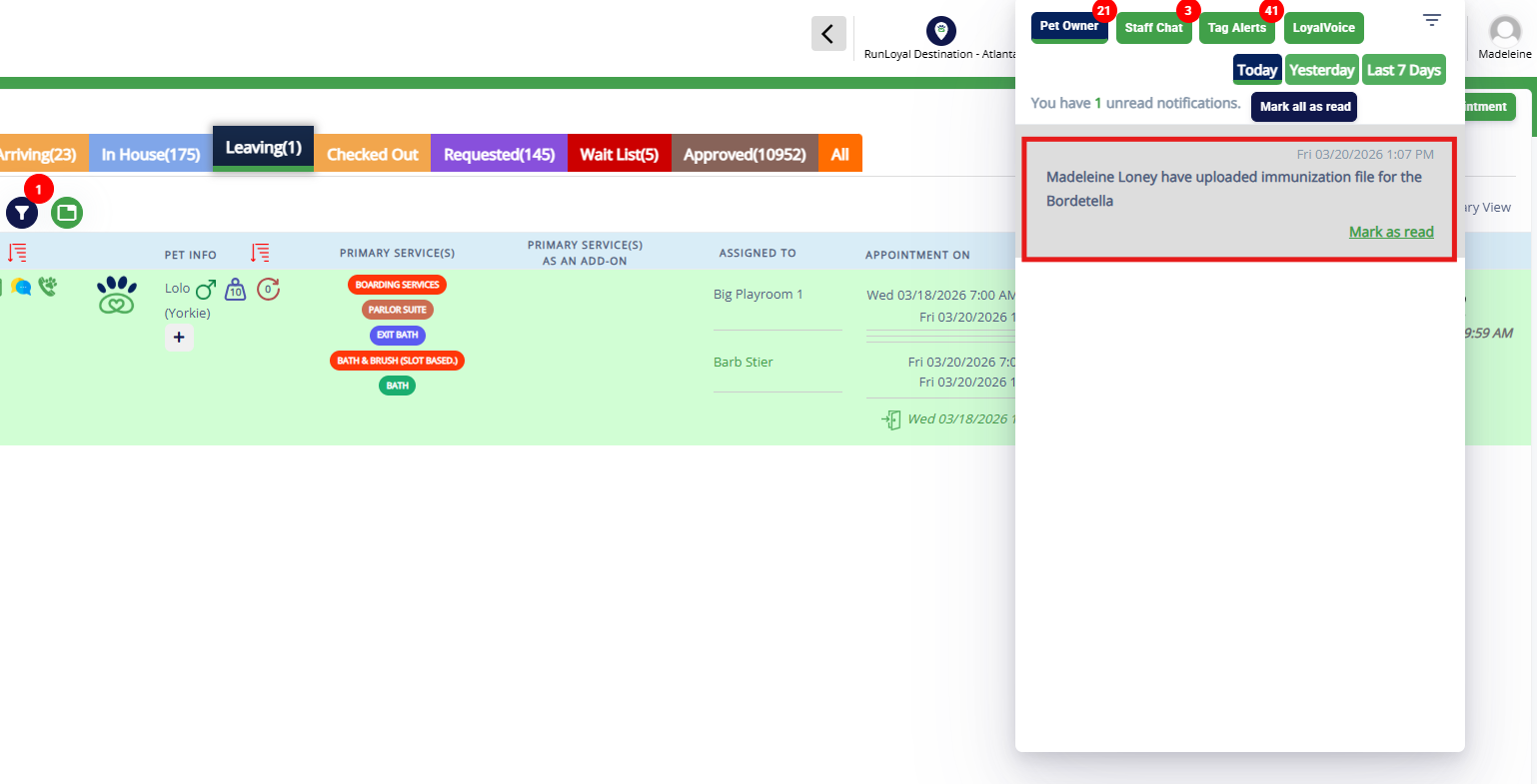
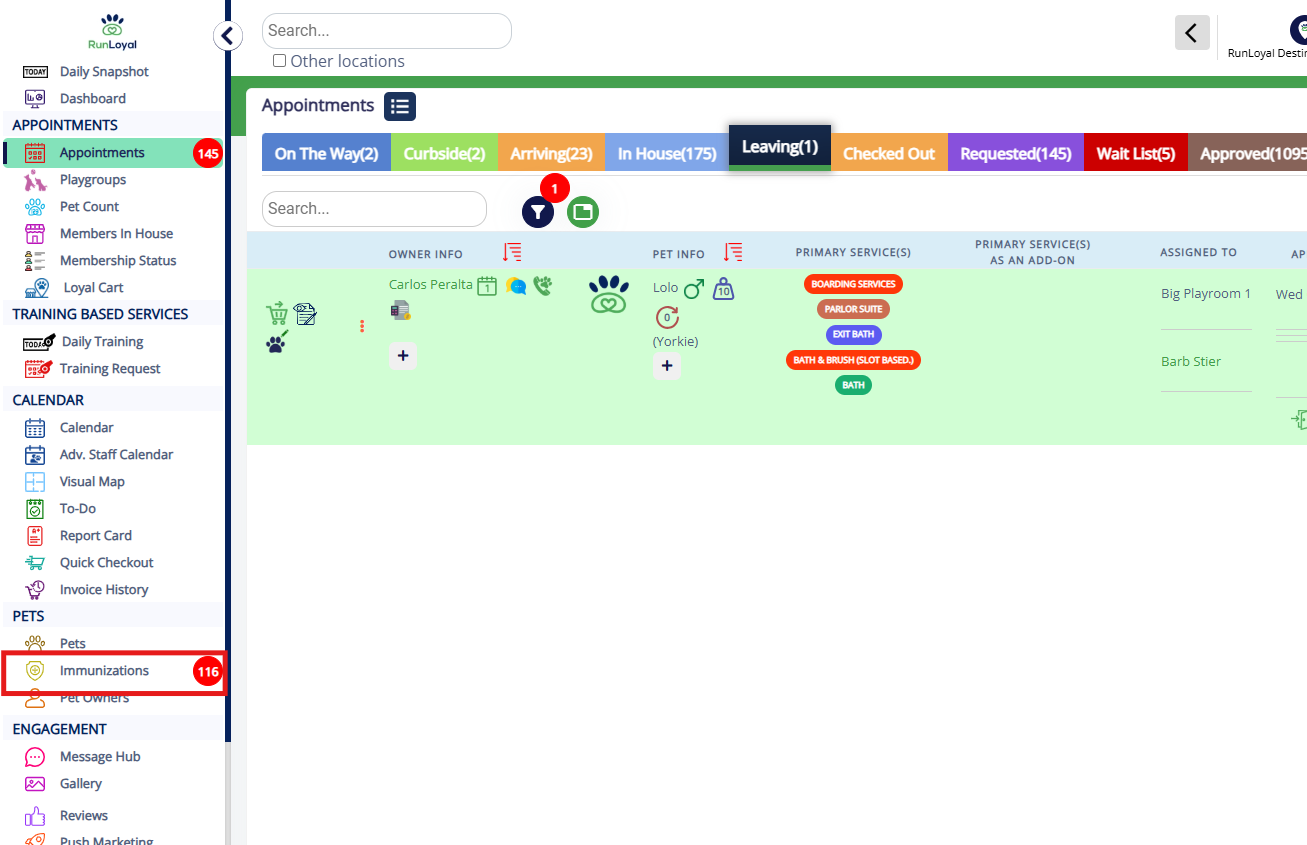
2. Users can also click Left-hand navigation > Immunizations to review immunizations.
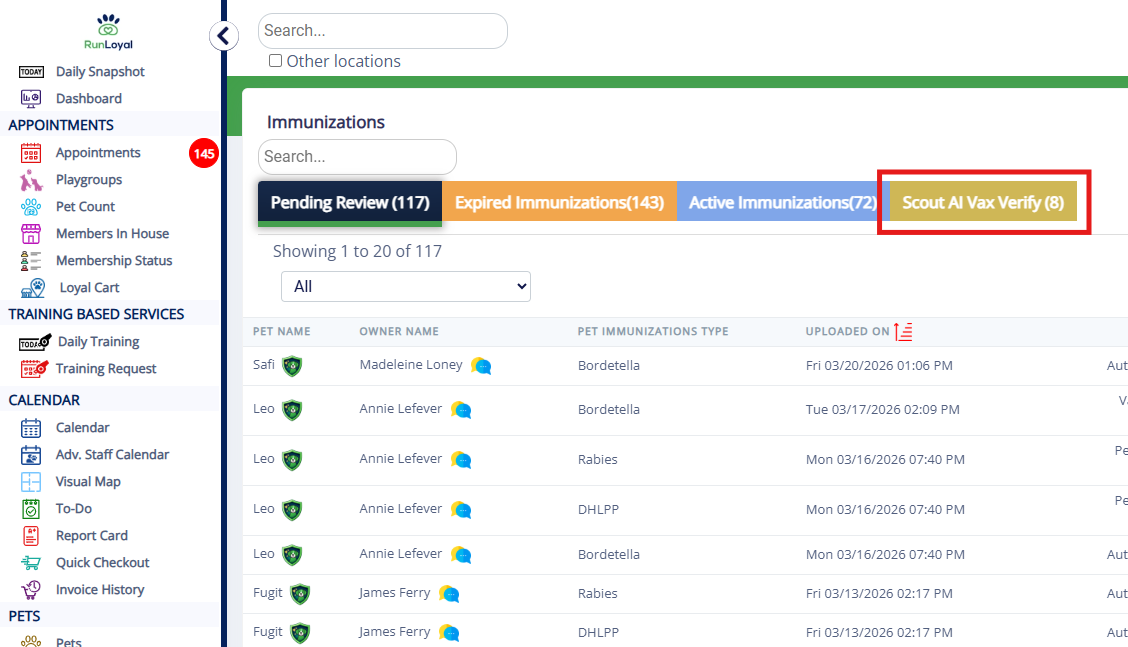
3. To review immunizations uploaded and verified dates, click Scout AI Vax Verify.
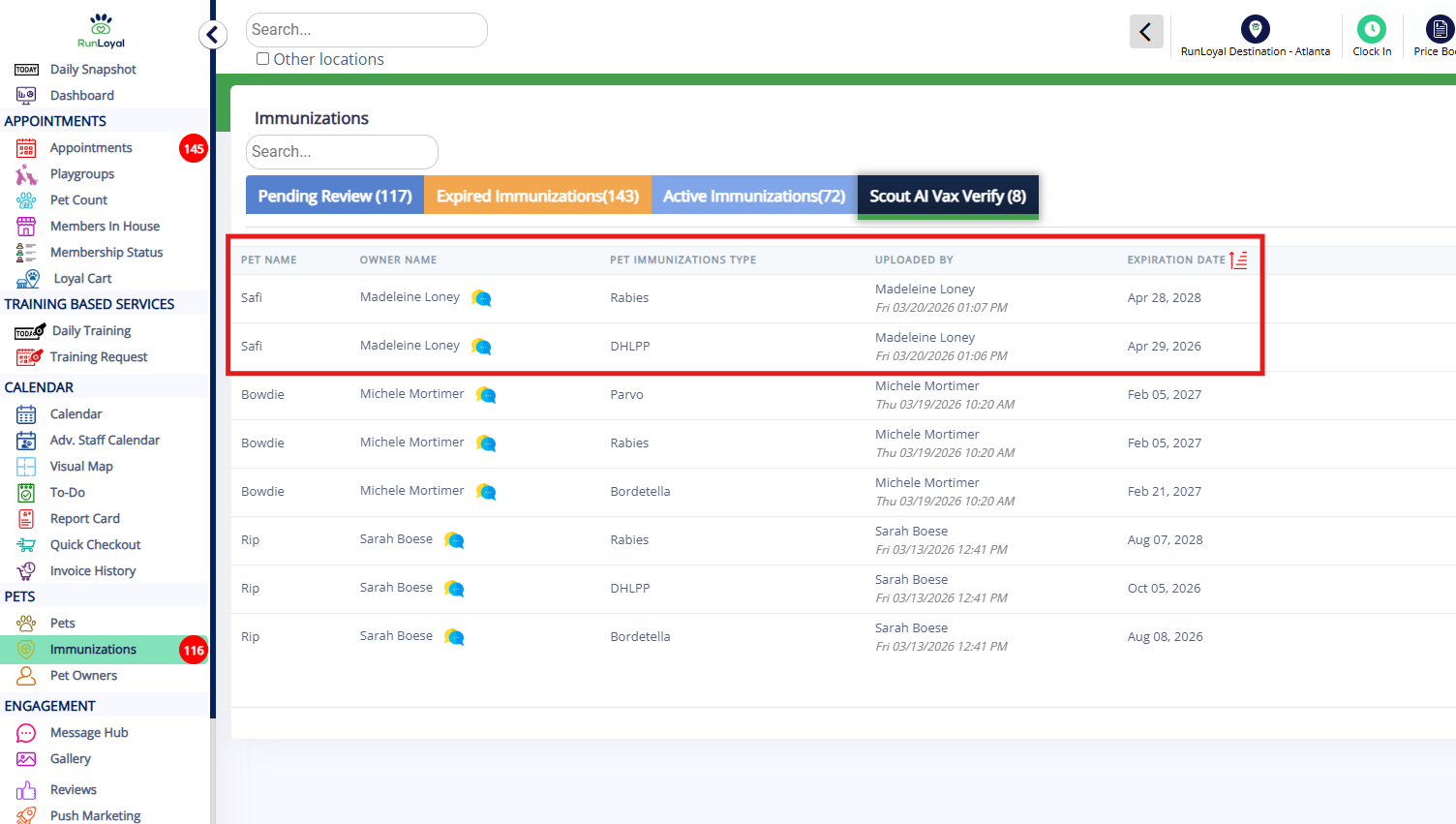
4. Review the dates that were automatically entered.
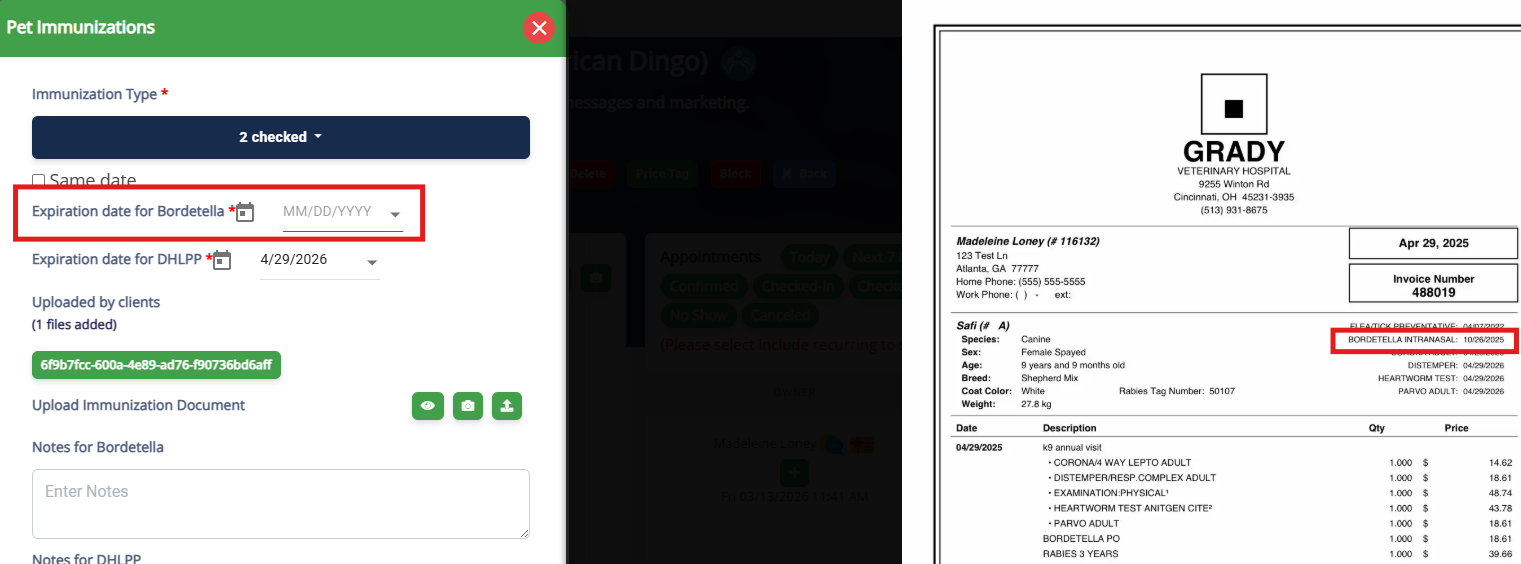
5. For any uploaded documents where the vaccine or pet names did not match exactly and Scout AI could not fully verify the data, click the pet or pet owner's name to expand the document.
6. Insert the data as usual and save.
More Information
For more information on expired immunizations, please refer to this article: How to see Expired Immunizations (Vaccines)
For more information on manually validating immunizations, please refer to this article: Validating Immunizations
Was this article helpful?
That’s Great!
Thank you for your feedback
Sorry! We couldn't be helpful
Thank you for your feedback
Feedback sent
We appreciate your effort and will try to fix the article