Overview
This article describes on how-to add a default tip to an Invoice.
TABLE OF CONTENTS
Step-by-step instructions on how to add a default tip to an Invoice
This video explains how to add a default tip to an invoice.
1. Invoice > Tips
Click Tips to open the tips management area in Invoice.
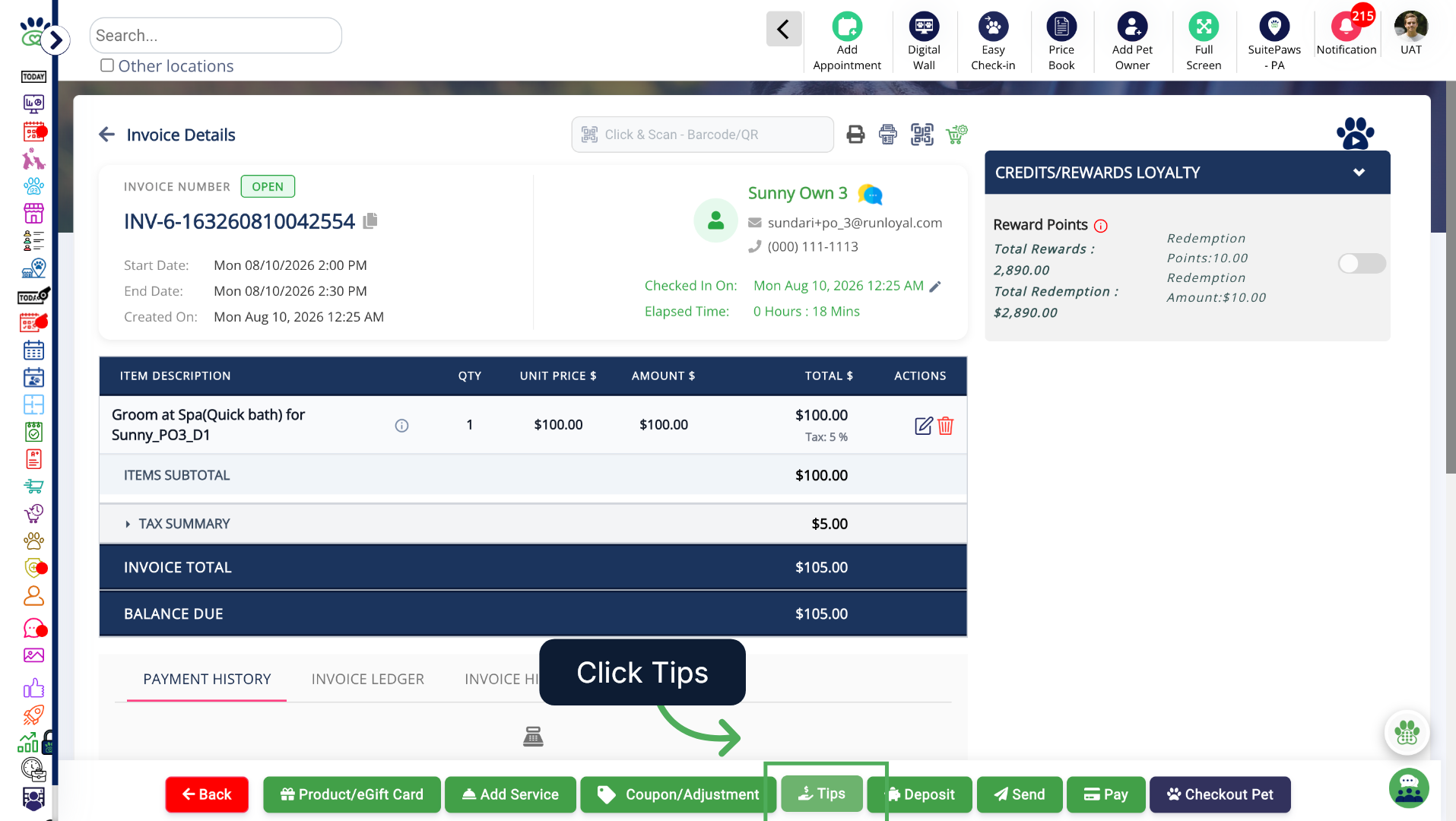
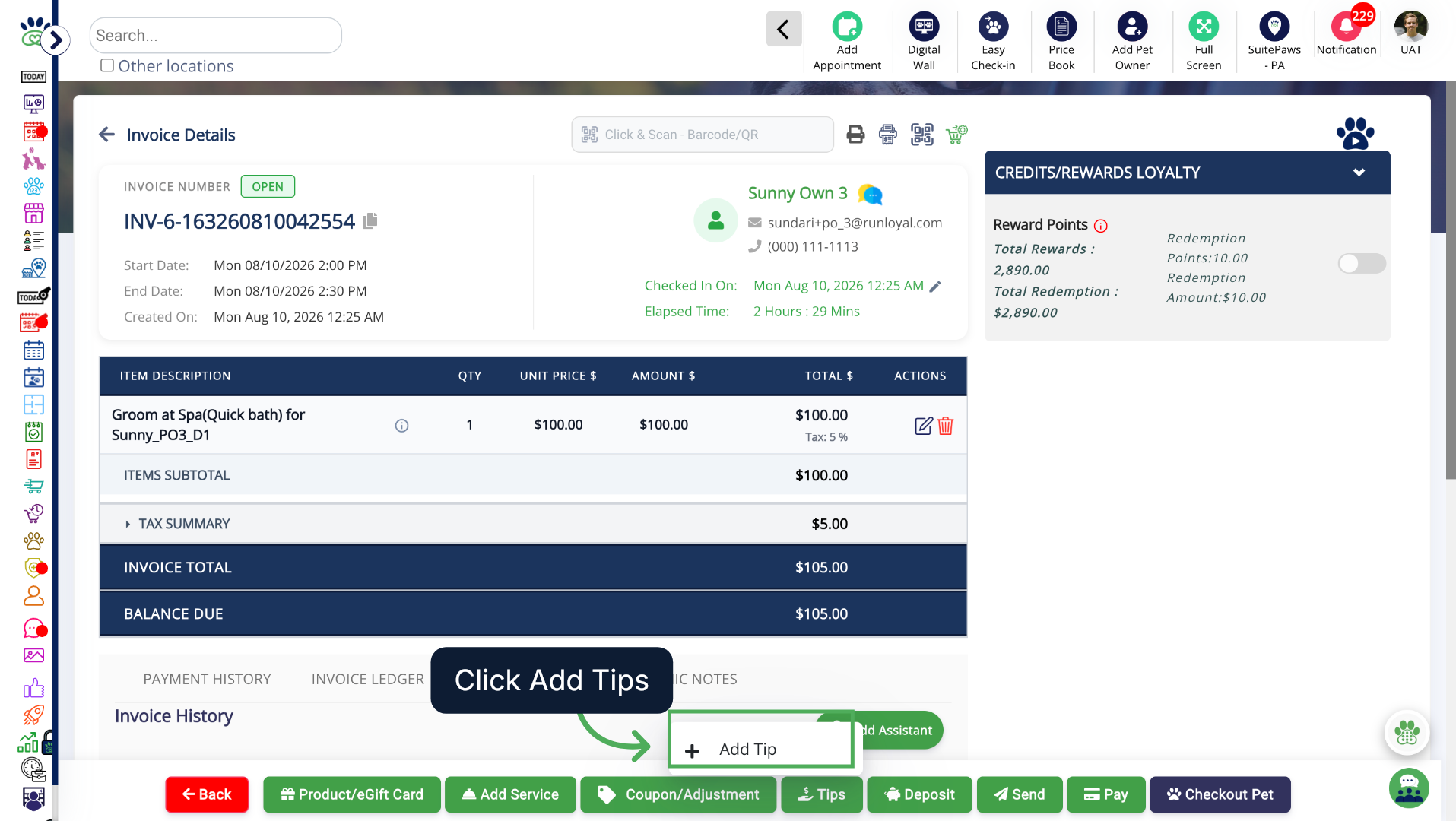
2. Add Tip
Click Add Tip.
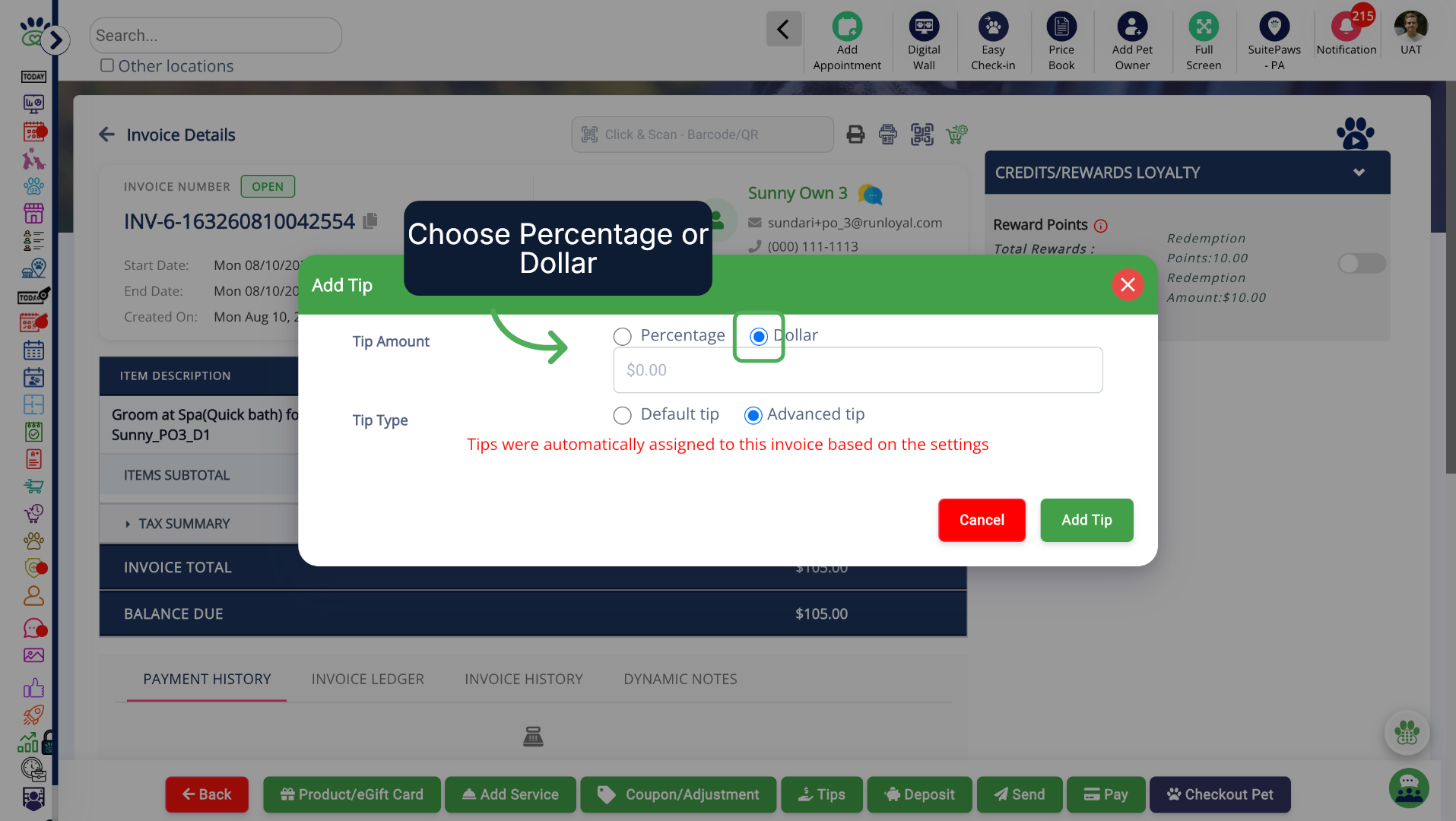
3. Tip Amount
In Advanced Staff Feature, you can choose the tip amount in either Percentage or Dollar.
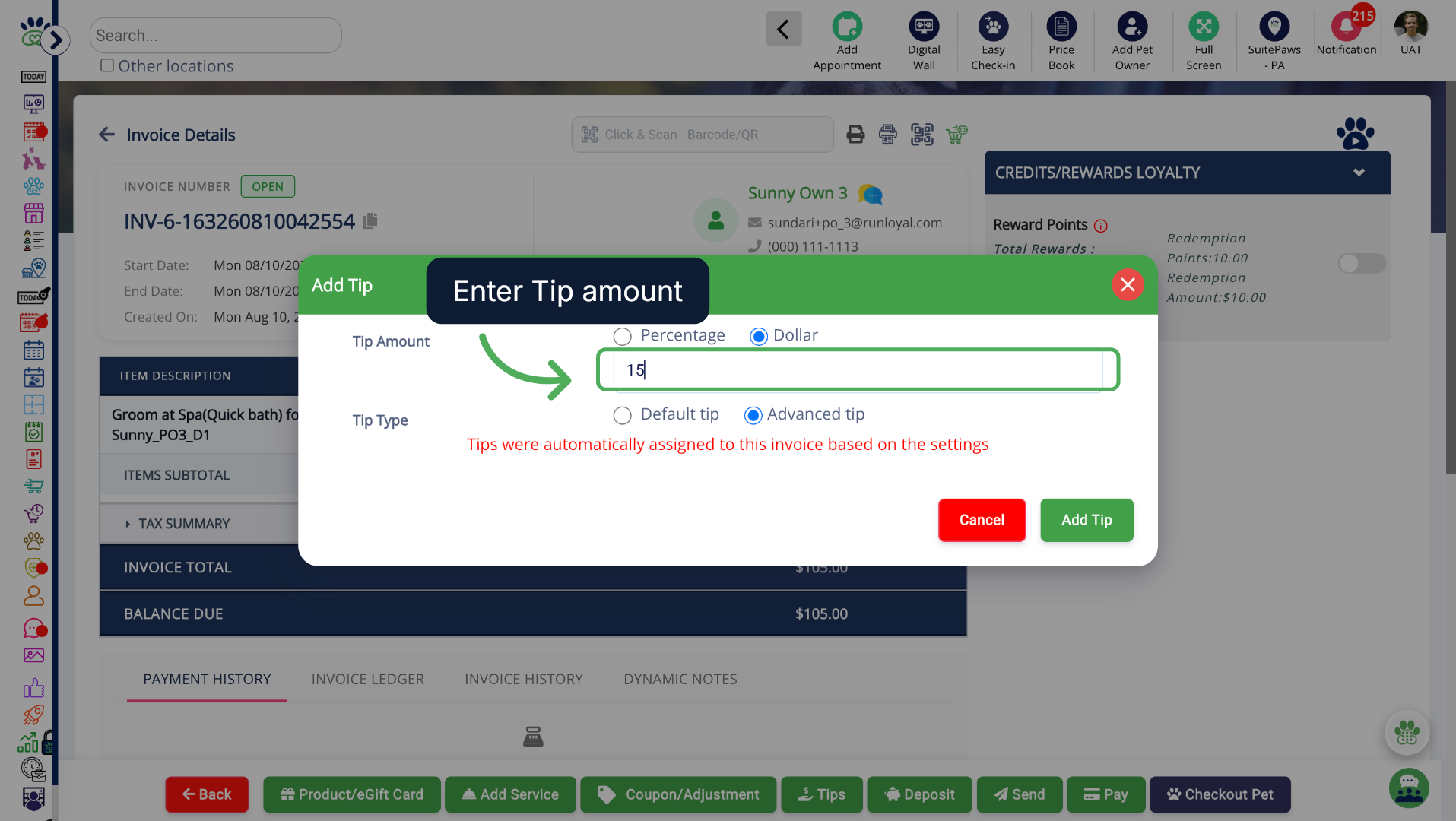
4. Specify Tip Value
Enter the Tip amount.
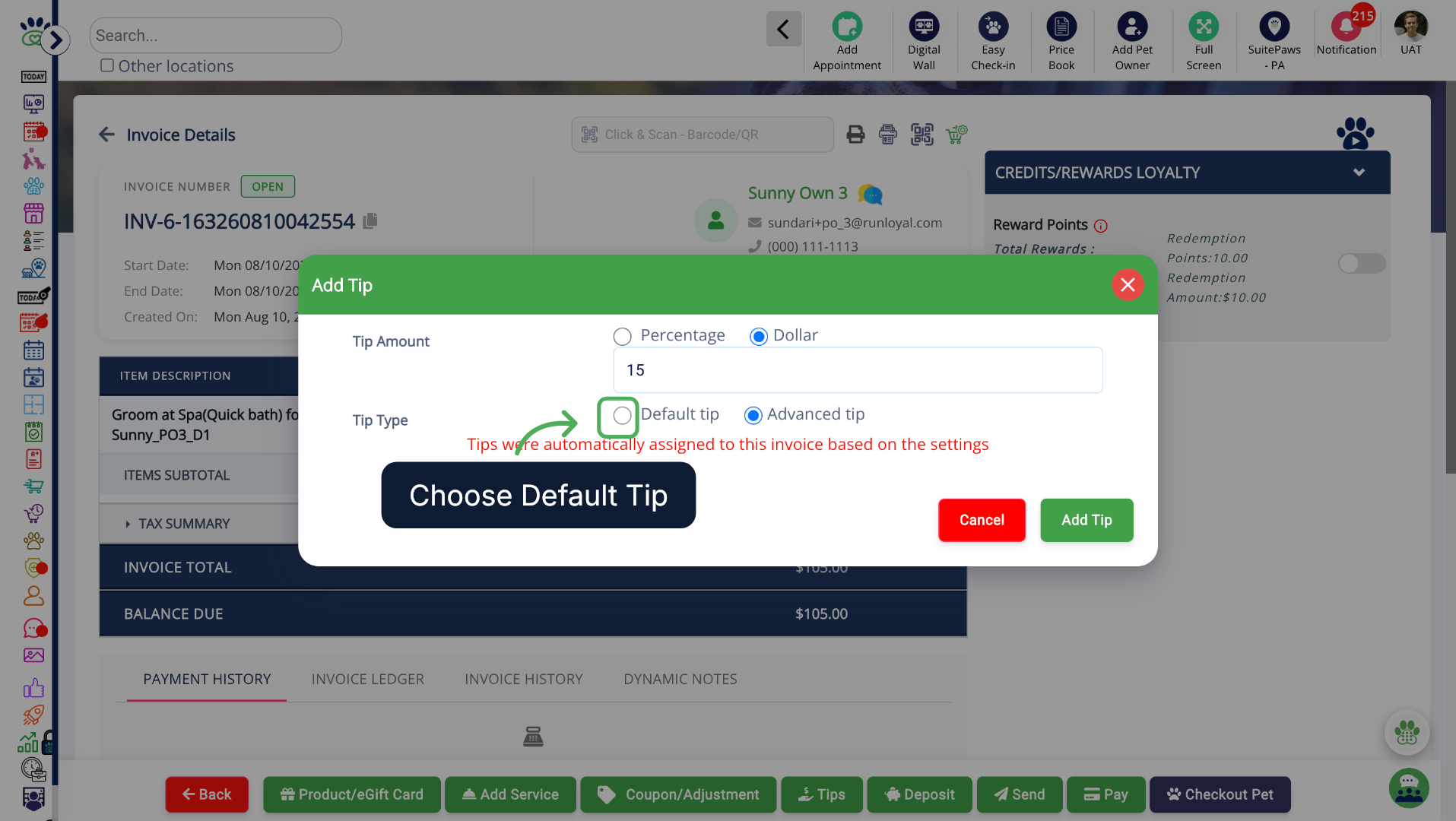
5. Default Tip
Choose Default Tip.
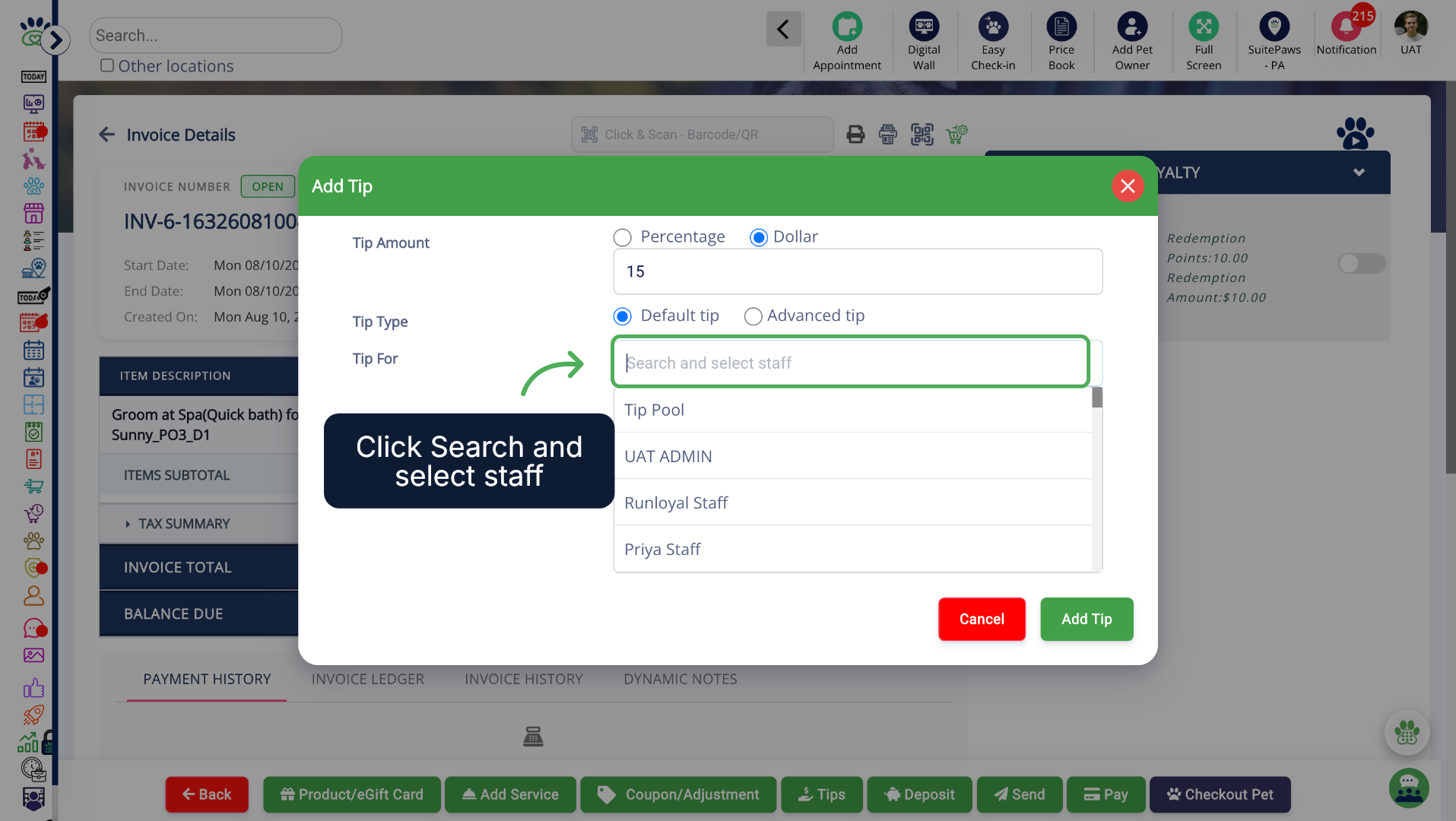
6. Select the Staff
Click Search and select staff to assign a staff member to the tip.
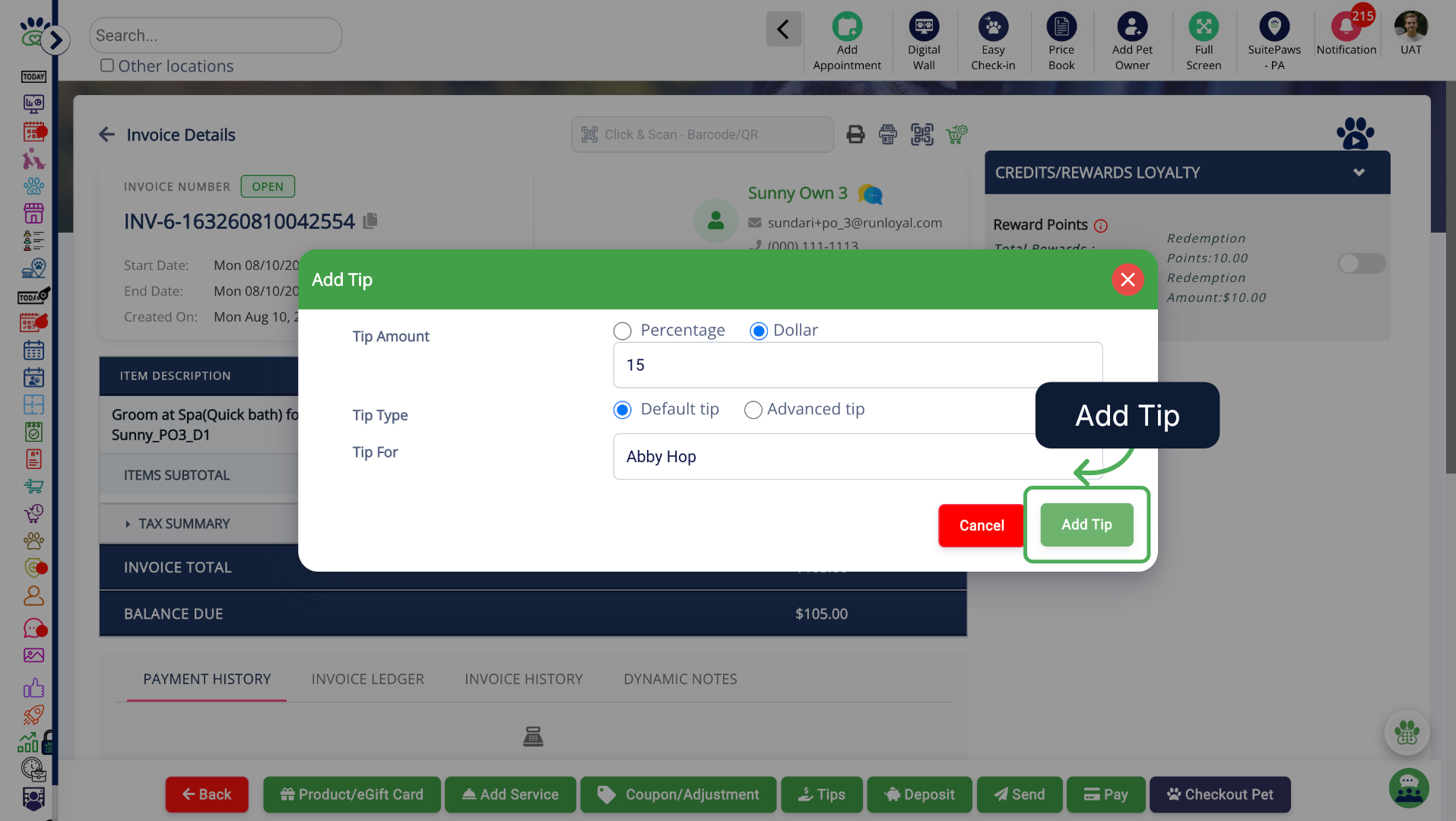
7. Add Tip
Review the tip details provided and click Add Tip.
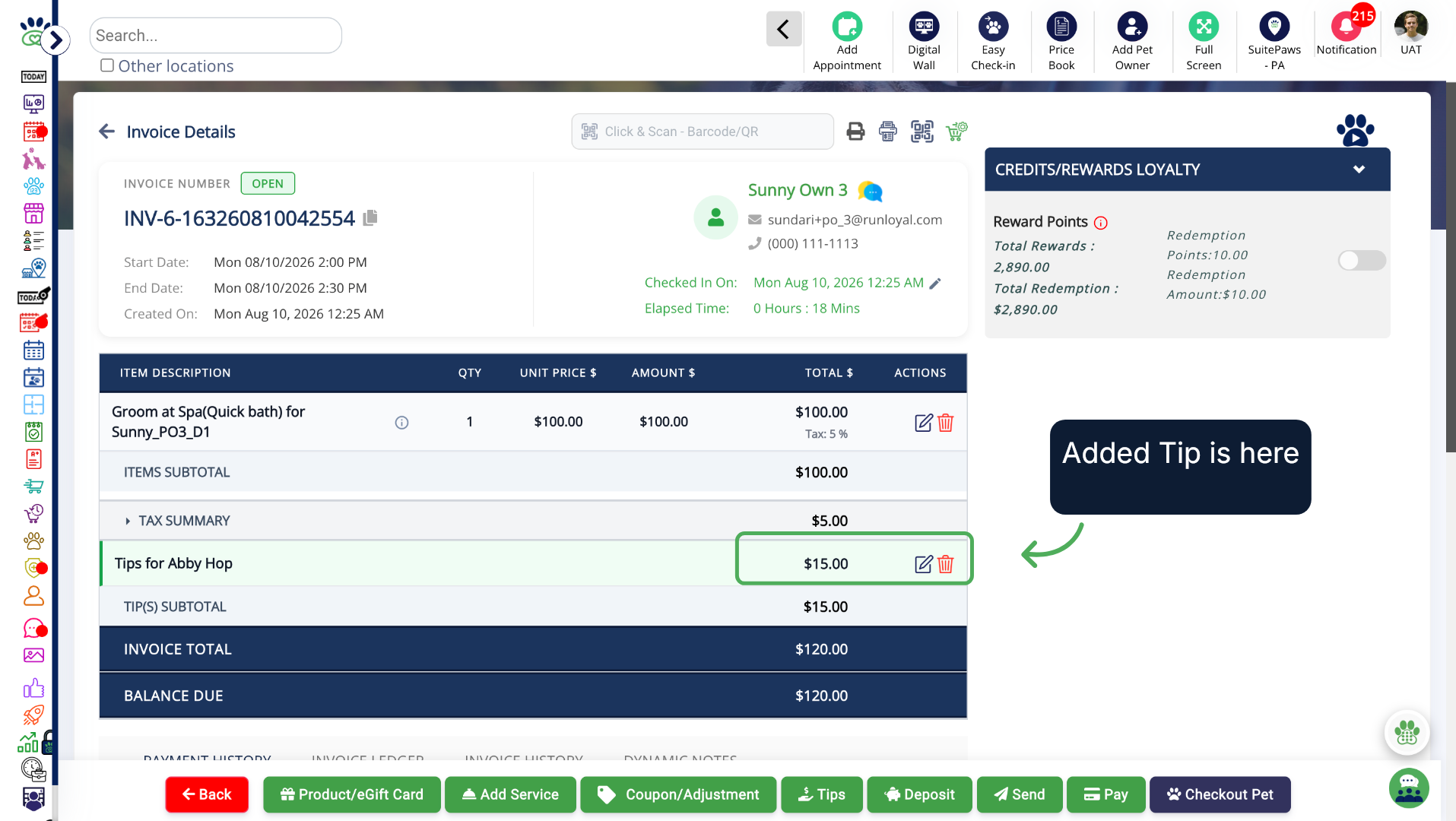
8. Invoice with Tip added for the Staff
Now you can see the invoice with the tips added for the Staff selected.
More Information
For more information please refer to this article on Advanced Staff Feature.
Was this article helpful?
That’s Great!
Thank you for your feedback
Sorry! We couldn't be helpful
Thank you for your feedback
Feedback sent
We appreciate your effort and will try to fix the article