Overview
Package or Membership Alerts automatically notifies staff during checkout when a customer's package or membership is out of credits, has auto-renewal enabled, or is expiring within 7 days.
These alerts help staff identify renewal or top-up opportunities while completing a checkout. Staff can take action immediately or dismiss the alert and continue with the checkout.
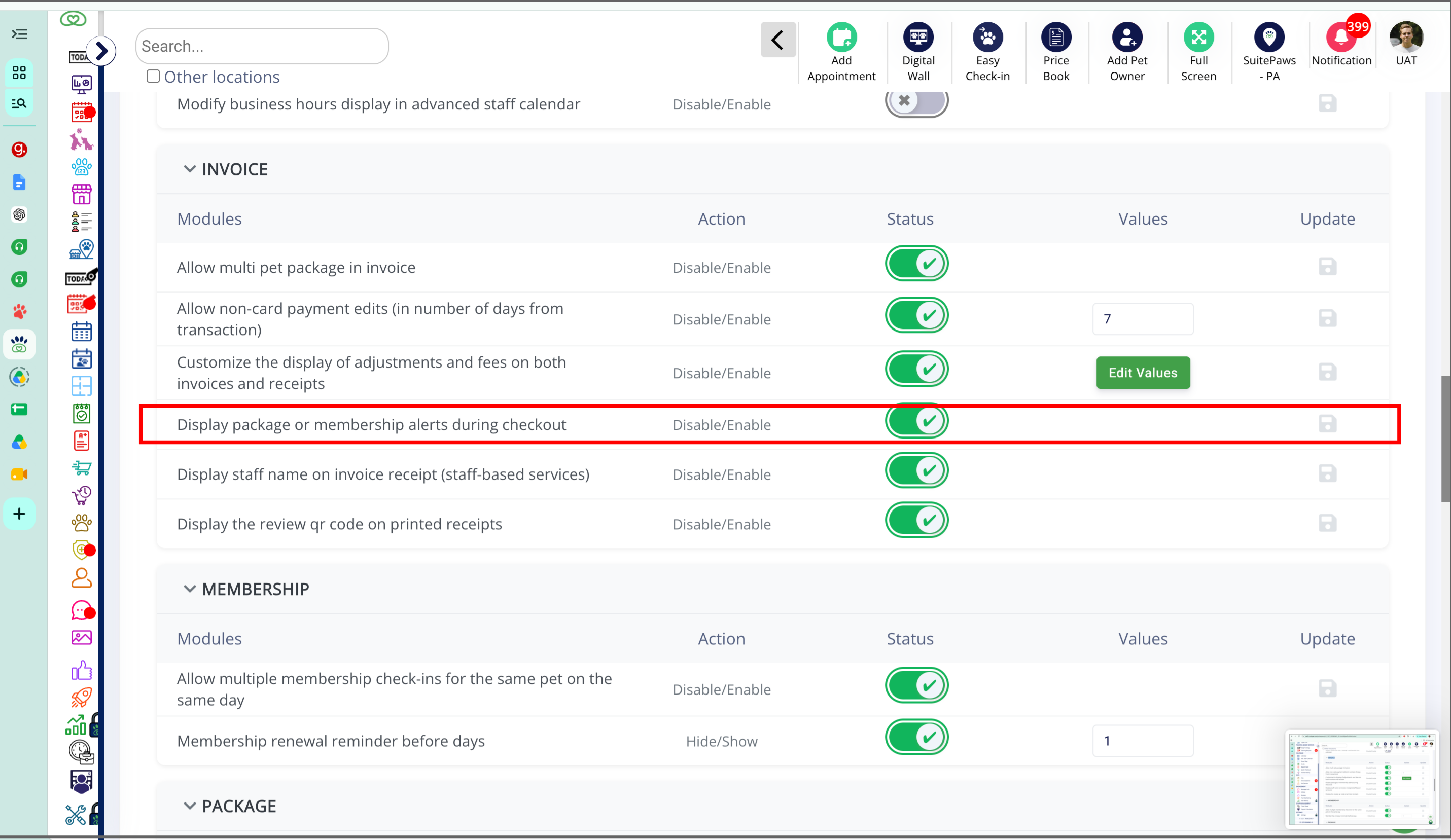
The feature can be enabled or disabled from Personalization Settings → Invoice → Display package or membership alerts during checkout.
TABLE OF CONTENTS
- Overview
- Applicable Users
- Requirements
- Personalization Settings
- Improved Package experience during checkout
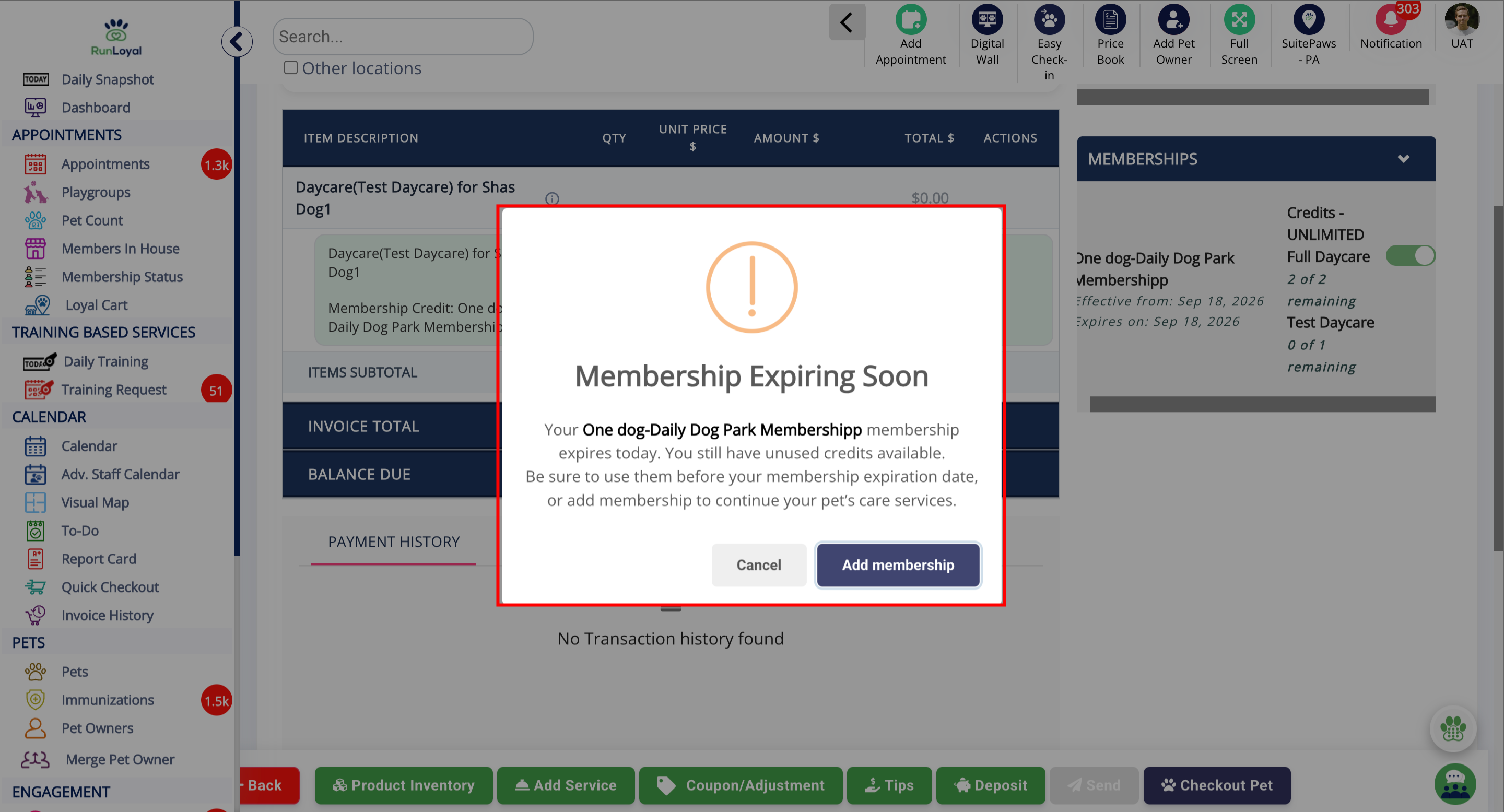
- Improved Membership experience during checkout
- More Information
Applicable Users
- Business Owner / Kennel Owner
- General Manager / Location Manager
- Front Desk / Receptionist
- Membership Manager
- Service Manager
Requirements
Before using Package & Membership Alerts, ensure you:
- Have access to the Business Portal.
- Have permission to access Personalization Settings.
- Enable Display package or membership alerts during checkout if the feature is currently disabled.
- Have permission to access and manage Invoice settings.
- Have packages or memberships configured for customers.
Personalization Settings
- Go to Settings > Operations > Personalization > PORTAL > Invoice.
- Enable package or membership alerts during checkout.
Improved Package experience during checkout
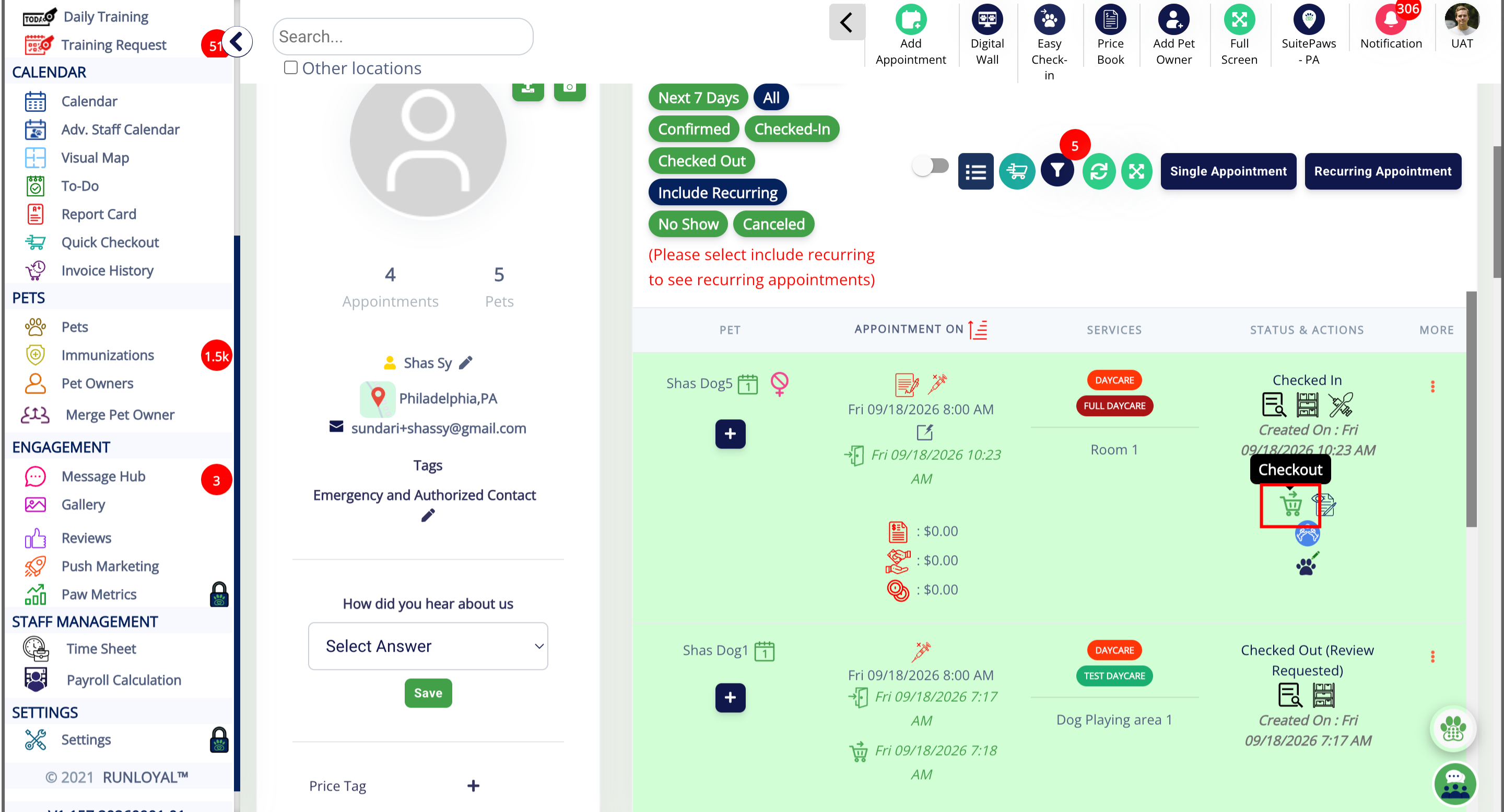
1. Checkout a Pet
2. Select Package
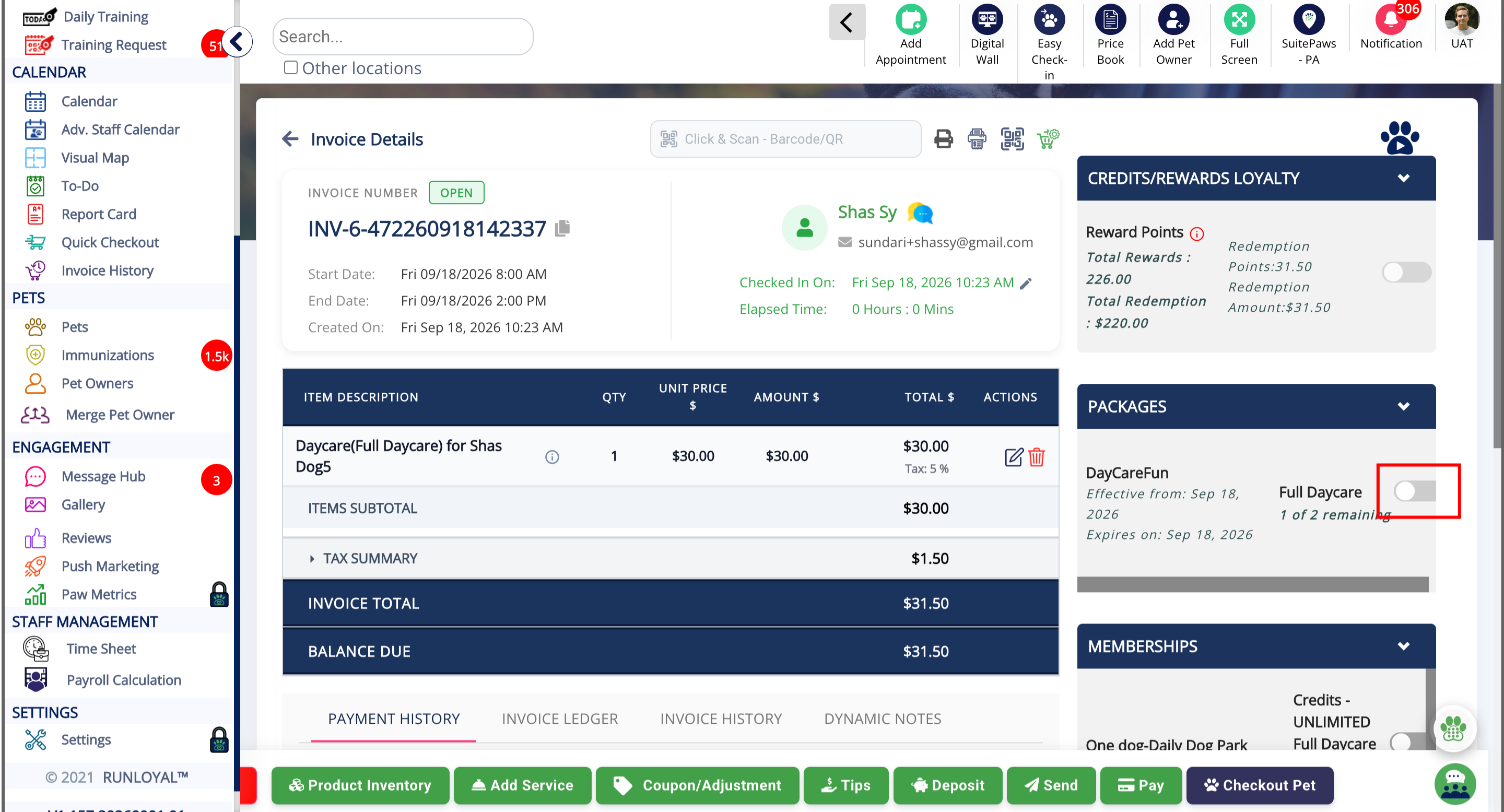
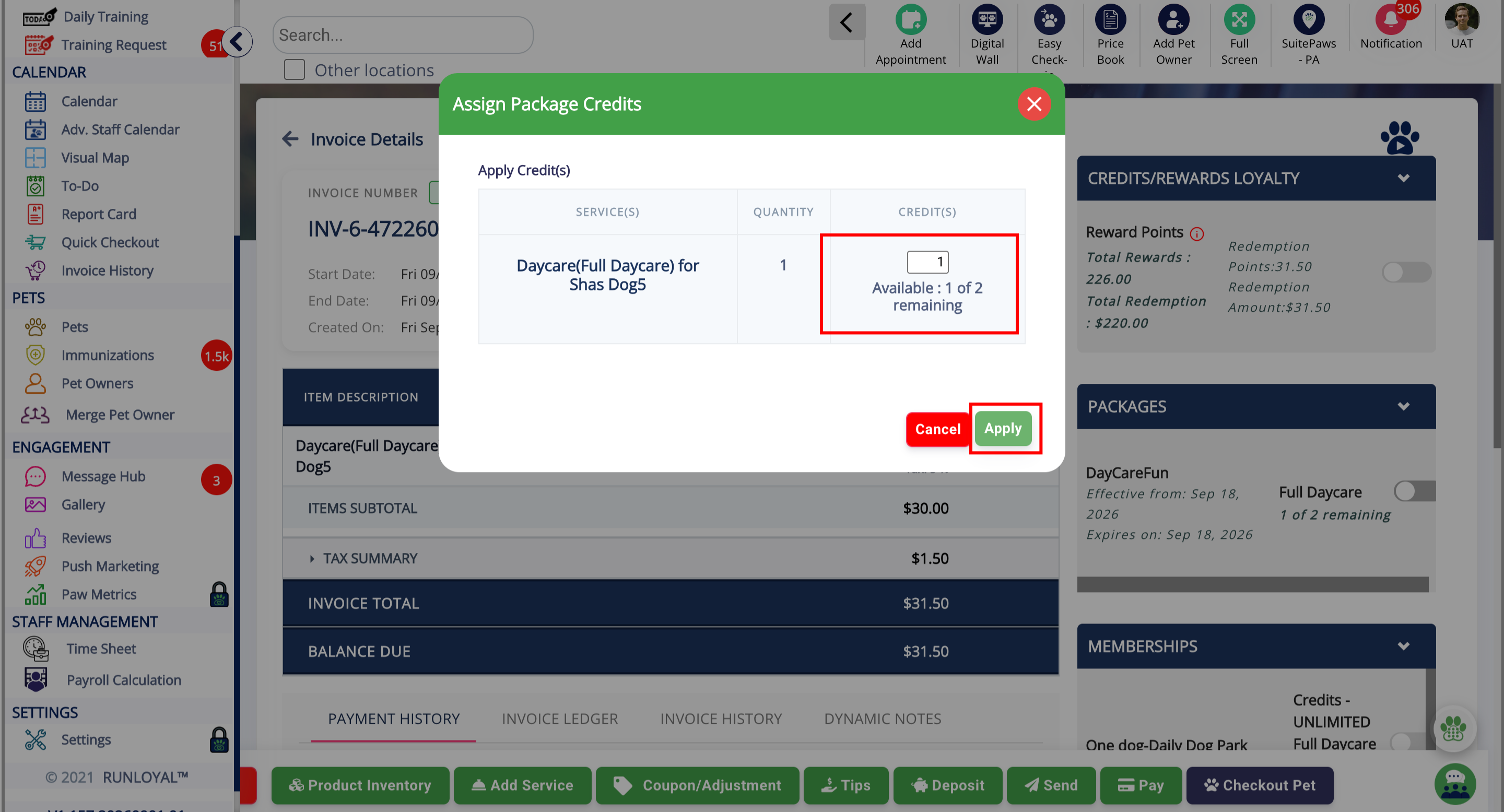
3. Package Credits Section
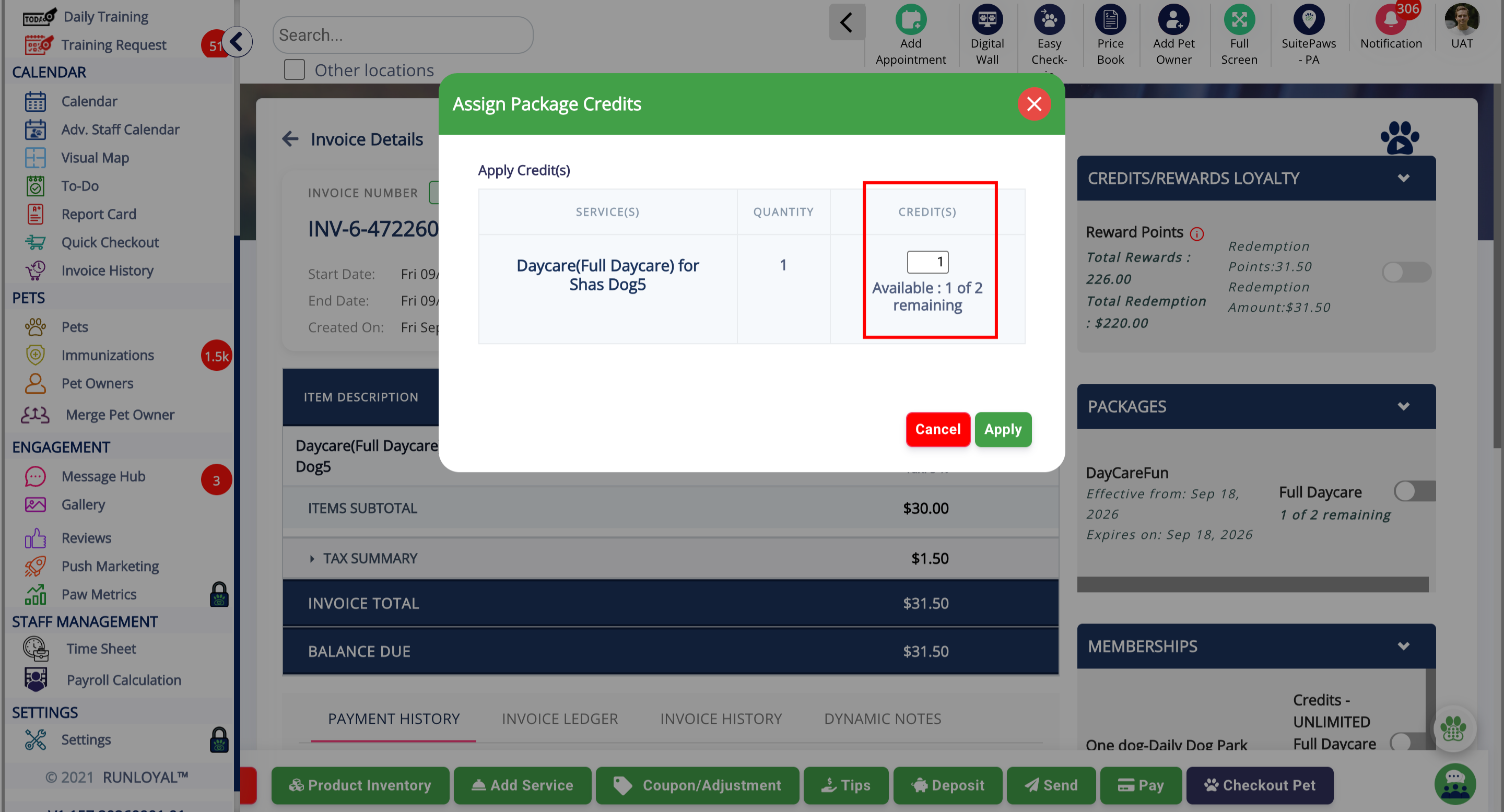
4. Apply Changes
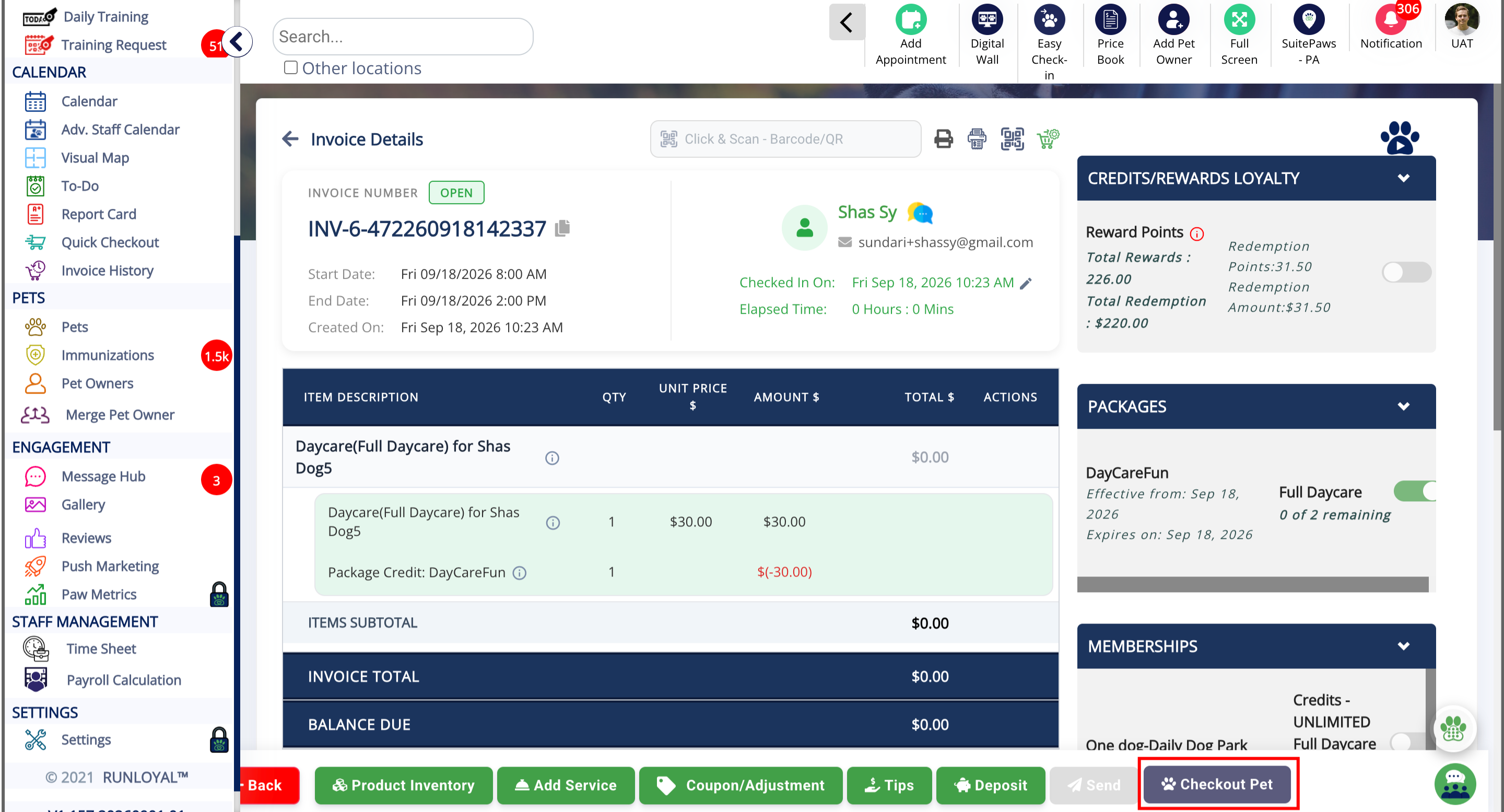
5. Checkout Pet Service
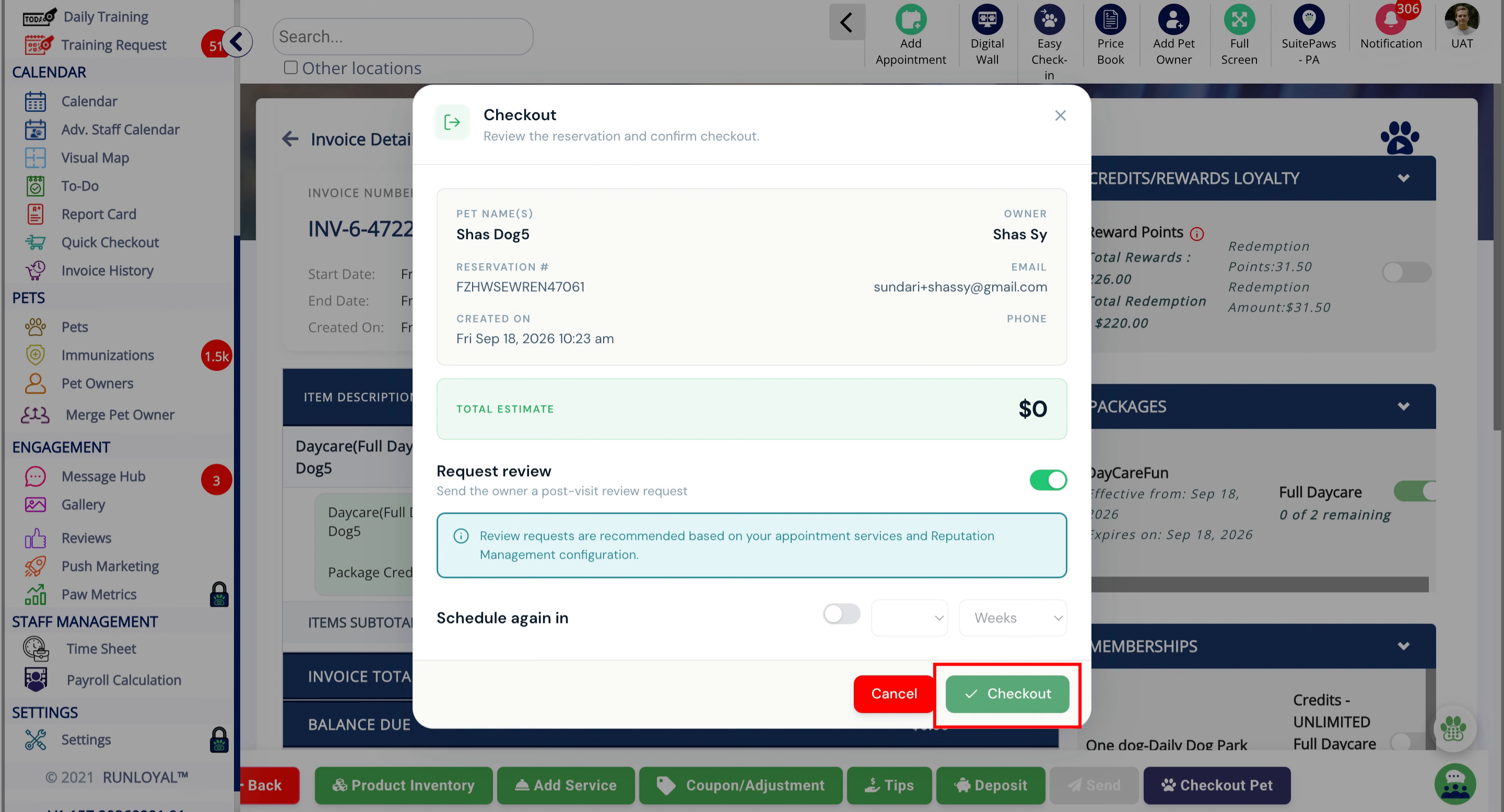
6. Confirm checkout
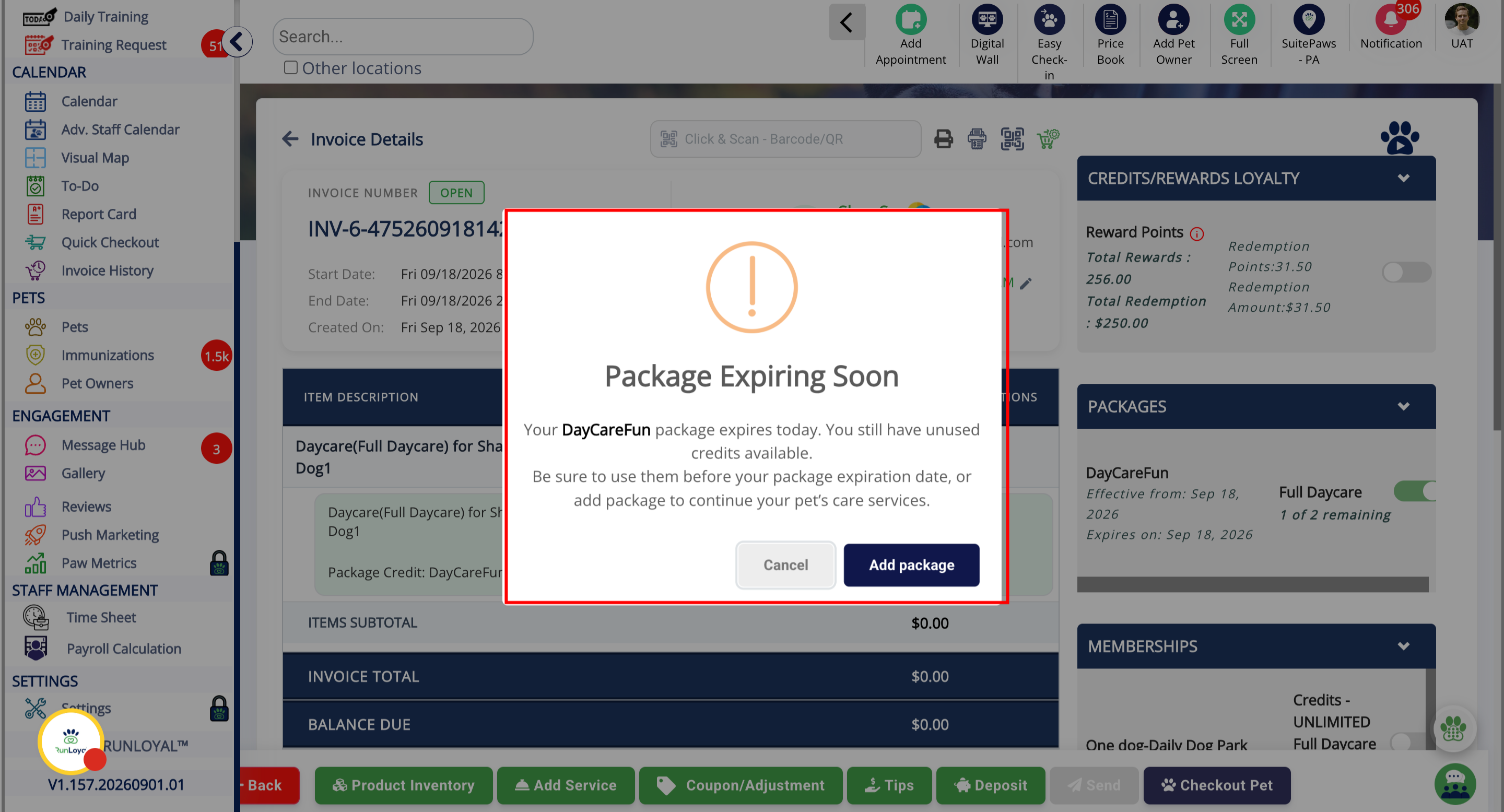
7. Package expiry alert
Improved Membership experience during checkout
1. Checkout a pet
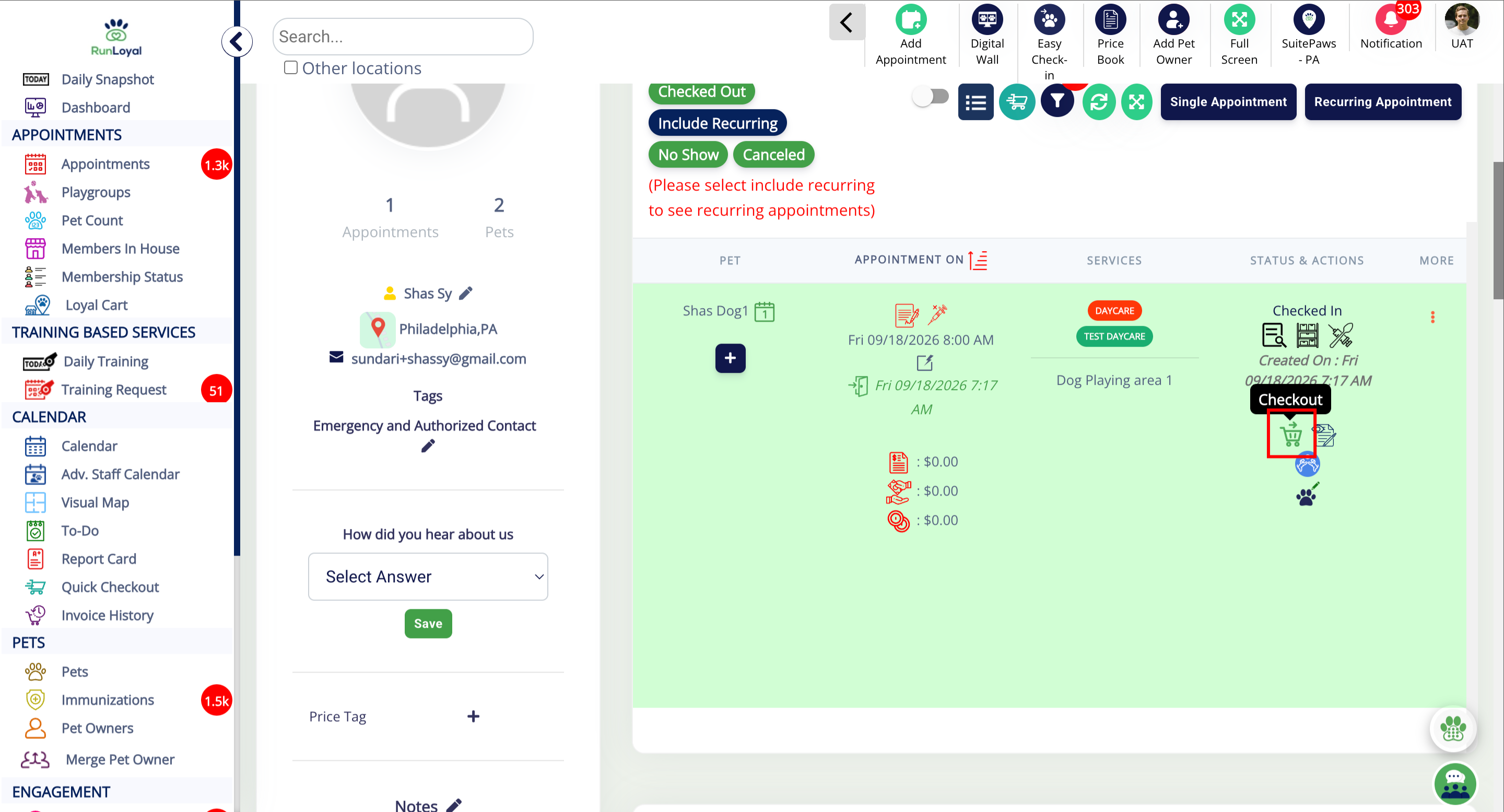
2. Select Membership
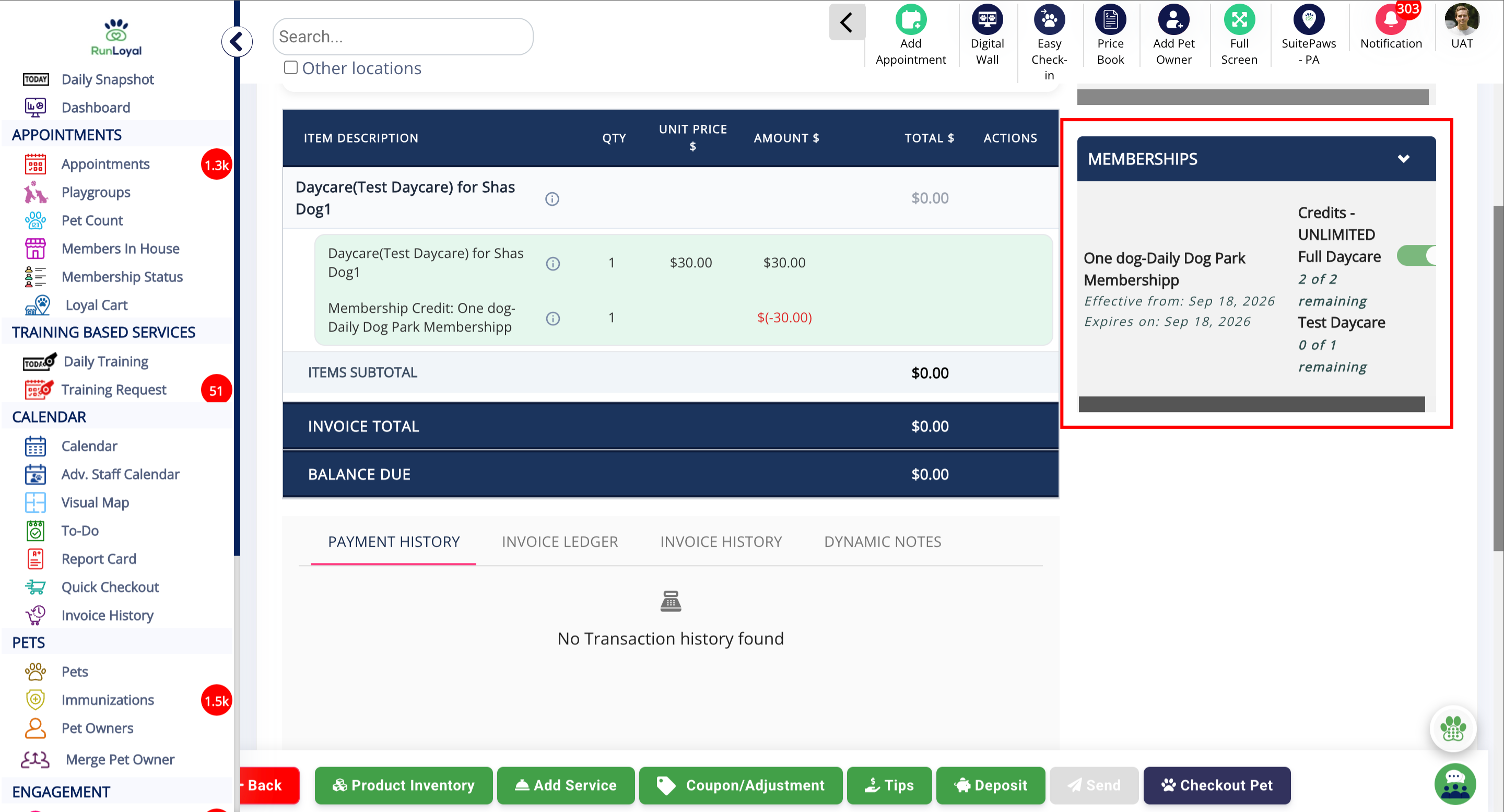
3. Memberships Credits Section
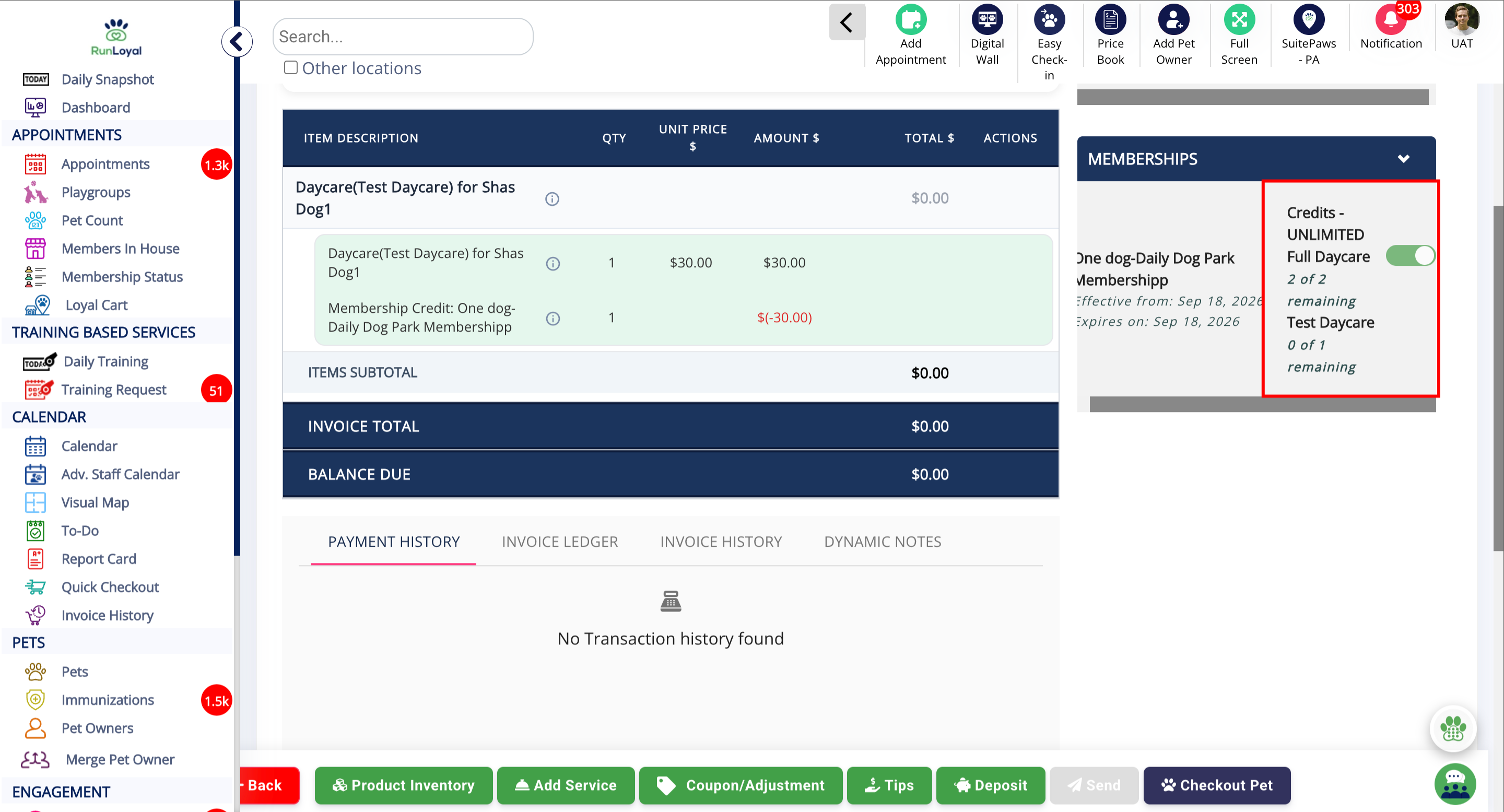
4. Apply the credits
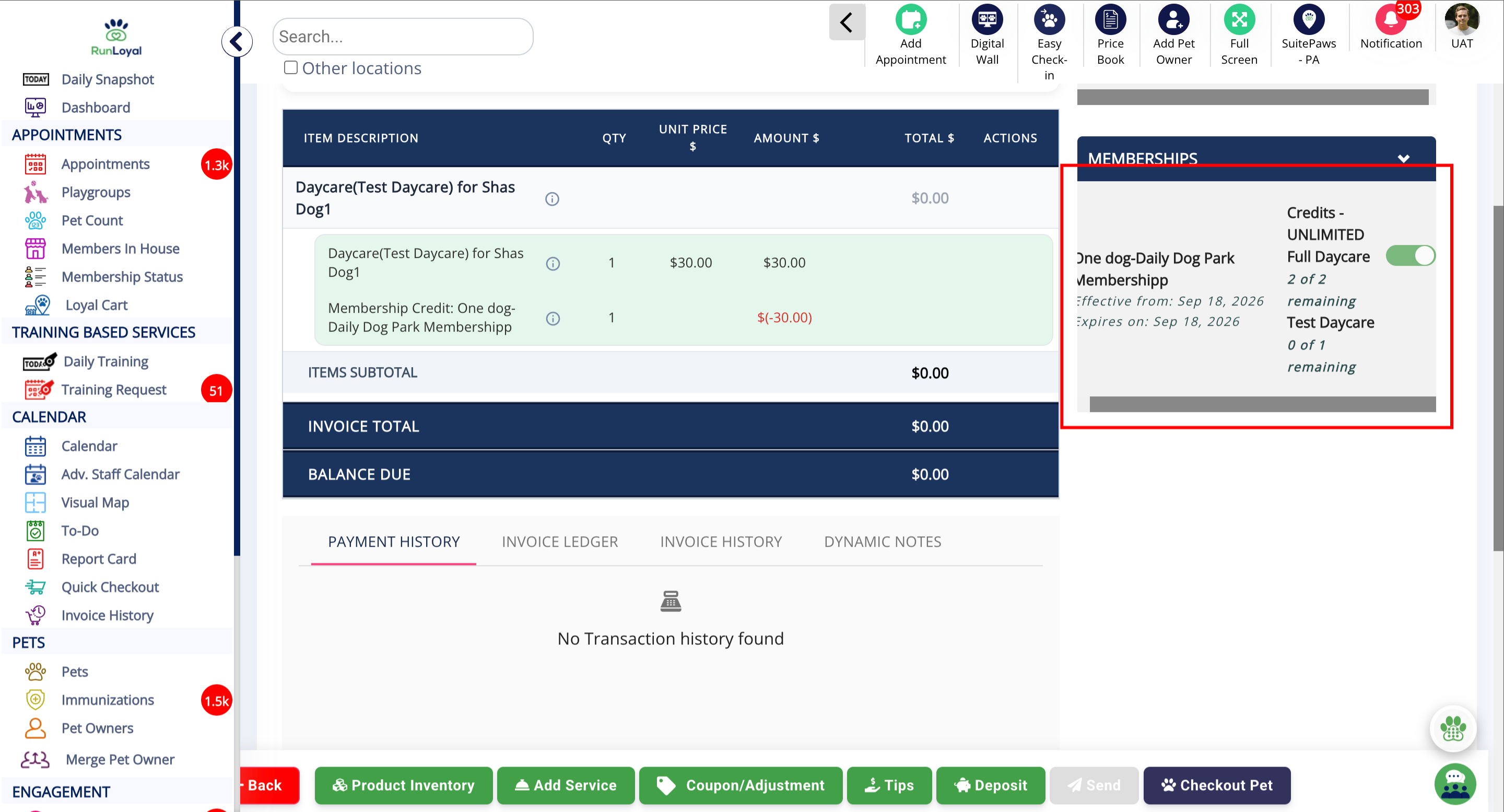
5. Checkout Pet
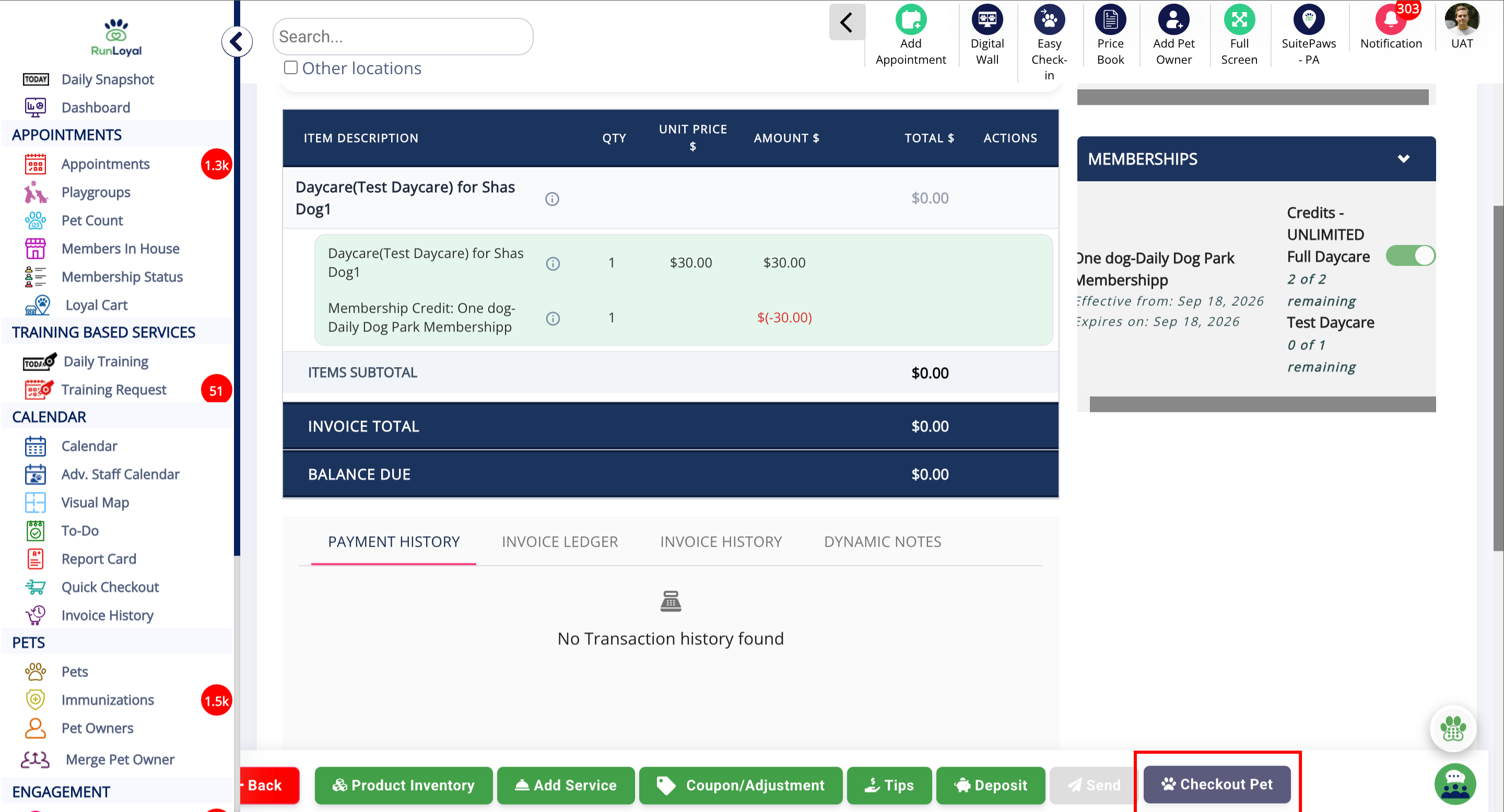
6. Proceed to Checkout
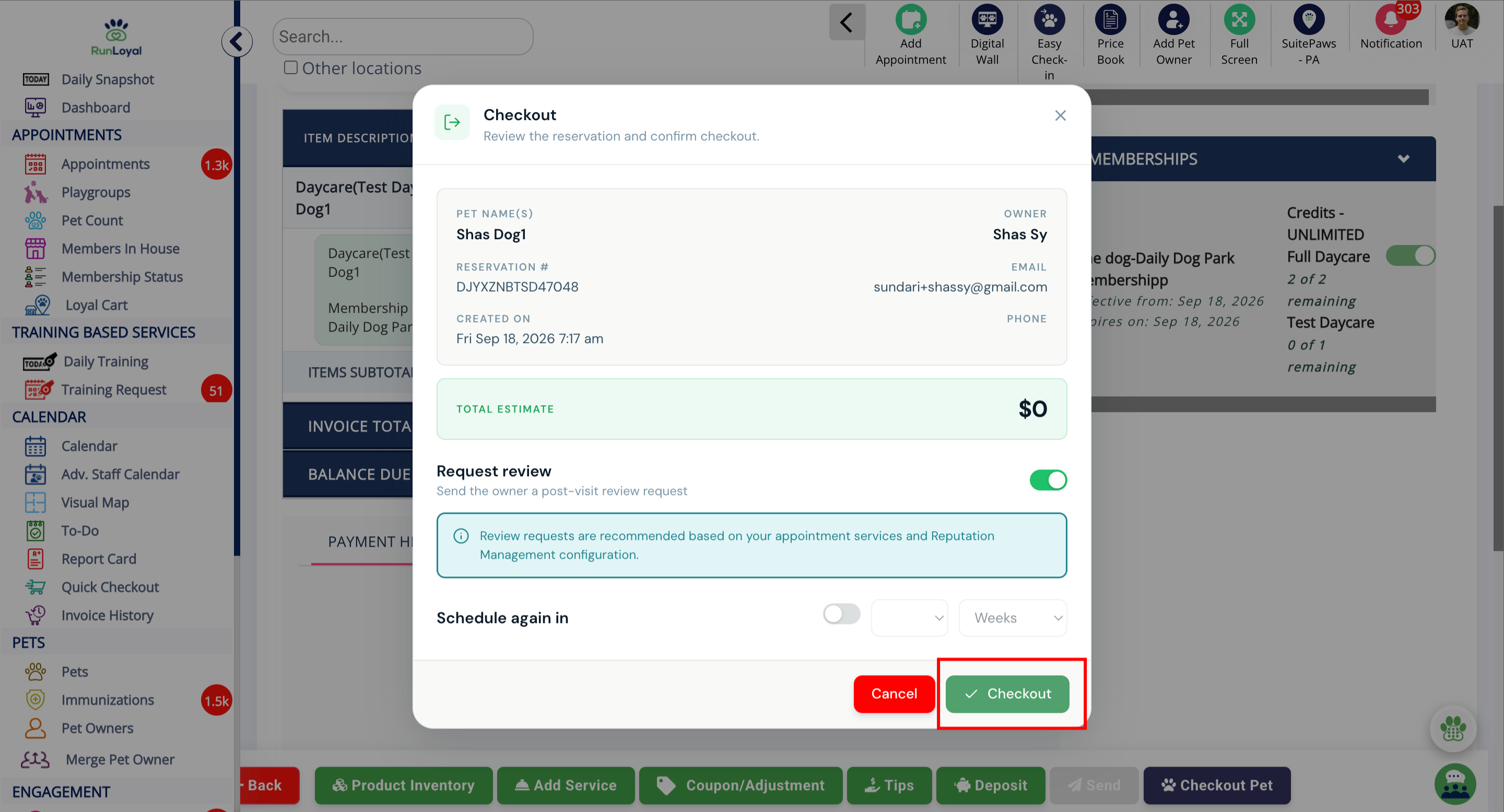
7. Membership expiry alert
More Information
For more information on creating and managing appointments, please refer to this article: Creating & Managing Appointments
For more information on checking out an appointment, please refer to this article: Checking Out an Appointment
Was this article helpful?
That’s Great!
Thank you for your feedback
Sorry! We couldn't be helpful
Thank you for your feedback
Feedback sent
We appreciate your effort and will try to fix the article