Overview
Packages are a great way to offer discounted pricing and encourage repeat visits for your daycare services. This article will walk you through how to set up packages that include one or multiple credits for services, such as daycare, boarding, or add-ons. You’ll also learn how packages can automatically apply discounted rates compared to standard pricing. With packages configured correctly, you can provide flexible purchasing options while simplifying the checkout process for both staff and pet owners.
Packages can be viewed in the following areas:
- Settings > Retail > Packages
- Quick Checkout > Packages
- Pet Owner Profile > Packages section
TABLE OF CONTENTS
How to Create a Package
1. Navigate to Settings > Retail > Packages.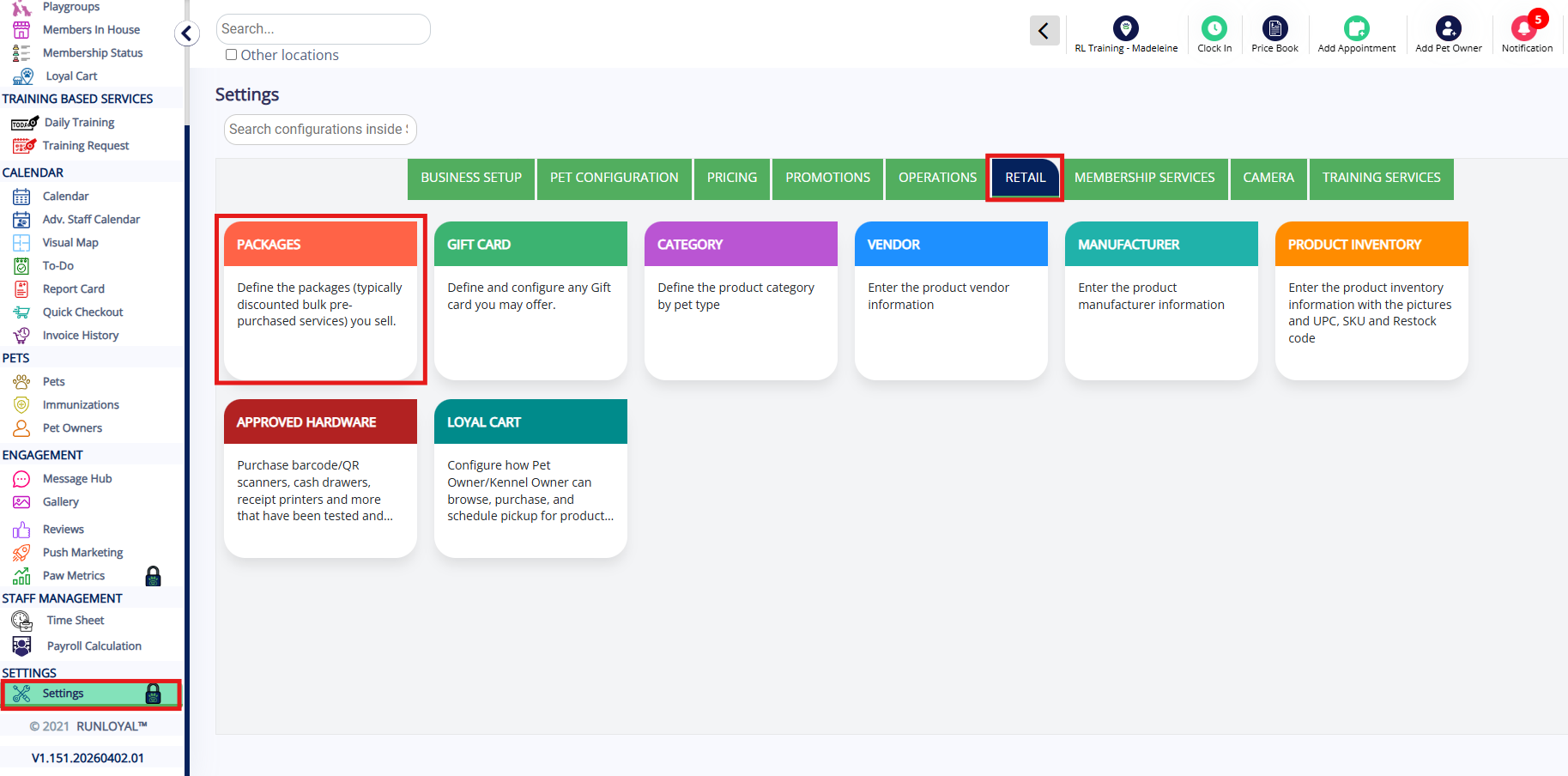
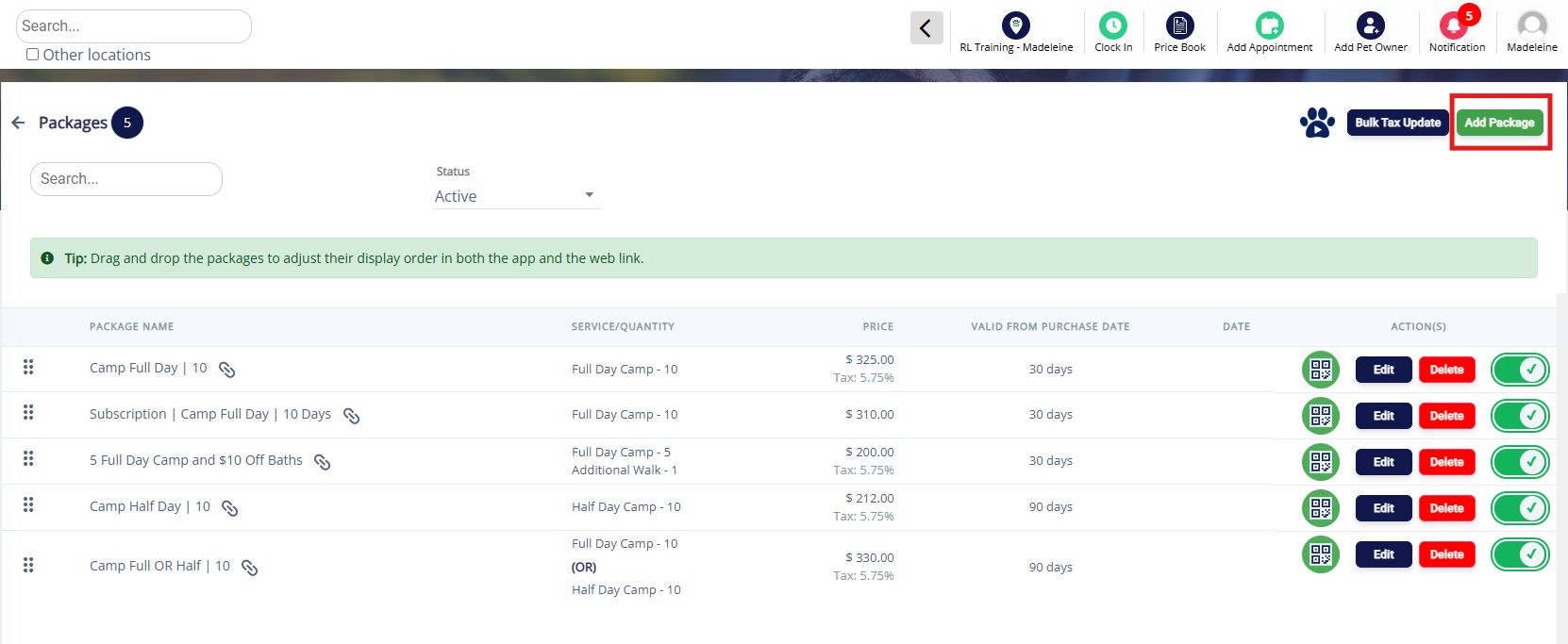
2. To add a new package, click Add Package in the top right-hand corner.
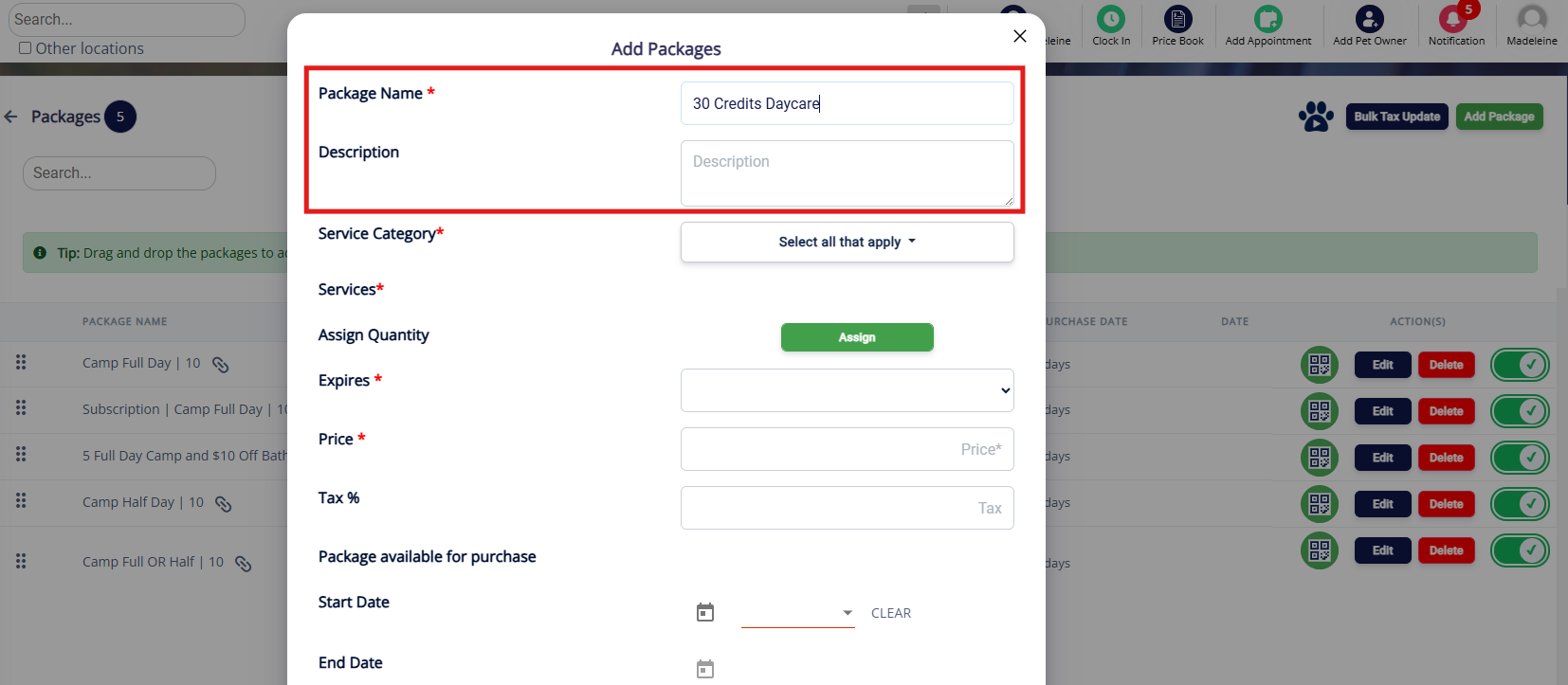
3. Enter the package name and description (optional).
4. Select the Service Category if the package should type to one type of services, or Service Categories if it should tie to multiple types of services (for example, a package that gives 10 Daycare credits and 1 Boarding credit).
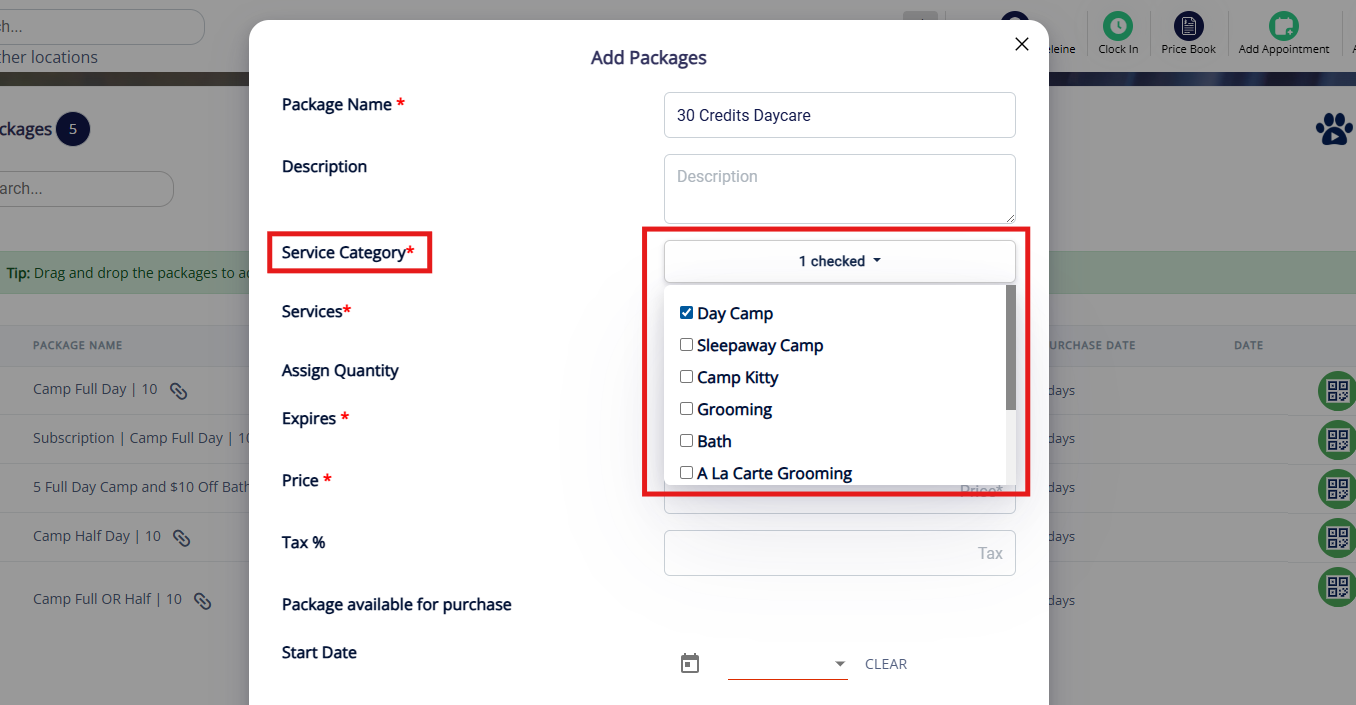
5. Check the boxes next to the Services that should be a part of this package. Only primary services will display. Then click Assign to assign the number of credits for each service.
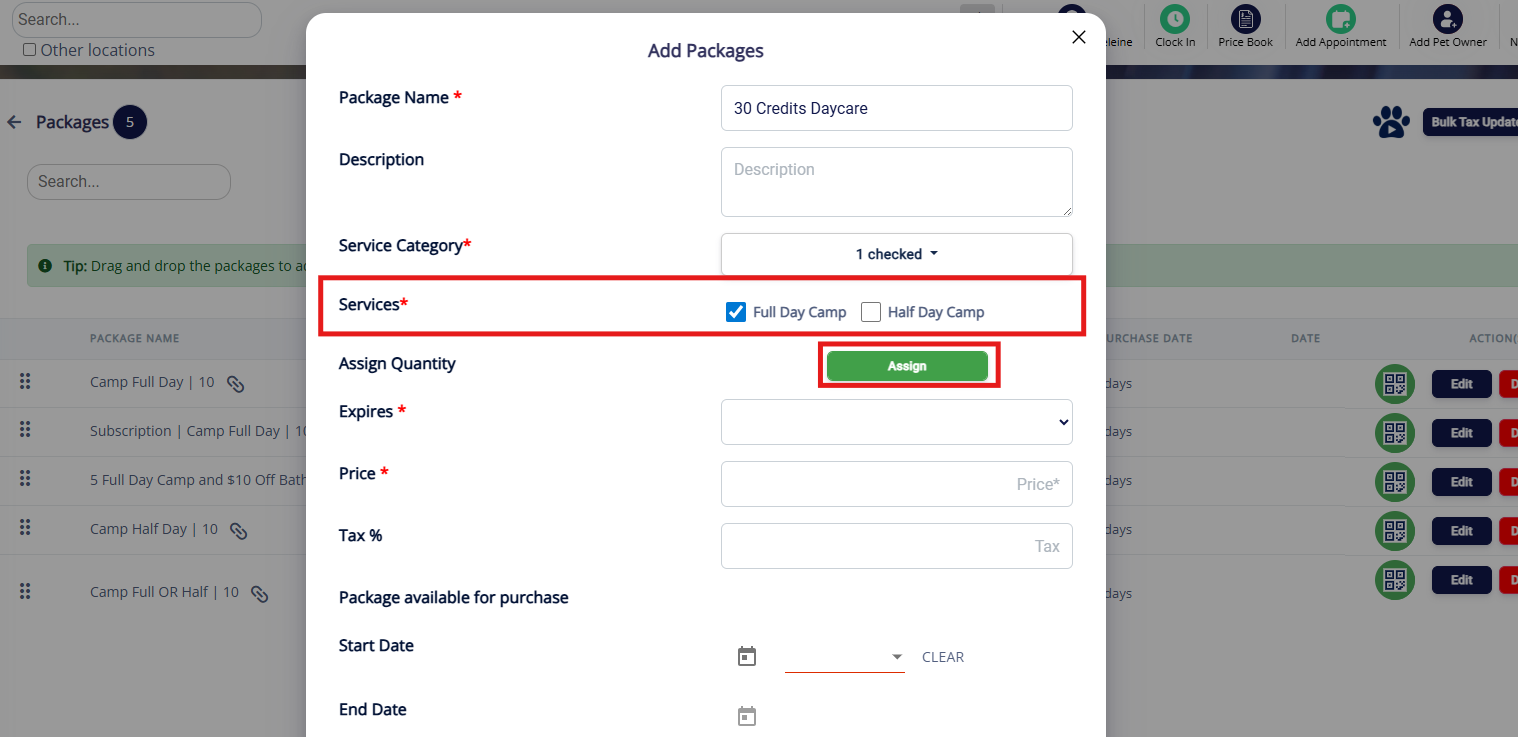
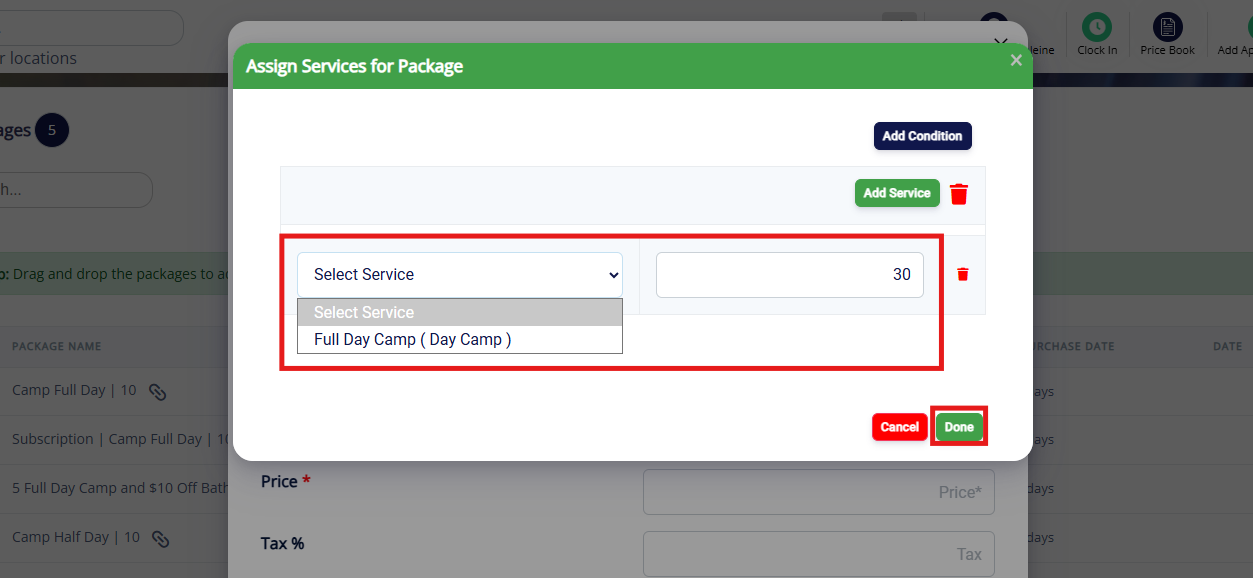
6. If you are adding a package only for one allowed service (i.e. Full Day Daycare), select the service from the dropdown and enter the quantity of credits. Then click Done.
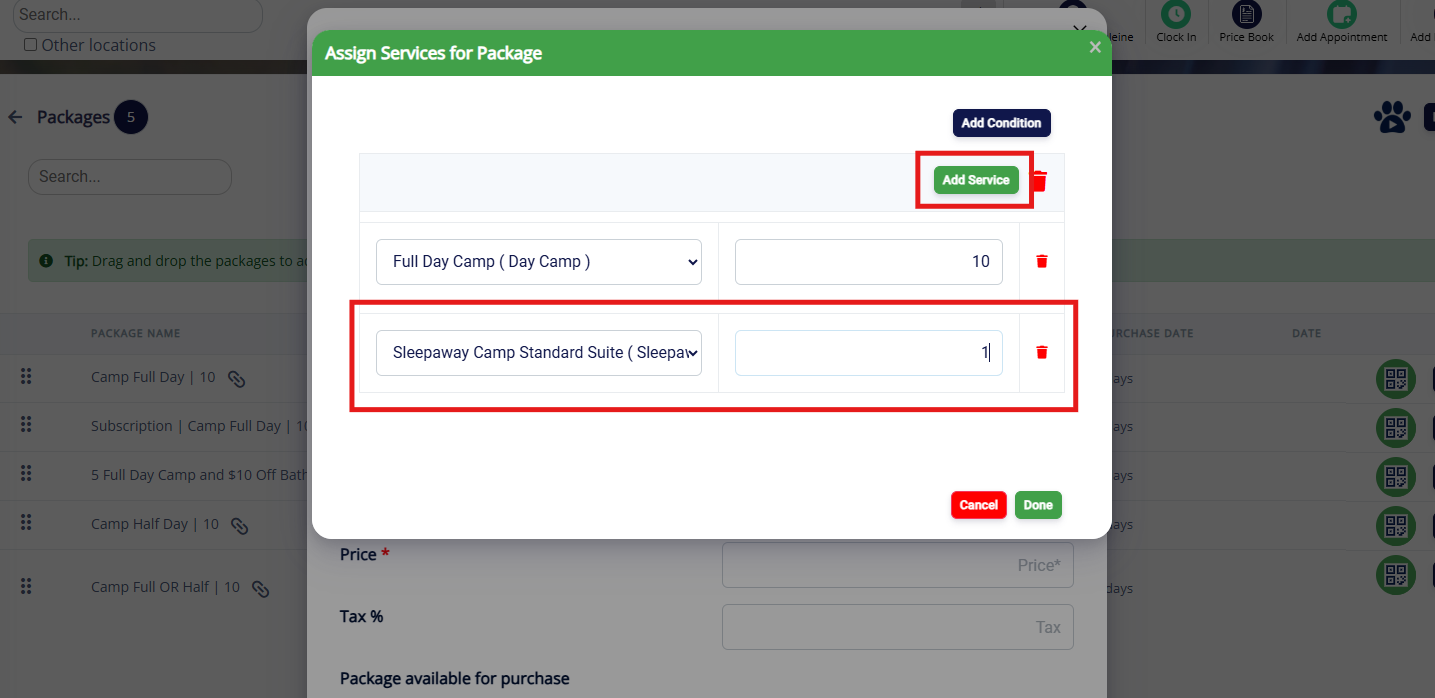
7. If you are adding a package for two or more services (for example, 10 Daycare credits and 1 Boarding credit), select the first service from the dropdown and enter the quantity of credits. Then click Add Service in the top right. Then select the additional service from the dropdown and enter the quantity of credits. Then click Done.
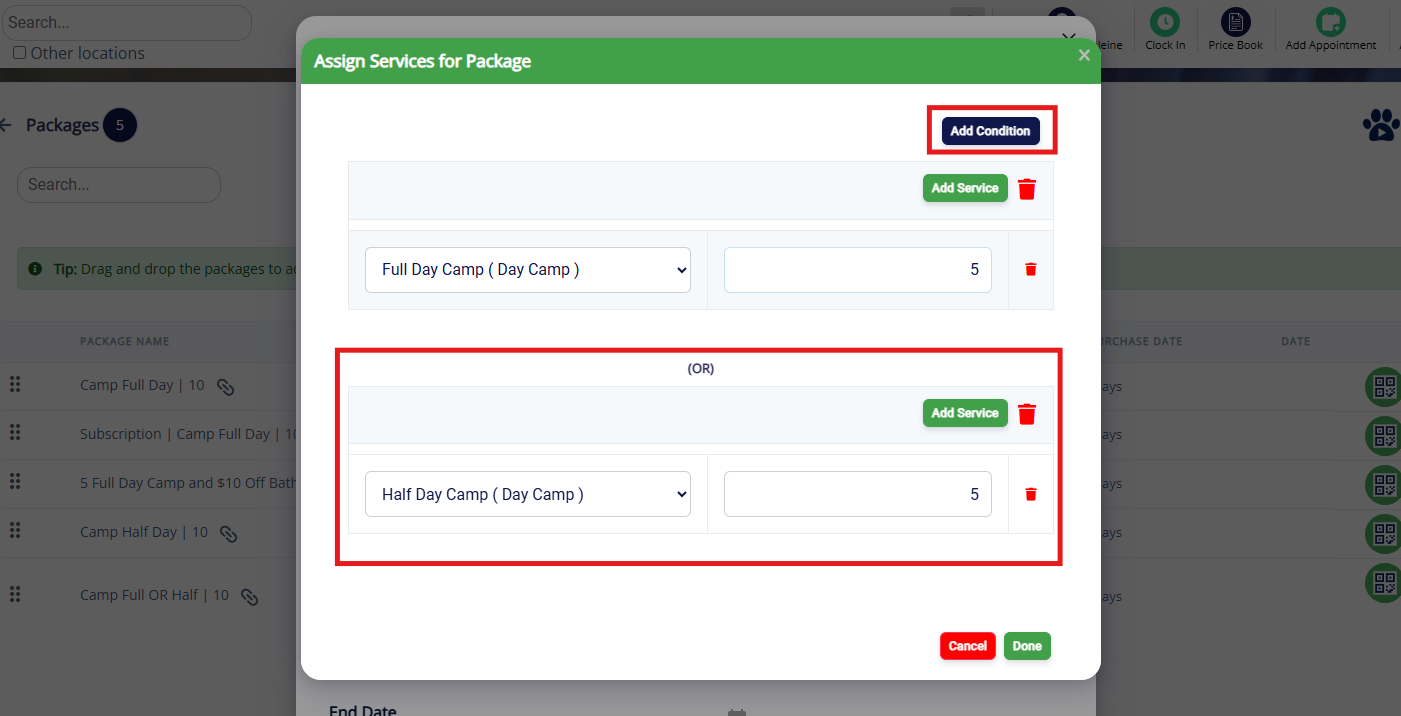
8. If you are adding an either/or package (for example, 5 Half Day AM Daycare OR 5 Half Day PM Daycare), select the first service from the dropdown and enter the quantity of credits. Then click Add Condition in the top right. Then select the additional service from the dropdown and enter the quantity of credits. Then click Done.
⚠️ Important: These credits must be for the same amount (i.e. 5 and 5, or 10 and 10).
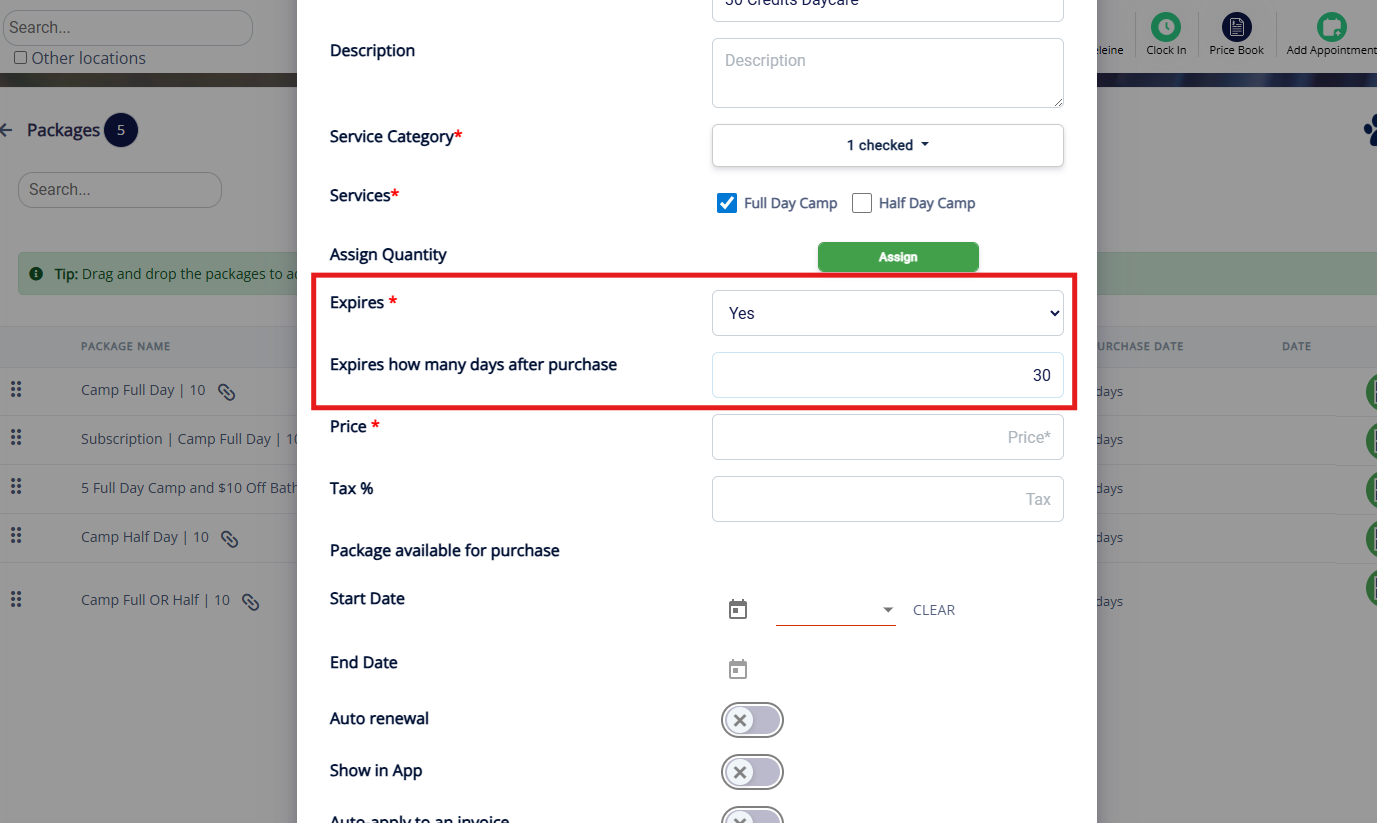
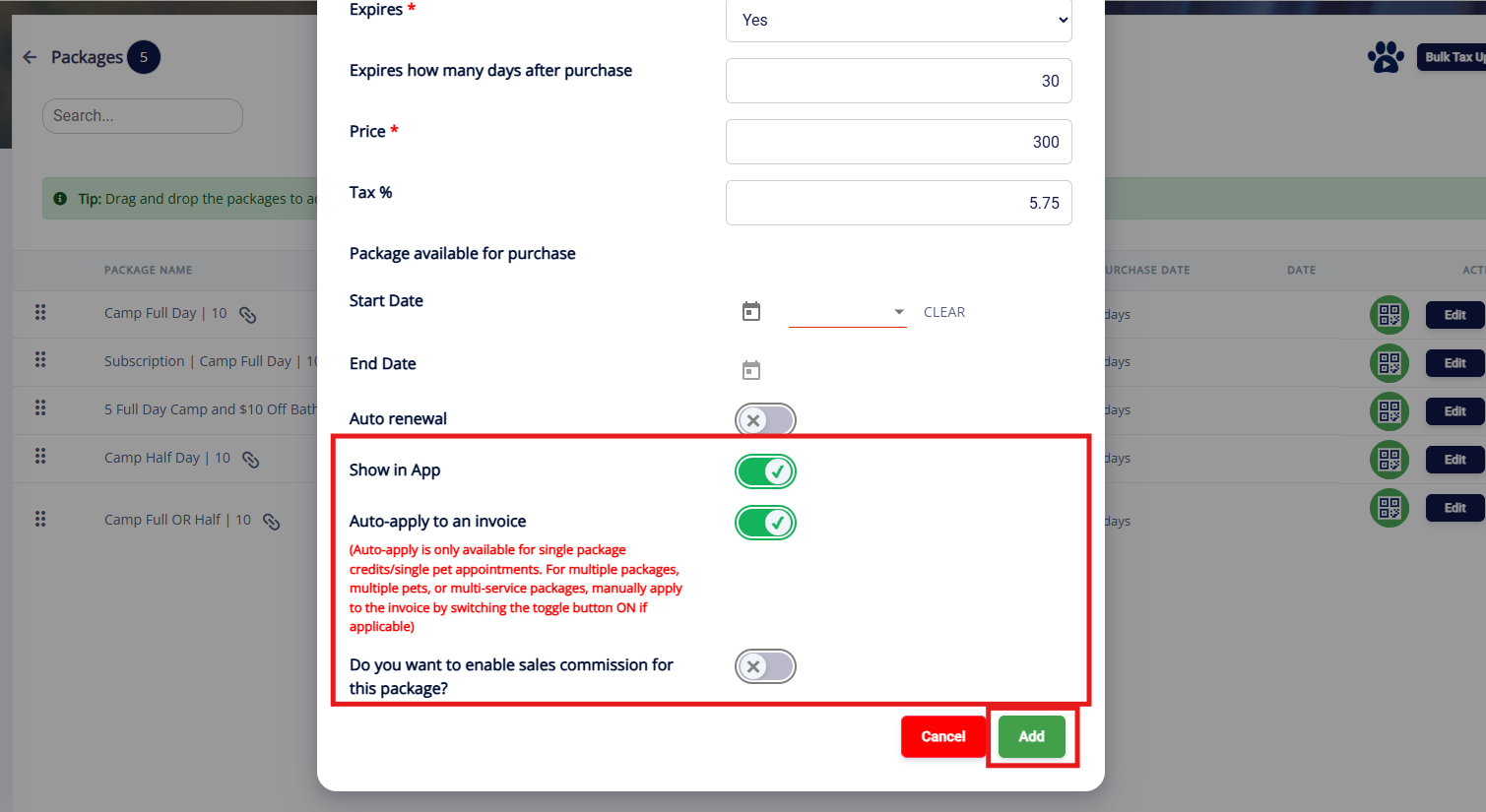
9. If the package should expire, select Expires as Yes. Then enter the number of days after purchase when it should expire.
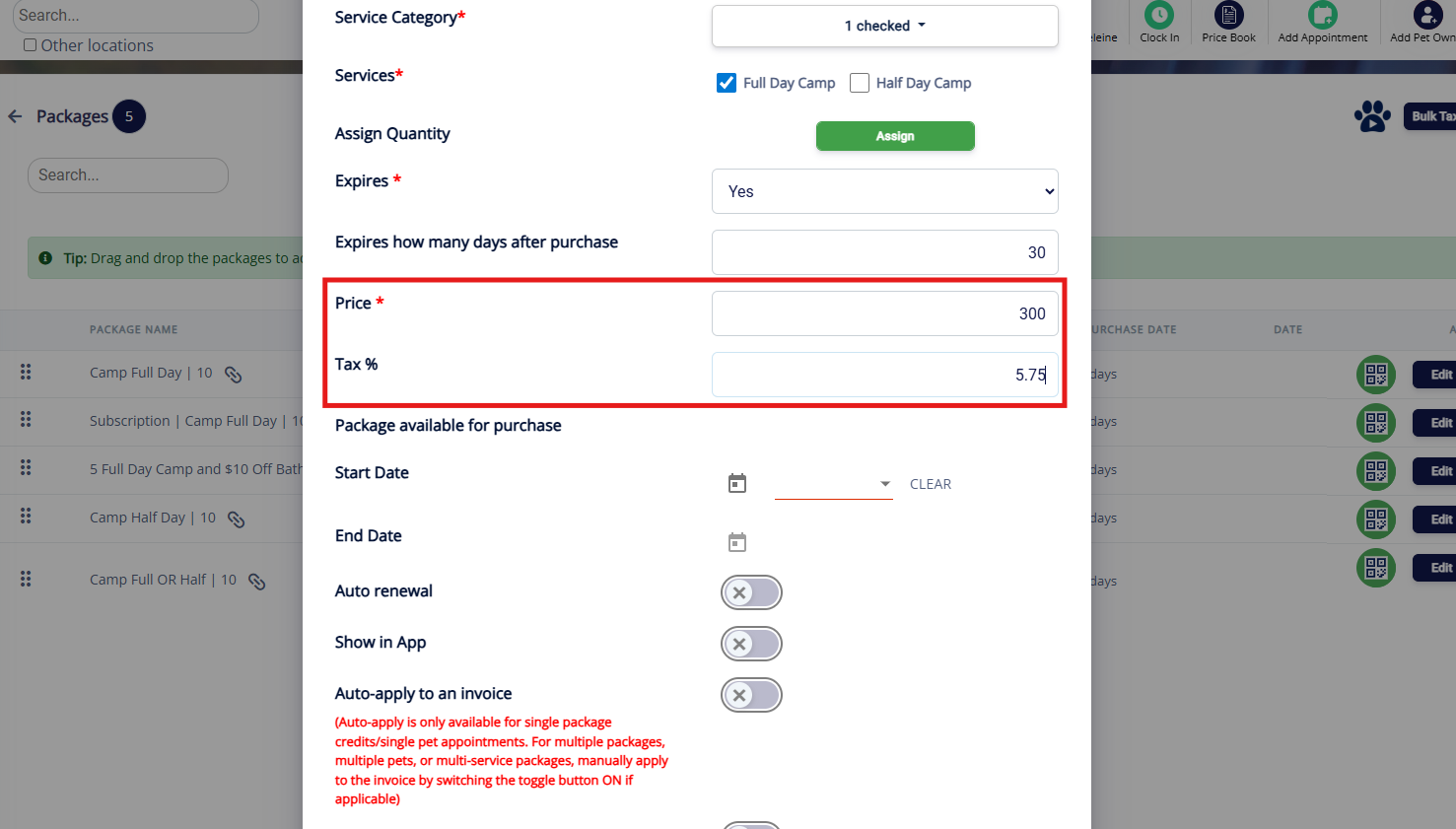
10. Enter the Price of the package. If you should charge tax on the package, enter the tax amount.
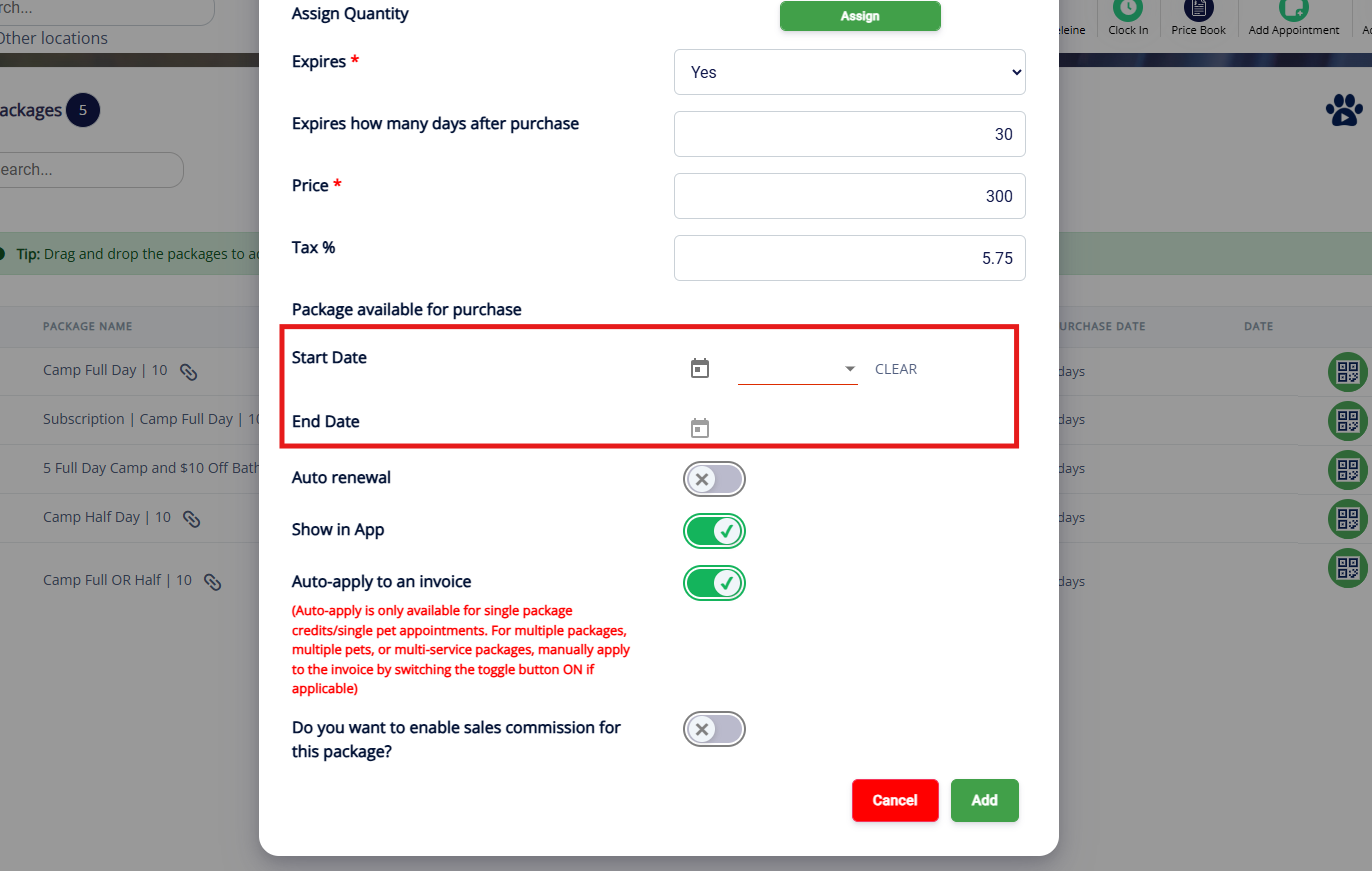
11. If you want the package to start displaying on a specific date, enter that date under Start Date. If you wish the package to be removed after a given date, enter that date under End Date. This would most commonly be used for a special deal on packages offered around a holiday (for example, Black Friday). If the package should always be available for purchase, you can leave these both blank.
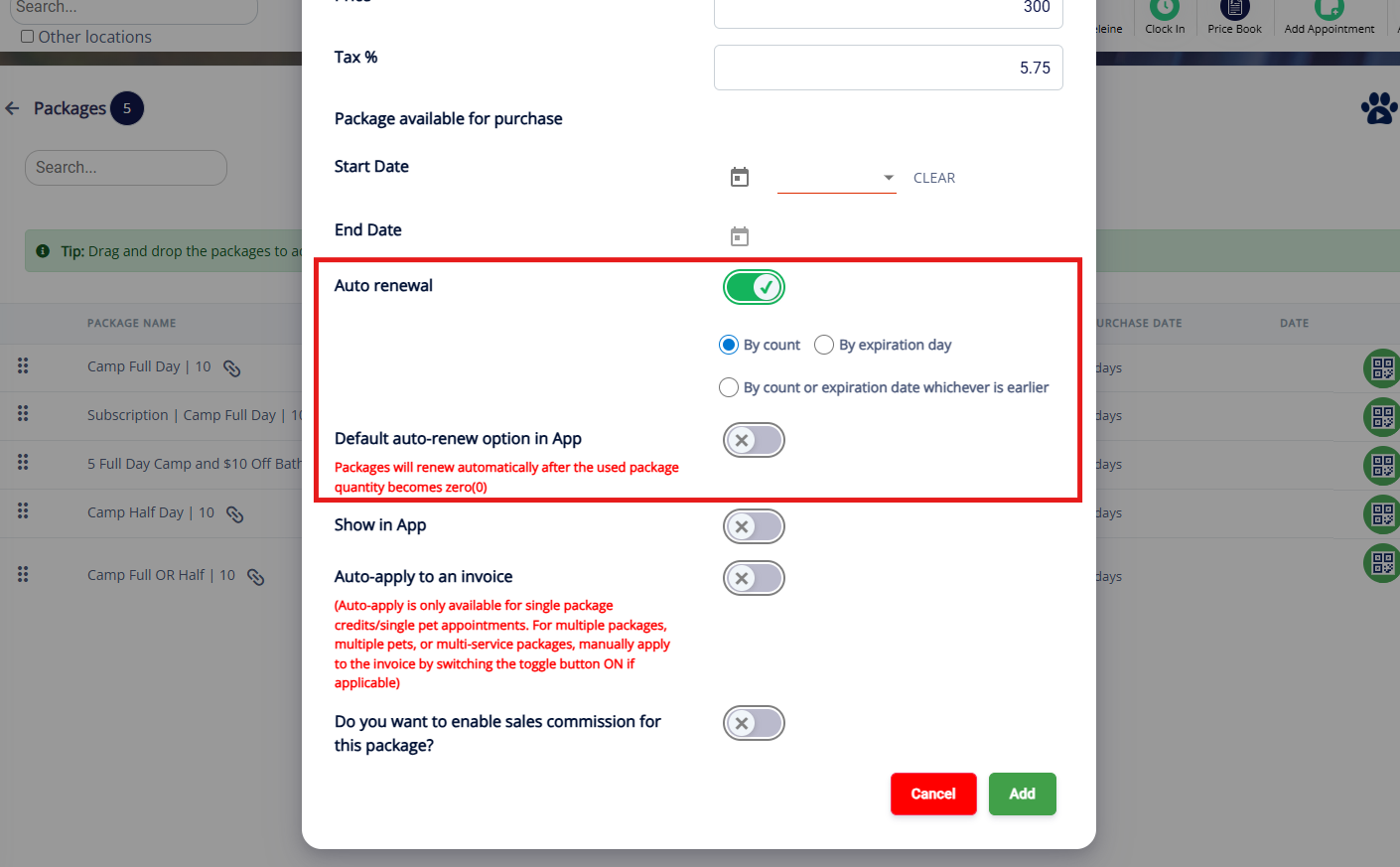
12. If the package should auto-renew, toggle on Auto renewal. This means the package will charge when either the credits are used up, or on a given cadence (such as weekly, monthly, or annually). Select whether a new package should charge based on count, expiration day, or whichever comes first. If you would like the customer to be required to opt into auto-renew on the app, toggle on Default auto-renew option in App.
13. Toggle on Show in App if this package should be available for customers to purchase in the mobile app. Toggle on Auto-apply to an invoice if you would like the package to apply once a pet is checked in for the given service. You can also optionally enable Sales Commission. When all your settings have been adjusted correctly, click Add.
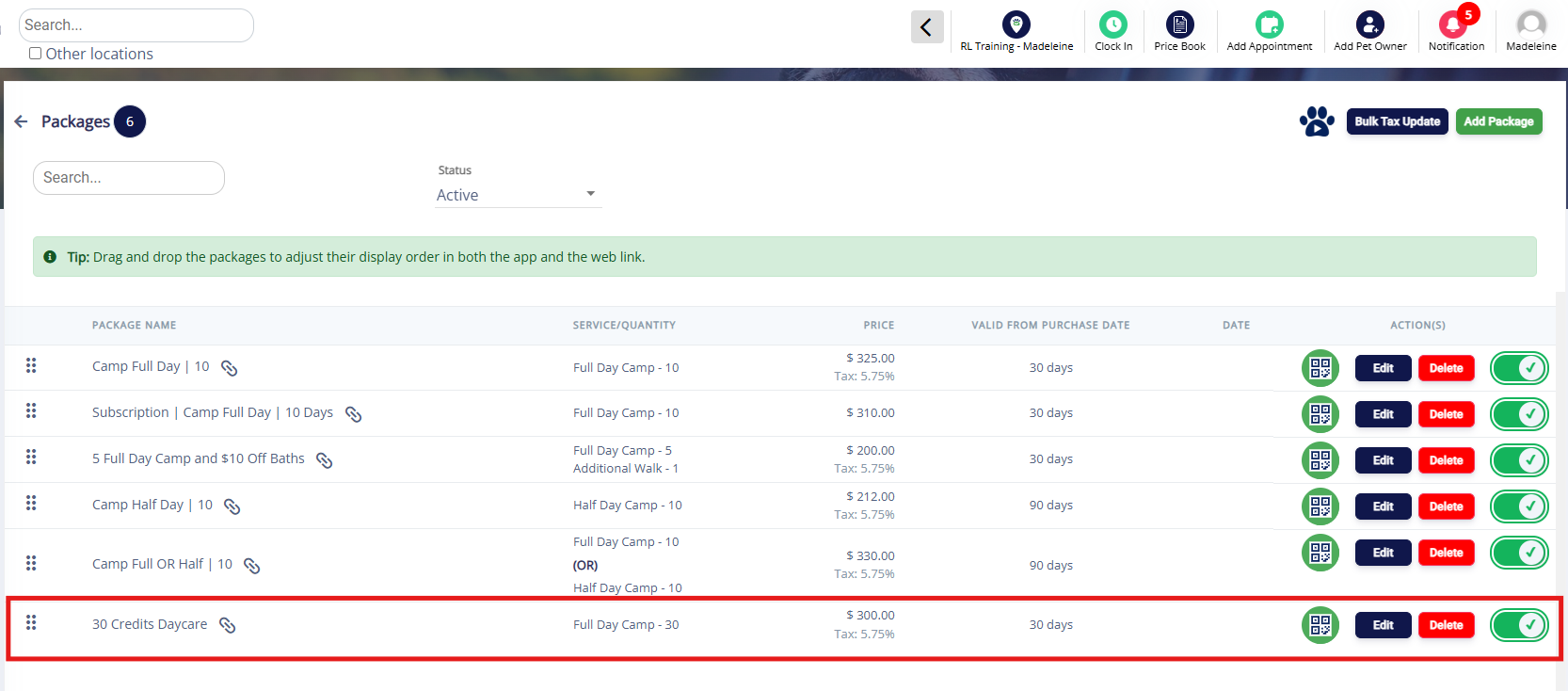
14. Confirm the new package displays as expected.
How to Deactivate or Reactivate a Package
1. Navigate to Settings > Retail > Packages.
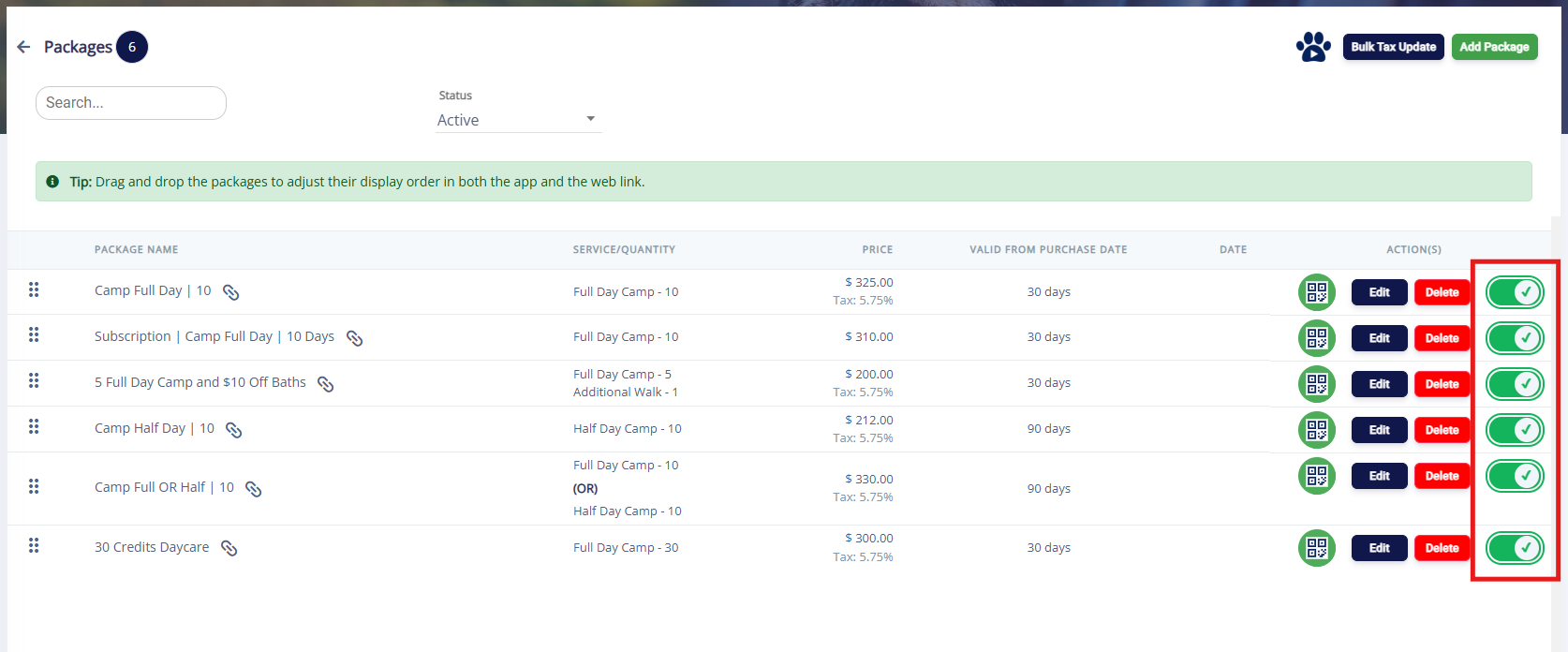
2. If you wish to deactivate a package, toggle off the button in the Actions column. This will disable the package from being sold in the business portal or displaying in the customer mobile app.
⚠️ Important: If a client has an active package of this type on their account, they will still be able to continue using the credits! Disabling a package only prevents new packages from being sold.
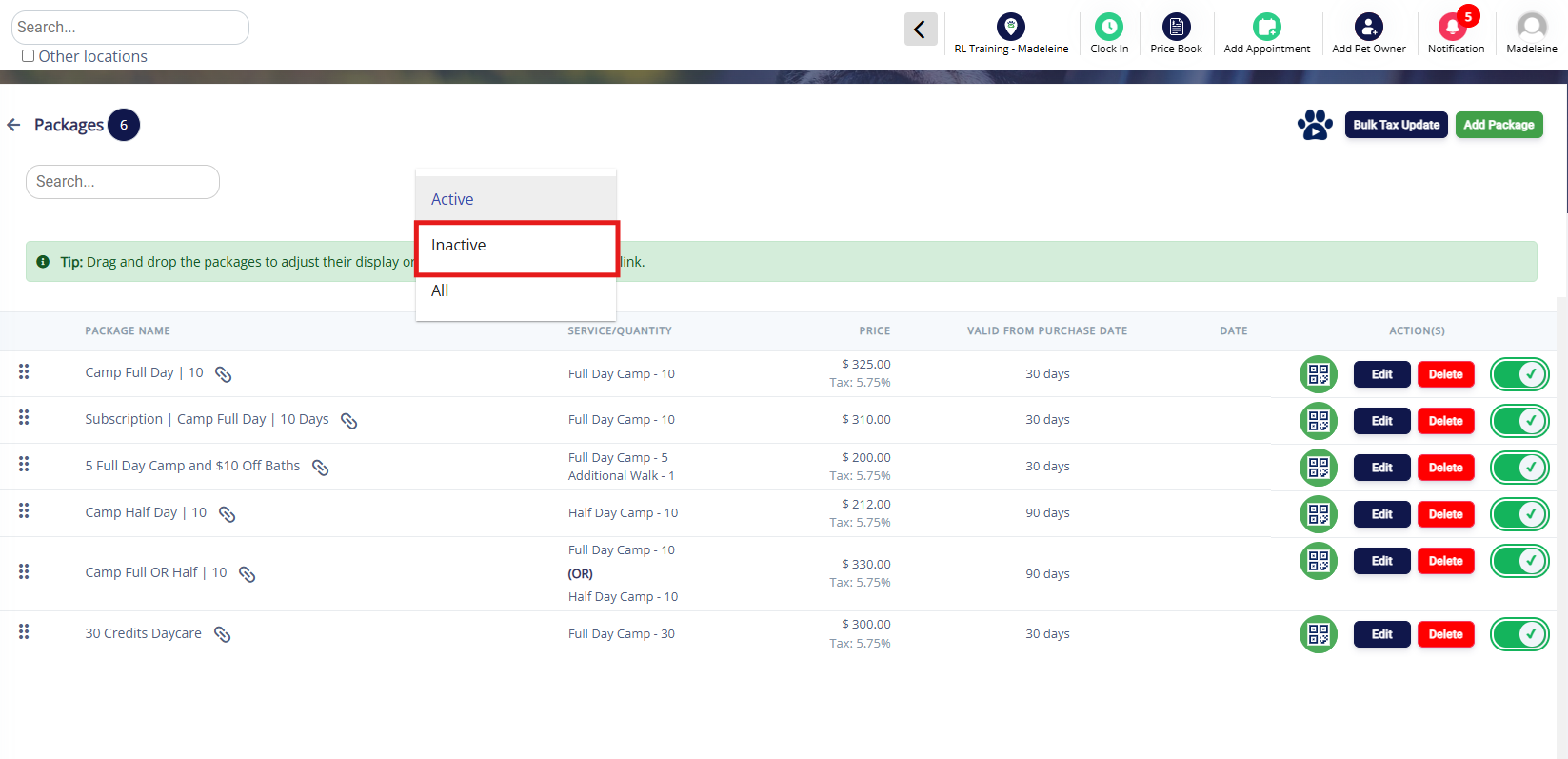
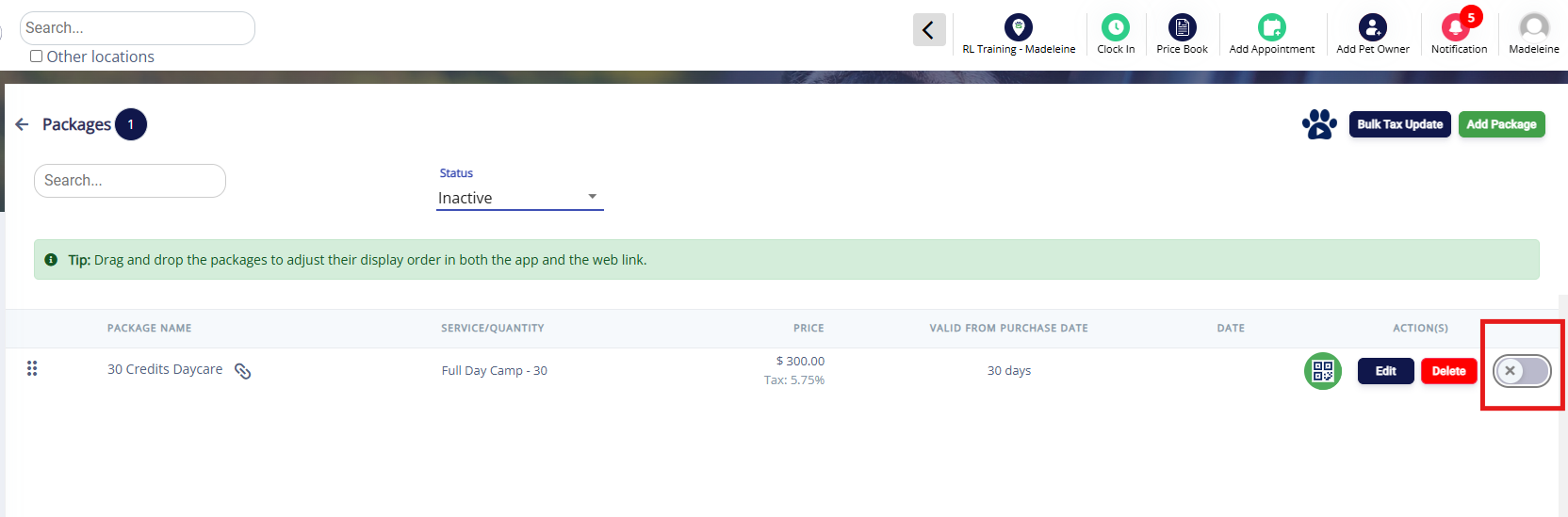
3. To re-enable a disabled package, select Inactive from the dropdown on the top of the page to view all inactive packages.
4. If you wish to re-activate a package, toggle on the button in the Actions column
More Information
For more information on checking out a pet, please refer to this article: Checking Out an Appointment
For more information on Quick Checkout, please refer to this article: How to Use Quick Checkout
Was this article helpful?
That’s Great!
Thank you for your feedback
Sorry! We couldn't be helpful
Thank you for your feedback
Feedback sent
We appreciate your effort and will try to fix the article